
Slack notifications
Slack is connected once, by a Confluence site administrator, for the entire site. Individual users never connect their own Slack, but each person can turn their own Slack messages off.
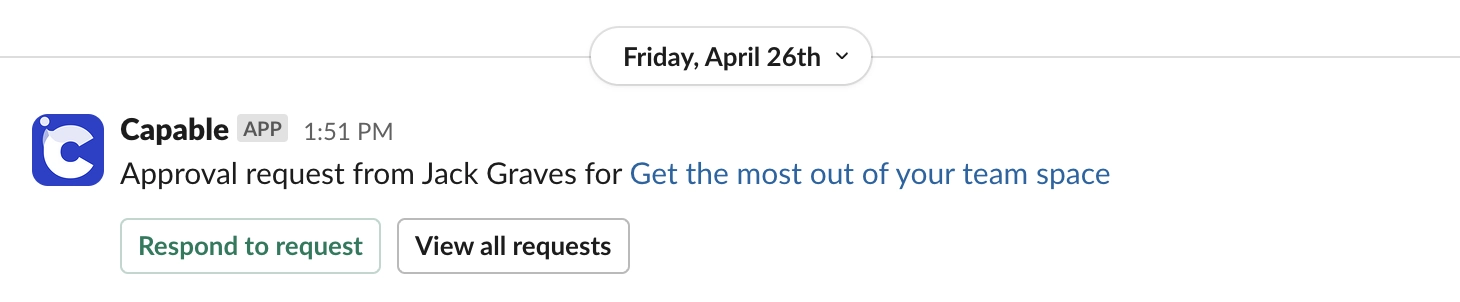
Only Approval sends Slack messages. If your organisation uses Microsoft Teams instead, see Microsoft Teams notifications.
#What people get
Feature | Who sets it up |
|---|---|
Direct messages about approvals you are part of | Automatic once Slack is connected |
Approve, Reject and Comment buttons on request messages | A site administrator turns on Slack approval actions |
Channel notifications for chosen spaces | A site administrator, with Set up next to Slack channels |
Your own on or off switch | Each person, for themselves |
#Connecting
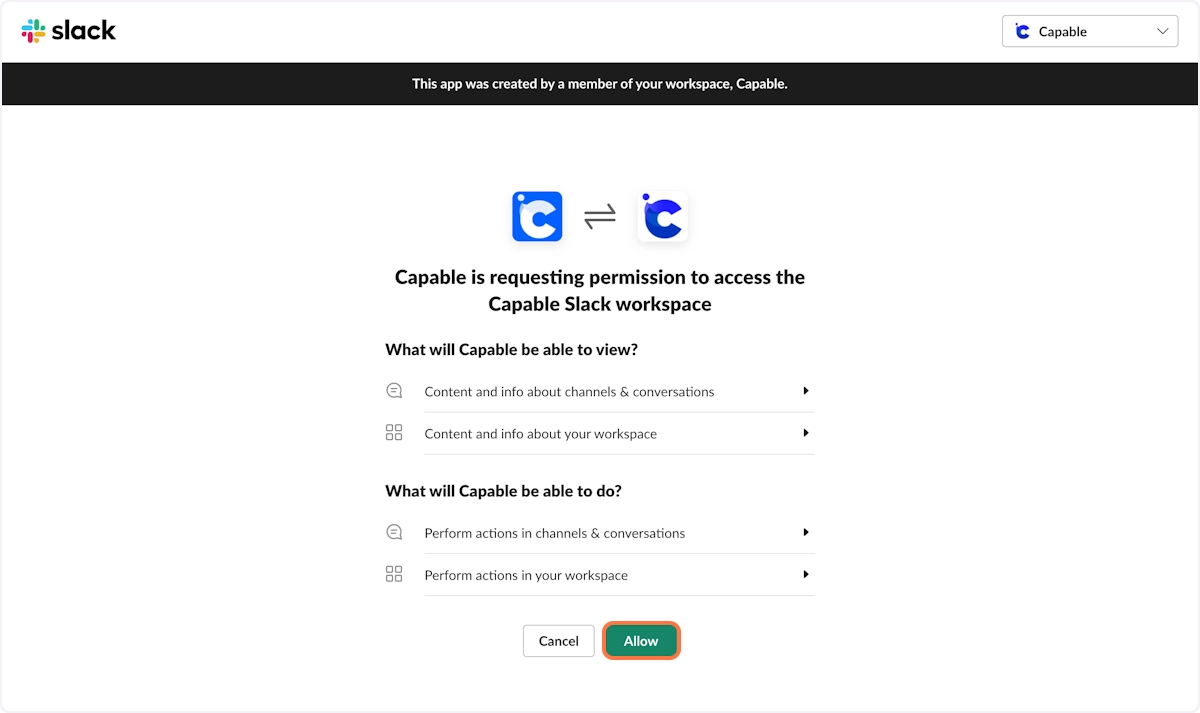
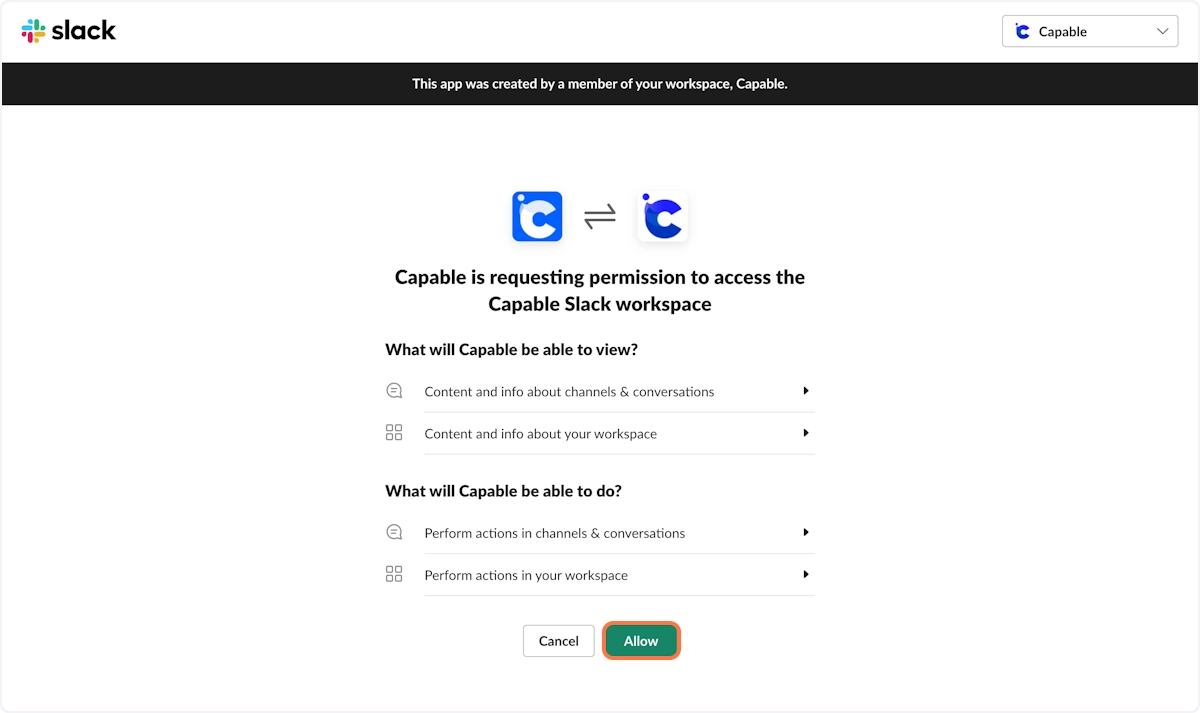
As a Confluence site administrator, open Global settings and go to the Notifications tab. You can get there from Confluence administration, from Global settings under Manage in the Approval sidebar, or from Manage notifications in your Capable settings.
On the Slack card, turn on the connect switch and allow the Capable app in Slack. The card then shows Connected.
On the same card, Slack integration turns Slack off for the whole site and Slack approval actions adds the buttons. Approval actions are off until you turn them on.
Direct messages are matched to people by their Confluence email address.
For channel notifications, invite the Capable bot to the channel first, then select Set up next to Slack channels, add the spaces and choose the events. Tick Send a test message to the channel when saved to check it arrives.
#Turning your own Slack messages off
Each person decides for themselves. Use the Slack switch in the Notifications section of your Capable settings, or Send me Slack notifications on Approval's Notifications page. It changes nothing for anybody else, and channel notifications carry on. Until an administrator connects Slack, the switch says Applies once your admin connects Slack, so you can set it in advance.
#The two caveats
Channel broadcasts bypass the per-user page read-permission check. A restricted page's title and link go to everyone in the channel. Administrators must understand this before configuring a channel broadcast on a space with restricted content.
Delivery failures are silent. If the bot was never invited to the channel, or the channel was renamed or archived, messages are dropped with no error anywhere in Confluence. Send a test message when you save a channel.
#A few things that catch people out
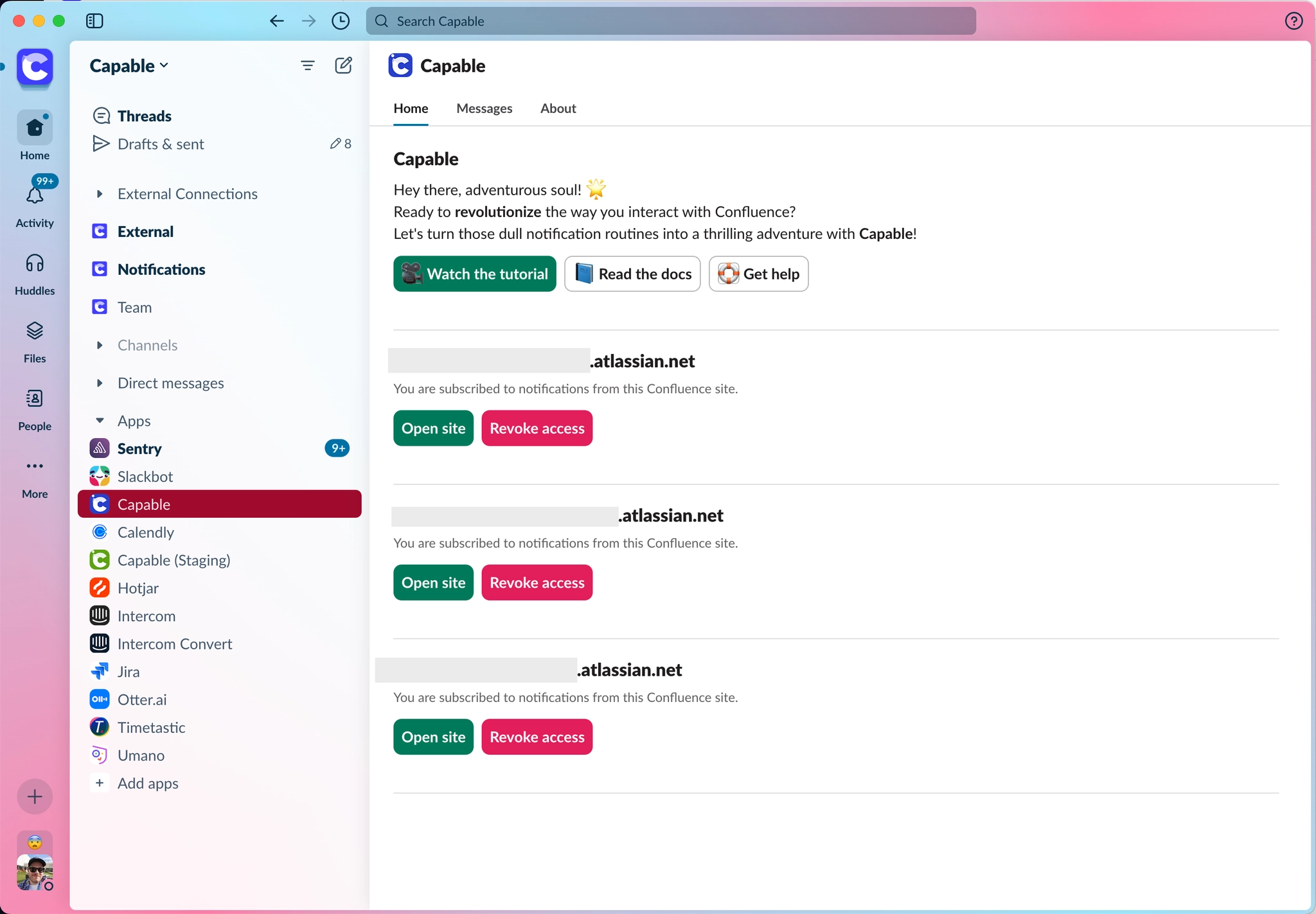
If somebody's Slack email does not match their Confluence email, their direct messages are silently skipped. They will not know.
Disconnecting Slack is site-wide, not personal. It turns Slack off for everybody, guarded only by a browser confirmation. To stop your own messages, use your personal switch instead.
Turning Slack off for yourself does not stop channel posts, and turning off email does not stop Slack.
Slack buttons are not offered in spaces that require a sign-off code to approve.
The full detail, including every reply the Slack buttons can give, is in the Approval documentation: Slack.
#Related
Site-wide to connect, personal to switch off.






















