
Hiding capabilities
Twenty capabilities is a lot for one navigation bar. Hiding the ones you do not use is the single highest-value administrative act in this product.
There are two controls: a global one that works, and a per-space one where only one of the three options currently changes anything.
#Global: the Capabilities tab
A Visible/Hidden switch per capability. Hiding removes the capability from the Capable nav, the Capable byline menu, the command palette and the search table's contributed columns and filters, and redirects you Home if you were on its page. It does NOT remove macros and does not delete data. Saves immediately with a toast. Suite only. Search, Home and macro-only capabilities such as PDF embed are not listed and cannot be hidden.
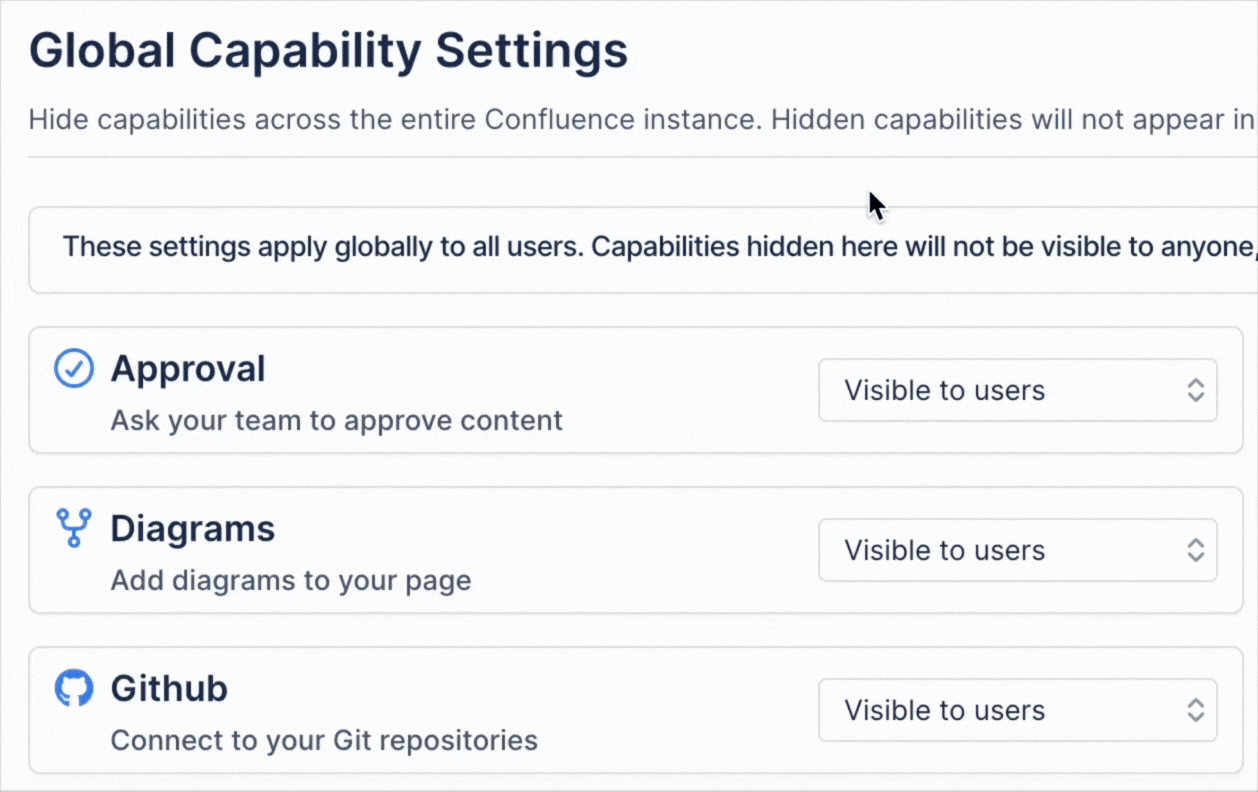
Hiding is a visibility change, not a functional one. The macros stay in Confluence's own '/' insert menu and in Capable's macro browser, and macros already on pages keep rendering. Hiding tidies the interface; it does not disable a feature.
#Per space: Auto, Always, Never
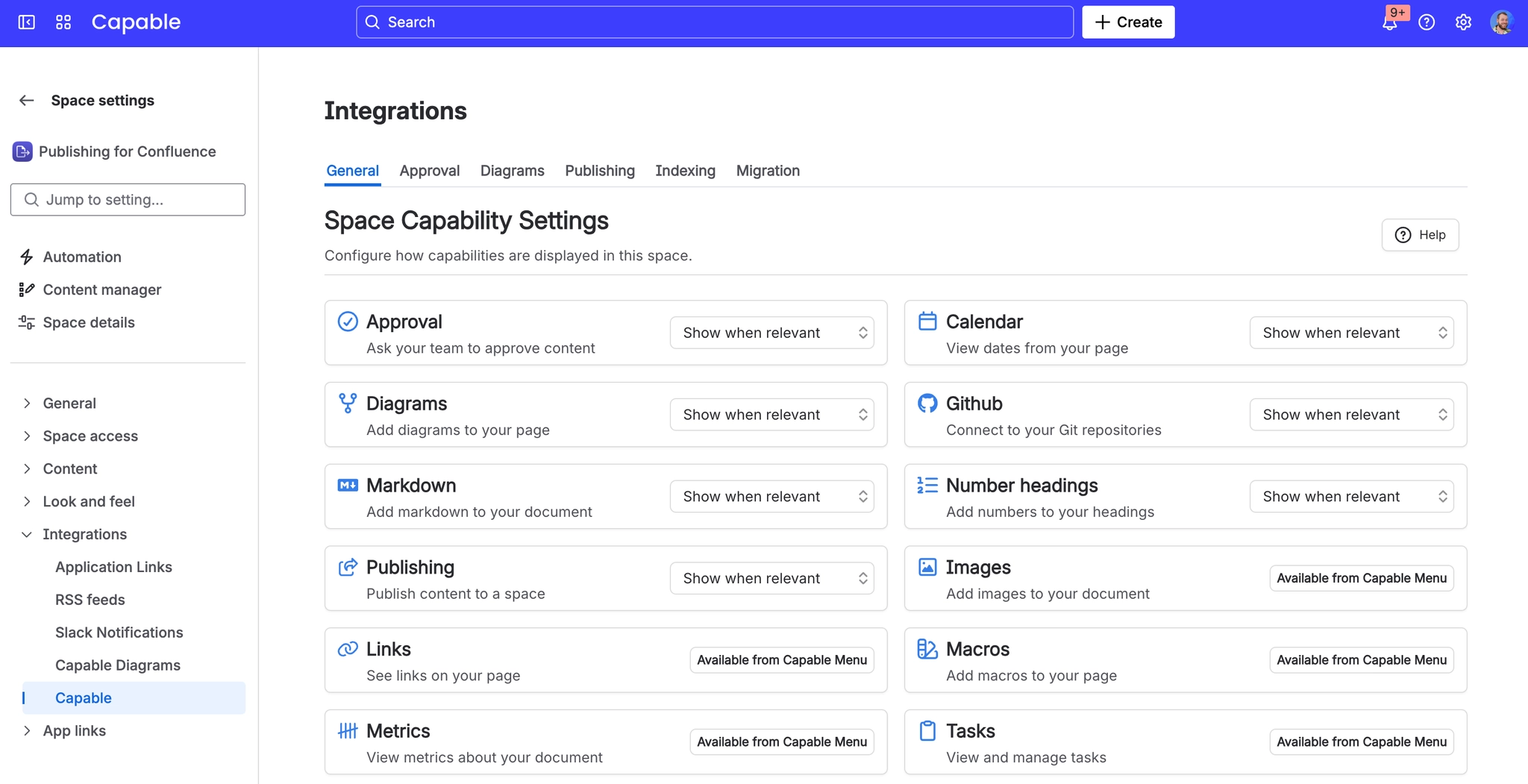
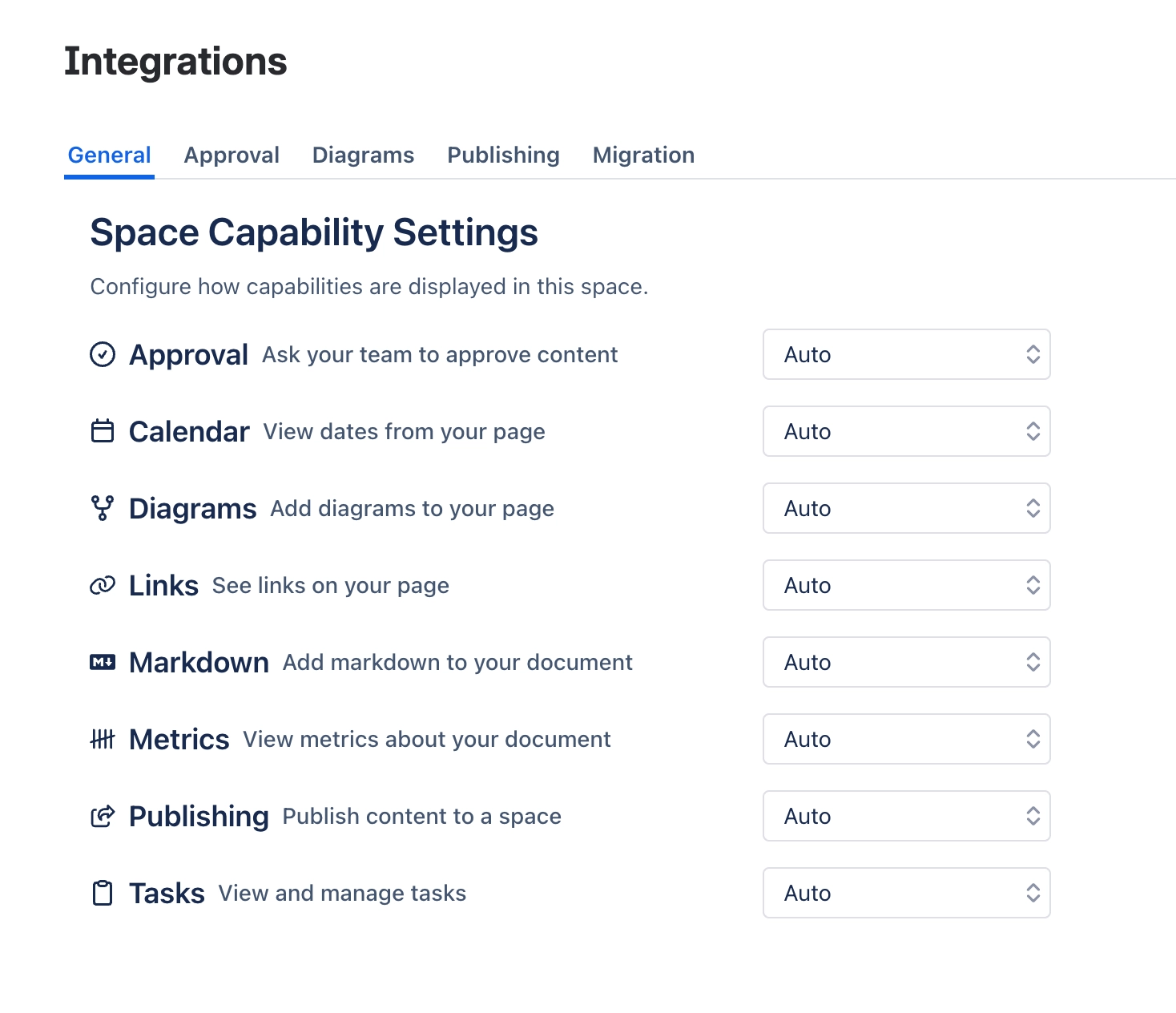
Auto (show when relevant) / Always / Never per capability. Only "Never" actually changes anything today, "Always" and "Auto" behave identically. The global and space lists are combined, so a global hide cannot be overridden for one space. Capabilities that cannot be pinned to the nav show a read-only "Available from Capable Menu" badge instead of the control.
Option | What it actually does today |
|---|---|
Auto | Show the capability when the page uses it |
Always | Currently behaves the same as Auto |
Never | Hides it in this space. The only option that changes behaviour |
A global hide always wins over any per-space setting. And most capabilities cannot be controlled per space at all: Export, Macros, Images, Links, Word count, Source and Tasks show a read-only badge instead of the three-way control.
#When making something visible is not enough
Sites, Quality and Forms stay hidden unless your edition allows them, whatever the Capabilities tab says. The tab gives no hint that the edition is the reason, so check your edition before assuming the setting is broken.
#A few things worth knowing
Setting changes take up to a minute to reach other users, and up to five minutes in a browser tab that is already open.
The navigation bar and the byline menu do not apply the Advanced unlock identically, so an Advanced capability can appear in one and not the other.
Hiding a capability does not change your edition or your bill.
#Related
Global hide wins. Only Never does anything per space.






















