
Export
Export a page to Word, HTML, Markdown or plain text, download individual tables, and download attachments individually or all at once.
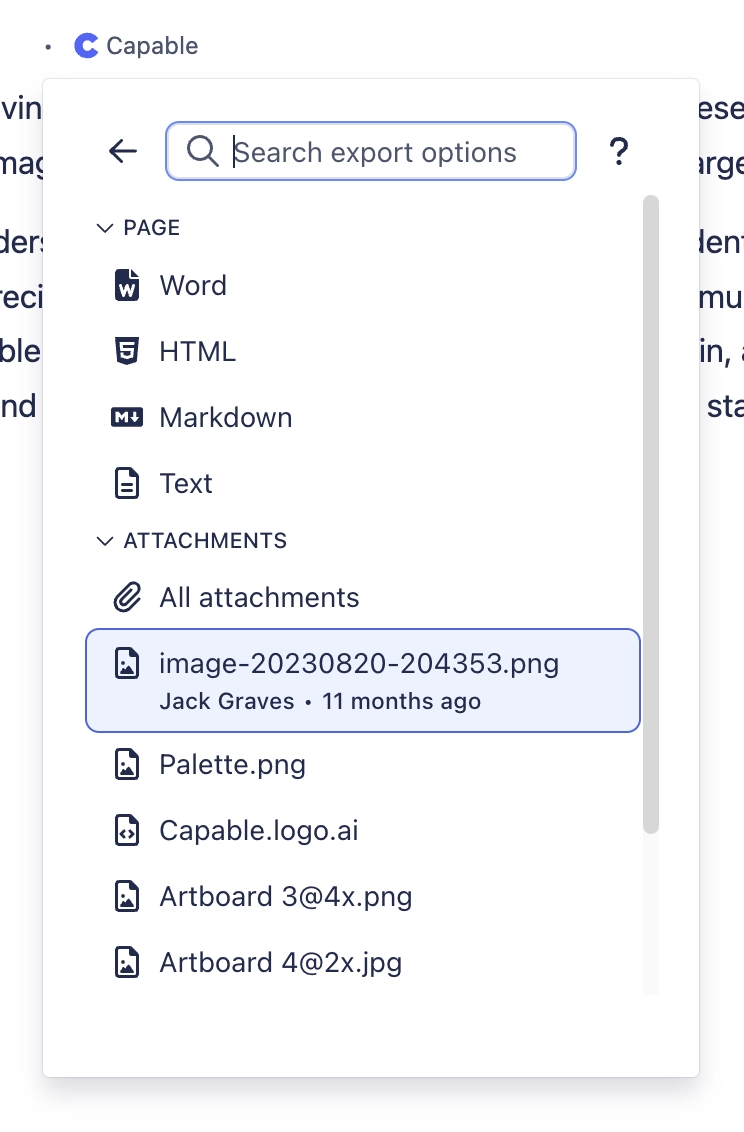
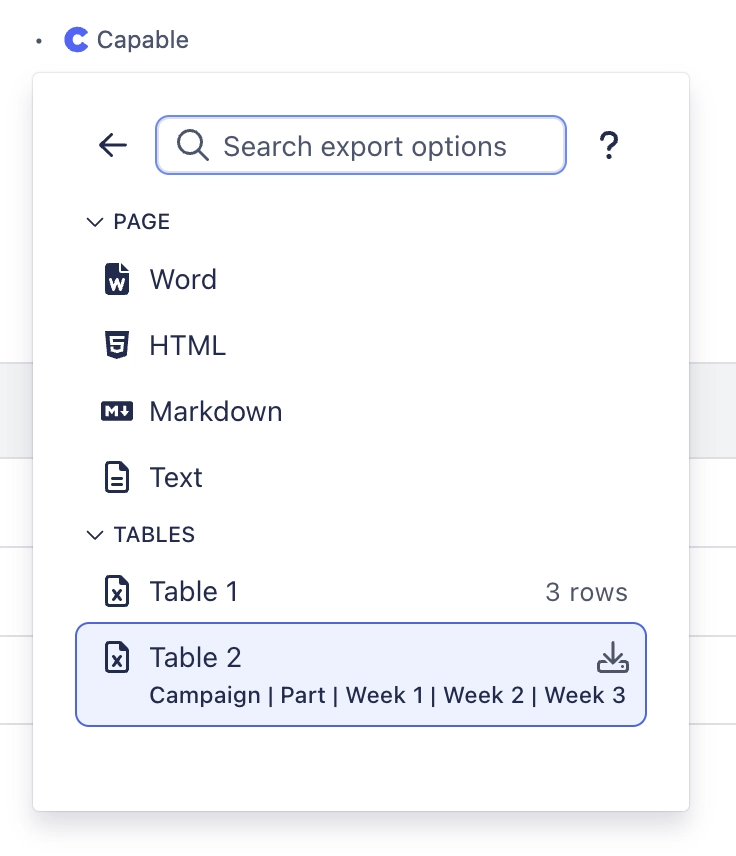
What it does | Export a page to Word, HTML, Markdown or plain text, download individual tables, and download attachments individually or all at once. |
|---|---|
Sold separately as | Not available on its own. Suite only |
Edition | Standard and Advanced |
This capability only exists in the suite. There is no standalone app for it, which is one of the reasons to buy the suite rather than individual apps.
#Where to find it
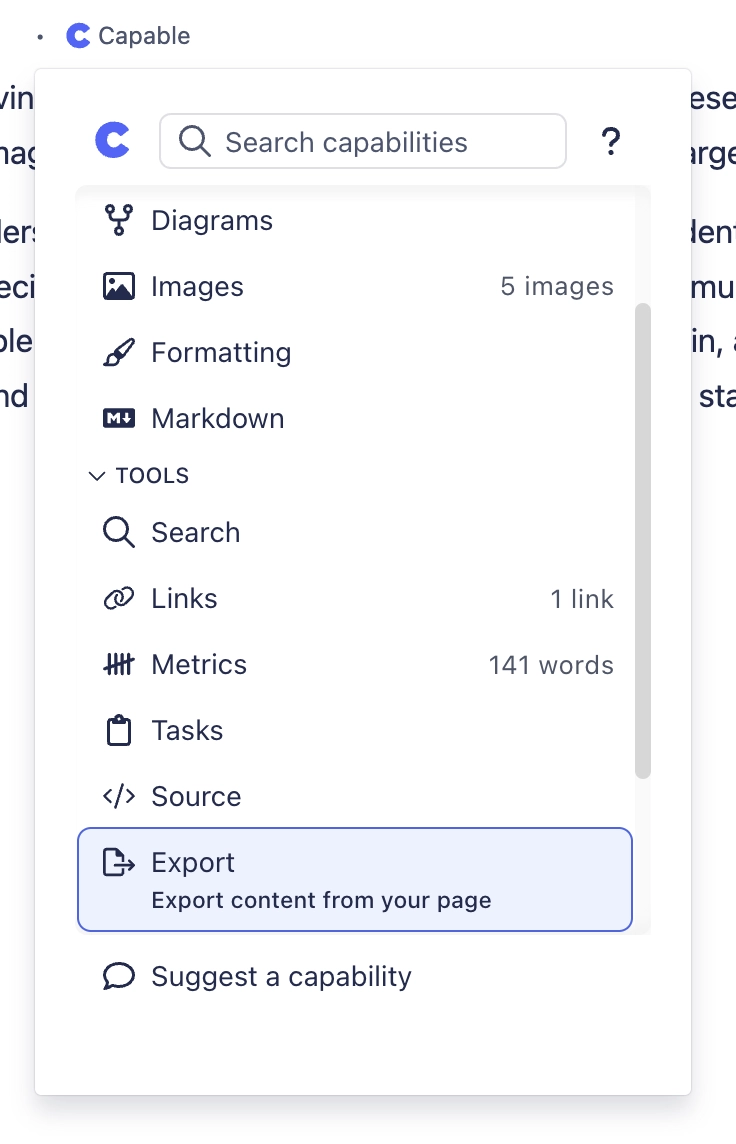
Capabilities appear in the Capable navigation, in the Capable byline on a page, and as macros in the macro picker, depending on what each one offers. An administrator can hide any capability site-wide, and a space administrator can control whether it shows in their space.
#Related
One problem, solved once.






















