
Markdown library page
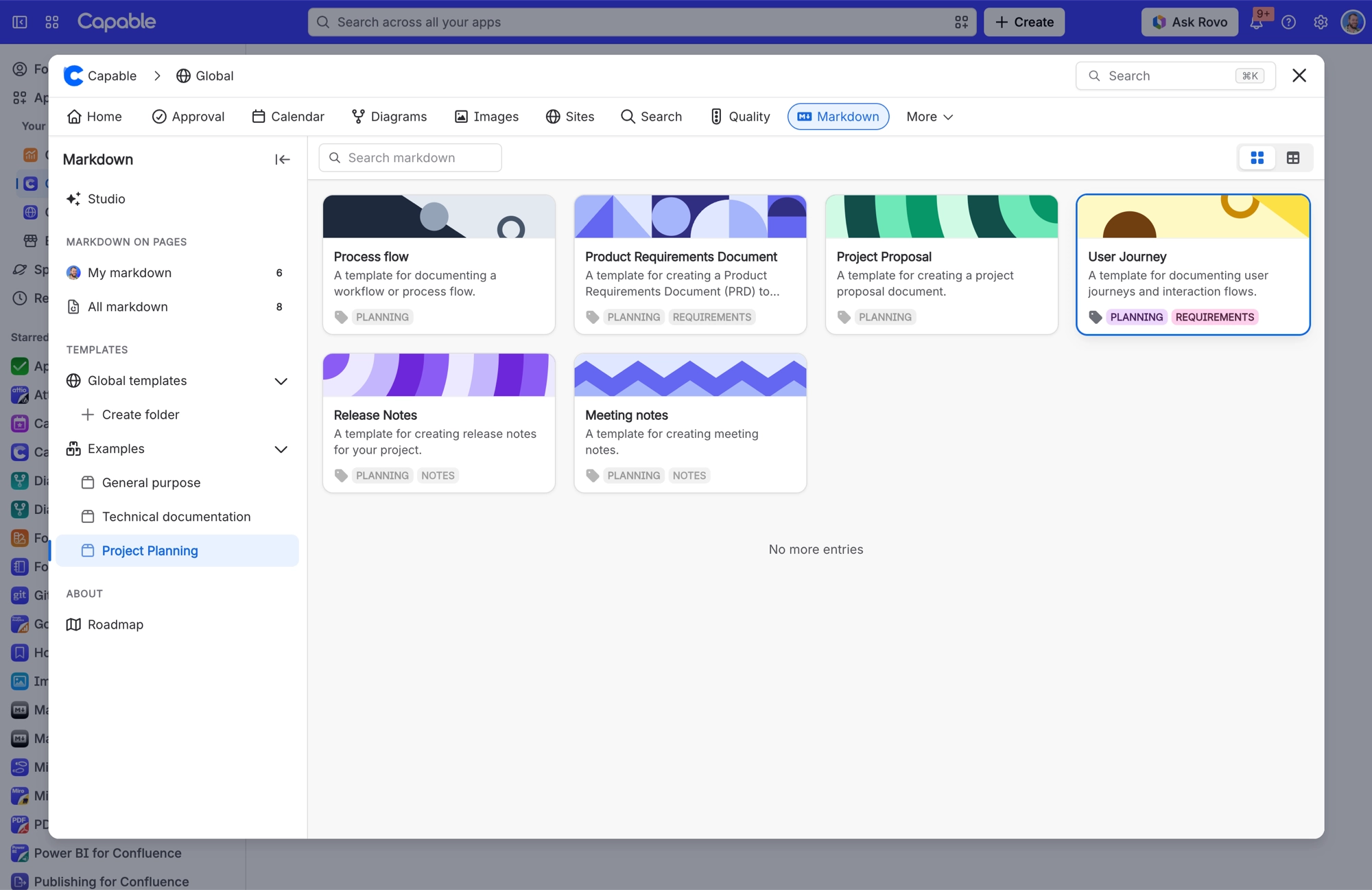
The Capable Markdown library is where you browse, create and edit markdown in one place. There is a global library and one for each space.
The page is titled 'Markdown', with the subtitle 'Embed, share, and edit markdown content'. You can view the catalogue as a grid, list or table.
#Where you do it
Task | Where |
|---|---|
Add a markdown document to a page | In the Confluence editor, type /Markdown (Capable) in the Capable Suite, or /Markdown macro (Capable) in the standalone app. You can also use the Markdown byline entry on a published page. |
Write or edit the document body | The macro's Configure action, the maximise button on the rendered macro, or Edit on the library page. |
Show a border and a title on the macro | Configure Markdown → 'Show border' checkbox and the 'Markdown title' field. |
The edit view shows an Edit pane beside a Preview pane, with Show Code and Hide Code, and an 'Open documentation' link to GitHub's markdown syntax guide.
#Settings that affect this
Setting | What it does |
|---|---|
Global settings → Capabilities → Markdown | Hiding Markdown removes it from the Capable navigation bar and the byline menu across the site. It does not stop existing macros from rendering. |
Space settings → Space Capability Settings | Auto shows the Markdown byline entry only when the page already has markdown. Always shows it on every page in that space. Never hides it there. |
Global settings → Features → AI integration | 'Allow AI-powered features across Capable. Turn off to disable AI for all users.' Turning it off removes the Studio (Generate markdown with AI) section from the markdown catalogue. |
#Worth knowing
There are exactly two Confluence macros, and no separate 'templates' macro. Templates live in the library. Copy one into the document macro and you get a snapshot that then goes its own way. Point the reference macro at one and you get a live link.
Markdown documents never get a thumbnail or preview. This is by design.
#Related
How it actually behaves.






















