
17 bundled starter templates
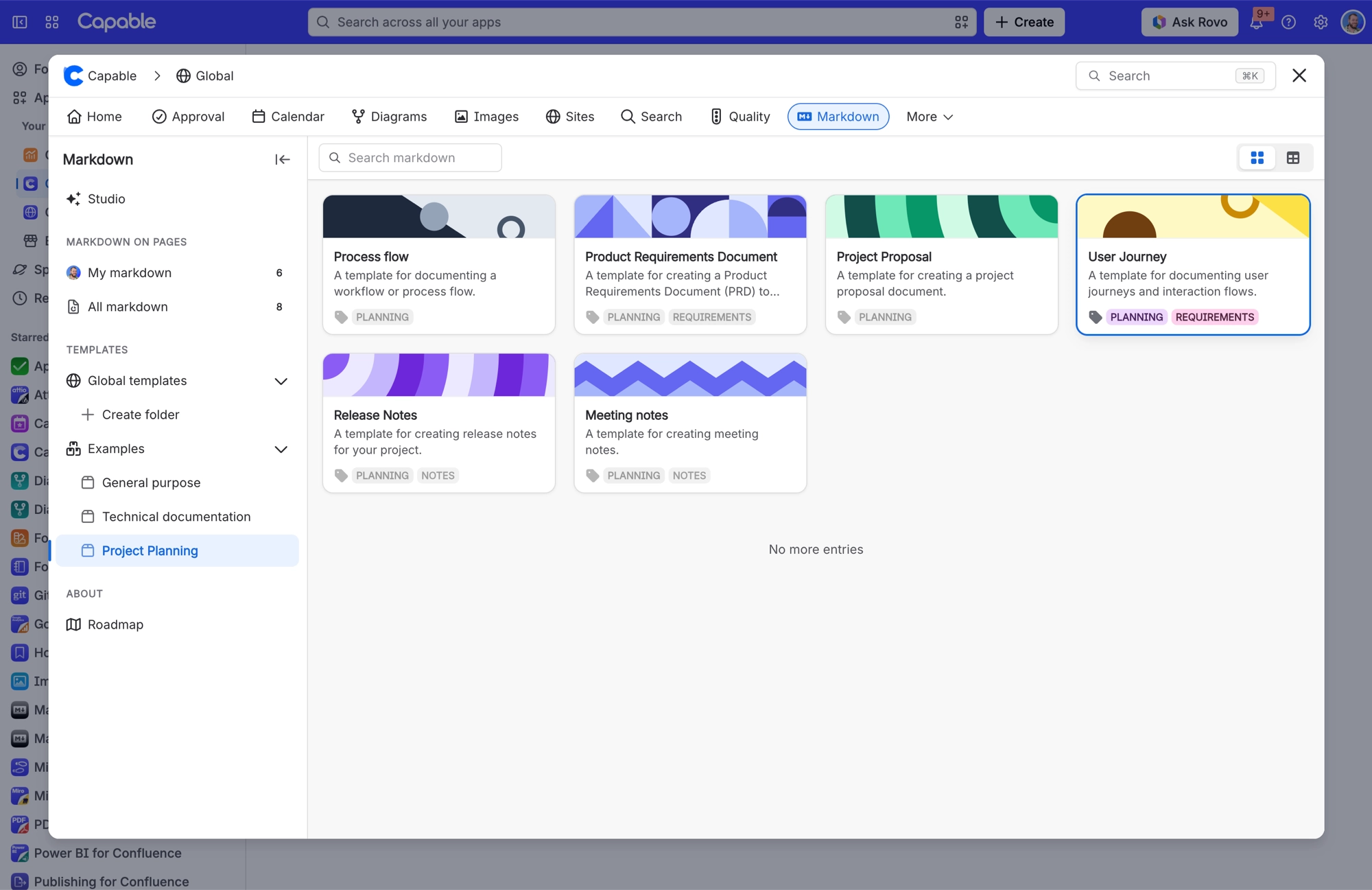
Capable Markdown comes with 17 read-only example templates in three folders.
General purpose: Checklist, Blog post, FAQ, Tutorial.
Technical documentation: API Documentation, Architecture Design, Cheatsheet, Database design, Readme, Technical Specification, Code of Conduct.
Project Planning: Process flow, Product requirements, Project proposal, User journey, Release notes, Meeting notes.
You can't edit, delete or reference them. Using one copies its text into a new document that is yours to change.
#Where you do it
Task | Where |
|---|---|
Insert a starter template straight into the page you are on | Capable suite: the page's Capable byline item (or press ,) → type part of the template's name → pick it under Templates → Insert |
Turn a library template into a macro by pasting a link | Capable Markdown catalogue → a template's share menu → Copy as macro, then paste into the editor |
Save a document to the shared library | Capable Markdown page → Templates → Space templates or Global templates → Create |
Turn markdown that lives on a page into a reusable template | Capable Markdown page → open the page-owned document → 'Save as template', or drag it from 'Markdown on pages' onto a Templates section or folder |
#Finding them from the byline
In the Capable suite, the search box in the Capable byline item finds these starter templates by name or description, alongside your own space and global templates. Your own templates are listed first, then the starter ones, all under one Templates heading with a markdown tag. Picking one opens the markdown editor already filled in and ready to insert into the page. See Markdown library page for the other ways in.
#Settings that affect this
Setting | Where | What it does |
|---|---|---|
Global settings → Permissions | - | Controls who can edit the global asset store, which decides who may create global markdown templates. Diagrams, images, calendar and search share the same permission. |
Global settings → Migration | - | Markdown is not on the Migration tab's exclusion list, so the Markdown tab is included. |
#A few things that catch people out
Starter templates have no version history, because they ship with the app and never change. The Version history panel does not appear when you open one.
The byline search starts only when you type, and it shows up to five templates per group. Type more of the name to narrow it.
If you start typing in the editor before a template picked from the byline has finished loading, your text is kept and the template only fills the fields you left empty.
#Related
How it actually behaves.






















