
See content quality across all Confluence spaces
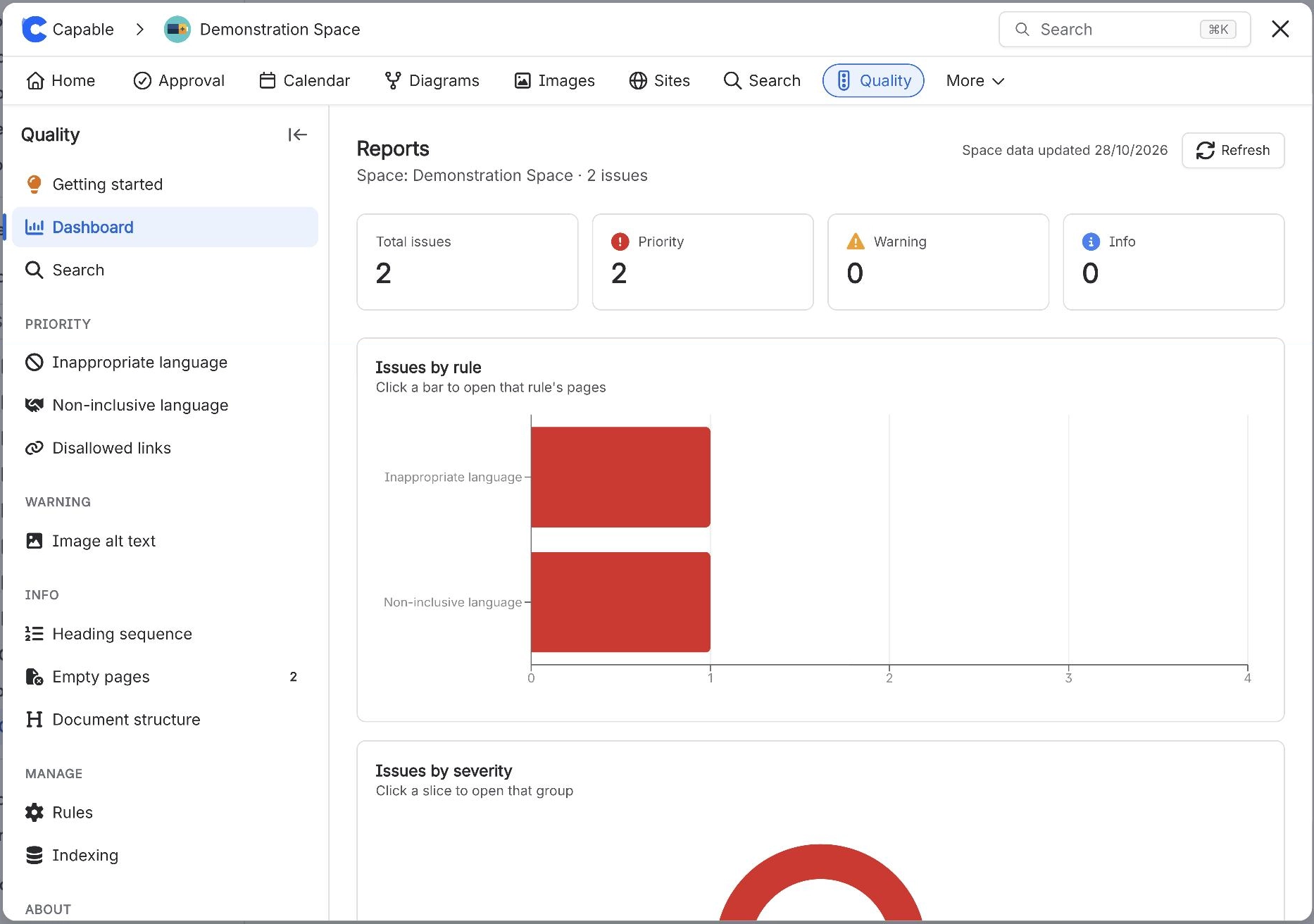
To see content quality across all Confluence spaces, open Capable Quality from the Apps menu and select Dashboard. It shows total issues by level, charts by rule, severity and category, trends over time and the spaces with most issues. Select a bar or a rule to open the pages behind it.
#Before you start
You need | Why |
|---|---|
Capable Quality, or the Capable Suite on the Advanced edition | Quality is part of Capable Quality for Confluence and the Advanced edition of the Capable Suite. |
Pages indexed | Counts cover indexed pages. Below 95% coverage the dashboard shows a Site indexing incomplete banner. |
#Steps
Select Capable Quality in the Confluence Apps menu (in the Suite, Capable, then Quality). Open it from a space sidebar instead to see one space.
Select Dashboard. The heading Reports says Across all spaces or names the space.
The cards at the top show Total issues, Priority, Warning and Info.
In Issues by rule, select a bar, or select a rule under Rule breakdown, to open the list of pages that break it.
Use Top spaces by issues to see which spaces need most attention.
#How up to date it is
Top spaces by issues comes from a weekly sweep of every space, and Issues over time builds up from the history that sweep collects. Next to the Refresh button the dashboard shows when that data was last updated, or Aggregating… with progress while a sweep runs. A Confluence admin can select Refresh to start one now.
A busy site can make Confluence answer some requests with a temporary error. Since 16 October 2026 the sweep waits about two minutes and carries on with that space instead of skipping it.
#Related
Every space, one view.