Check the quality of a Confluence page
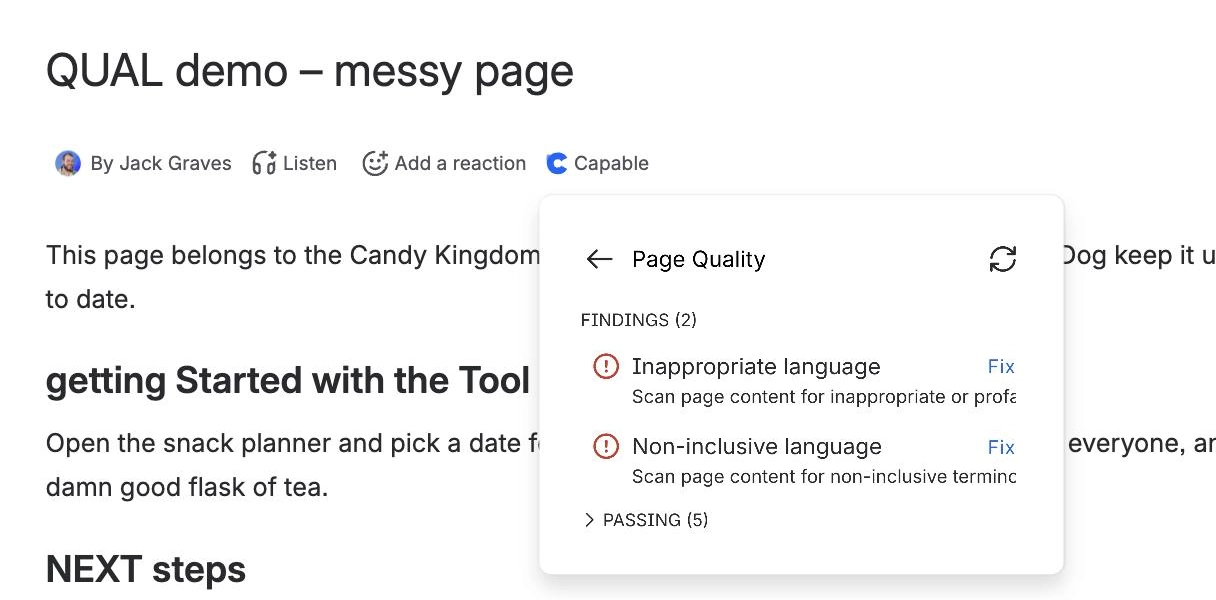
To check the quality of a Confluence page, open the page and look at the Quality item in the byline under the title. It reads No issues or counts the findings, coloured by the most serious one. Select it to open the Page Quality panel and see each finding in detail.
#Before you start
You need | Why |
|---|---|
Capable Quality, or the Capable Suite on the Advanced edition | Quality is part of Capable Quality for Confluence and the Advanced edition of the Capable Suite. |
View permission on the page | The Quality item shows to anyone signed in who can view the page. |
#Steps
Open the page you want to check.
Look at the Quality item under the page title. Green No issues means every rule that is turned on passes. Otherwise it counts findings, such as 1 priority, 2 warnings, with a red, orange or blue icon.
Select the item. The Page Quality panel opens. If the page changed since its last scan, it rescans first.
Under Findings, select a rule to see the headings, words, macros, domains or labels involved.
If you have just edited the page, select Rescan to check it again.
#What the byline tells you
Byline | Meaning |
|---|---|
No issues, green | The page passes every rule that is turned on. |
Red icon | At least one Priority finding. |
Orange icon | At least one Warning finding, and no Priority ones. |
Blue icon | Info findings only. |
Quality, no colour | No up-to-date result yet. Open the panel to scan the page. |
The panel opened from the byline shows Stale content and Disallowed labels as passing even when the byline counts them. See Byline label and the Page Quality panel disagree.
#Related
One glance, then the detail.