
Make Confluence form fields required and set limits
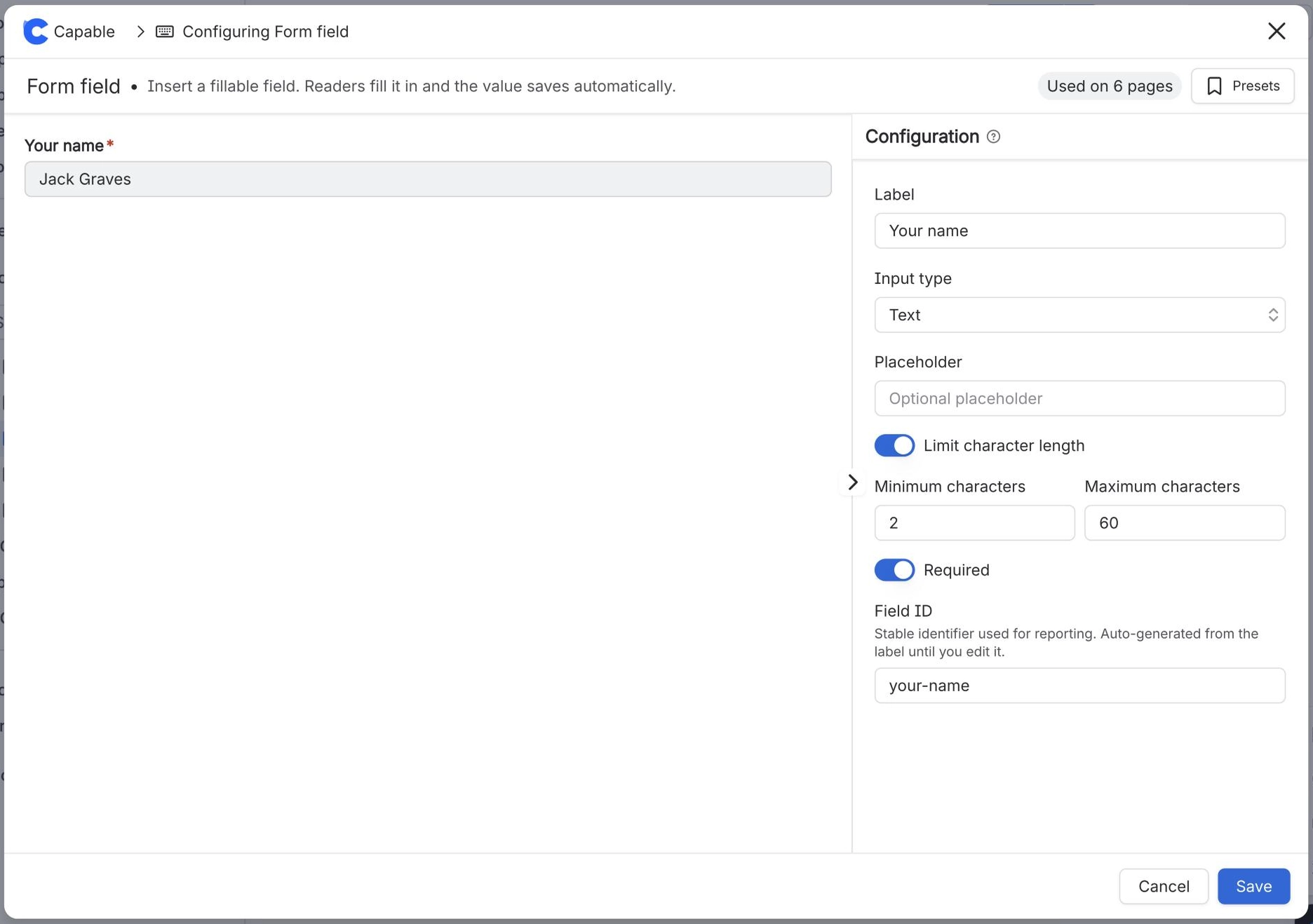
To make a Confluence form field required, edit the page, open the field's Configure Input panel and turn on Required. For text fields, turn on Limit character length and set the minimum and maximum. For number fields, set Minimum and Maximum. Readers then cannot save the form until those rules are met.
#Before you start
You need | Why |
|---|---|
Capable Forms installed | Forms is part of Capable Forms for Confluence and the Capable Suite. |
Edit permission on the page | You add and change forms in the Confluence editor. |
The field inside a Form container | Rules are only checked when the form is saved. A field placed on its own saves without checks. |
#Steps
Open the page and select Edit.
Select the field's Input (Capable) macro and open its settings, Configure Input.
Turn on Required.
For a Text or Textarea field, turn on Limit character length and fill in Minimum characters and Maximum characters.
For a Number field, fill in Minimum and Maximum, and turn on Allow decimal values if needed. Leave a box empty for no limit.
Publish the page.
#What happens next
Required fields show a red asterisk. When a reader selects Save with a rule broken, the problem shows in red under the field and the message Fix validation errors before saving appears.
If people seem to save anything, check the field is inside the form. See Required fields and limits are being ignored.
#Related
Get the answers you need, first time.