
Fill in a form on a Confluence page
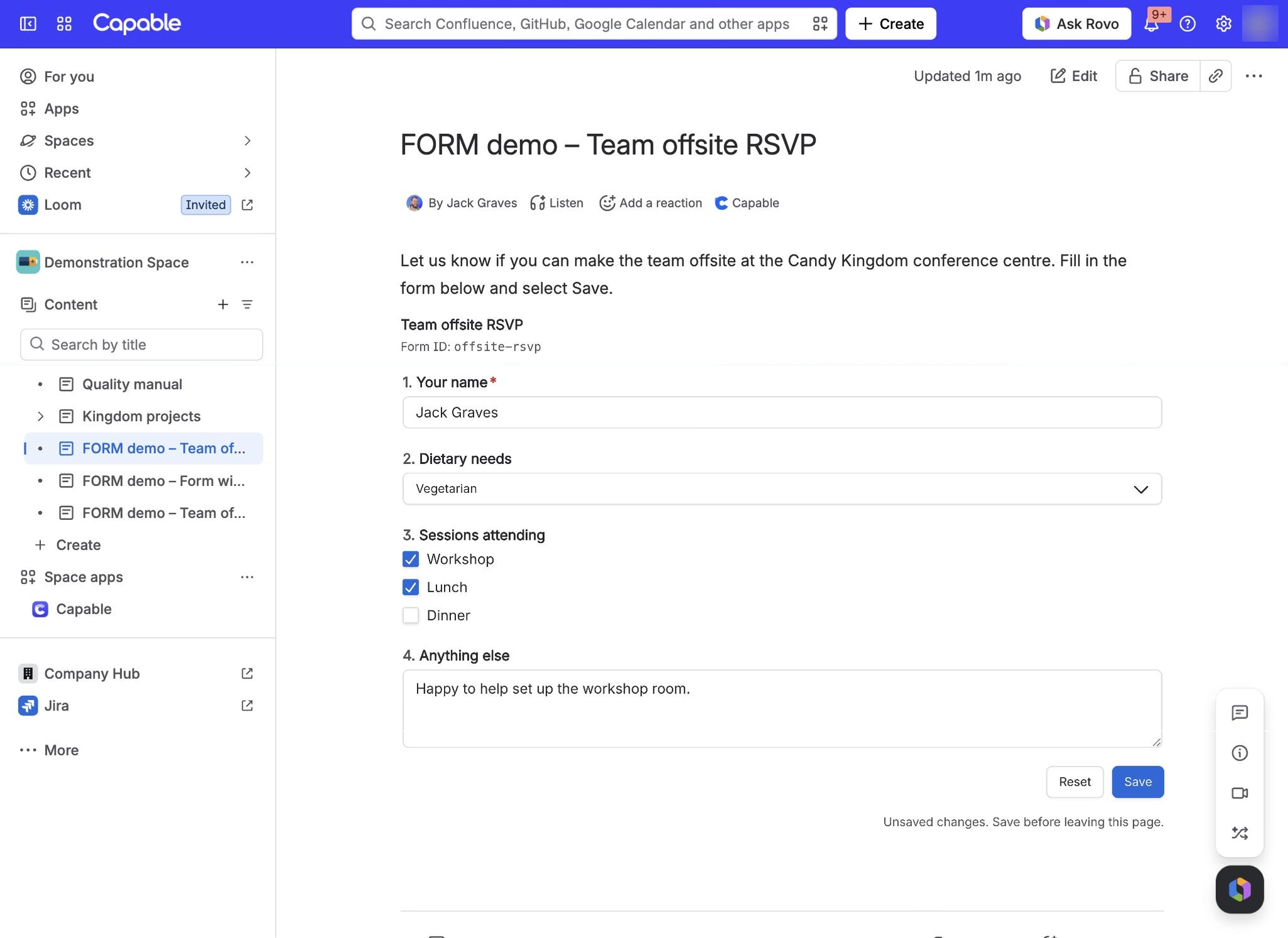
To fill in a form on a Confluence page, open the published page while signed in, type or pick your answers in the form's fields and select Save. You see Form saved when it has worked. To change answers someone has already saved, select Edit on the form first, then save again.
#Before you start
You need | Why |
|---|---|
A Confluence account, signed in | Signed-out readers see Sign in to fill this in. |
Edit permission on the page | Only people who can edit the page can fill in or change its forms. Others see the answers read only. |
The published page | Fill the form in on the page you are reading, not in the editor. |
#Steps
Open the published page that holds the form.
If the form already has answers, select Edit on the form.
Type or pick an answer in each field. Fields marked with a red asterisk are required.
Select Save. Select Cancel or Reset instead to undo your changes.
Look for Form saved. If a field turns red, fix it and save again.
#If it does not work
Fix validation errors before saving: a required field is empty or an answer breaks a limit. The problem is shown under the field.
You can see the form but cannot type in it: you do not have edit permission on the page. See Reader sees the form but cannot type in it.
Answers typed while editing the page in the editor do not reach anyone else until the page is published. See Filled the form while editing the page.
A form holds one set of answers per page, so saving replaces what was there. See Someone's answers were replaced by someone else's.
#Related
Answer, save, done.