
Add a drop-down, radio or checkbox field to a Confluence form
To add a drop-down, radio or checkbox field to a Confluence form, insert an Input (Capable) macro inside the form and set Input type to Select, Radio or Checkbox. Then select Add option for each choice and type its display label. These field types need the Advanced edition.
#Before you start
You need | Why |
|---|---|
Capable Forms installed | Forms is part of Capable Forms for Confluence and the Capable Suite. |
Edit permission on the page | You add and change forms in the Confluence editor. |
The Advanced edition | On Standard, these types are greyed out with an Advanced badge. |
A form on the page |
#Steps
Open the page and select Edit.
Click inside the form, type
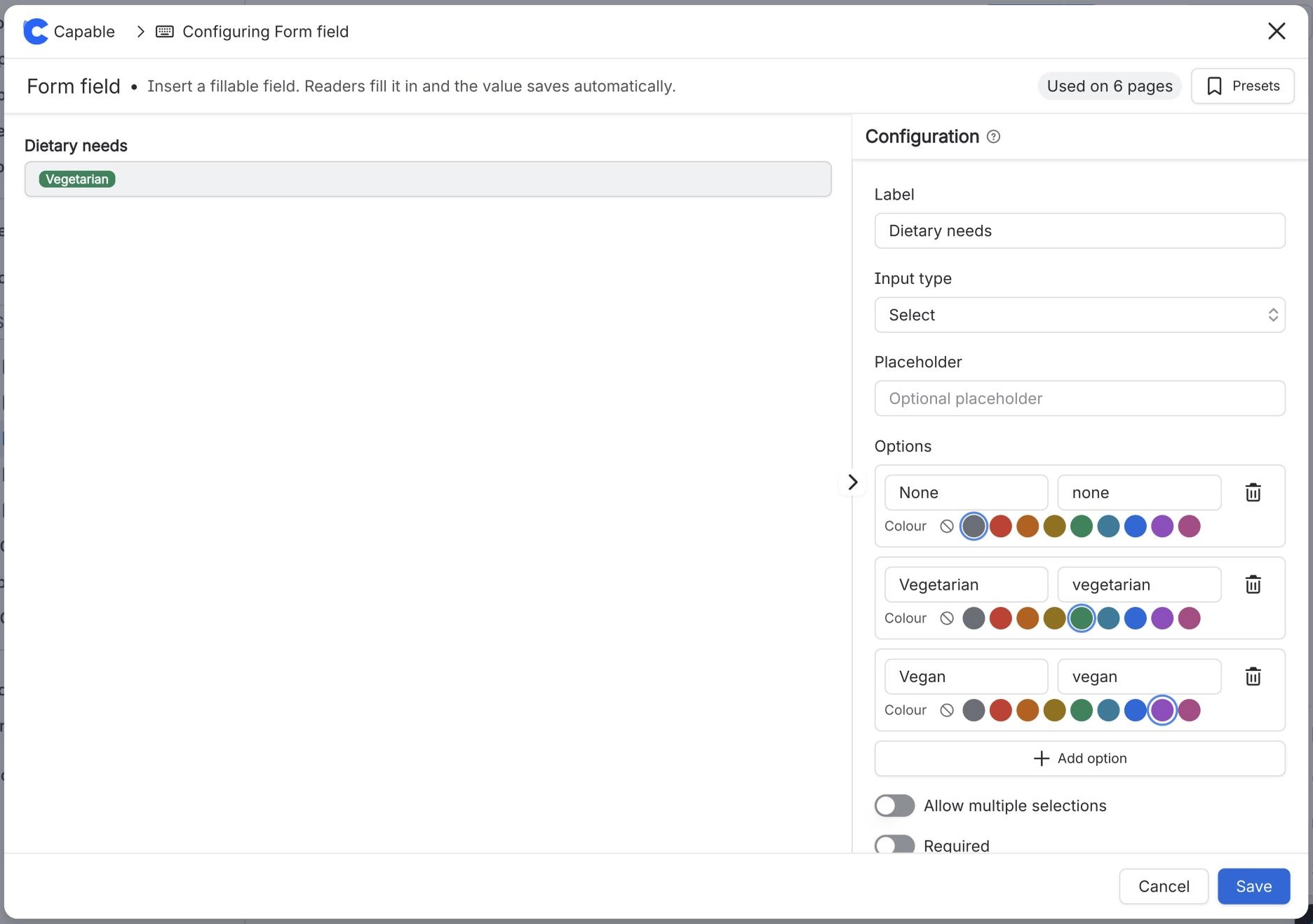
/and insert Input (Capable) (Input macro (Capable) in the standalone Forms app).In Configure Input, enter a Label and set Input type to Select (a drop-down), Radio (pick one) or Checkbox (pick any).
Under Options, select Add option and type the Display label. Repeat for each choice.
Optionally set a value (it is made from the label if you leave it blank). Radio and checkbox choices can have a description; Select choices can have a colour.
Publish the page.
#What happens next
Readers pick from your choices when they fill in the form. Answers show with their labels, and Select answers with their colour, in the byline, the Forms side panel and the responses view.
Changing a field's Input type later clears its saved answer and any settings that do not apply to the new type. See Changing a field's Input type wiped its answer and its settings.
#Related
Give them the choices, not a blank box.