Smartsheet
The Smartsheet macro puts a live sheet on a Confluence page. You choose how readers see it: a private Interactive table that never publishes the sheet, or Smartsheet's own published view, read-only or editable. This page lists every setting, what each one does, and the messages the macro can show.
#How to insert
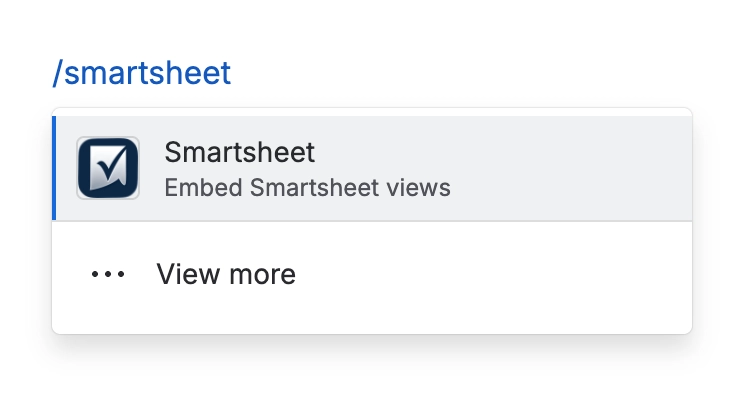
Edit the page, type /Smartsheet and choose Smartsheet. You can also paste a Smartsheet link on its own line and Confluence turns it into the macro. These links convert:
Publish links:
publish.smartsheet.com,publish.smartsheet.eu,app.smartsheet.com/b/publishandapp.smartsheet.eu/b/publish. These show straight away.Sheet links:
app.smartsheet.com/sheets/.... The macro shows Finish setting up this sheet until you open its settings, log in to Smartsheet and choose how readers see it.
#Macro
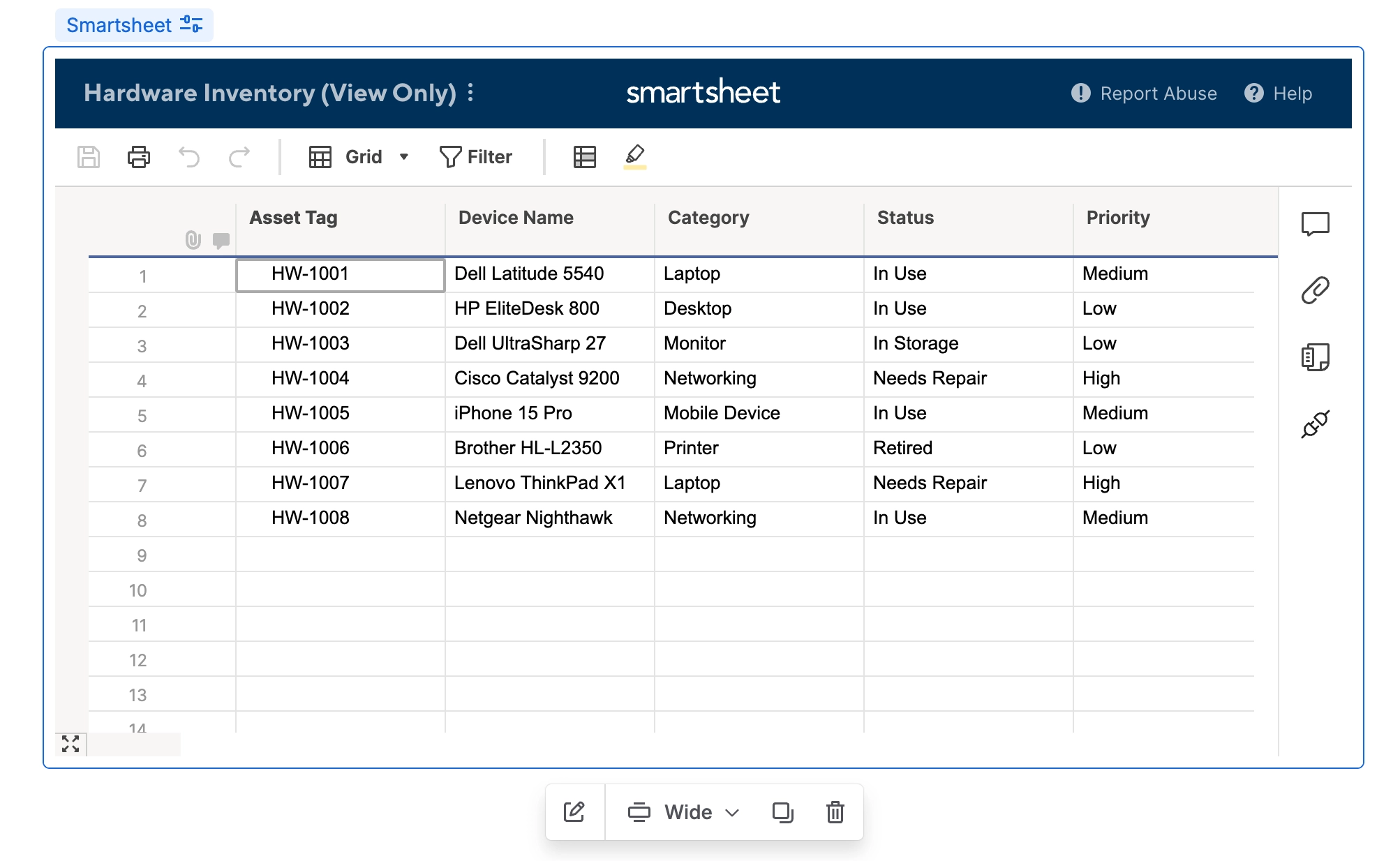
On the page, the sheet fills the width you set. A published sheet carries Smartsheet's own toolbar. An interactive table has a search box under each column heading, and readers click a heading to sort.
#Settings
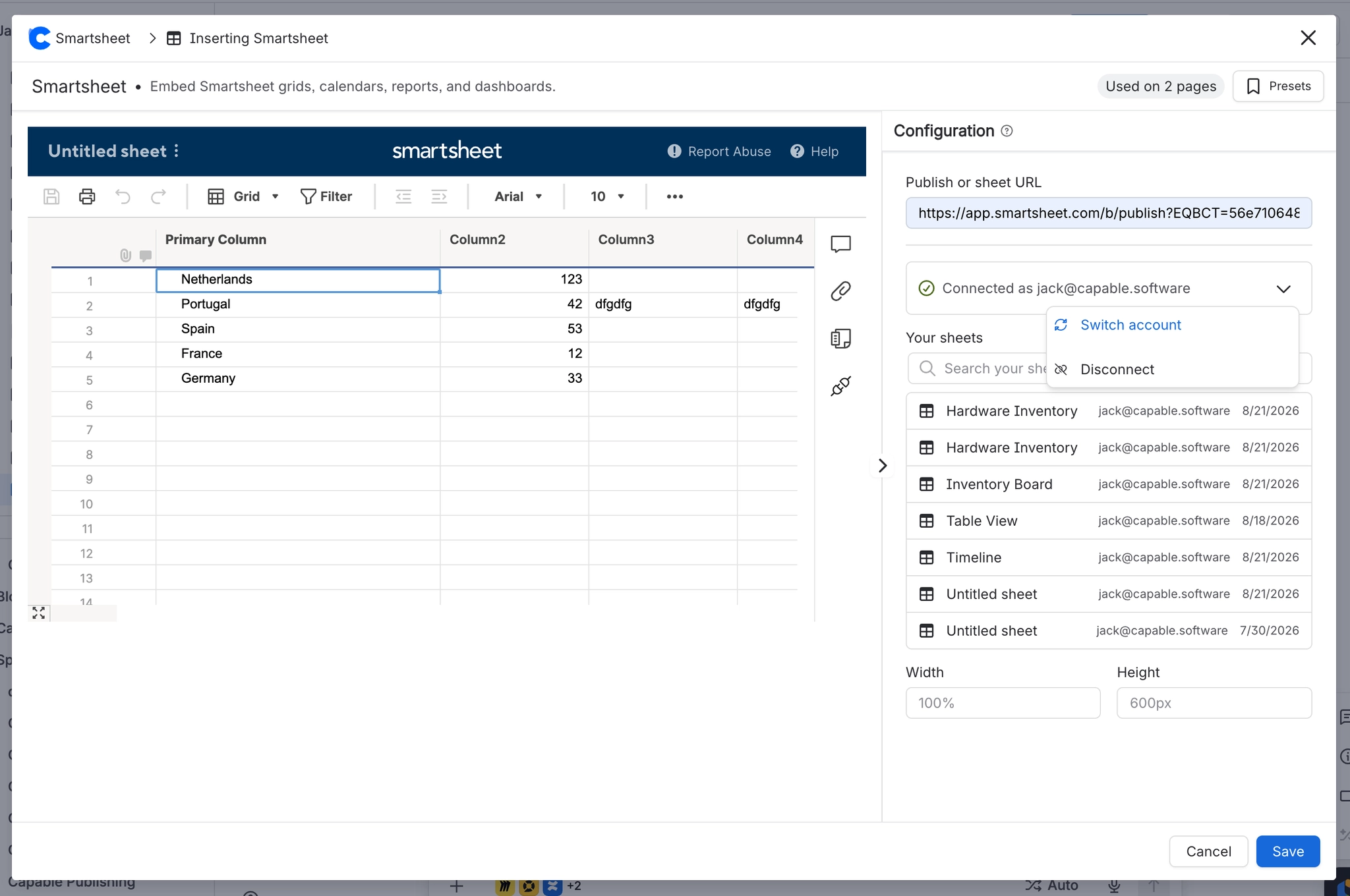
Setting | What it does | Default |
|---|---|---|
Log in to Smartsheet | Connects your own Smartsheet account. You need it to browse sheets, see how a sheet is shared, or apply a view. A publish link you paste works without it. | Not connected |
Publish or sheet URL | A Smartsheet publish link, or a sheet link. A sheet link is looked up in your account so you can pick a view for it. | Empty |
Your sheets | The sheets your Smartsheet account can open, with a Search your sheets box. Pick one instead of pasting a link. | Shown once you are logged in |
How readers see the sheet | Three choices:
Choosing an option changes nothing until you select Apply. | None until you apply one |
Apply | The one action that saves your choice. The line under it says what will happen first, for example that it will publish the sheet or reuse an existing publish link. It reads Applied once that view is active. | - |
How this sheet is shared in Smartsheet | Shows the sheet's Read-only link and Edit link, whether each is on, and which one this macro uses. Remove link turns that publish link off in Smartsheet. | - |
Set up viewer access | Appears after you apply Interactive table, under Enable viewer access for the interactive table. It stores your Smartsheet token on Capable's servers so readers with no Smartsheet account can see the table. Without it, only readers who connect their own Smartsheet see it. | Off |
Width | Any CSS width, such as | Empty, which means |
Height | Any CSS height, such as | Empty, which means |
Logging in and applying a view use Smartsheet's API, which needs a Smartsheet Business or Enterprise plan. EU Smartsheet accounts can paste publish links but cannot browse sheets.
#Messages the macro can show
Message | What happened |
|---|---|
Smartsheet not configured | No sheet has been chosen yet. Open the settings and paste a link or pick a sheet. |
Finish setting up this sheet | A sheet link was pasted. Open the settings, log in, choose a view and select Apply. |
This link can't be embedded | The URL is not a Smartsheet publish link. Pick the sheet or paste its publish URL instead. |
Connect your Smartsheet account to view this sheet. | The interactive table has no viewer access set up, so each reader needs their own Smartsheet connection. |
Couldn't load this sheet | Smartsheet returned an error for the interactive table. The reason shows underneath. |
This sheet is empty | The sheet has no rows. |
#A few things that catch people out
The two published views create a real Smartsheet publish link. Anyone who gets that link can open the sheet, even outside Confluence, and with Editable sheet they can change it.
Removing the macro from the page does not turn the publish link off. Use Remove link first.
If Apply is greyed out, the view is already applied, you are not logged in, or a change is still saving.
#Related
Macros
Every macro in this capability.
Embed a Smartsheet in Confluence
Step by step, start to finish.
Show a Smartsheet as an interactive table in Confluence
Keep the sheet private.
Stop sharing a published Smartsheet link from Confluence
Turn a publish link off.
Smartsheet for Confluence FAQ
Short answers to common questions.
One macro, documented properly.