
Side panels
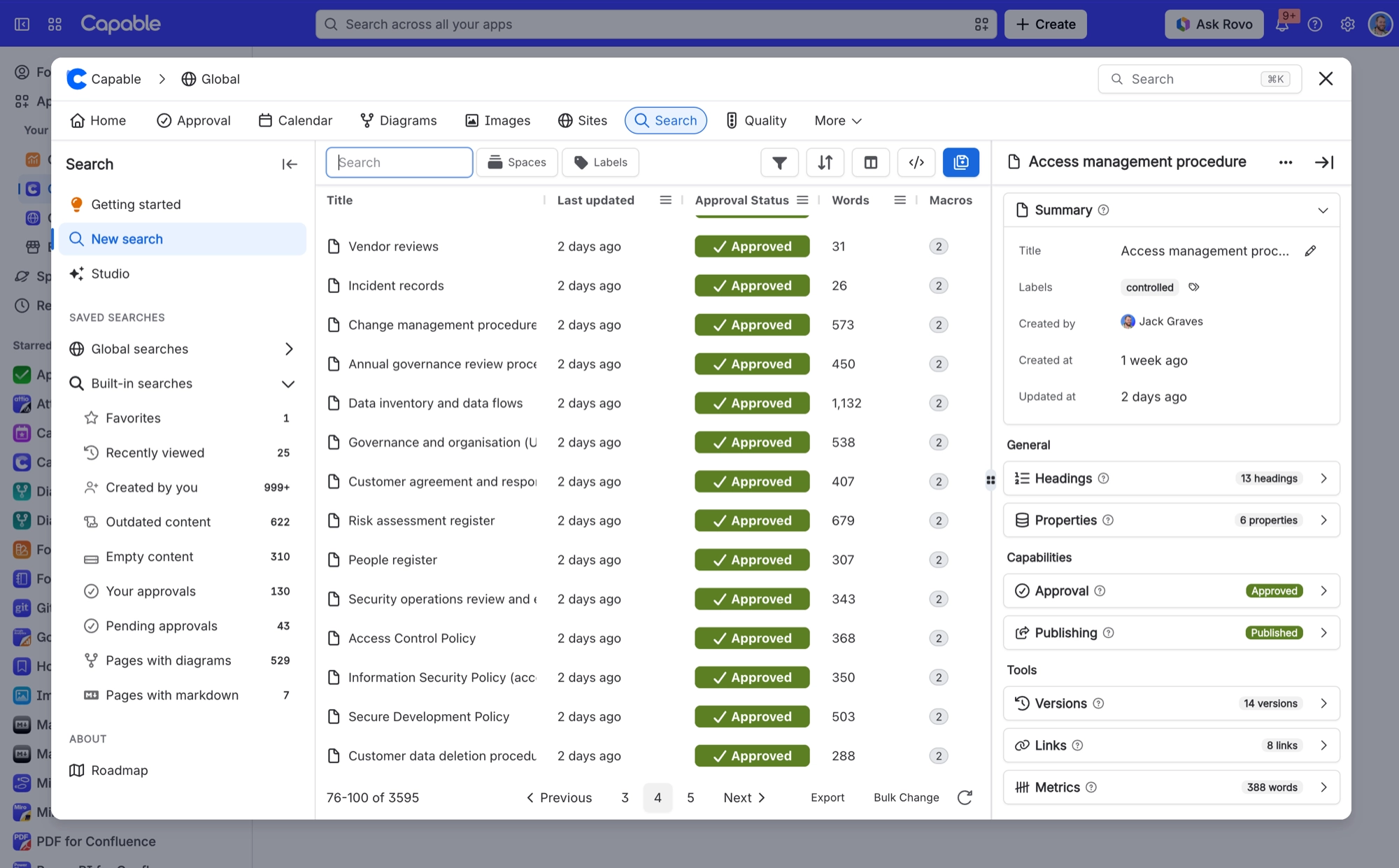
Select a row in your results and a side panel opens with that page's detail. Which panels you see depends on the capabilities you have installed, and they are grouped so the list stays easy to scan.
It is the difference between a search that finds pages and one you can actually work through.
#The three groups
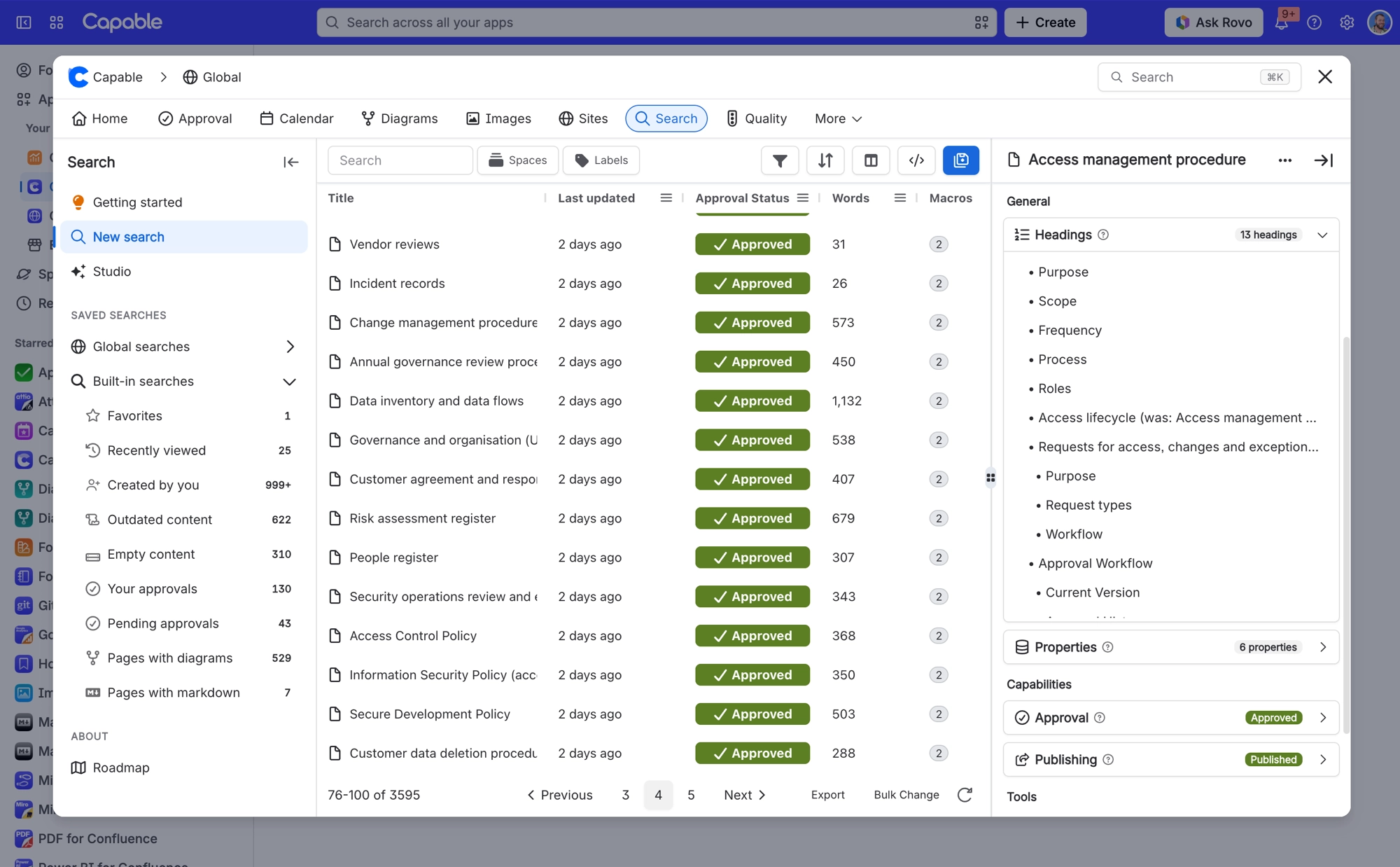
Group | Holds |
|---|---|
General | Summary, Children, Headings, Properties |
Capabilities | Panels from your other installed capabilities. A panel lands here unless it belongs elsewhere. |
Tools | Versions and Attachments from Search, plus Metrics, Tasks and others |
#The Summary panel
Summary sits at the top of every side panel. It shows the page's basic facts, and if you can edit the page you can change some of them in place.
Row | What you can do |
|---|---|
Title | Select it to rename the page. |
Labels | Select it to add or remove labels. |
Status | Pick a page status from the list. Statuses are marked Custom or Space, depending on where they were defined. |
Created by, Created at, Updated at | Read only. |
You can now set a status on a page that has none. Since 13 October 2026, the Status row also appears when a page has no status yet, as long as you can edit the page and the space has statuses to pick from. It reads No status, and the list is headed Set status. On a page that already has a status it is headed Change status. Setting a status on a page with unpublished changes now applies it to the draft, as Confluence does.
To set the same status on many pages at once, use Bulk Change instead.
#Search's own panels
Summary, Versions, Children, Attachments, Headings and Properties. You get these in both the standalone app and the Suite.
#A few things that catch people out
If the space has no page statuses defined, the Status row says No content statuses available and there is nothing to pick.
Without edit permission on a page, the Summary rows are read only.
A panel from a capability you have not installed does not appear at all.
Panels read the page as it is right now, so they are up to date even if your search results have not caught up yet. Badges on the panel list refresh as soon as their data arrives.
The panel respects permissions exactly as the table does, so you only see what you are allowed to see.
#Related
Find it, then read it, without leaving.






















