Setup
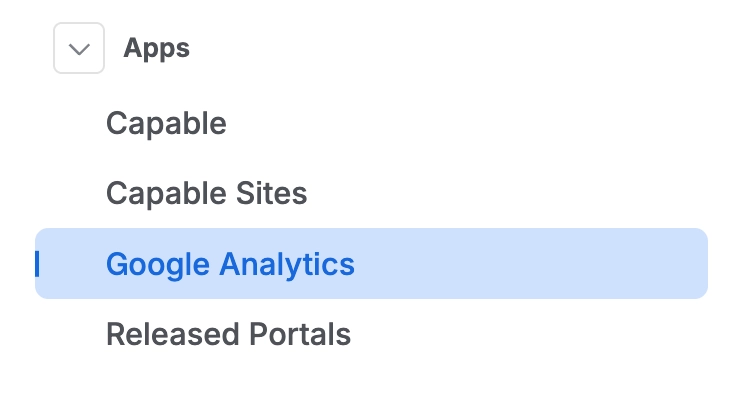
#1. Open the Confluence Admin interface and click Google Analytics
First, open the configuration screen in the Confluence Administration interface.
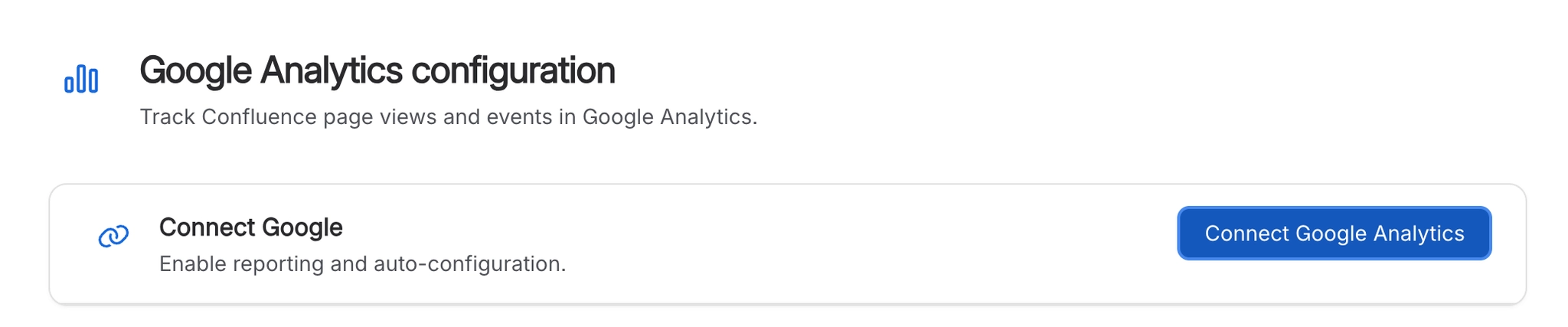
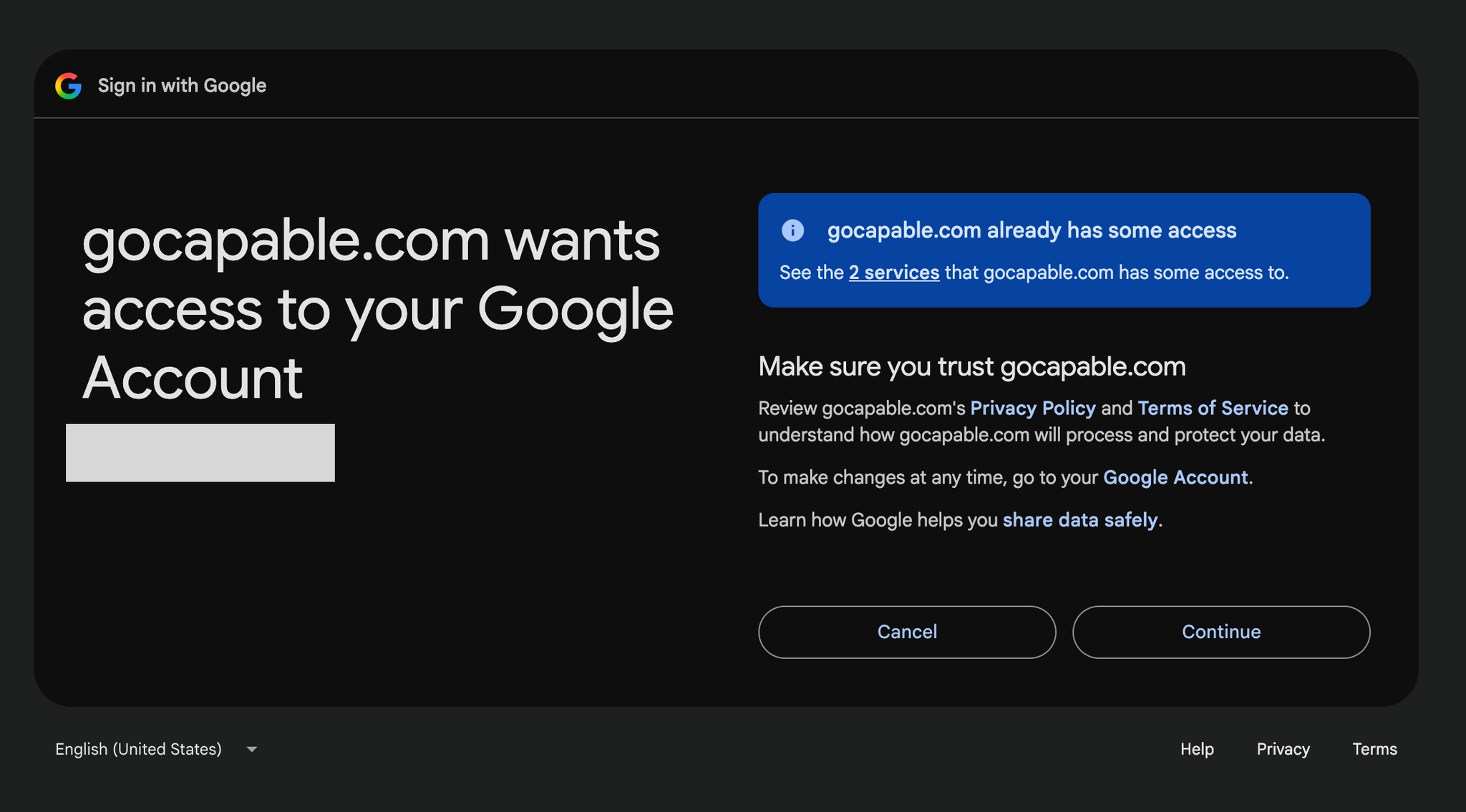
#2. Authenticate with Google (optional)
Authenticating with Google is required if you want to:
See the reporting data inside Confluence
You want to set up custom dimensions
You want to send server-side events like page updates
You can use the app to send page views to Google Analytics by just entering the G‑Tag.
#3. Choose the GA Property to send data to
Choose where to send the analytics data to.
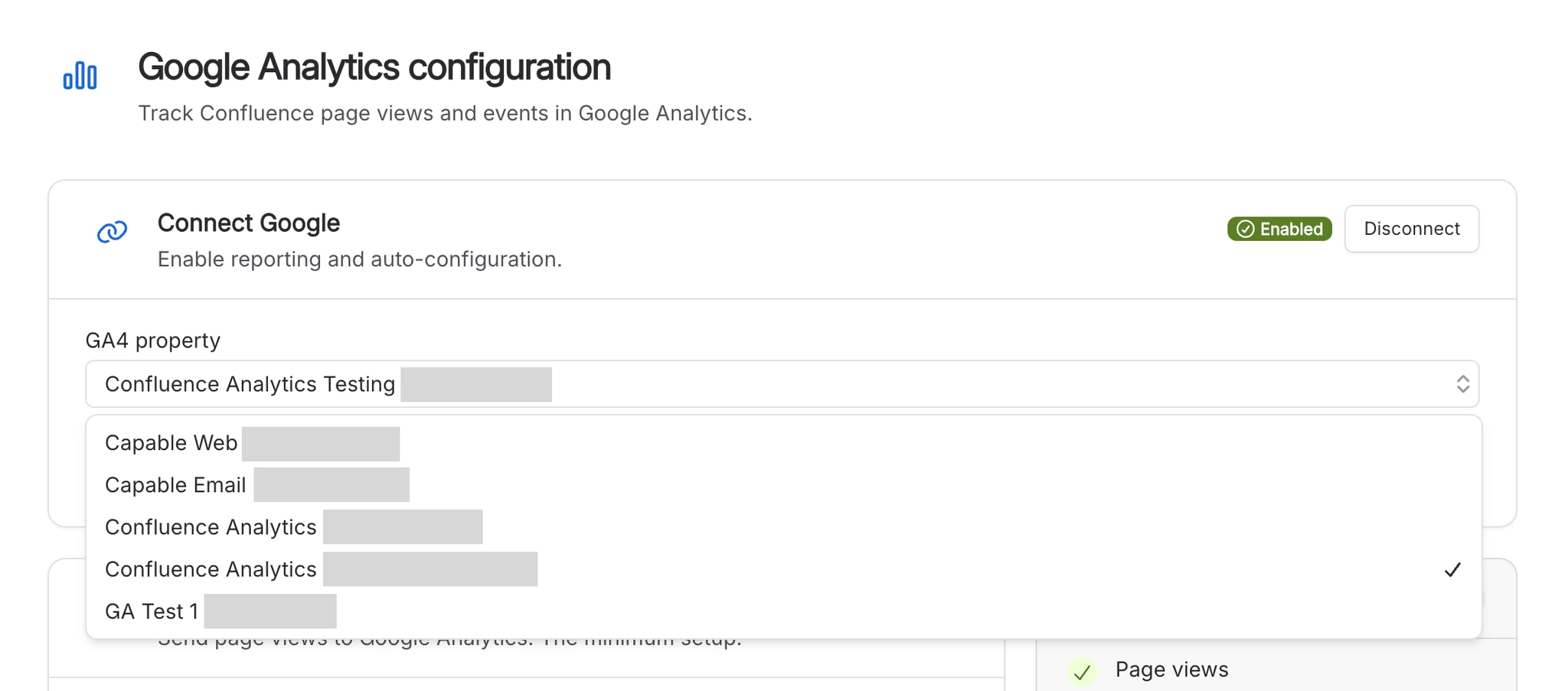
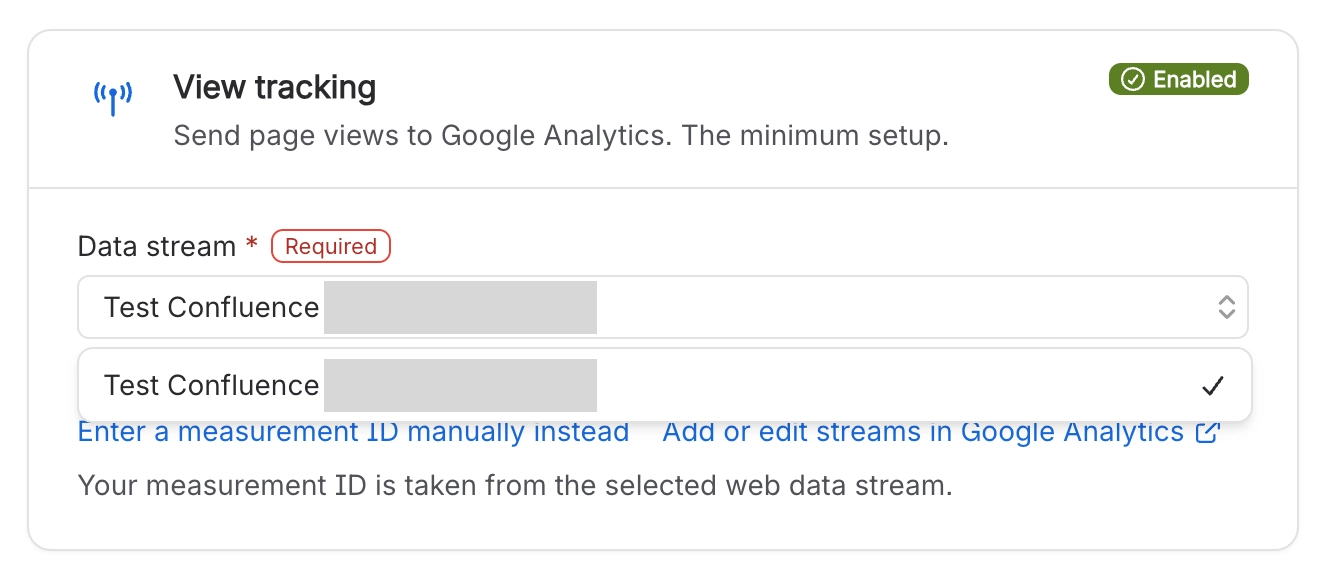
#4. Choose which Data Stream to use
A Data Stream is the ‘G-Tag’ that is used to send the actual data. In other words, the Data Stream functions as the G-Tag identifier and mechanism through which the real event and measurement data are transmitted. It is the element responsible for carrying the actual data payload rather than just serving as a configuration or placeholder.
#5. Select or create a Measurement Protocol API Secret
The Measurement Protocol API Secret is required in order to create and send custom dimensions. This secret is a necessary credential for that process and must be present before you can proceed. You can create one automatically by using the ‘Plus’ button, which streamlines the creation process.
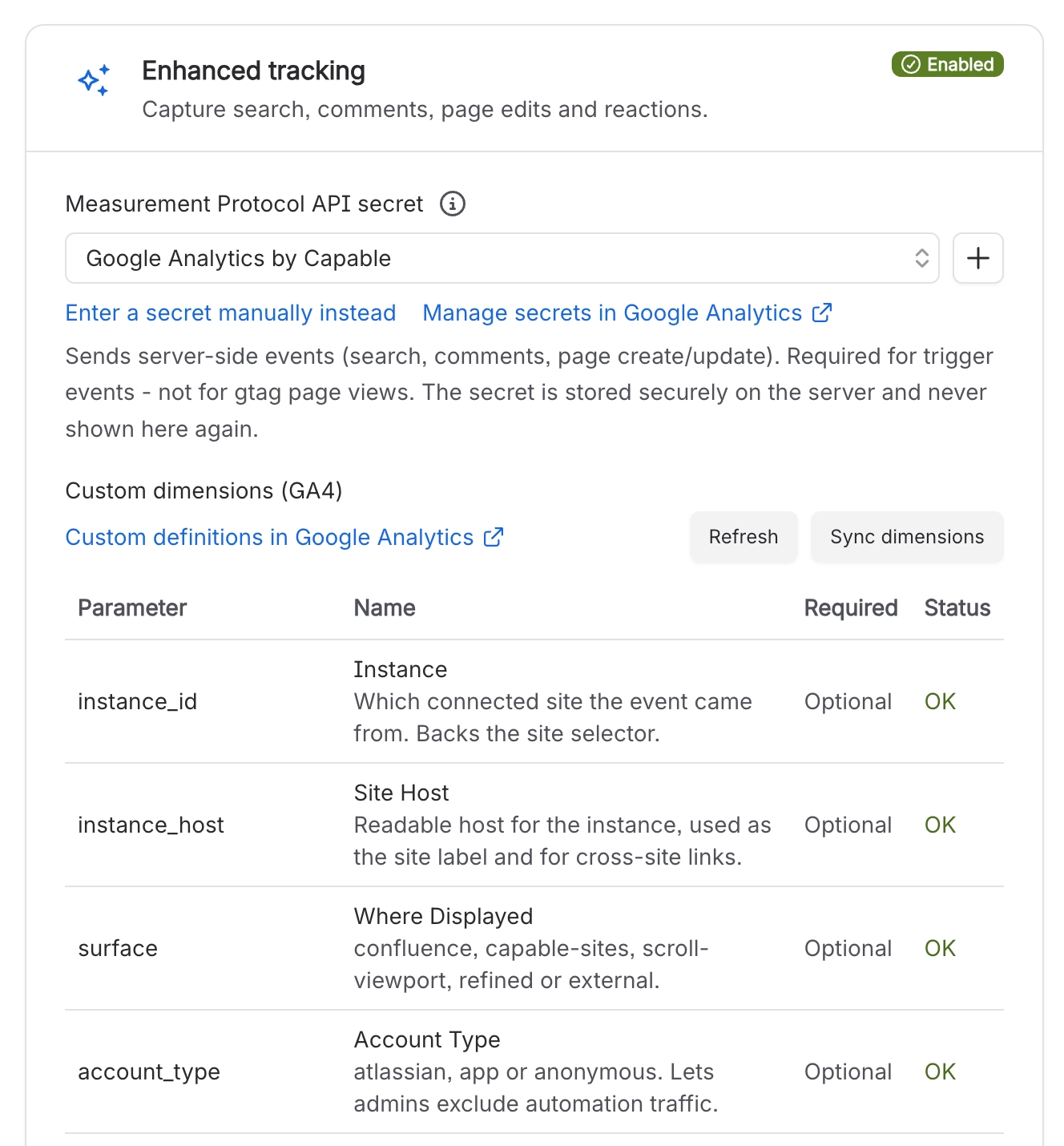
#6. Synchronise Custom Dimensions with Google Analytics
Once you have configured the Measurement Protocol API Secret, you can now synchronise the custom dimensions. These custom dimensions are the fields that store the custom attributes associated with an event. For example, a custom dimension can record the page id that the event originated from.
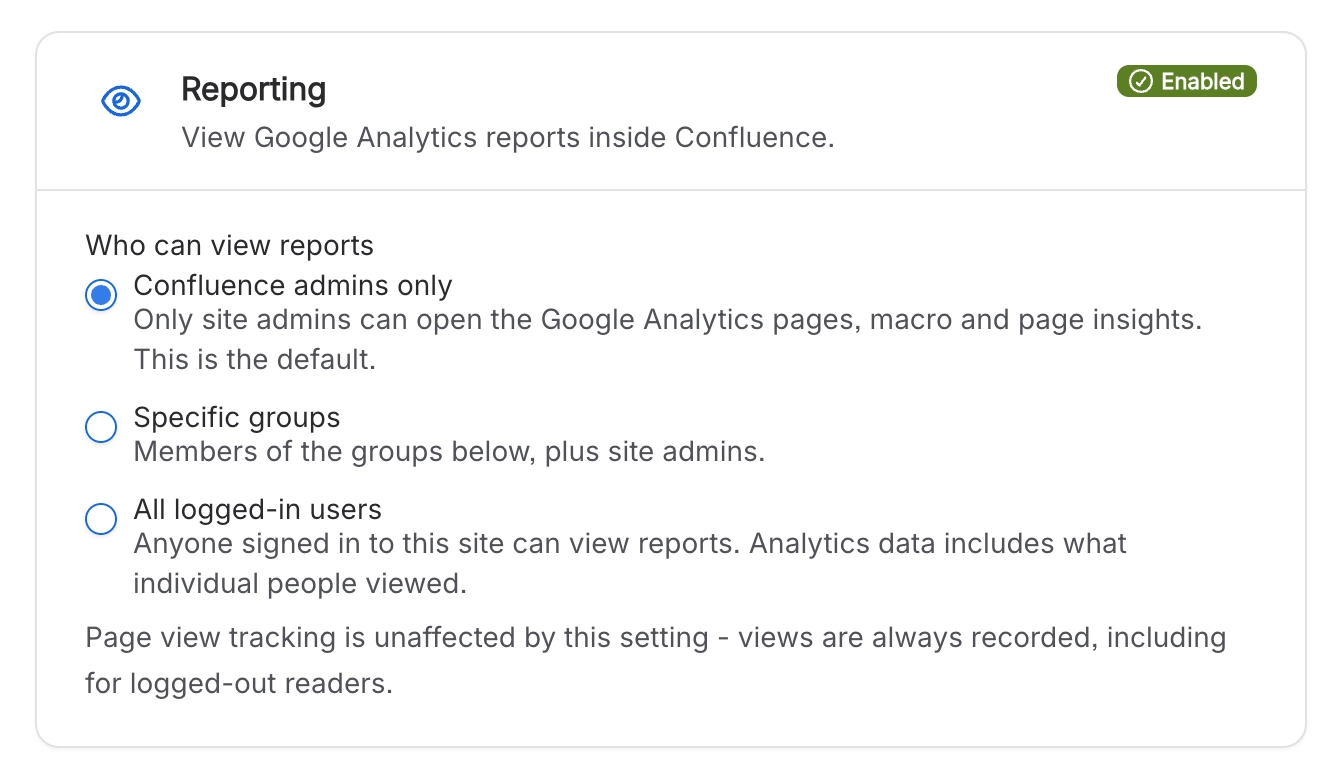
#7. Choose who can access analytics data
Choose who is allowed to view analytics data within Confluence. Decide which users or groups should have access to those analytics so that sensitive information is only visible to the appropriate people.
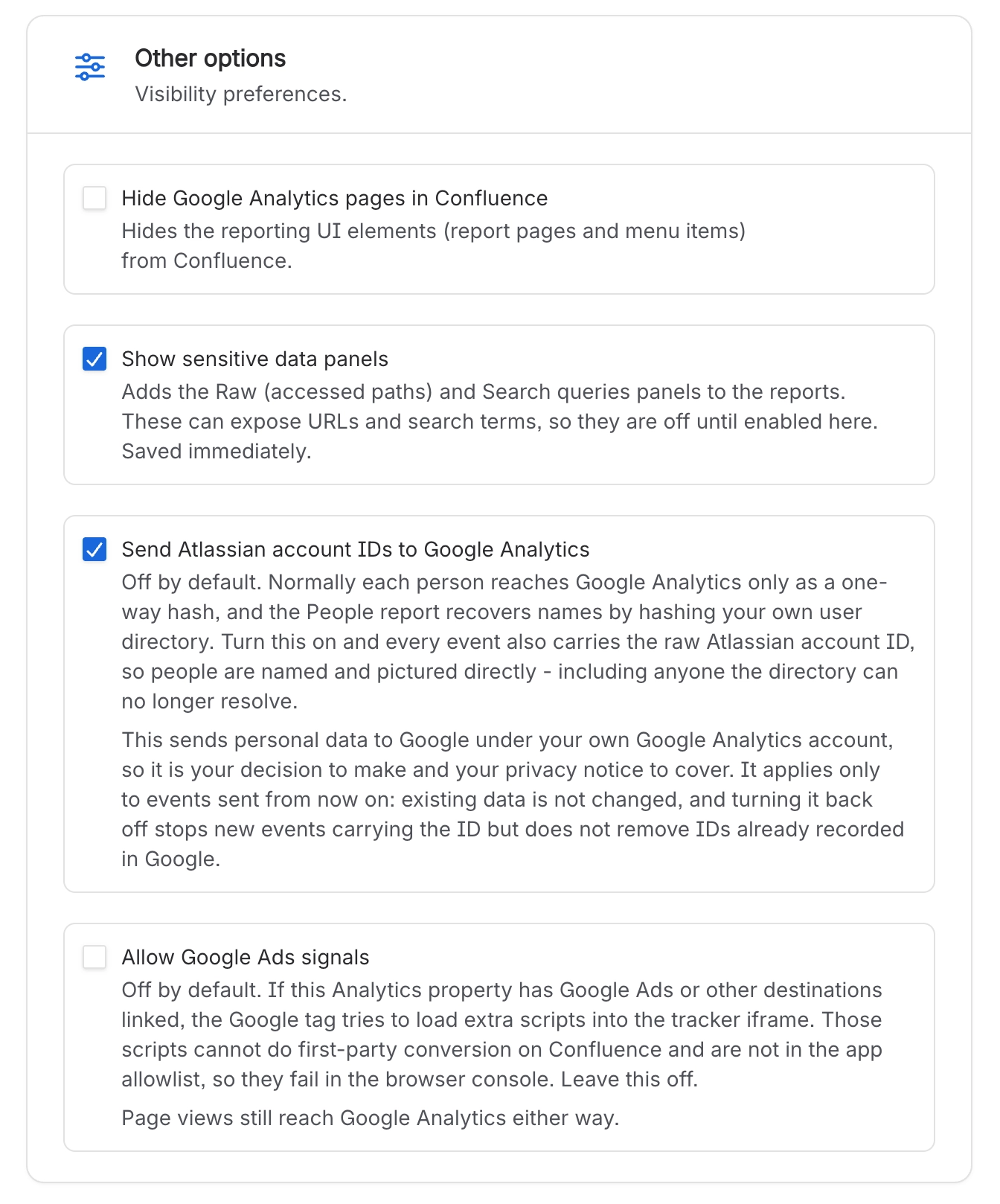
#8. Choose other options
Hide Google Analytics pages inside Confluence
Show sensitive data panels
View search terms
View raw analytics data
Send Atlassian Account IDs to Google Analytics
Required if you want to show the actual users who performed actions
If this is off, it will send anonymised ID’s to Google Analytics
Allow Google Ads Signals
Experimental
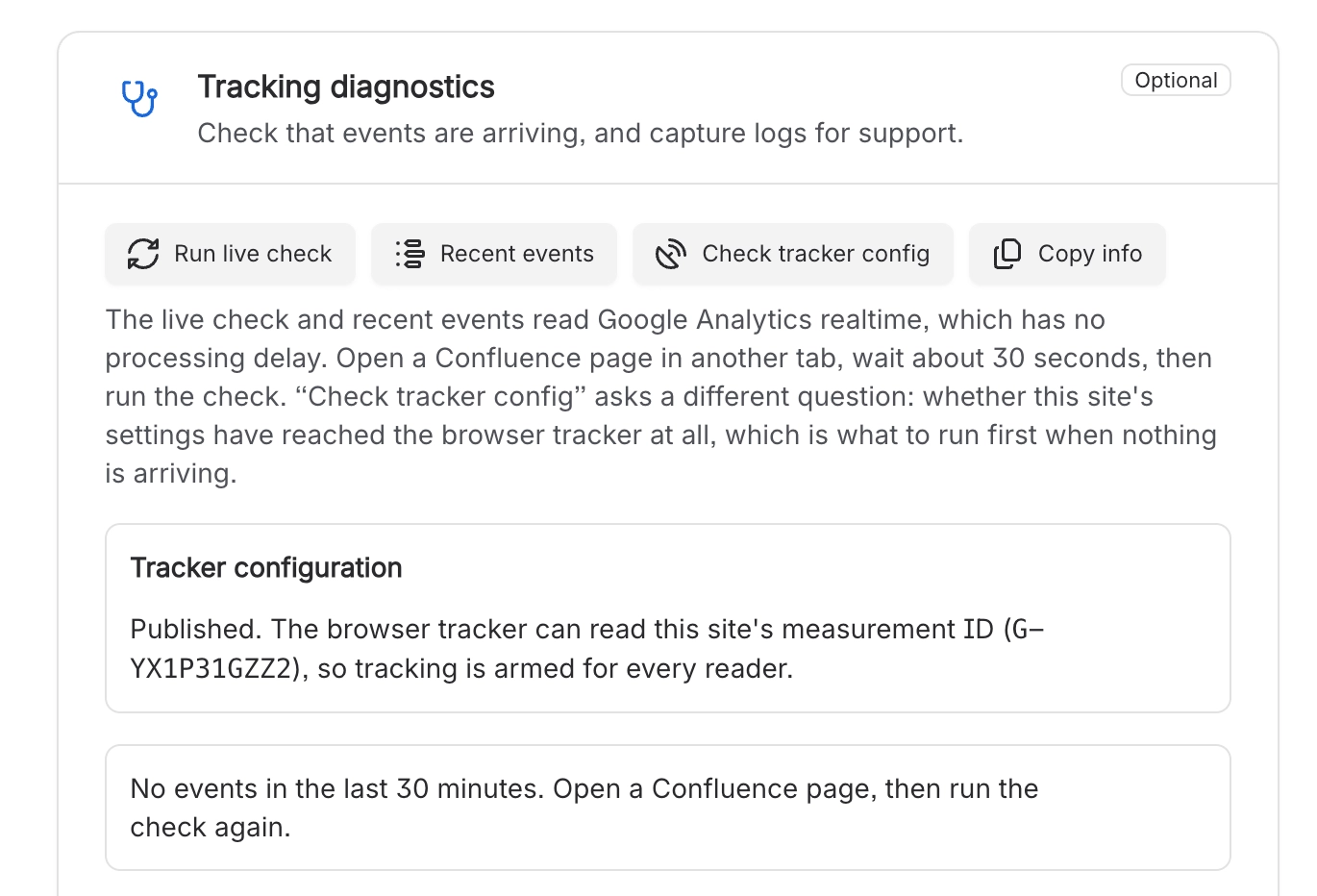
#9. Test the setup
These tools can be used to test the configuration and see events.
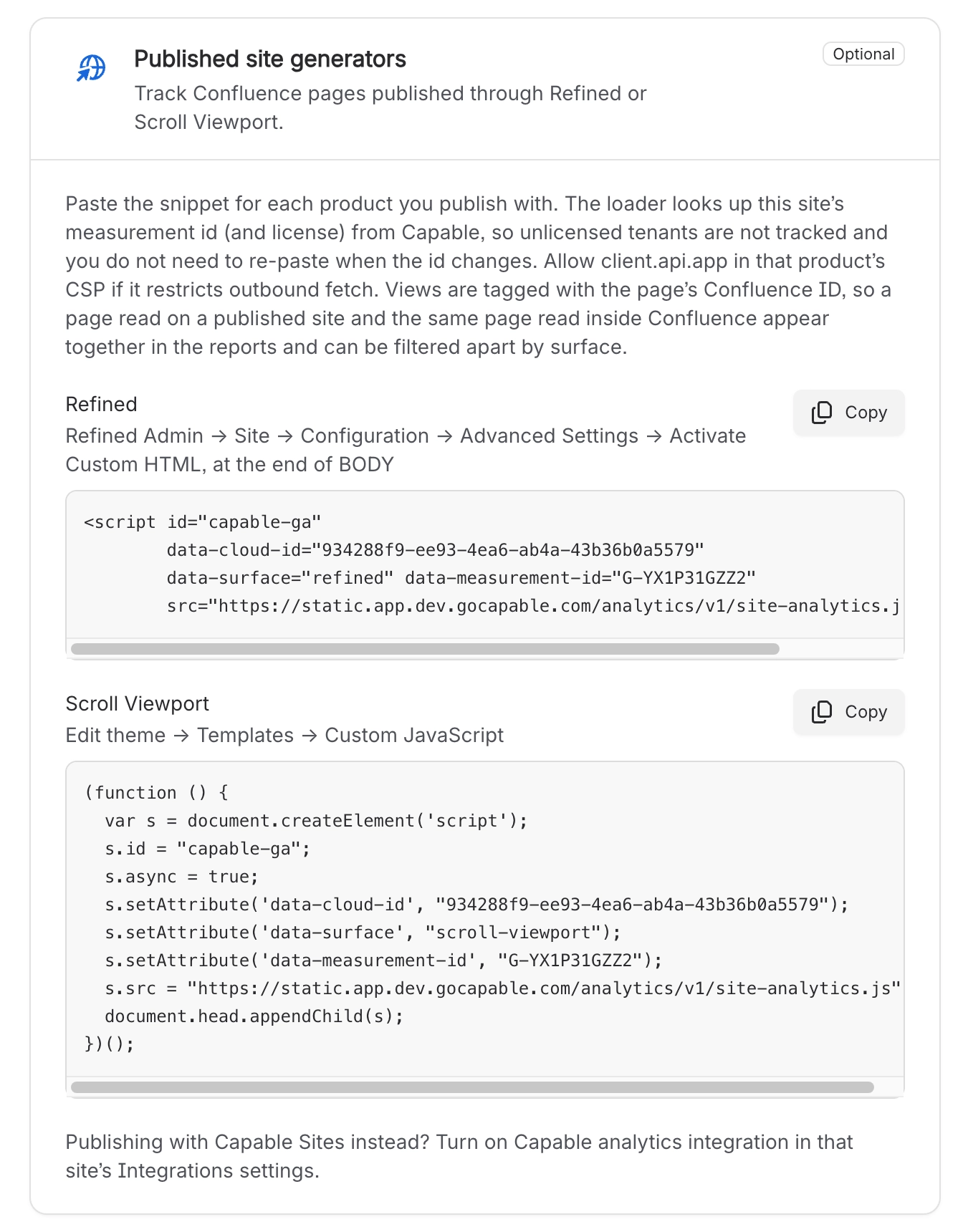
#10. Integrate with Refined Sites, Scroll Viewport or Capable Sites
If you use a website generator, you can copy the code here to correctly correlate events.