
Setup
This walks through the Google Analytics configuration page from top to bottom. Only step 4 is needed to record page views; each later step switches on more. For the short version, see Add Google Analytics to Confluence.
#1. Open the Confluence settings and select Google Analytics
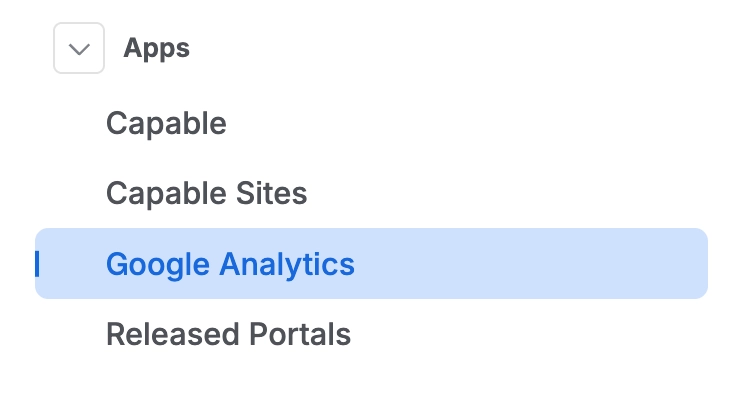
Open Confluence Settings and select Google Analytics in the left-hand menu. You need to be a Confluence administrator.
#2. Connect Google (optional)
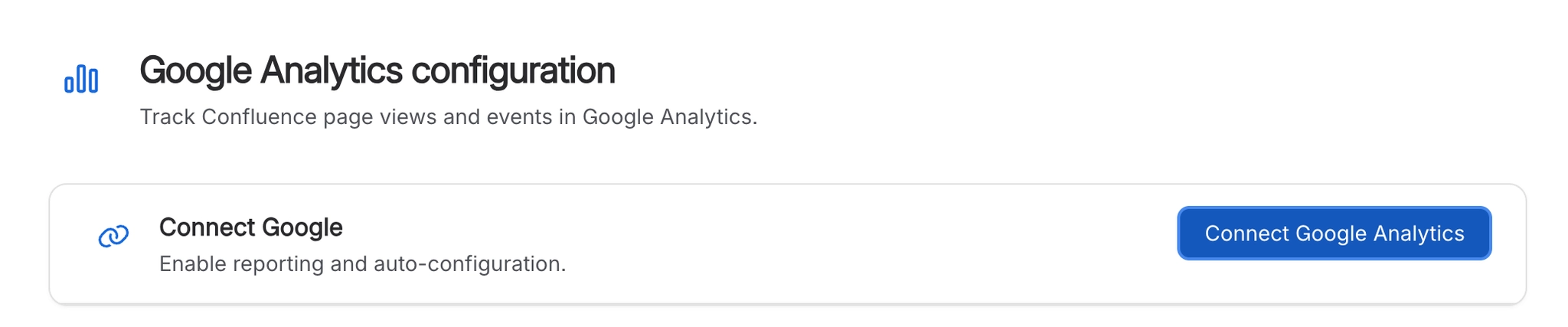
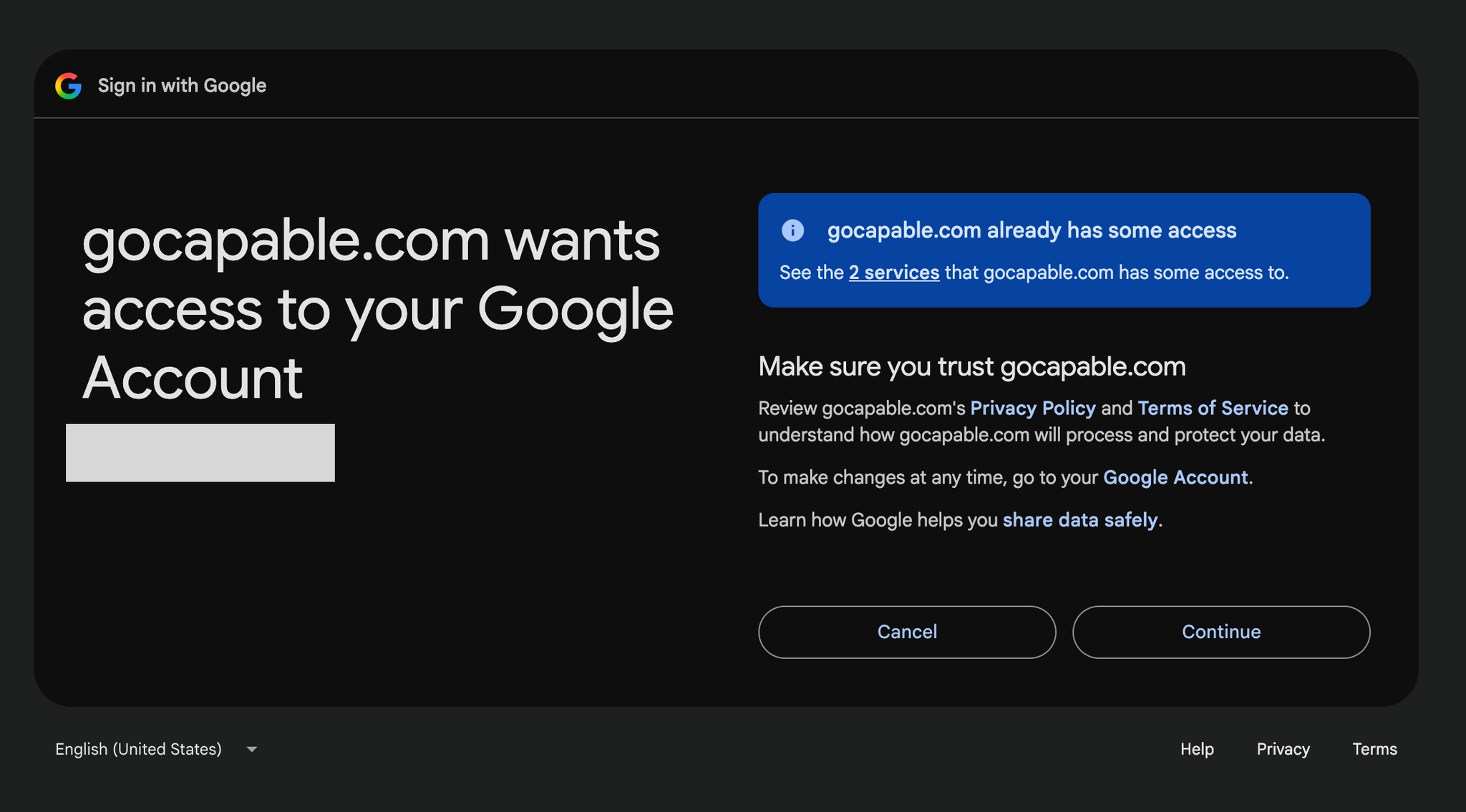
Under Connect Google, select Connect Google Analytics. Connecting is needed if you want to:
see the reports inside Confluence;
set up custom dimensions;
pick or create a Measurement Protocol secret for server-side events such as page updates.
You can send page views to Google Analytics just by entering the measurement ID (the G-tag), without connecting.
#3. Choose the GA4 property
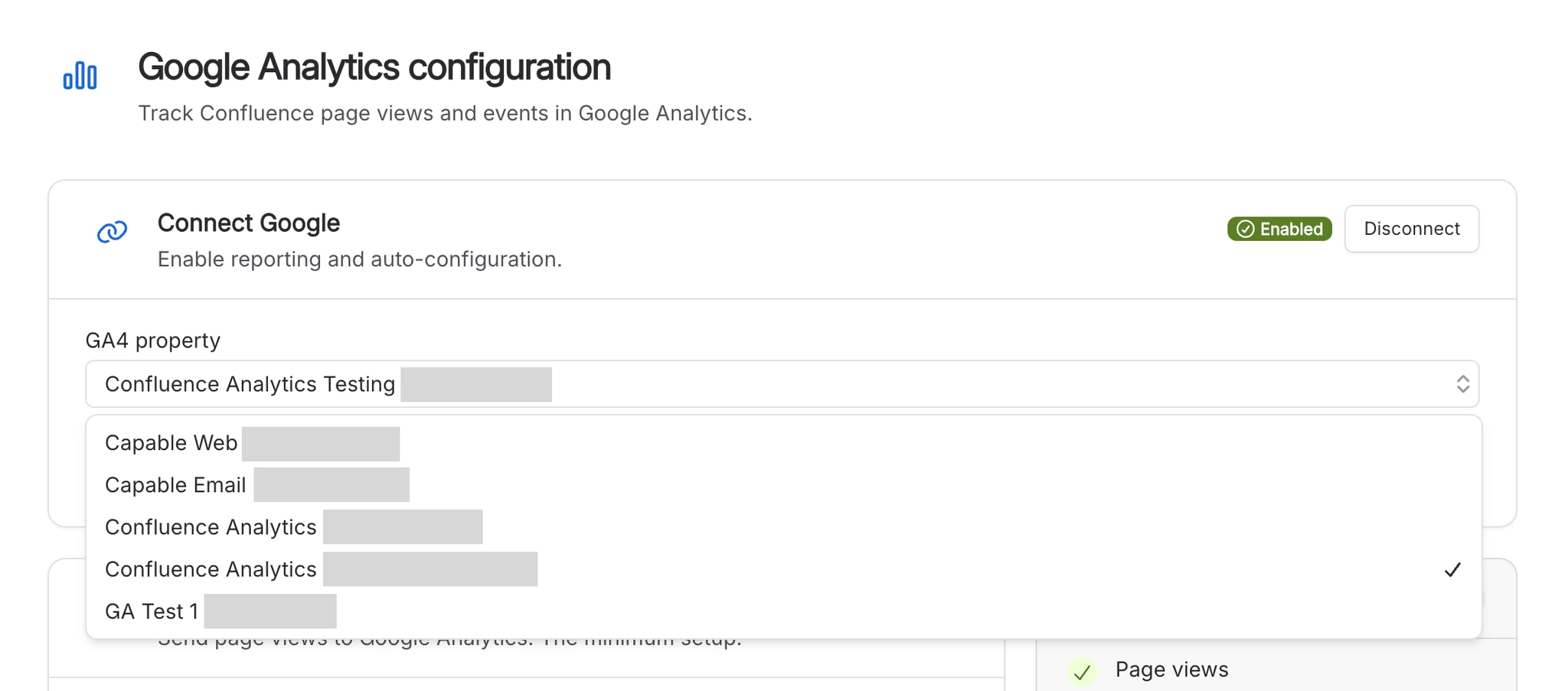
Choose the property under GA4 property. Every report in Confluence reads from it.
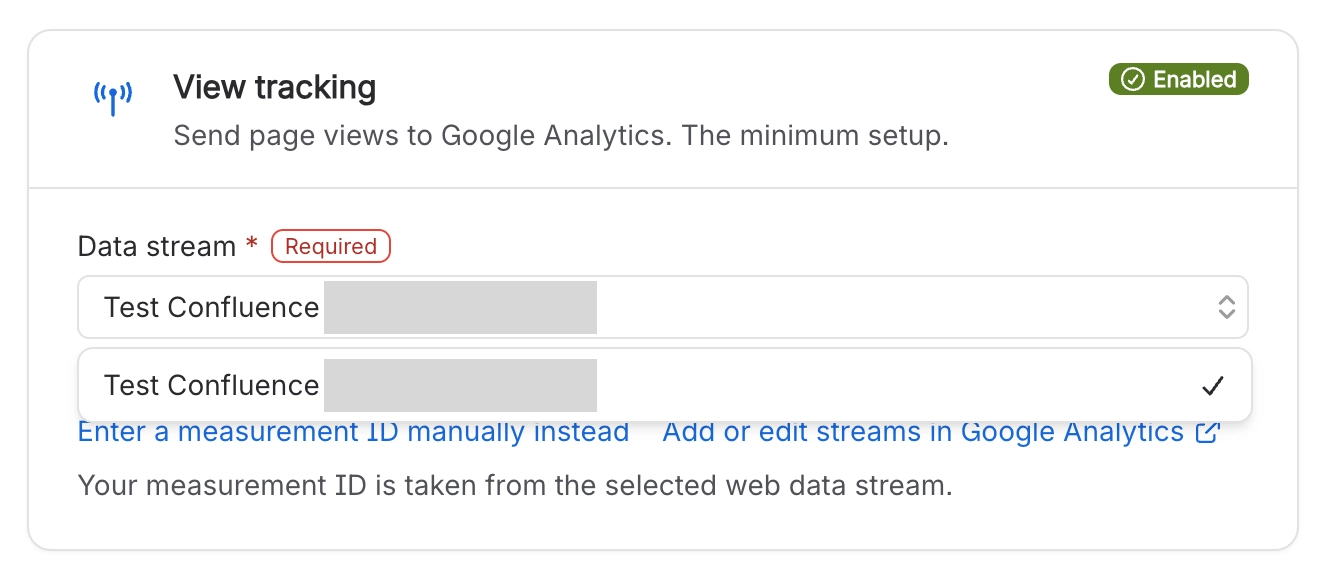
#4. Choose the data stream
Under View tracking, pick a Data stream. The stream holds the measurement ID (the G-tag) that page views are sent to, and picking it fills in Measurement ID for you. Without connecting, use Enter a measurement ID manually instead.
#5. Select or create a Measurement Protocol API secret
Under Enhanced tracking, the secret lets the app send server-side events: searches, comments, page creates and updates, and reactions. Pick one, or use the + button to create one. The first secret on a property asks you to accept Google's terms. See Track Confluence searches, comments and edits in Google Analytics.
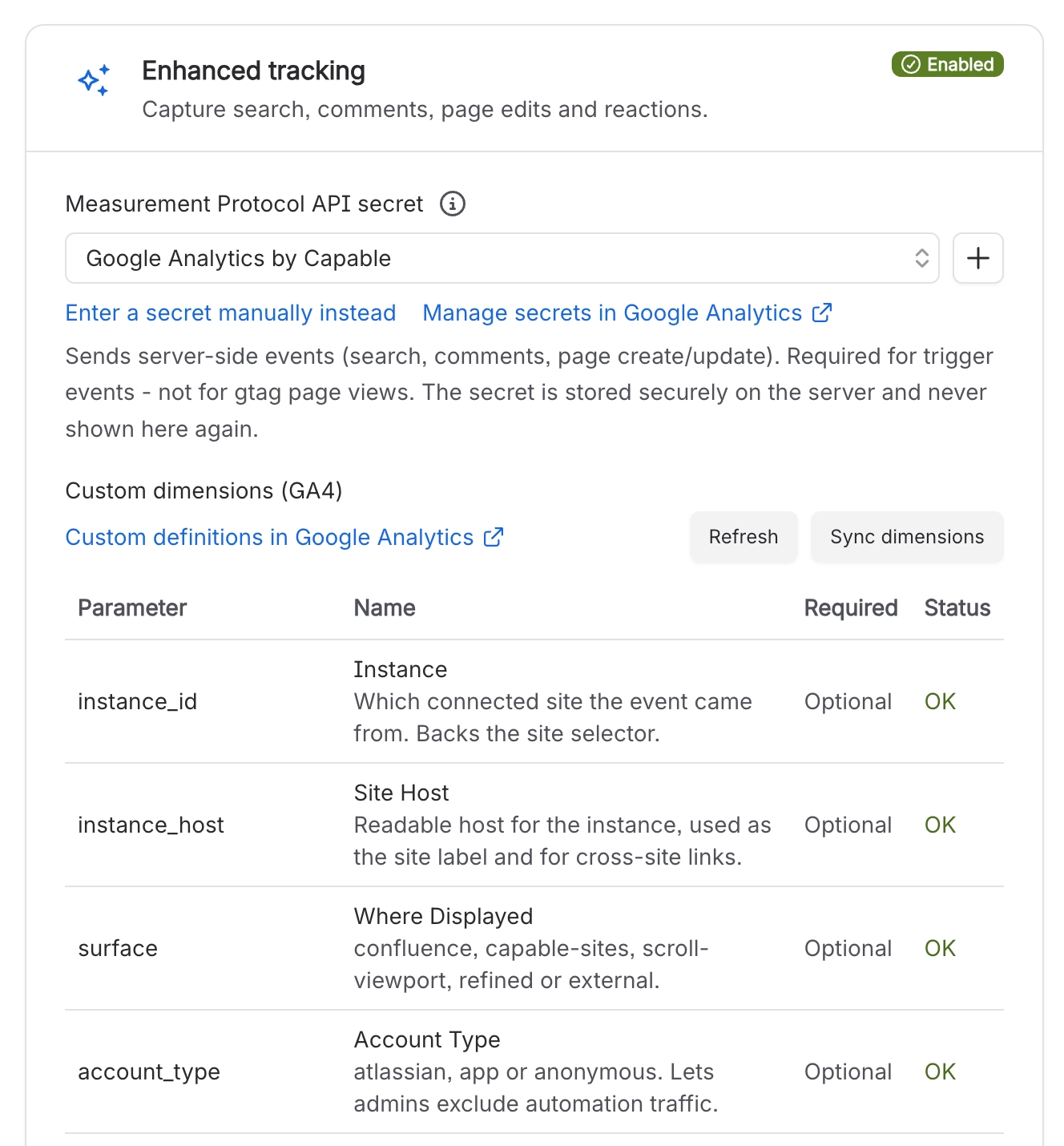
#6. Sync custom dimensions
Under Custom dimensions (GA4), select Sync dimensions. Custom dimensions are the fields that store extra details on each event, such as the page ID or space key it came from. Five are required for the core reports; the rest each unlock a filter. See Sync Google Analytics custom dimensions for Confluence.
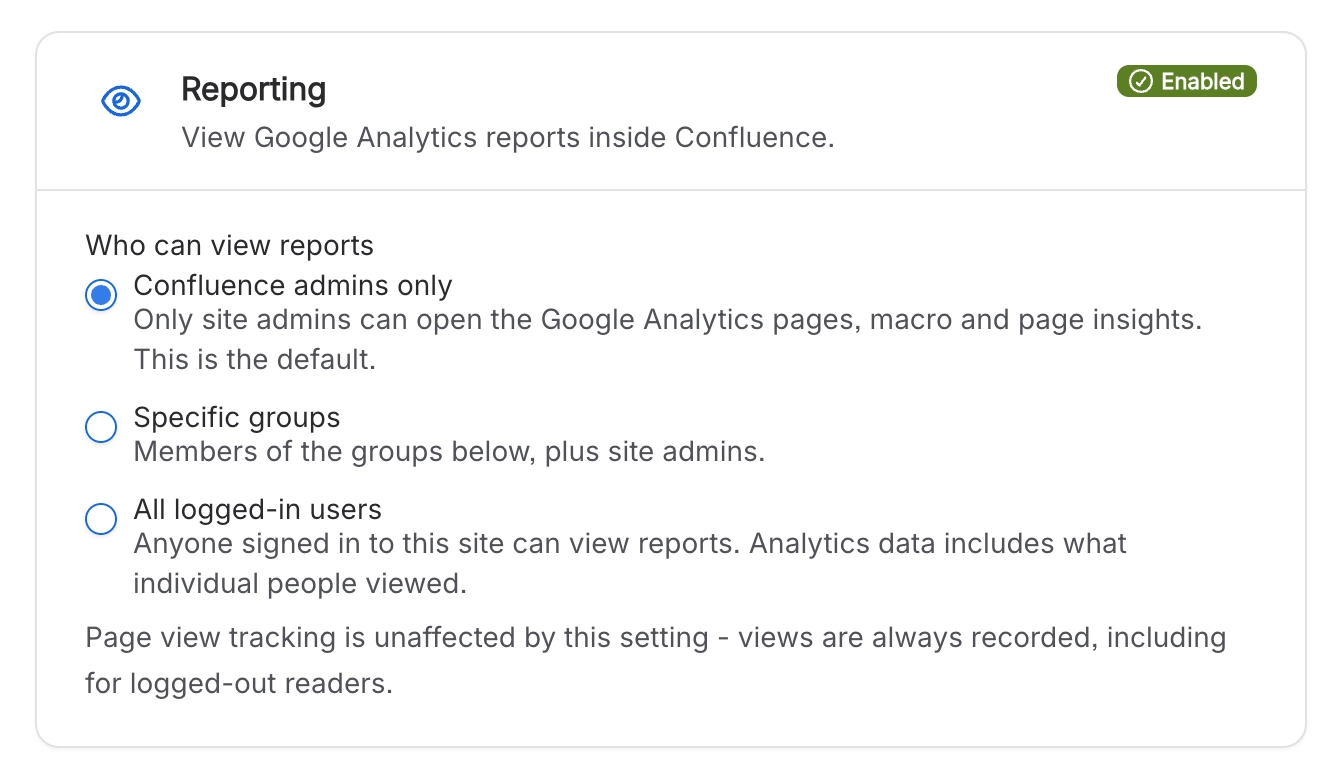
#7. Choose who can view reports
Under Reporting, set Who can view reports to Confluence admins only (the default), Specific groups or All logged-in users. Analytics shows what individual people viewed, so keep it to the people who need it.
#8. Choose other options
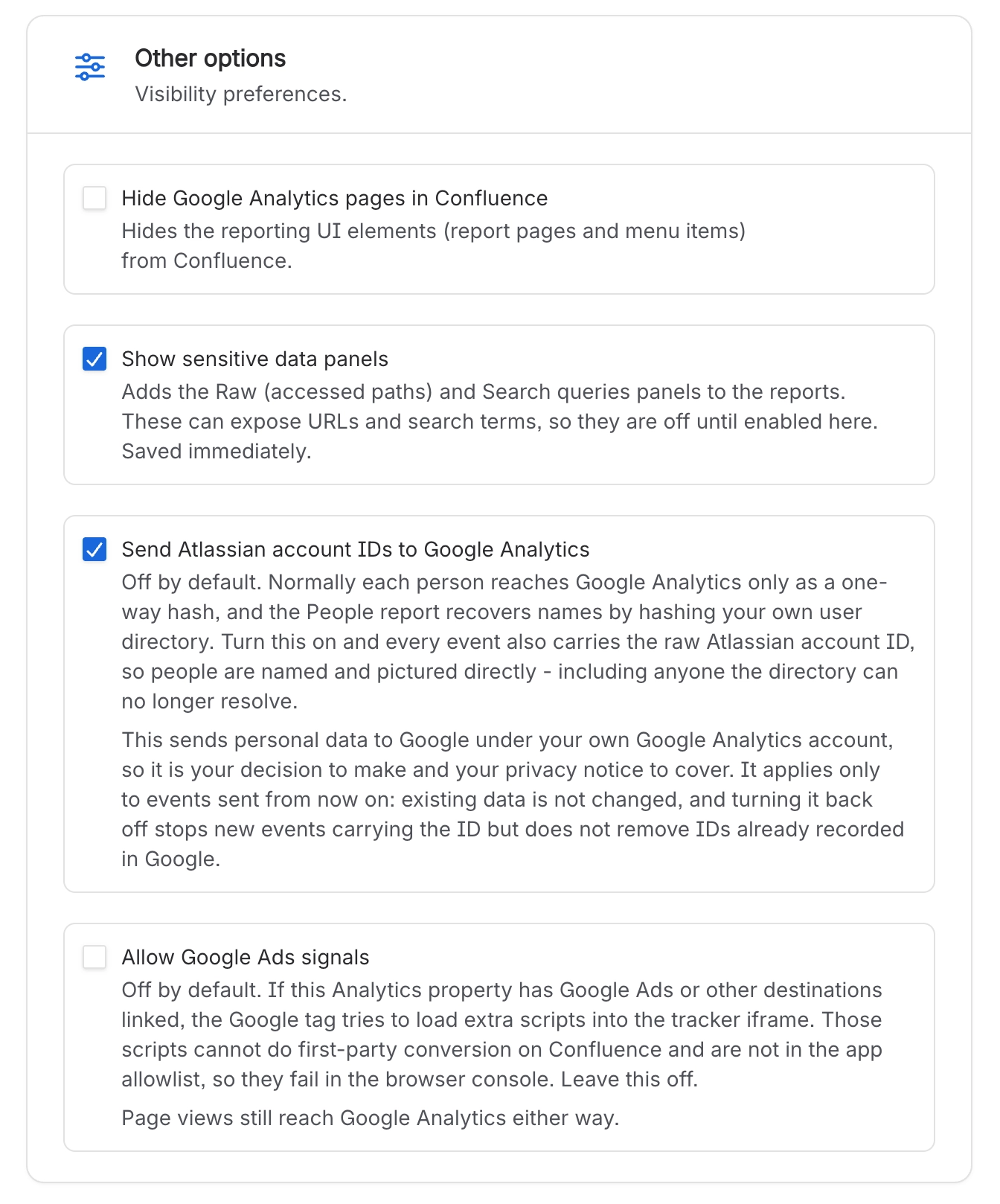
Turn off Google Analytics reports in Confluence: switches off the report pages, Page analytics and the macro. Tracking carries on.
Show sensitive data panels: adds the panels that can expose personal details.
Searches (search terms)
Raw (accessed paths)
Send Atlassian account IDs to Google Analytics
Names people directly in Google Analytics, including people your directory can no longer resolve.
When off (the default), people are sent as a one-way hash, and the People report still recovers names by hashing your own user directory.
Allow Google Ads signals
Leave this off. Linked Ads destinations load scripts that cannot work inside Confluence.
Then select Save configuration.
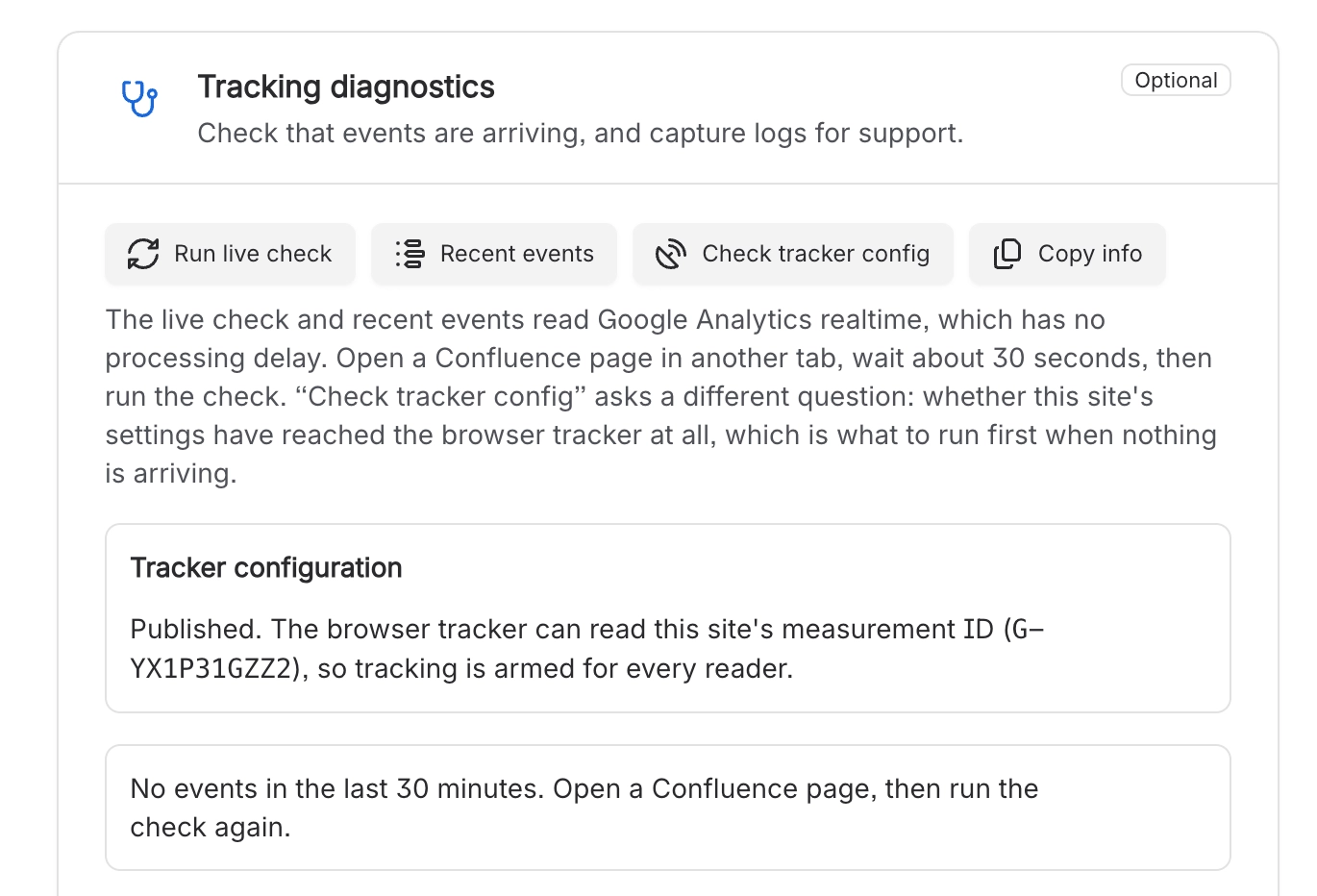
#9. Test the setup
Use Tracking diagnostics to check the configuration and see events arrive. See Check Google Analytics is tracking Confluence.
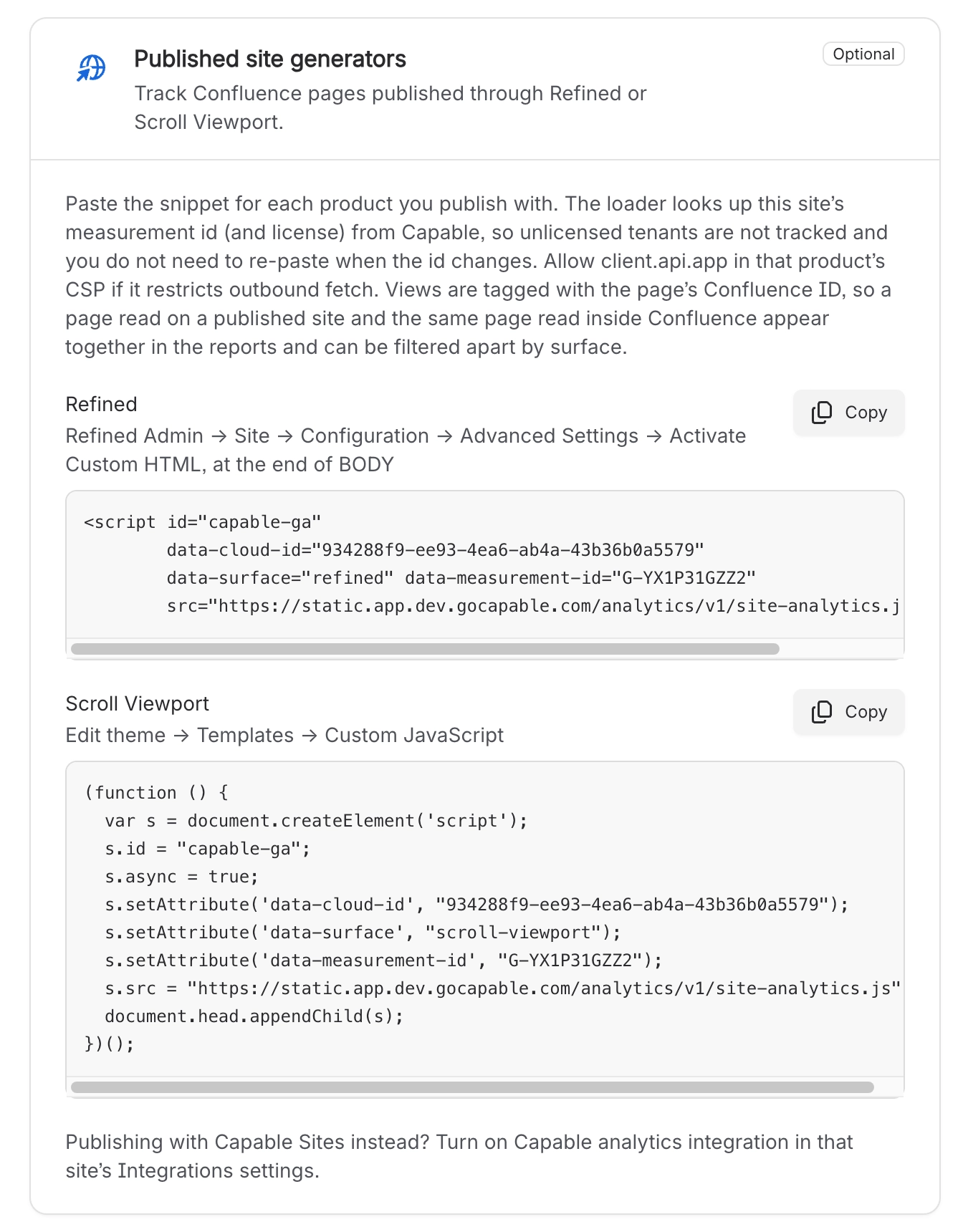
#10. Integrate with Refined, Scroll Viewport or Capable Sites
If you publish Confluence content with a site generator, copy the code from Published site generators so its views join up with views in Confluence. Capable Sites is set up from the site's own Integrations settings.
#Related
Top to bottom, one panel at a time.






















