Choose scope
Your site's content comes entirely from Confluence. Pages are fetched from the spaces you assign to the site, converted to static HTML, and published.
#Adding and removing spaces
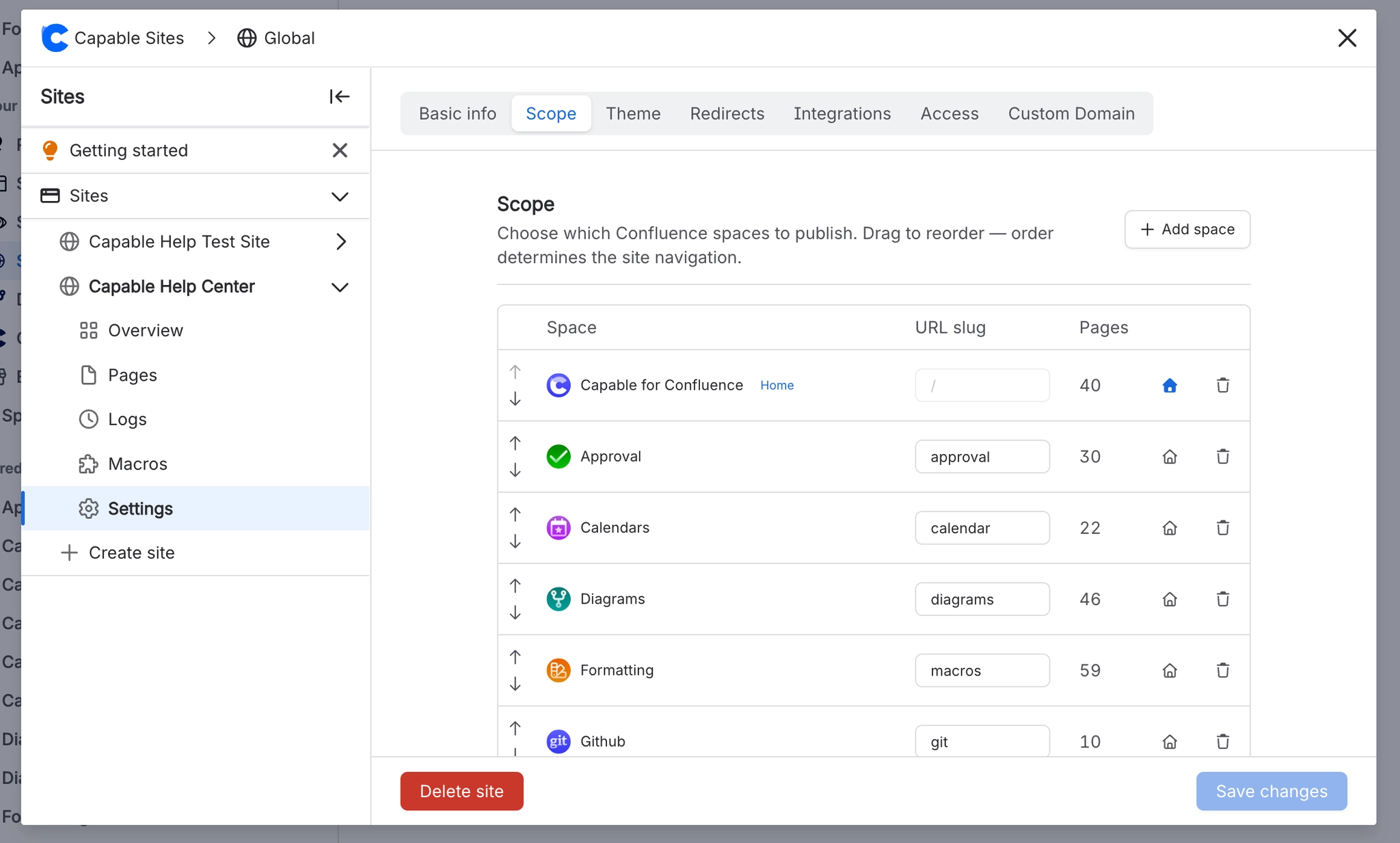
You can assign multiple Confluence spaces to a single site. Each space appears as a separate section with its own page tree navigation. Spaces can be added or removed at any time from the site settings - changes take effect on the next deploy.
#Space ordering
Spaces can be reordered by dragging them in the settings panel. The order determines how they appear in the site navigation and on the portal homepage.
#Home space
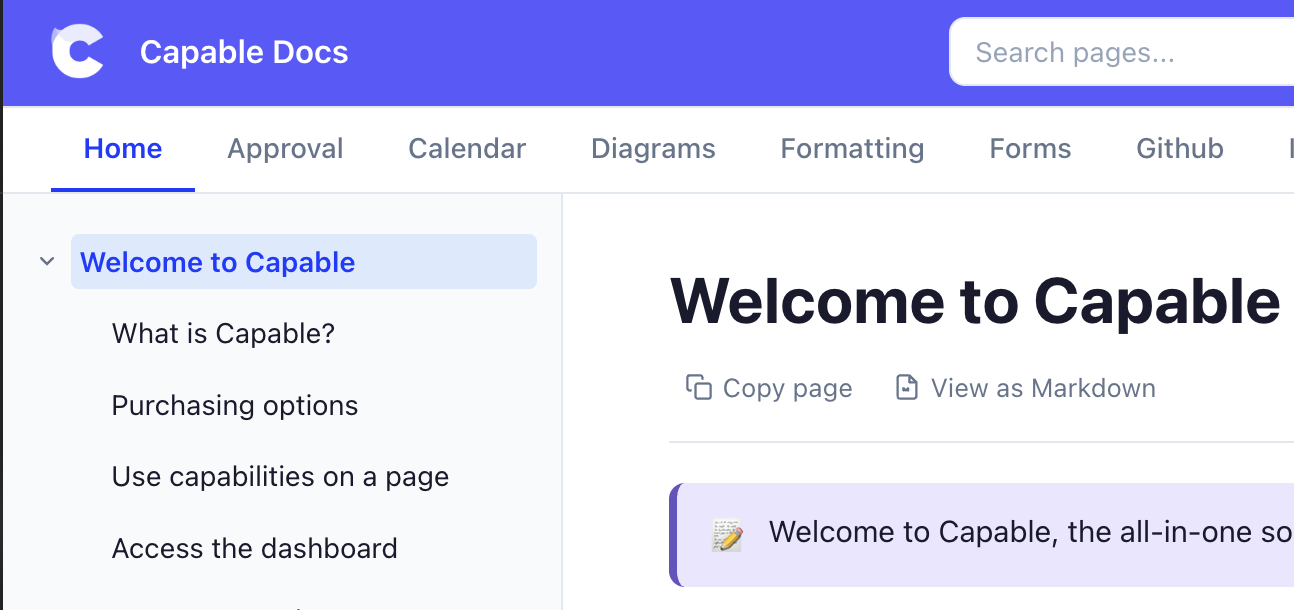
By default, your site shows a portal homepage - a grid of cards, one per space, with page counts. If you prefer, you can designate one space as the home space. When set, this space's root page replaces the portal homepage and appears first in the navigation.
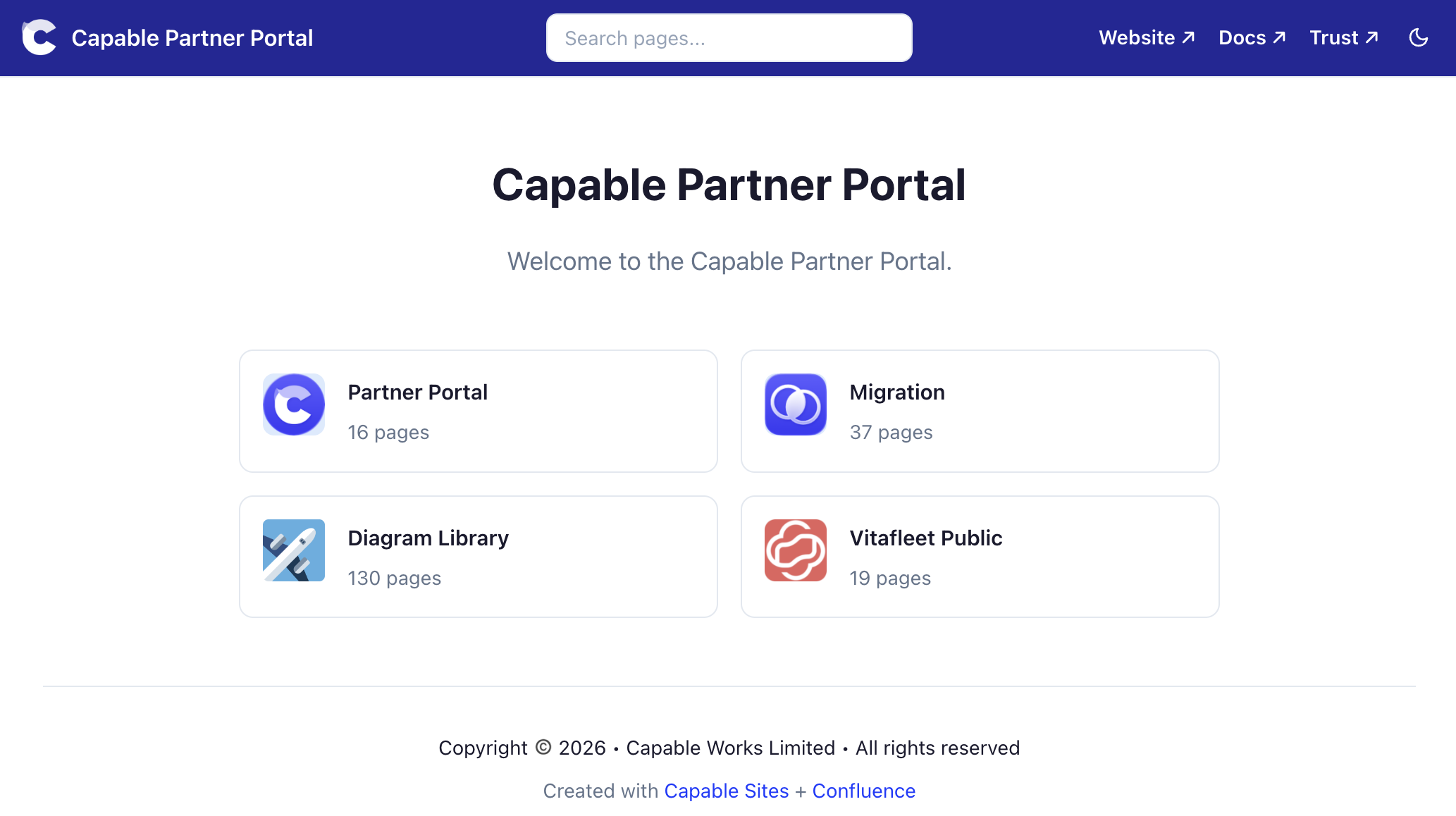
Enabling the Home space will stop the space grid view from showing as the homepage of your website and show that space homepage by default:
#Custom space slugs
By default, each space's URL path uses its Confluence space key (e.g., /DOCS/). You can override this with a custom slug (e.g., /docs/, /api-reference/). Slugs must be lowercase, use only letters, numbers, and hyphens, and be at most 63 characters.
#Children macro
If your Confluence pages use the built-in Children macro, the site generator renders it as a list of links to child pages. This is useful for creating landing pages that link to sub-sections.
#Include macro
The Confluence Include macro is supported - it renders the referenced page's content inline within the current page.