
What Capable GitHub is
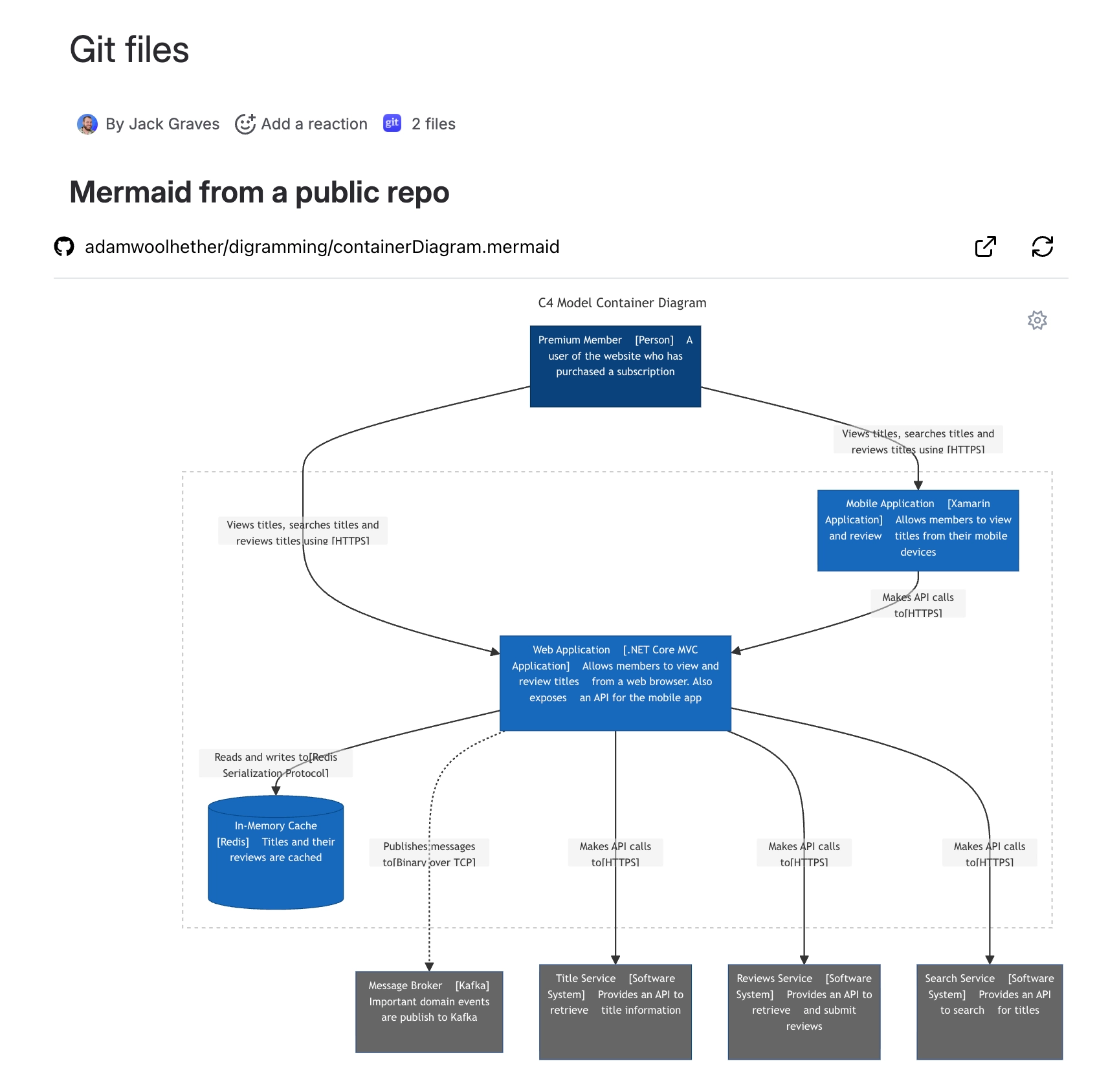
GitHub for Confluence lets you put a file from a GitHub repository straight onto a Confluence page, where it renders live: code with syntax highlighting, Markdown as formatted text, diagrams as pictures, and images inline. It comes with one macro, "Github file (Capable)", which you add either from Confluence's macro browser or simply by pasting a GitHub file link into the editor.
Each person connects their own GitHub account, so people only ever see repositories they personally have access to. Public files need no connection at all and are visible to everyone, including logged-out readers.
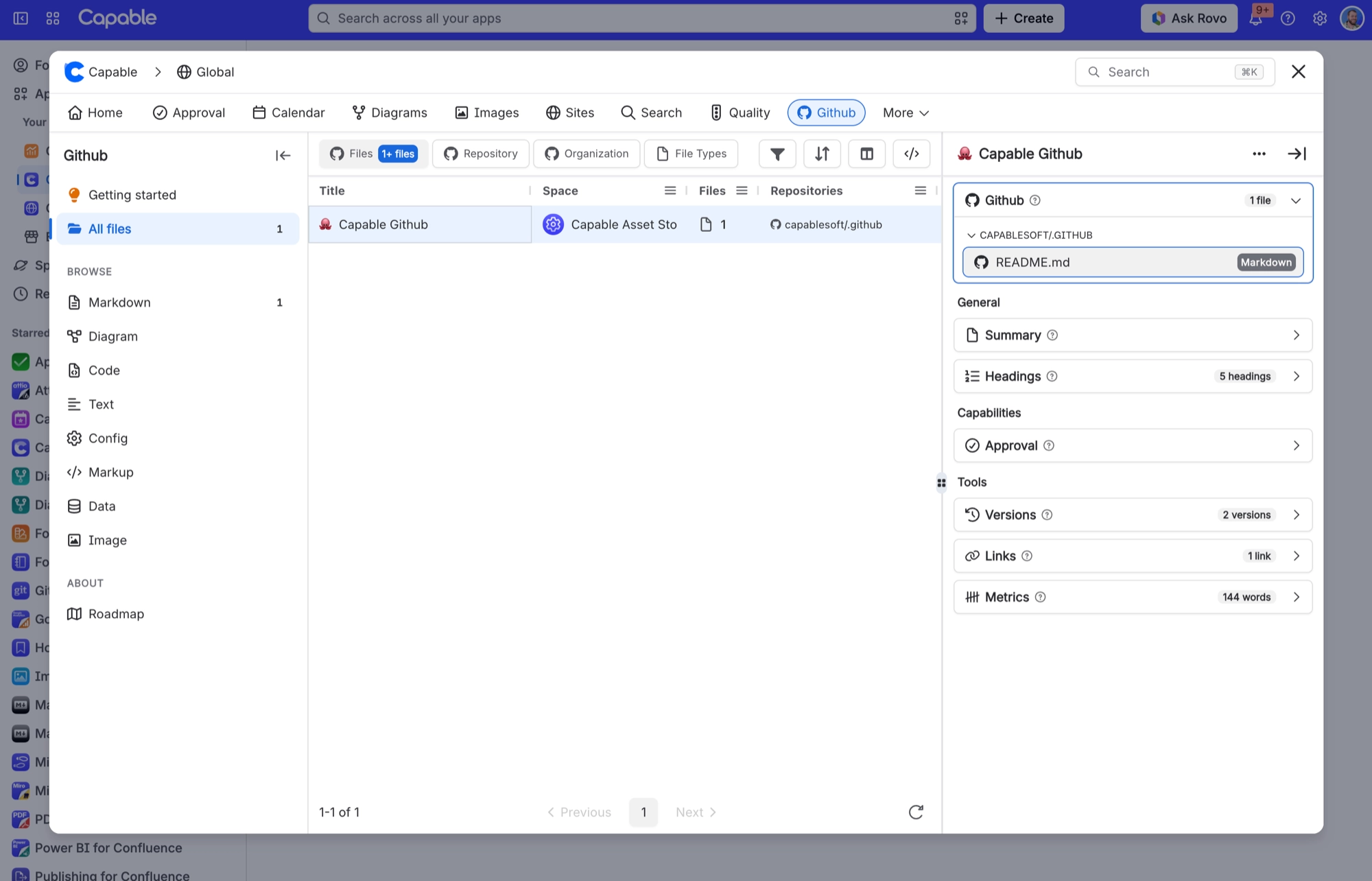
You also get a page byline showing which GitHub files a page contains, a "Github" section in the Capable app for browsing every page that references GitHub files, and search columns and filters so you can find those pages. In Confluence it is GitHub-only. There is no GitLab or Bitbucket support, and no site-wide or admin-level GitHub connection.
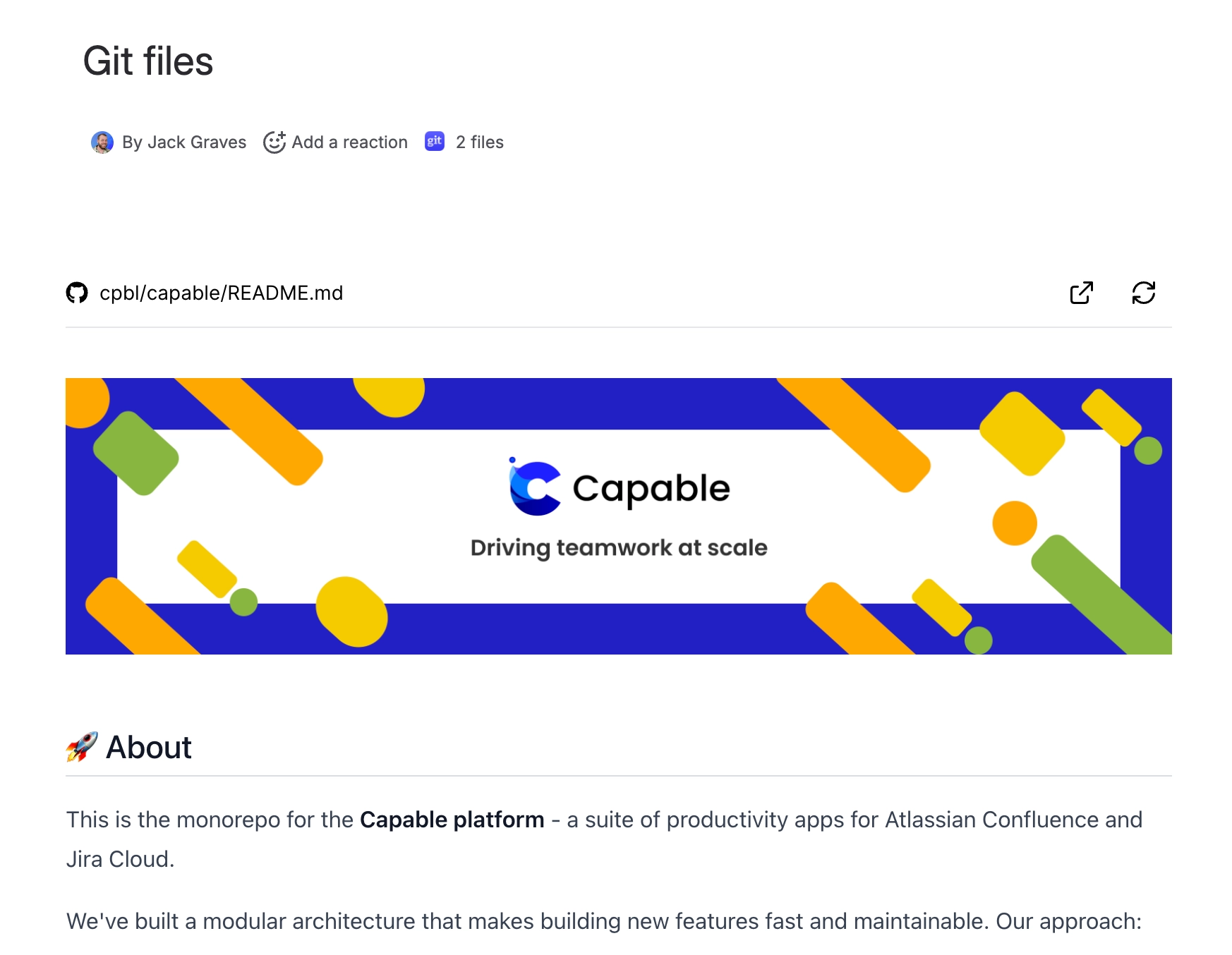
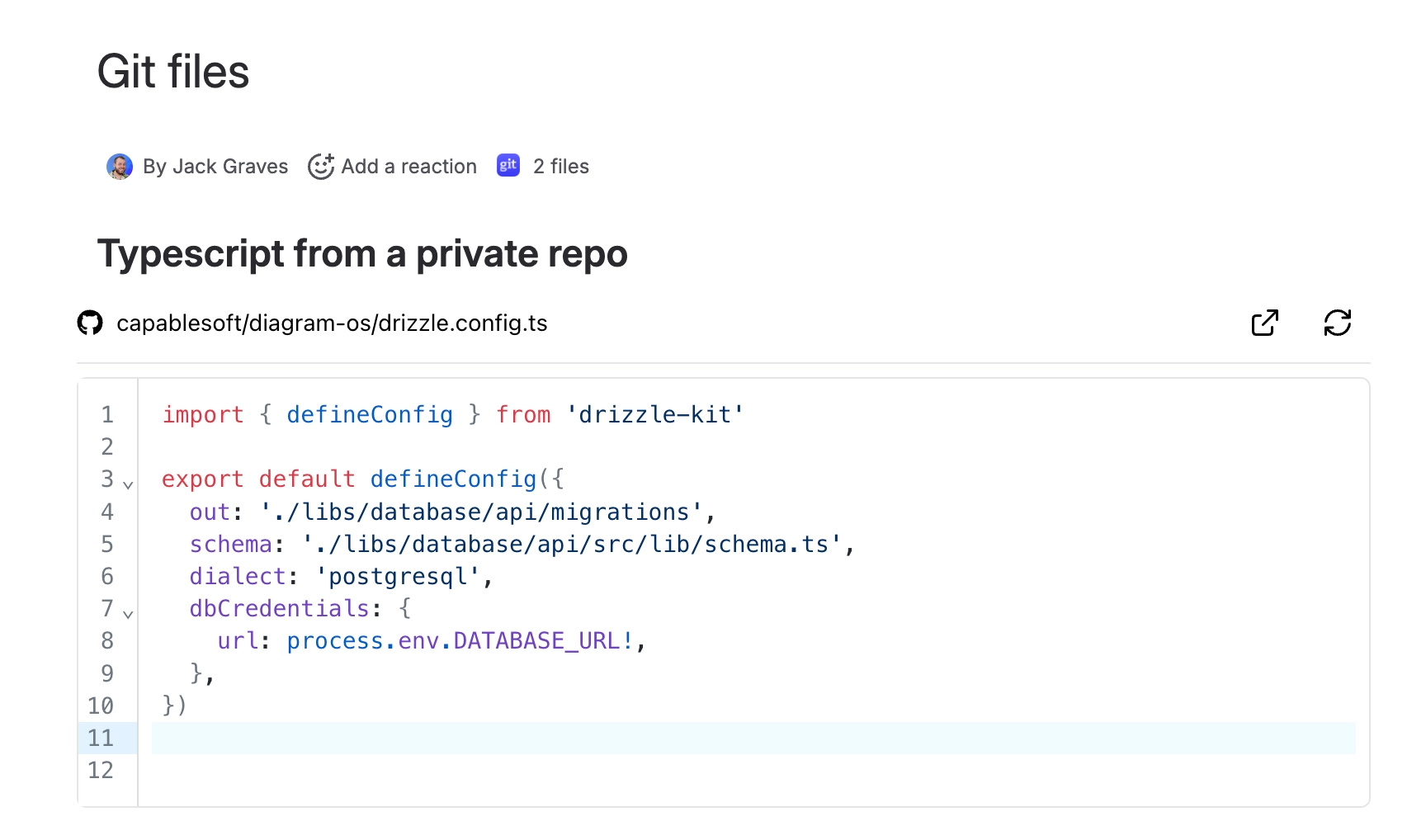
#At a glance
To see every page that uses GitHub files, open the Github section in the Capable app and choose All files.
#A few things worth knowing
Some of the macro's settings have no visible effect. Line numbers are always on, whatever Show Line Numbers says, and the Title is stored but never shown.
You will rarely meet those settings anyway. Editing the macro opens the Browse GitHub picker instead of a settings form.
Choosing a different file in the picker resets the macro's other settings to their defaults.
#Related
The short version.






















