
Get started
Browse repositories, select files, and show Markdown, diagrams, images, and other files directly on your pages:
Insert Markdown from Git (richly rendered)
Insert Diagrams from Git (Mermaid, PlantUML, DOT, and more)
Insert Images from Git (PNG, JPG, SVG, etc.)
Insert Other Files from Git (code with syntax highlighting, config, markup, plain text)
#How it works
Each person connects their own GitHub account. Access is never shared between people.
People only see a file if they have access to its repository, branch and file.
Your GitHub organisation may ask for approval or single sign-on (SSO). If it does, complete that step when prompted.
#Getting started
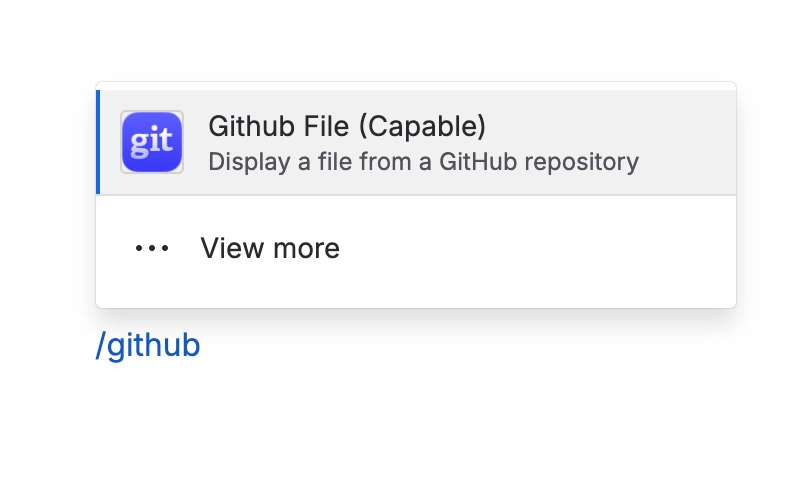
Open a Confluence page, type /github and choose the Github file macro.
Connect your GitHub account when prompted. Complete any organisation approval or SSO step if it is asked for.
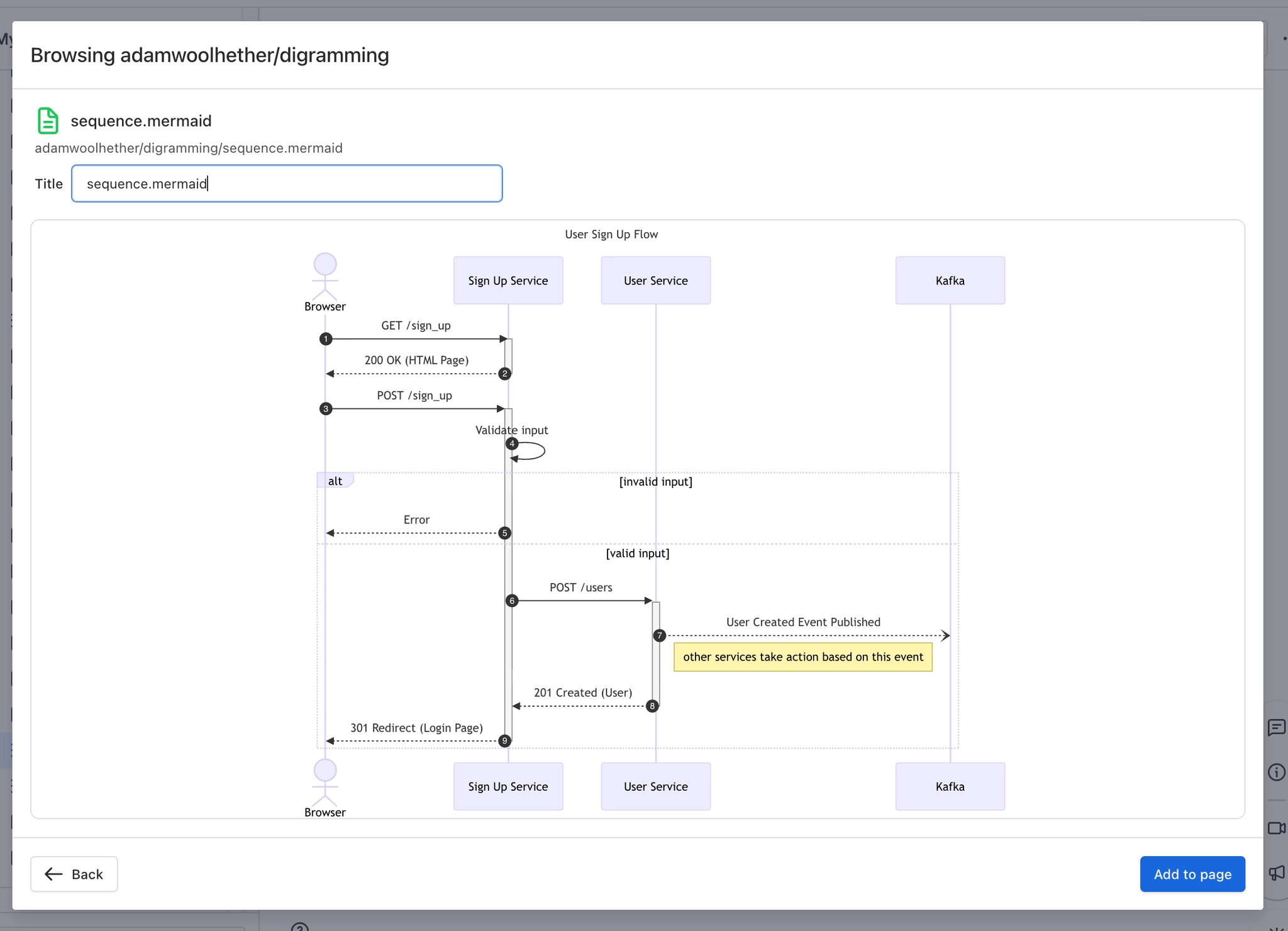
Pick a repository and branch, then select the file you want to show.
Adjust the title or display options, then add it to your page.
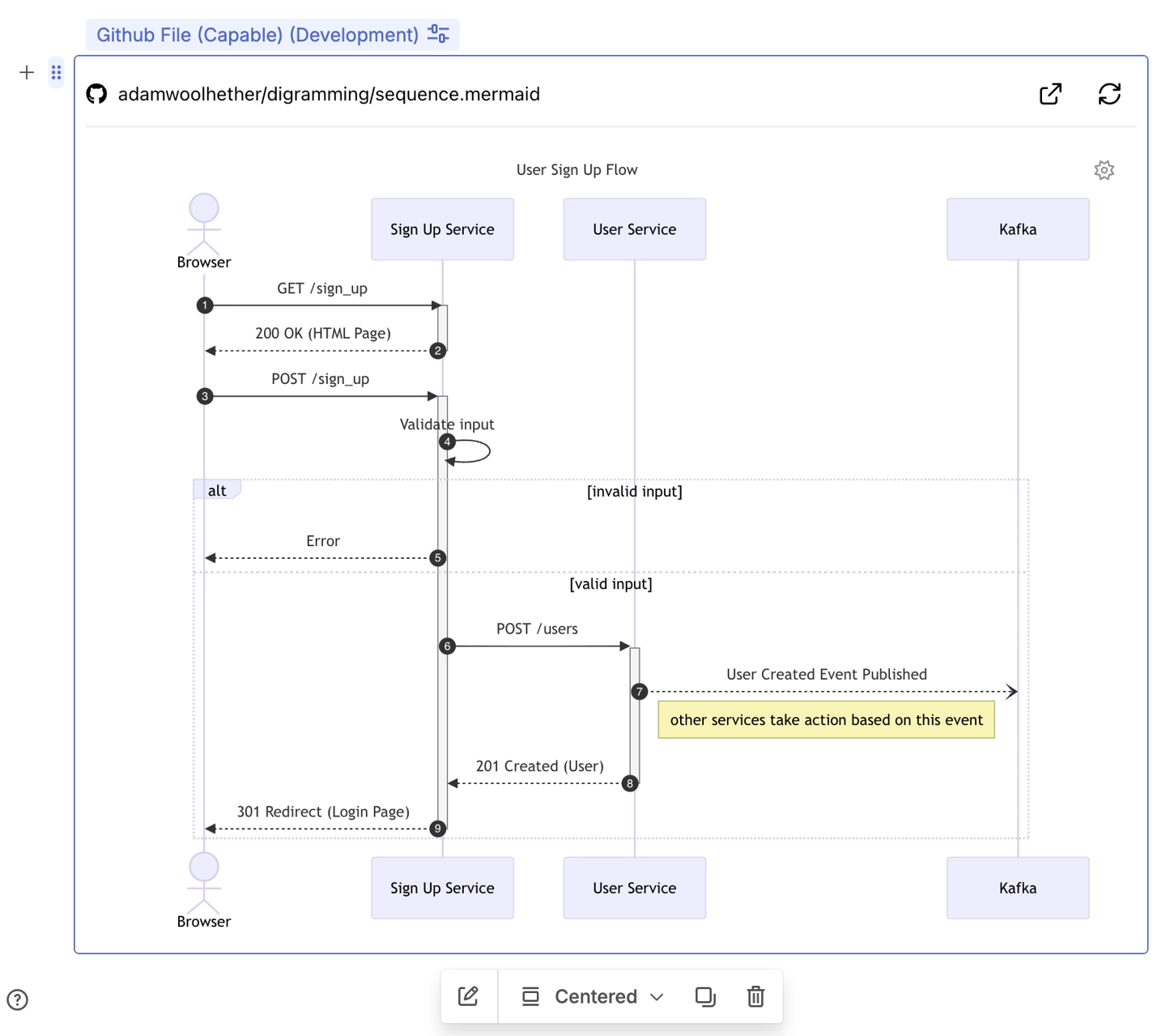
That is it. The file now shows on your page.
#In this section
#Related
Start from the task.






















