Embed macro
Embed external content directly in your Confluence page using an iframe. This is useful for videos, web apps, dashboards, documentation, prototypes, and other embeddable URLs.
Property | Details |
|---|---|
Description | Embed external pages, media, and web content inside Confluence using an iframe. |
Type | STANDARD |
Guest | SUPPORTED |
Anonymous | SUPPORTED |
Capable Sites | SUPPORTED |
How it works
Admins first add trusted domains to the iframe allowlist. After that, users can insert the Embed macro and paste a supported URL to display content directly on the page.
The Embed macro lets teams bring external content into Confluence without forcing readers to leave the page. It works especially well for content that is designed to be embedded, such as YouTube videos, custom internal websites, dashboards, prototypes, and other embeddable web pages.
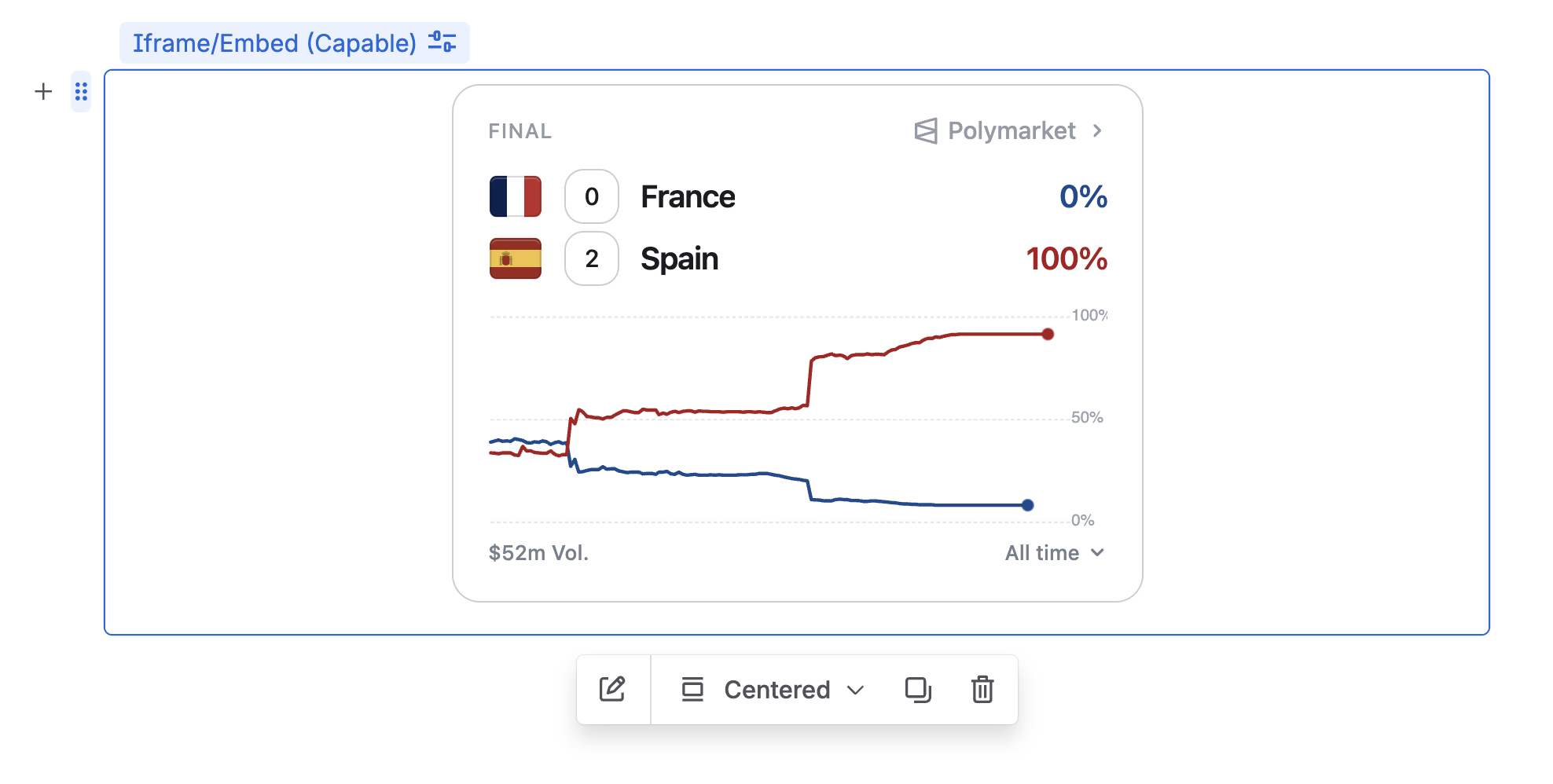
Because iframe embedding can introduce security and privacy risks, embedded domains must be approved first. That approval step is handled by site administrators through the frame allowlist. Once a domain has been added, users can embed URLs from that domain in their pages.
#What you can embed
YouTube videos for training, demos, walkthroughs, and announcements
Custom websites such as internal tools, portals, status pages, or knowledge hubs
Embeddable URLs from products that support iframe display
Interactive web content such as dashboards, forms, reports, or prototypes, if the source permits embedding
Best results
Use URLs from services that explicitly support embedding. Some websites block iframe use through browser security headers, even if the domain is allowlisted.
#Before users can embed content
The most important setup step happens at the admin level.
Identify the domain that users need to embed, such as
youtube.com,www.youtube.com, or an internal company domain.Add the domain to the frame allowlist in the admin configuration for embedded frames.
Save the configuration so the domain is trusted for iframe use.
Ask users to insert the Embed macro and paste a URL from the approved domain.
Important
Allowlisting a domain does not guarantee the page will render. The destination site must also allow itself to be displayed in an iframe. If it sends restrictive headers, the browser will block the embed.
#How to add the macro
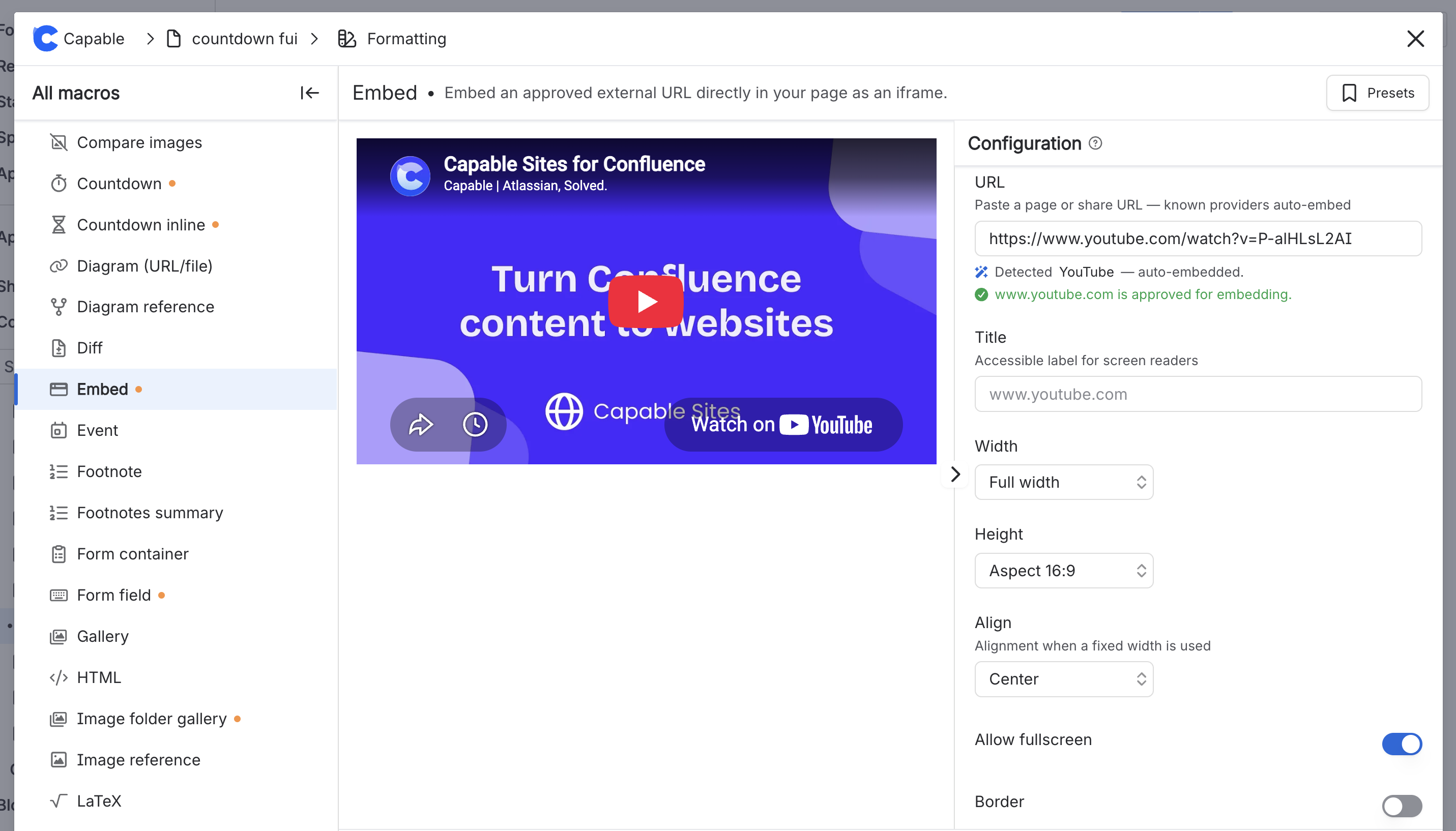
In the page editor, place your cursor where you want the embedded content to appear.
Open the macro browser or type
/embed.Select Embed/iFrame macro..
Paste the URL you want to embed.
Adjust any available display settings, such as size or layout, if needed.
Publish the page.
Once added, the macro renders the external content inline using an iframe, so readers can view or interact with it directly from the Confluence page.
#Common use cases
Use case | Why it helps |
|---|---|
Training videos | Keep instructional content on the page so readers can watch without opening a new tab. |
Internal tools | Surface portals, forms, or dashboards where teams already collaborate. |
Project reporting | Embed live reports or analytics views for quick access during reviews. |
Product demos and prototypes | Let stakeholders see interactive examples in context with surrounding documentation. |
#Things to know
Access still applies: If the source site requires login, viewers must have the right permissions there too.
Browser security rules apply: Some sites cannot be embedded because they send frame-blocking headers.
Content is live: The iframe displays content from the original source, so changes on the source page appear in Confluence.
Performance may vary: Large or complex embedded pages can load more slowly than native Confluence content.
#Best practices
Allowlist only trusted domains.
Prefer stable URLs that are intended for sharing or embedding.
Use embeds when interactive or visual content adds value; use normal links when a full-page experience is better.
Test the embedded URL after publishing to confirm it loads correctly for typical viewers.
For internal tools, confirm both Confluence users and source-system permissions are aligned.
#Troubleshooting
#Summary
The Embed macro is a simple way to bring external content into Confluence with an iframe. Admins control security by allowlisting trusted domains, and users can then embed supported URLs such as YouTube, custom websites, and other embeddable web content directly in their pages.