
Markdown (issue panel)
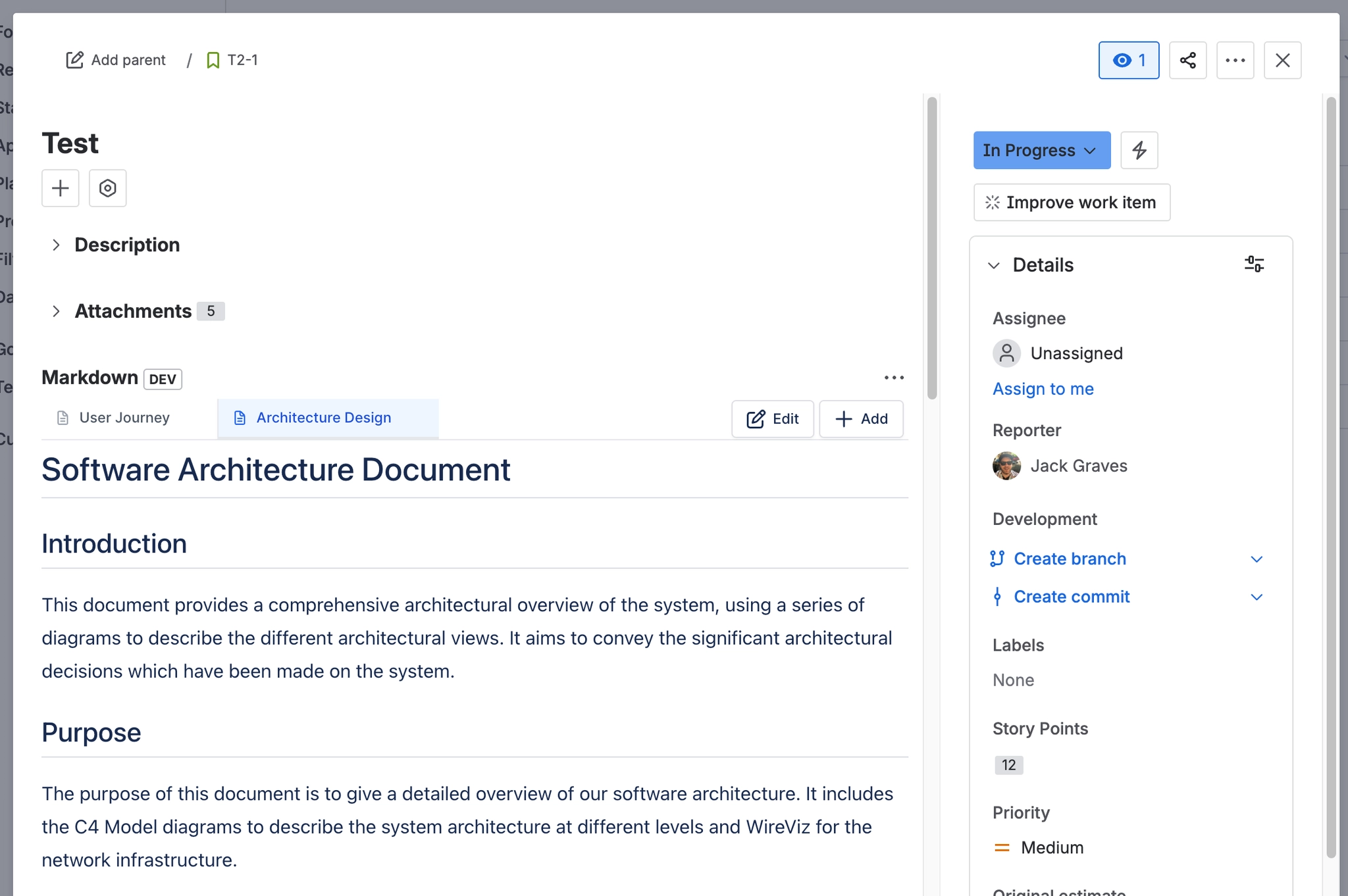
The main working surface. One tab per .md attachment on the issue (overflow tabs collapse into a 'More (n)' menu), a read-only rendered preview of the selected tab at a fixed 500px height, plus Sort tabs, Edit and Add buttons and a per-tab Delete control with a confirmation dialog. The panel refreshes itself when Jira reports the issue changed, so files attached through Jira's own attachment control appear without a reload.
#Worth knowing
Reads the issue's attachments live, so it is not affected by the search-index gap that affects the global page.
#Where to find it
Issue view > Markdown panel
#DefaultState
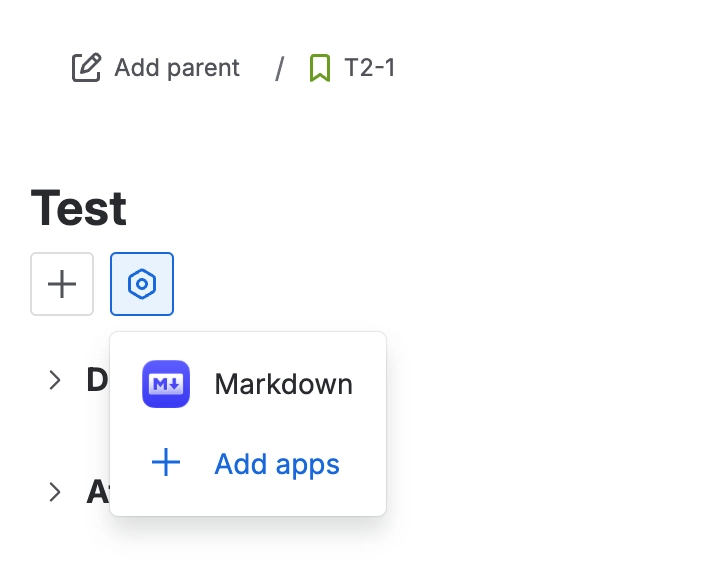
Empty state reads 'No markdown documents added to this issue' with a single 'Add Markdown' button.
#Where you do it
Task | Where |
|---|---|
Make the Markdown panel always visible on issues | Jira project settings > Issue layout |
Add a Markdown document to an issue | Issue view > Markdown panel > Add |
Read a Markdown document | Issue view > Markdown panel |
#Settings that affect this
Setting | Where | What it does |
|---|---|---|
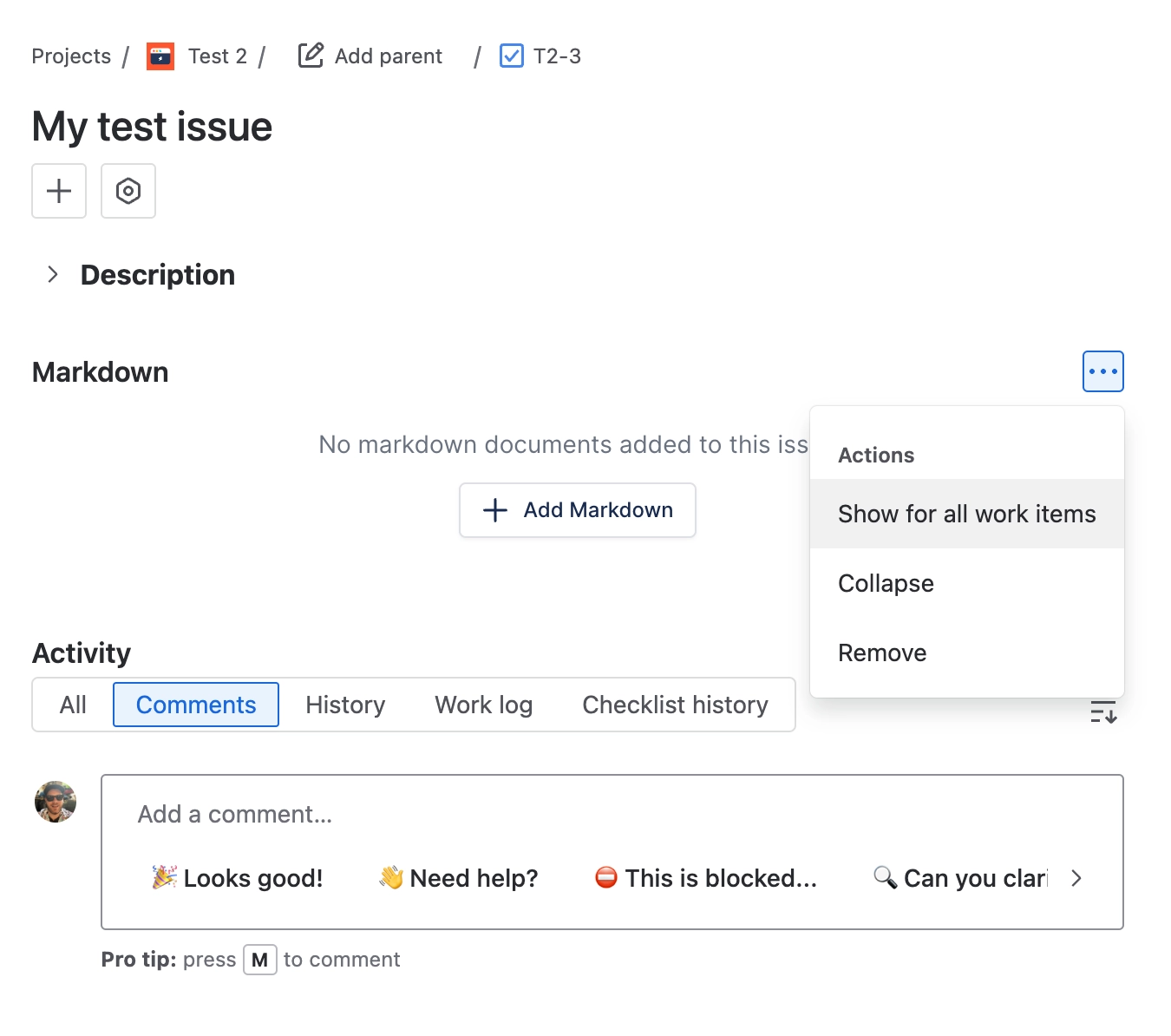
Sort tabs | Issue view > Markdown panel > sort button | - |
Getting started / List view | Apps > Capable Markdown > two icon buttons in the header | - |
Project filter | Apps > Capable Markdown > project selector | - |
#Worth knowing
There is no version history for a Markdown document, neither in Jira nor in the app.
Nothing prevents two documents on the same issue having the same title, and renaming makes the old filename disappear.
The panel's Version, Created by and Last modified by values are cosmetic and are never stored.
Raw HTML inside a Markdown document is not rendered.
Relative image paths inside a document cannot resolve, because the Jira panel and modal pass no base URL or content id to the renderer.
Content that does not look like Markdown can be replaced by an 'Invalid markdown provided' message naming the detected language.
#Related
How it actually behaves.






















