Edit or delete a Markdown document in a Jira issue
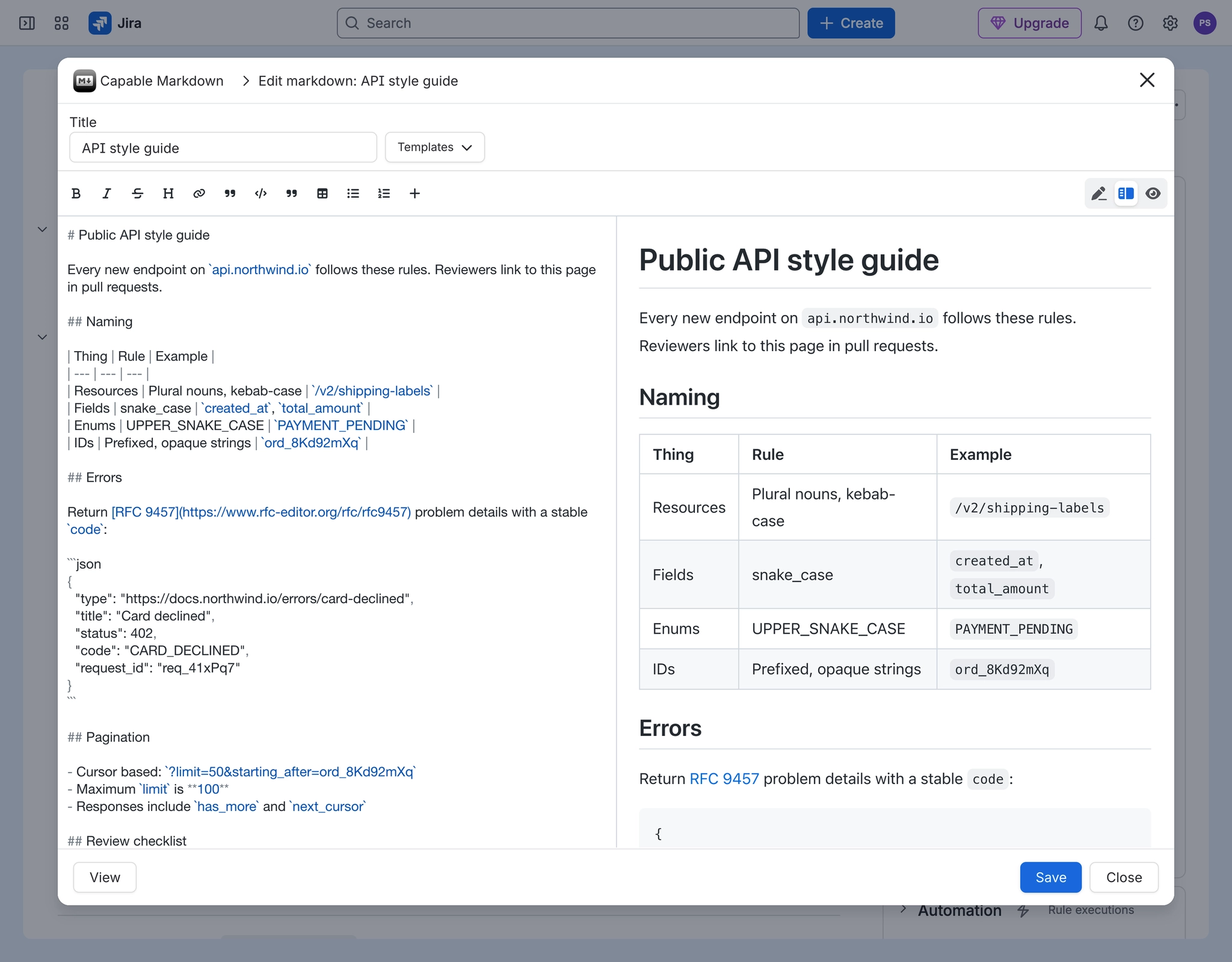
To edit a Markdown document in a Jira issue, select its tab in the Markdown panel, click Edit, make your changes and click Save. To delete one, click the bin on its tab and confirm with Delete. Deleting removes the .md attachment from the issue for good, so download a copy first if you might need it.
#Before you start
You need to be allowed to add and delete attachments on the issue.
Saving an edit replaces the attachment with a new one, so the issue history shows an attachment deleted and added.
#Steps
Open the issue and select the document's tab in the Markdown panel. Hidden tabs are under More.
To change it, click Edit. Change the Title to rename it, edit the body, and click Save.
To delete it, hover its tab, click the Delete bin icon, and click Delete in the Delete Markdown dialog.
To reorder the tabs, click the sort button next to Edit to switch between newest first and A to Z.
#If it does not work
The sort button is missing. It is hidden when the panel is narrow. Widen the window.
Someone else changed the tab order. The order is saved on the issue for everyone, not per person.
Two tabs now have the same name. Renaming saves a new file under the new title. Give each document a distinct title.
#Related
Keep the issue's documents as current as the issue.