Find Markdown documents across Jira projects
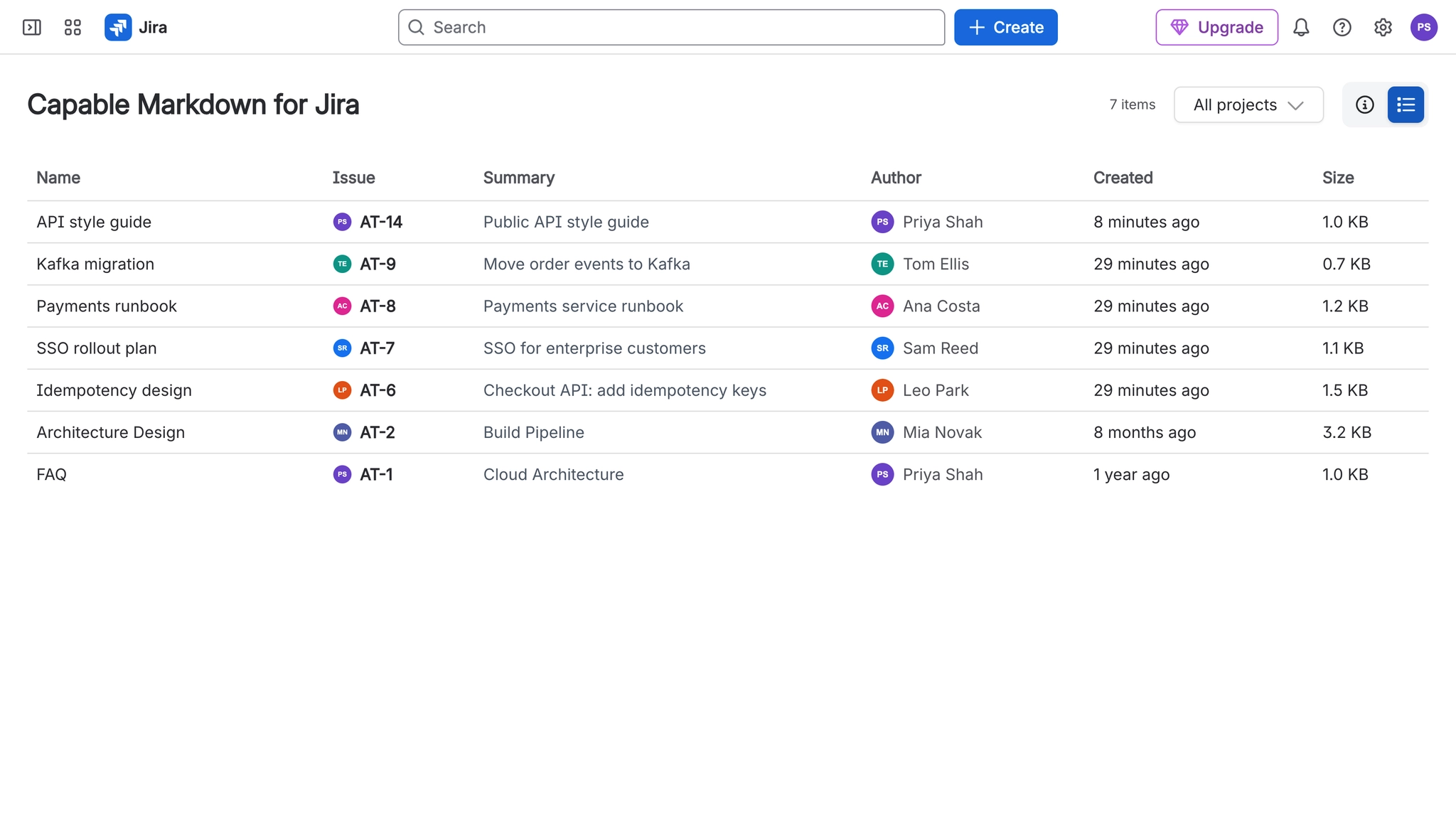
To find Markdown documents across Jira projects, open Capable Markdown from the Apps menu in Jira. Its list view shows each .md document with its name, issue and creation date, newest first. Filter by project to narrow it down, and click a row to open the issue it belongs to without leaving the page.
#Before you start
You need to be logged in. The list only shows issues you are allowed to see.
Documents are listed once the app has indexed the issue. Files attached before the app was installed are not listed until the issue's attachments change.
#Steps
In Jira, open Apps and choose Capable Markdown.
If the welcome screen shows, switch to List view with the icon buttons in the header.
Use the project selector to show one or more projects.
Click a row to open its issue in a dialog, then read or edit the document in the issue's Markdown panel.
#If it does not work
The list is empty, but issues have .md files. Those files were attached before the app was installed, or the issue has not been indexed yet. Adding or removing any attachment on the issue indexes it.
The welcome screen keeps coming back. Hiding it is remembered in your browser only, so a new browser or a cleared cache shows it again.
#Related
Every document, one list.