
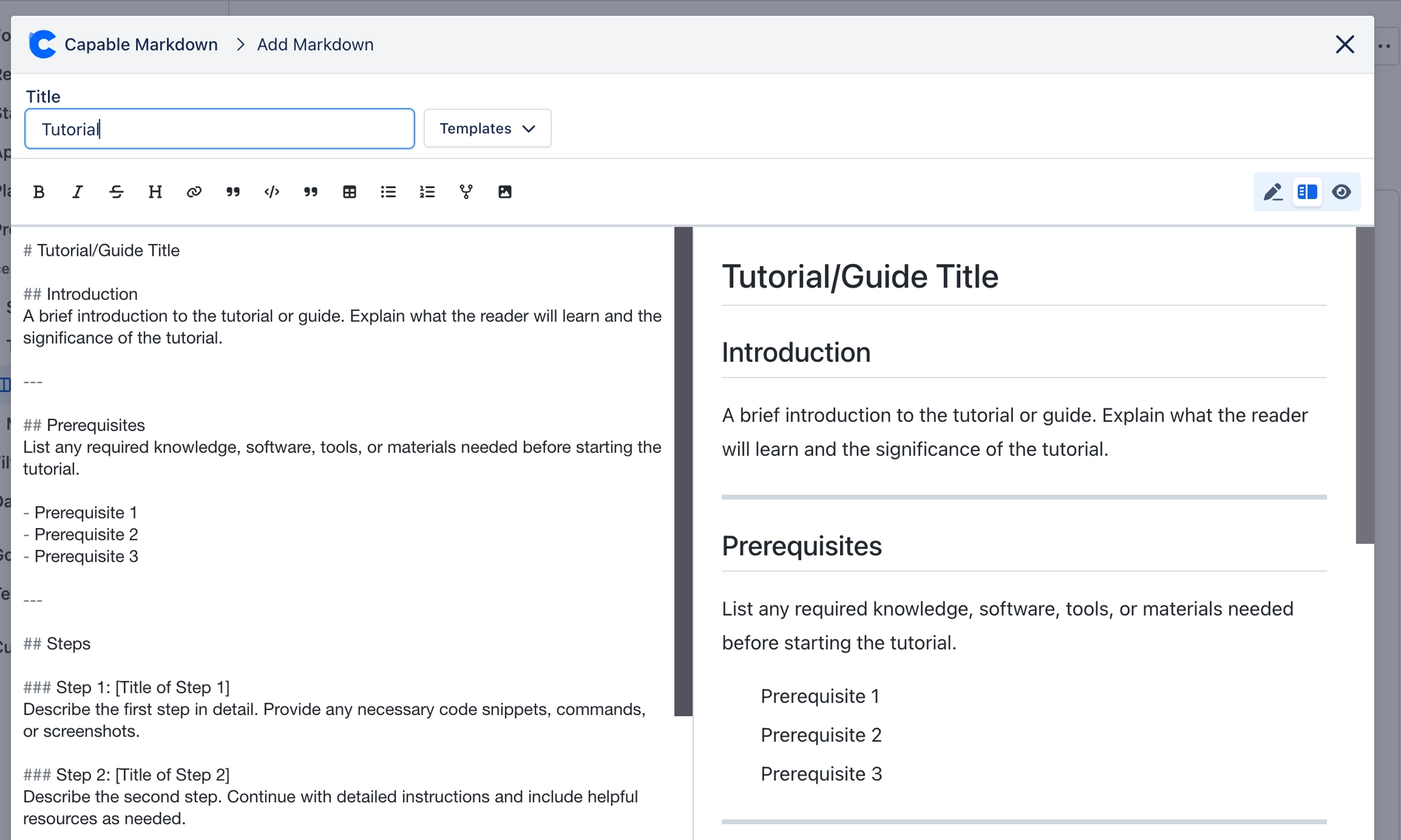
Markdown editor modal
Opens at maximum size with navigation hidden. Contains a Title field, a Templates dropdown, a View/Edit toggle, the formatting toolbar, an Insert menu, and Save and Close buttons. Add uses the heading 'Add Markdown'; Edit uses 'Edit markdown: <title>'.
#Worth knowing
Save hands the title and body back to the panel, which writes the .md attachment. Close discards the draft.
#Where to find it
Issue view > Markdown panel > Add or Edit
#DefaultState
Opens in live mode (source and preview side by side) for a new document.
#Where you do it
Task | Where |
|---|---|
Make the Markdown panel always visible on issues | Jira project settings > Issue layout |
Add a Markdown document to an issue | Issue view > Markdown panel > Add |
Read a Markdown document | Issue view > Markdown panel |
#Settings that affect this
Setting | Where | What it does |
|---|---|---|
Sort tabs | Issue view > Markdown panel > sort button | - |
Getting started / List view | Apps > Capable Markdown > two icon buttons in the header | - |
Project filter | Apps > Capable Markdown > project selector | - |
#Worth knowing
Relative image paths inside a document cannot resolve, because the Jira panel and modal pass no base URL or content id to the renderer.
There is no image upload from the editor. Images must be referenced by URL.
Deleting a Markdown tab permanently deletes the underlying Jira attachment.
#Related
How it actually behaves.






















