
Capable Markdown (global page)
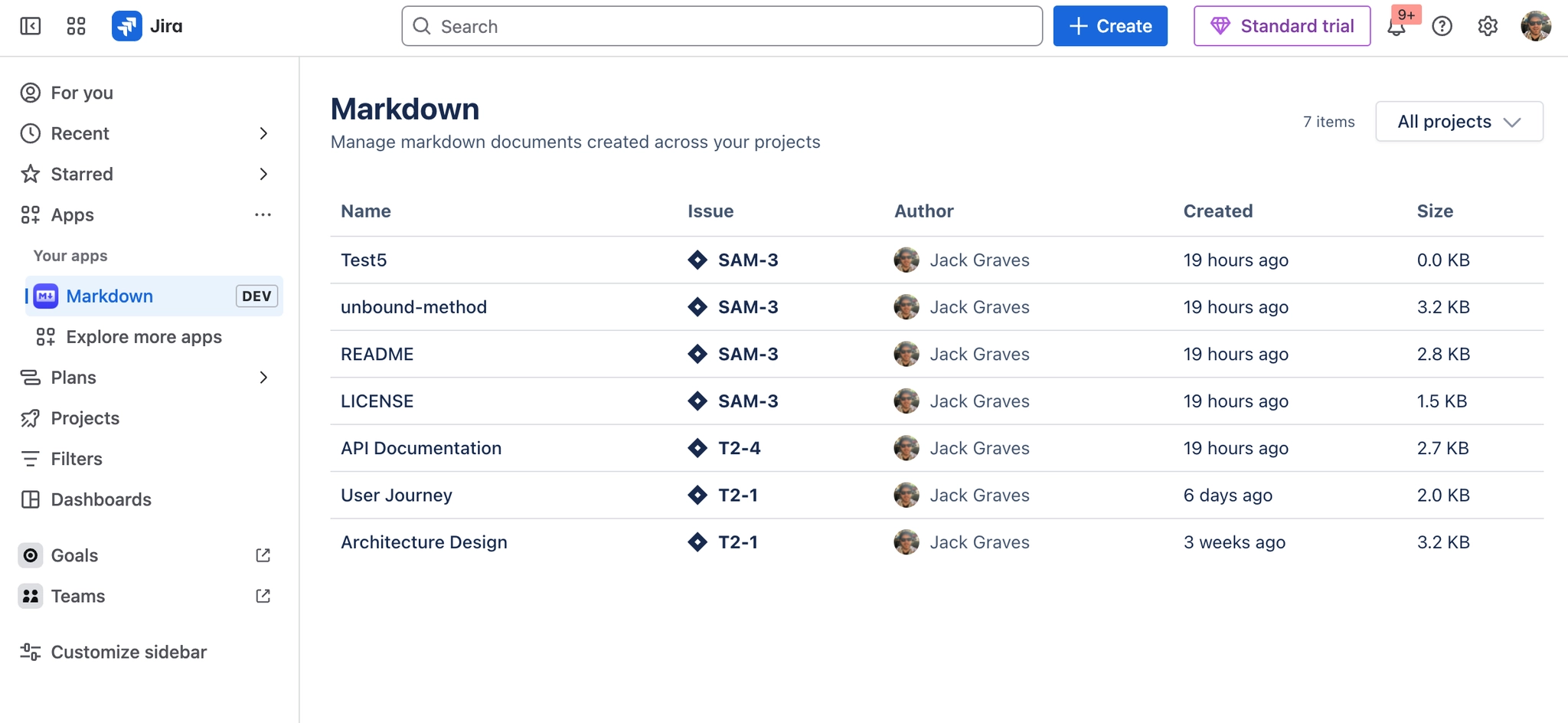
A cross-project browser for Markdown. The header reads 'Capable Markdown for Jira'. It shows an item count, a project filter, a Getting started / List view toggle, and a table of Markdown attachments with columns Name, Issue, Summary, Author, Created and Size. Clicking a row opens Jira's own View Issue modal. Rows come from a JQL search on the app's issue property, 50 issues per page with a 'Show more' button.
#Worth knowing
Only visible to logged-in users. The list depends on the app's search index, so it only shows .md files attached after the app was installed on a licensed site.
#Where to find it
Jira > Apps > Capable Markdown
#DefaultState
First visit opens on Getting started; after that it opens on List view. The project filter starts on 'All projects'.
#Where you do it
Task | Where |
|---|---|
Install the app and approve its permissions | - |
Check the licence is active | Jira > Apps > Manage apps |
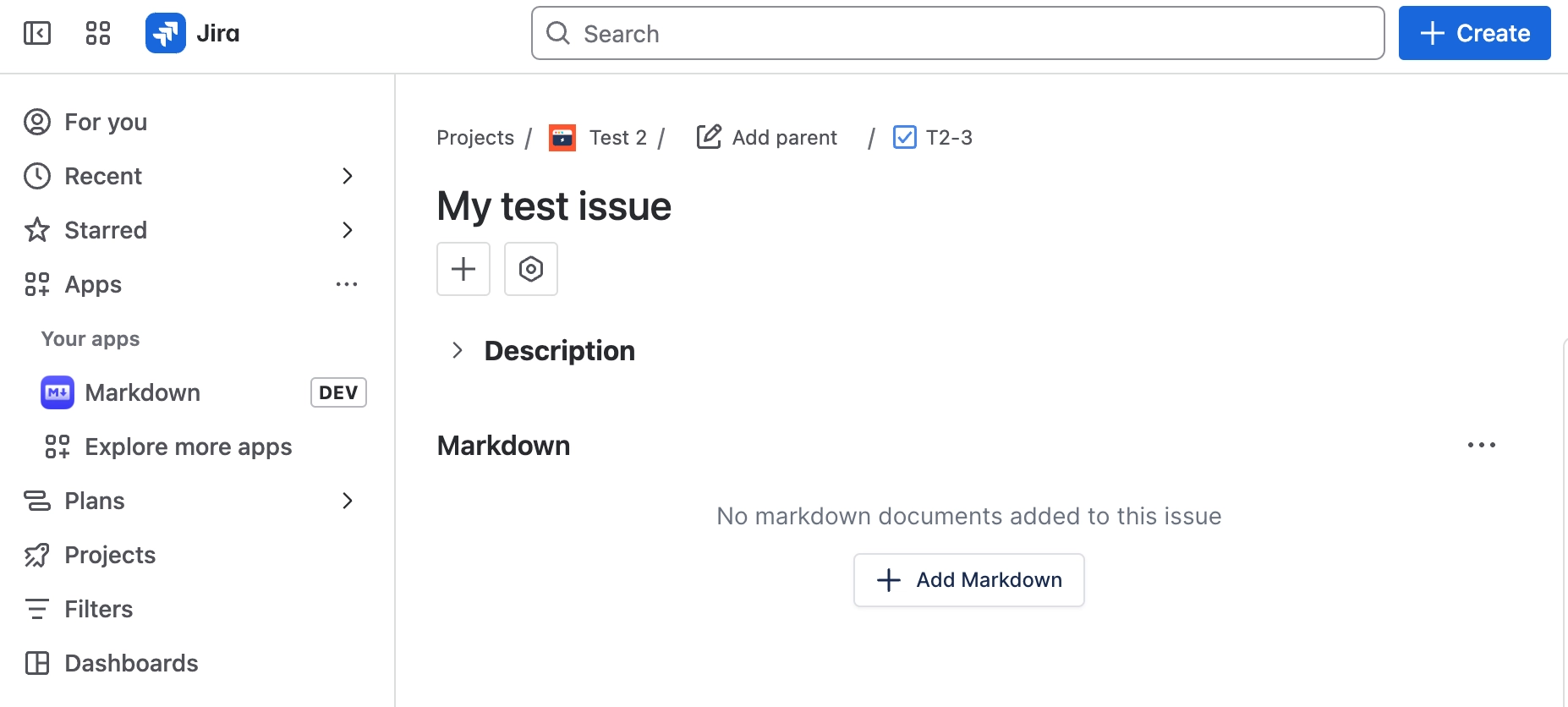
Make the Markdown panel always visible on issues | Jira project settings > Issue layout |
#Settings that affect this
Setting | Where | What it does |
|---|---|---|
Sort tabs | Issue view > Markdown panel > sort button | - |
Getting started / List view | Apps > Capable Markdown > two icon buttons in the header | - |
Project filter | Apps > Capable Markdown > project selector | - |
#Worth knowing
There is no version history for a Markdown document, neither in Jira nor in the app.
The global page depends on a search index that is only written by attachment triggers on a licensed site, with no backfill and no scheduled reindex, so pre-install files and files added while unlicensed never appear there.
The global page's Created column and its sort order use the attachment's created date, not a true modification date.
Raw HTML inside a Markdown document is not rendered.
Diagram source and the user's short-lived token travel inside the image URL to Capable's hosted rendering service; the app declares all external addresses as not in scope for end-user data even though document text and diagram source transit them.
Content that does not look like Markdown can be replaced by an 'Invalid markdown provided' message naming the detected language.
#Related
How it actually behaves.






















