Insert macros into pages
Find out how to integrate rich macros into your pages for enhanced functionality.
#How to insert from the Macro browser
#1. Click on the + symbol in the editor
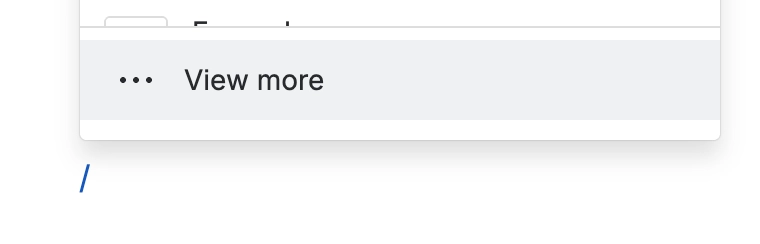
Then click on ‘View more’

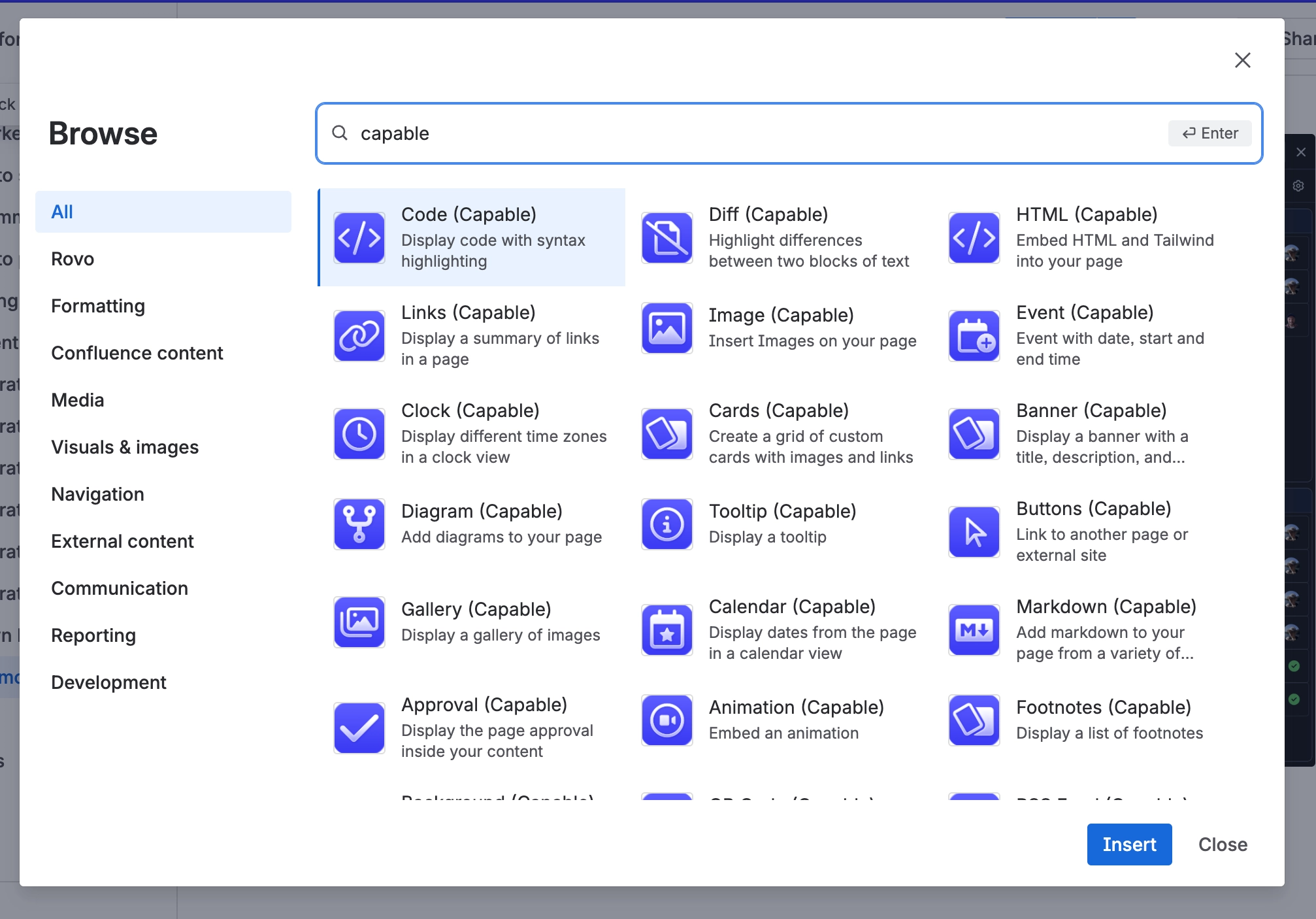
#2. Search for 'Capable'
#How to insert using the slash menu
Want to add macros without affecting your flow? Insert them directly from the editor:
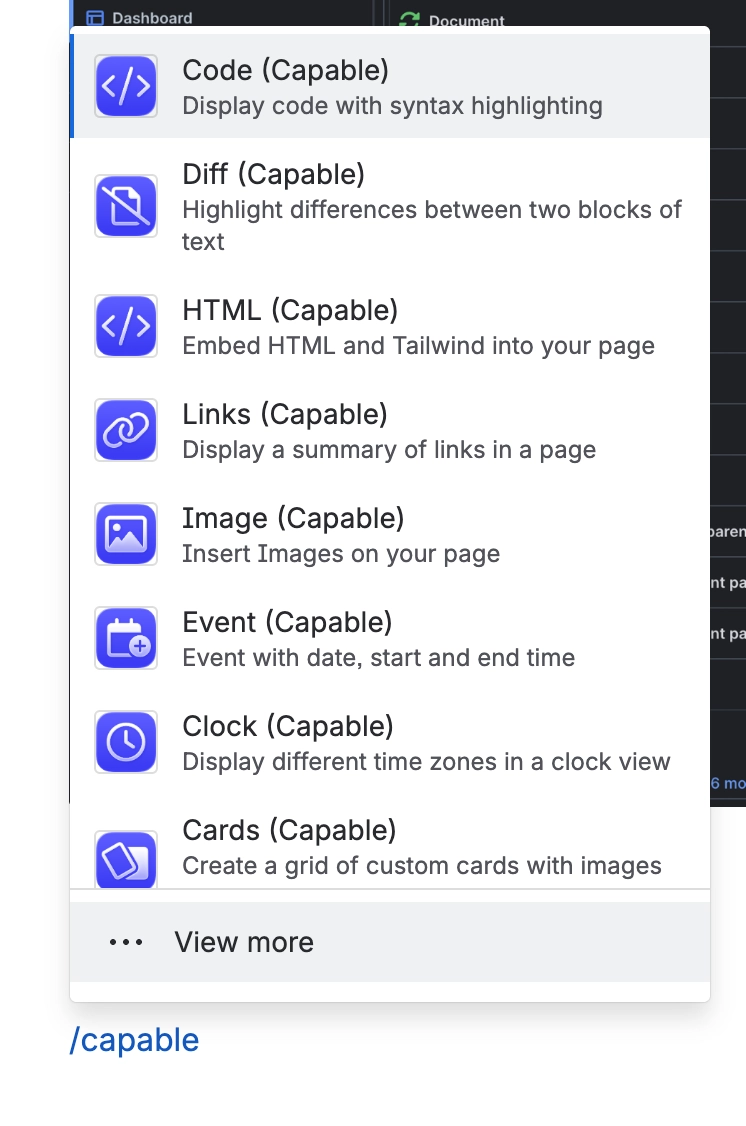
#1. In the editor, type /capable and choose a macro
This will show a menu from which you can select the macro to insert.
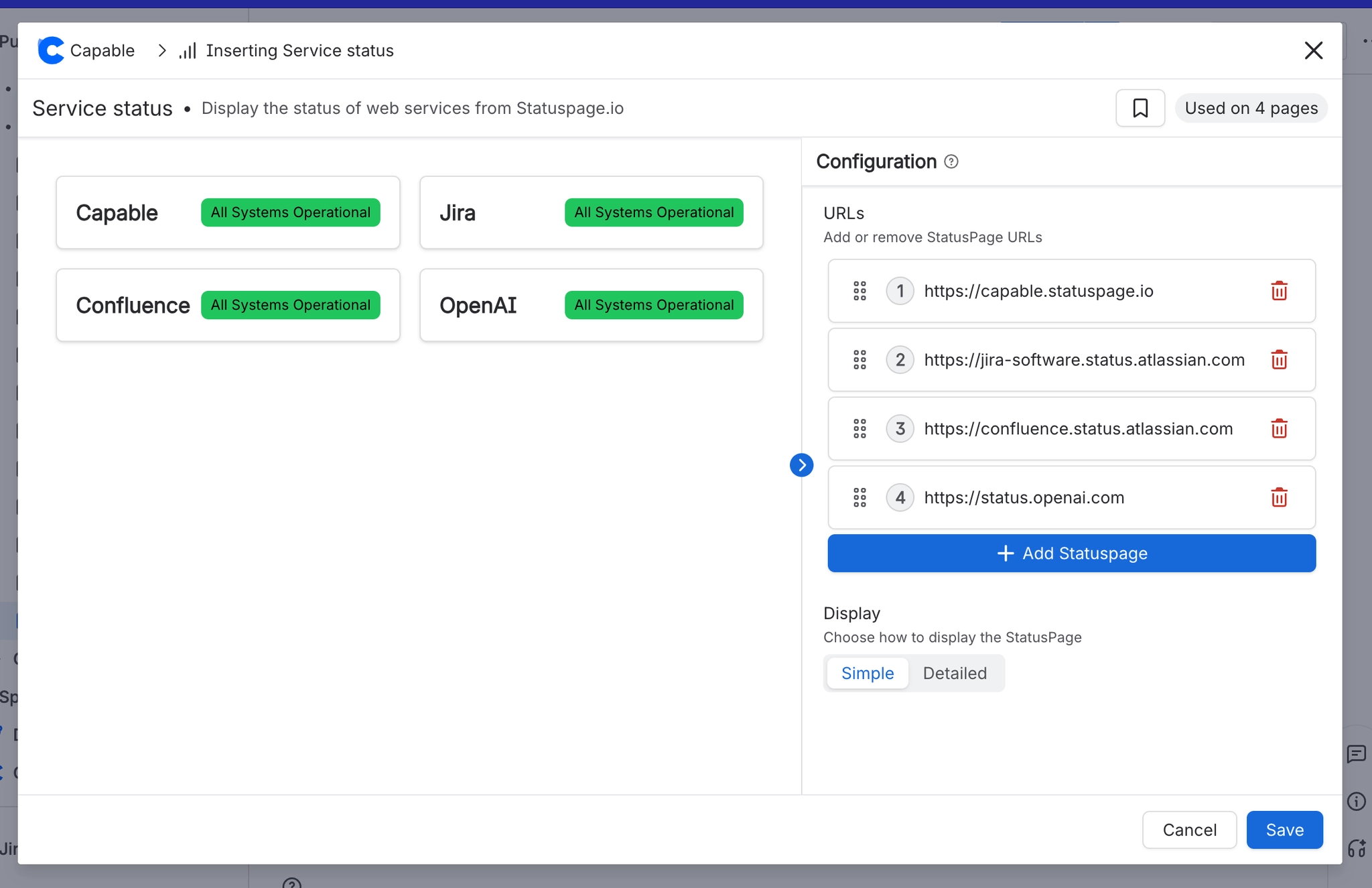
#2. Configure the macro using the macro editor
Choose the options you'd like applied.
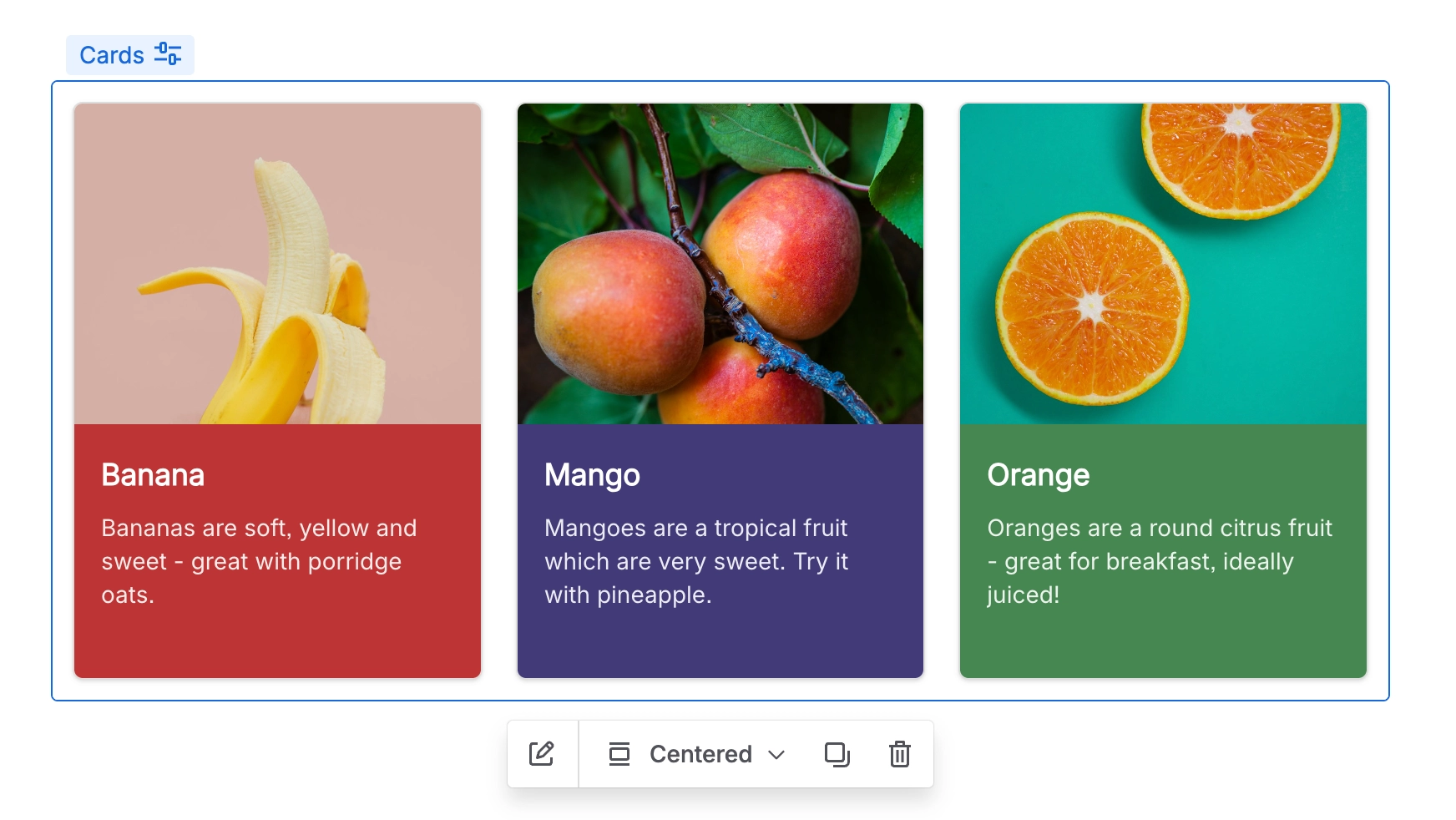
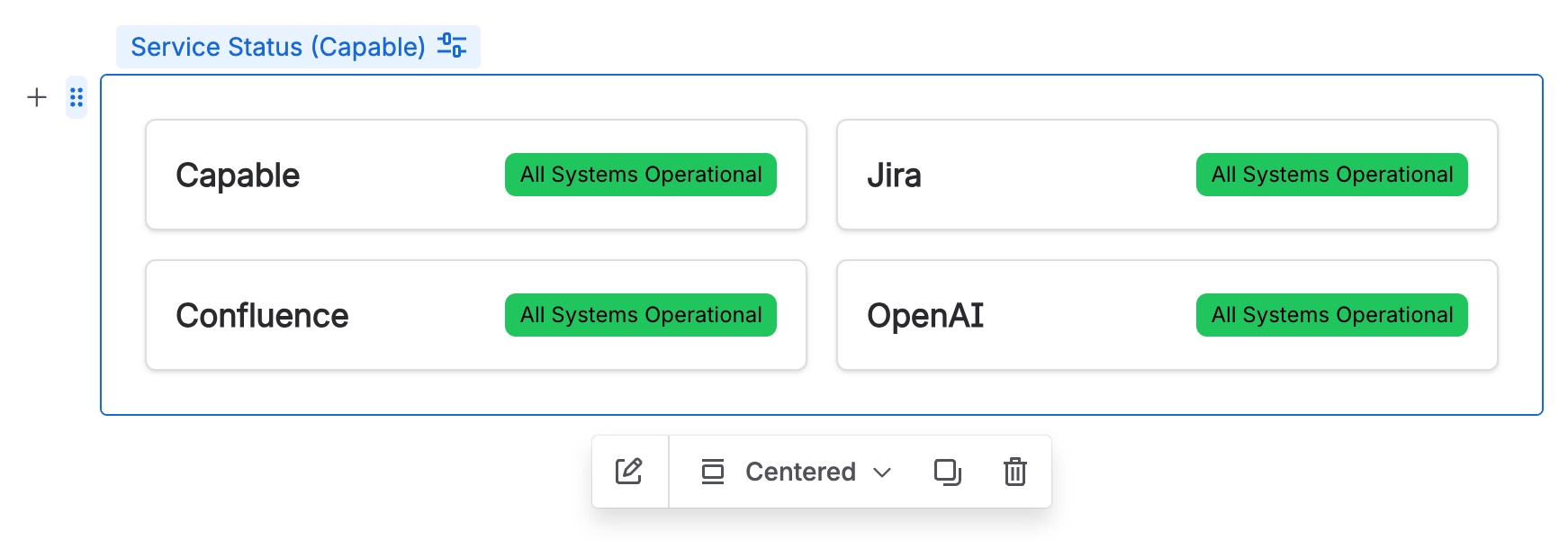
#3. Your macro is now inserted!
Some macros are configured from the pencil in the editor, others from the view mode.
#Insert Macros from the Capable Menu
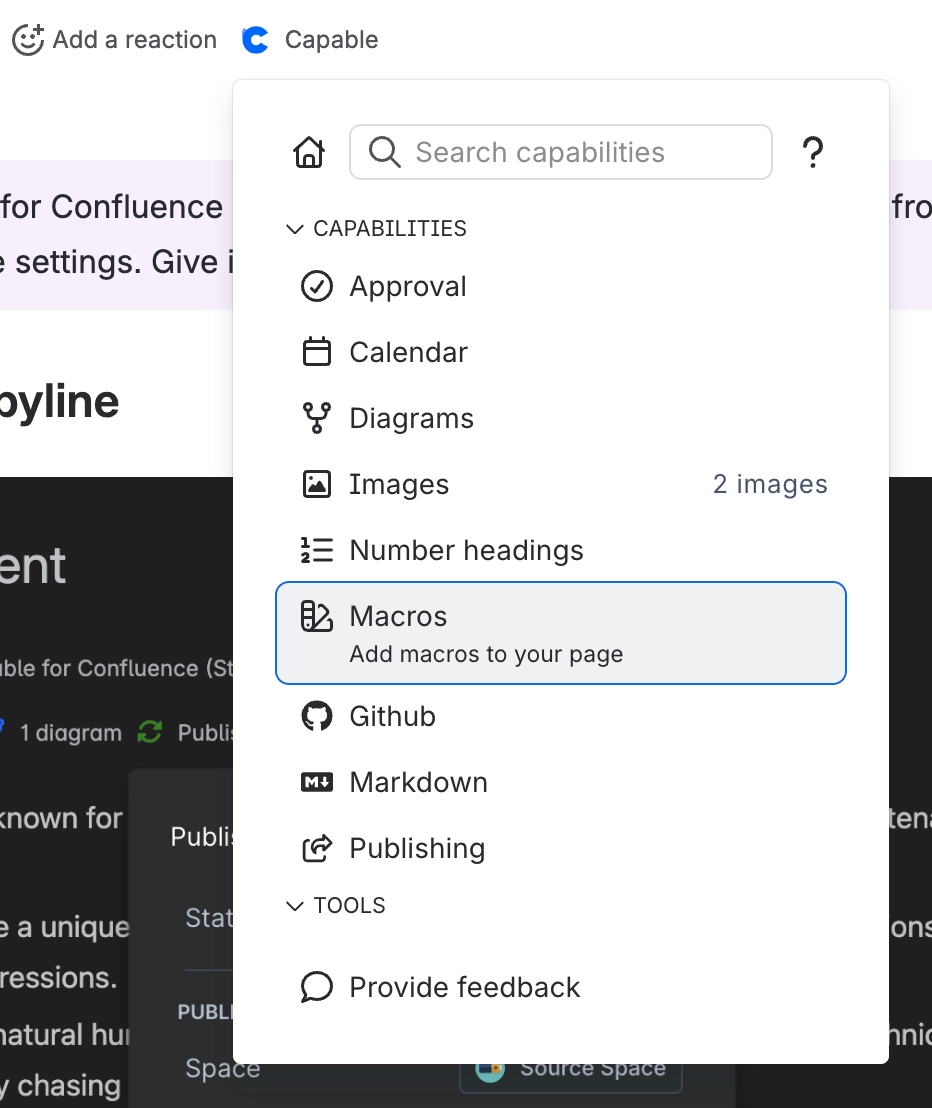
You can insert macros from the top of any page from the Capable menu.
#1. Click on Capable just under the page title and click Macros
This will open the Insert macro page.
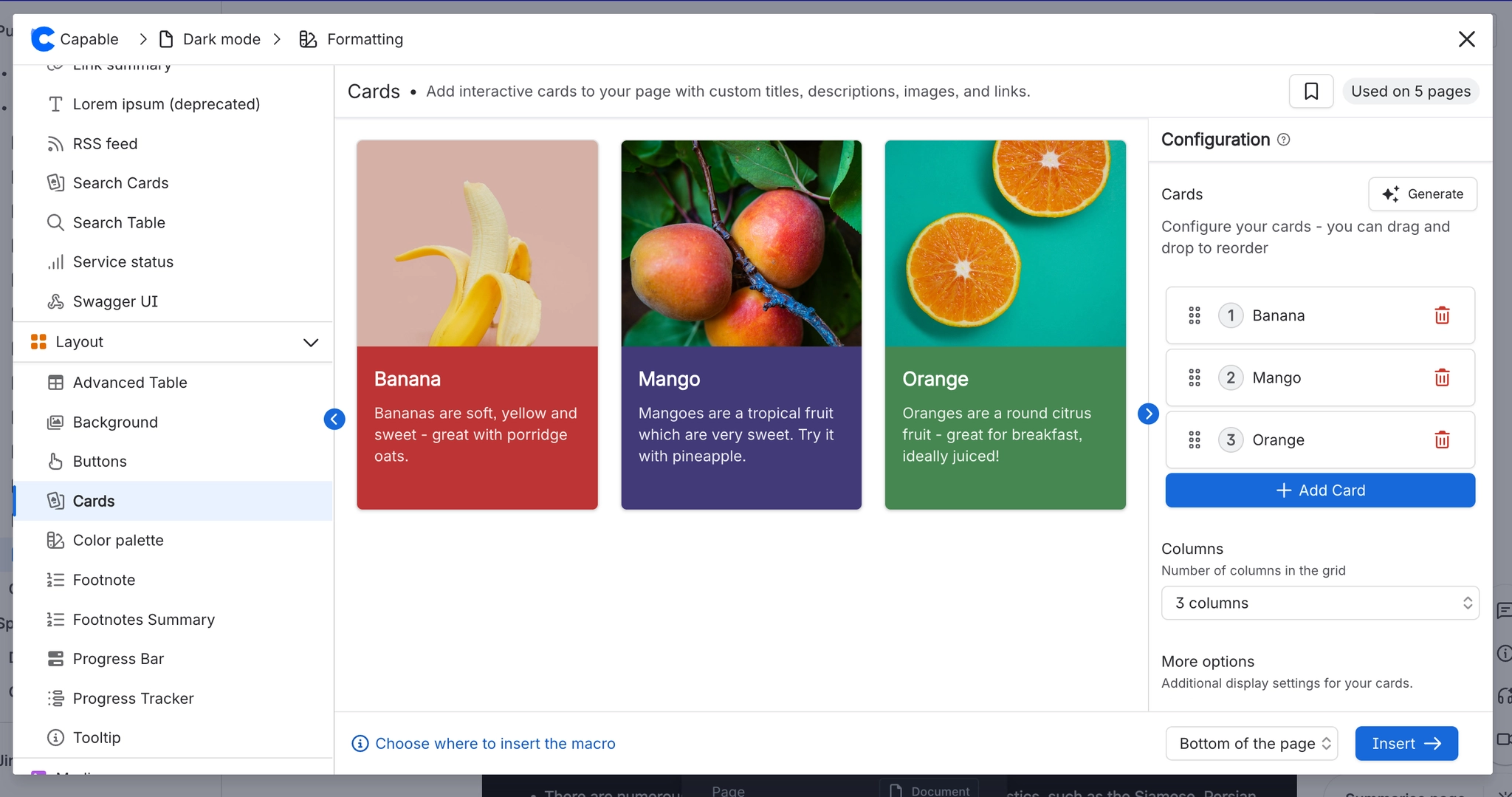
#2. Choose a macro to insert, configure and insert
Here you can choose what kind of macro you want to insert, configure it's settings and select where on the page to insert it.
#3. Your Macro is now inserted at the desired location!
Some macros are configured from the pencil in the editor, others from the view mode.