
Edit a diagram on a Jira issue
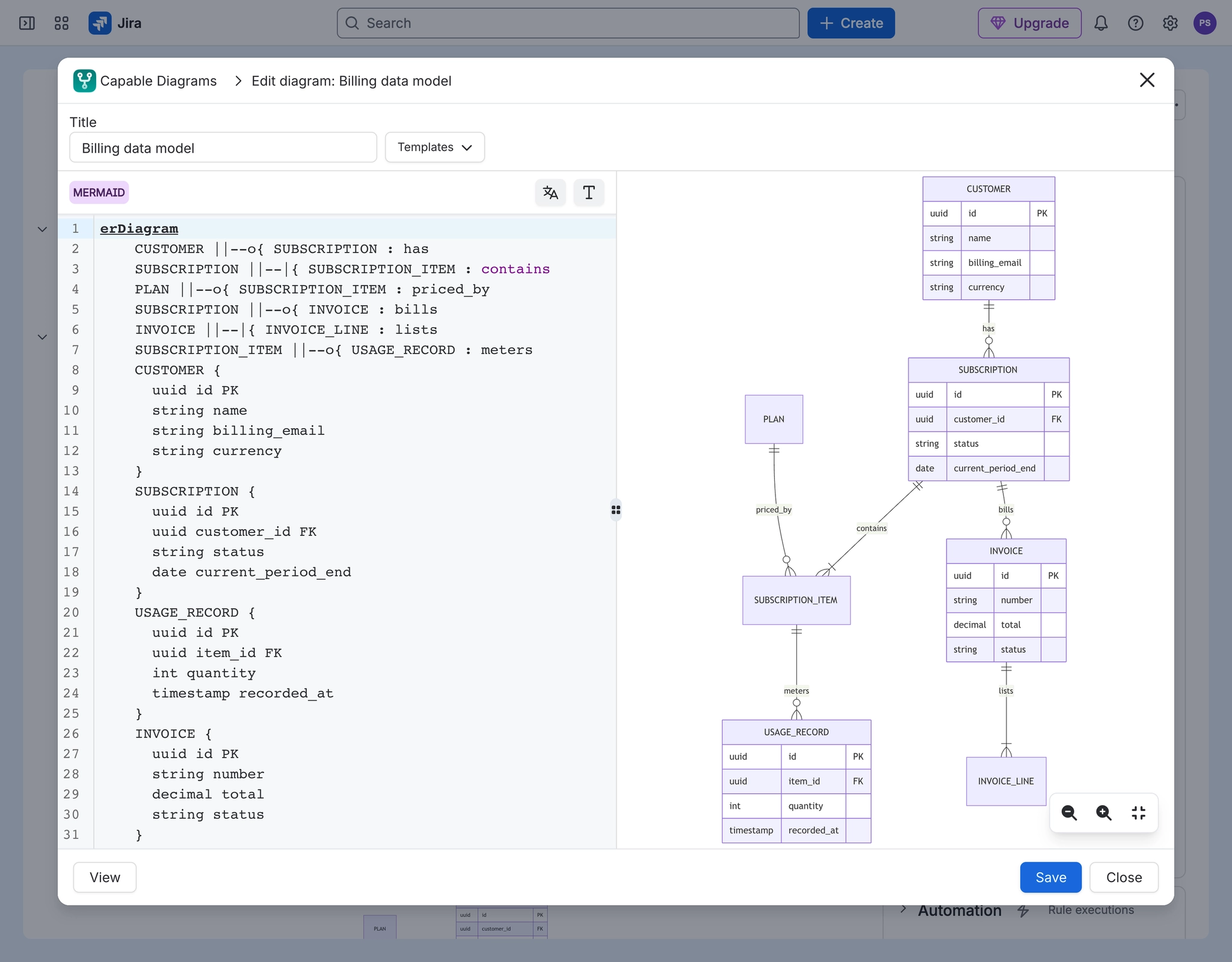
To edit a diagram on a Jira issue, open the issue, select the diagram's tab in the Diagram panel and select Edit. Make your changes in the editor and select Save. Saving replaces the diagram's attachment, so the issue keeps one current copy rather than a history of versions.
#Before you start
You can add and delete attachments on the issue.
If you might want the old version back, download the attachment first. There is no version history for Jira diagrams.
#Steps
Open the issue.
In the Diagram panel, select the tab of the diagram you want to change.
Select Edit.
Make your changes in the editor.
Select Save.
#What happens next
The panel shows the new version straight away.
The attachment is replaced: it now shows you as the author and today as the date, and the issue history shows a delete and an add.
Anyone viewing the issue sees the change after their view refreshes.
#If it does not work
Edit is missing, or does nothing: you cannot change attachments on this issue. See Add, Edit or Delete buttons are visible but clicking them does nothing.
The diagram disappeared after saving: see Save appeared to succeed but the diagram is now missing from the issue entirely.
#Related
One current diagram, right where the work is.