
Add a diagram to a Jira issue
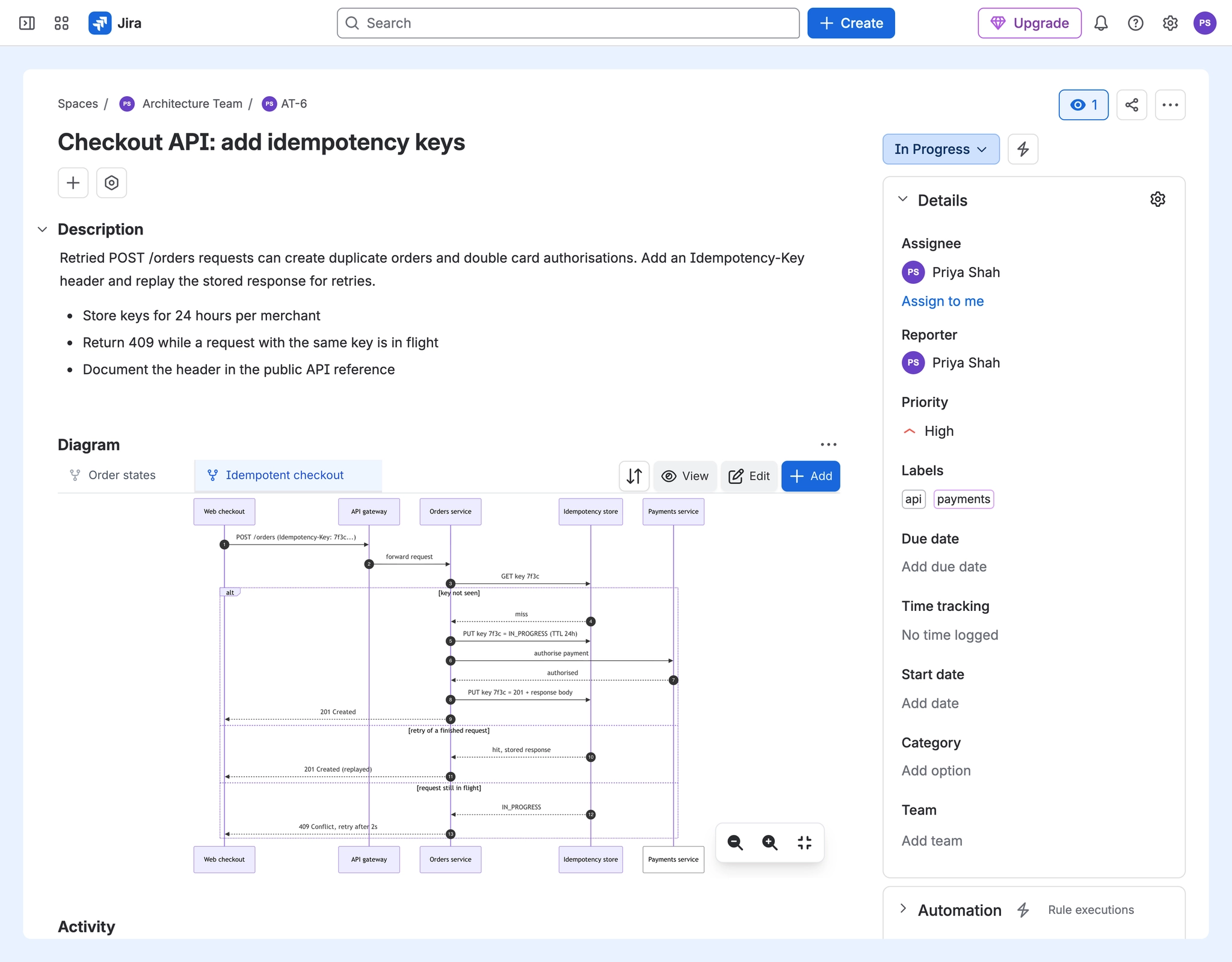
To add a diagram to a Jira issue, open the issue, add the Diagram panel from the apps button under the summary, and select Add Diagram. Pick a diagram type such as Mermaid, draw.io or BPMN, draw or write it, give it a title and select Save. The diagram is saved as an attachment on the issue.
#Before you start
Capable Diagrams for Jira is installed on your site.
You can add attachments to the issue. Without that permission the panel is read-only.
#Steps
Open the issue.
If there is no Diagram panel yet, select the apps button under the issue summary and choose Diagram.
In the panel, select Add Diagram, or Add if the issue already has diagrams.
Choose a diagram type in the picker.
Draw or write your diagram.
Type a name in Title.
Select Save.
#What happens next
The diagram appears as a tab in the Diagram panel, with a preview underneath.
It is stored as an attachment named after its title, with an extension for its type, such as .mermaid or .drawio, so it travels with the issue like any other file.
The Diagrams section in the issue's details shows how many diagrams the issue has, and you can add one from there too.
#If it does not work
No Add button: you cannot add attachments to this issue. Ask a project administrator.
The app shows a licence banner instead of the panel: see Something is missing or looks wrong.
#Related
The picture belongs on the ticket, not in a chat thread.