Subscribe to a calendar
Capable Calendar makes it easy to view your Confluence-based schedule inside the calendar tool you already use every day.
This is especially useful for teams who plan work in Confluence but manage their day-to-day schedule from an external calendar or mail client.
#What this lets you do
When you connect Capable Calendar to your preferred client, your project dates, deadlines, meetings, and scheduled events become easier to see alongside the rest of your working day.
See Confluence-driven events in your personal or team calendar
Keep project milestones visible without switching tools
Share schedules with colleagues who live in Outlook, Gmail, or Apple Calendar
Reduce the risk of missing important dates stored in Confluence pages
Bring documentation and scheduling closer together
#Common mail and calendar clients supported
Capable Calendar uses widely supported export formats, which means it can work with most mainstream calendar clients.
Client | Typical support |
|---|---|
Microsoft Outlook | Supports calendar import and, depending on setup, subscription workflows using standard calendar formats. |
Teams/Microsoft 365 | Can usually add internet calendars using an iCal-style link or imported ICS data. |
Google Calendar | Supports adding calendars by URL and importing ICS files. |
Apple Calendar | Supports calendar subscriptions and ICS import. |
Thunderbird | Commonly supports standard calendar subscription and import formats. |
Other mail clients | Many other tools support |
Exact steps vary slightly between clients, but the underlying idea is the same: Capable Calendar provides a standard calendar format that external tools understand.
#How it works
Capable Calendar centralizes events from Confluence pages, tables, and event macros. Those events can then be exported in formats that external calendar tools recognize.
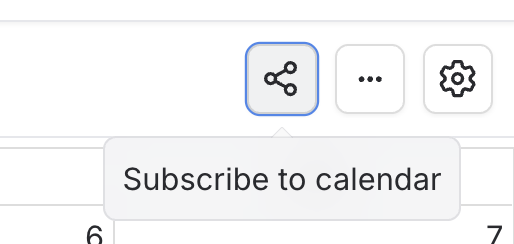
#1. Click on the ‘share’ button in the top right
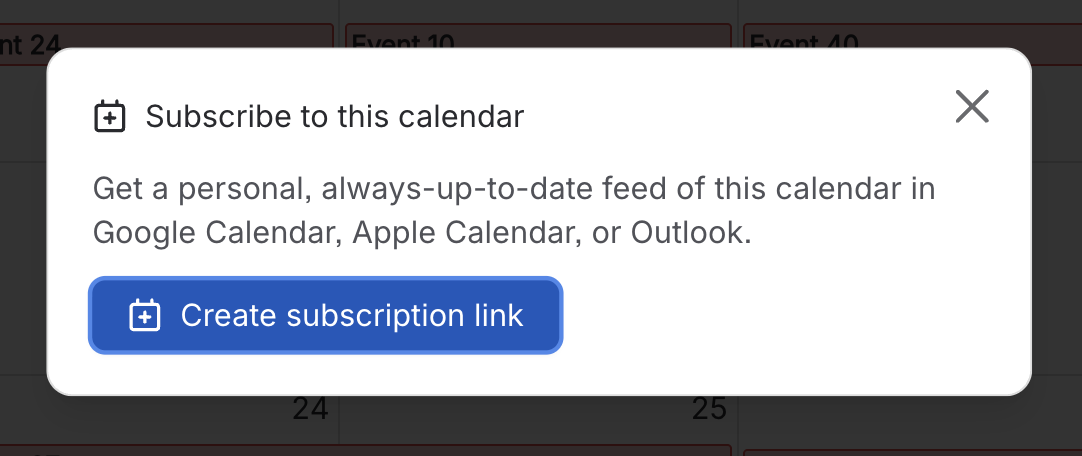
#2. Click ‘Create subscription link’
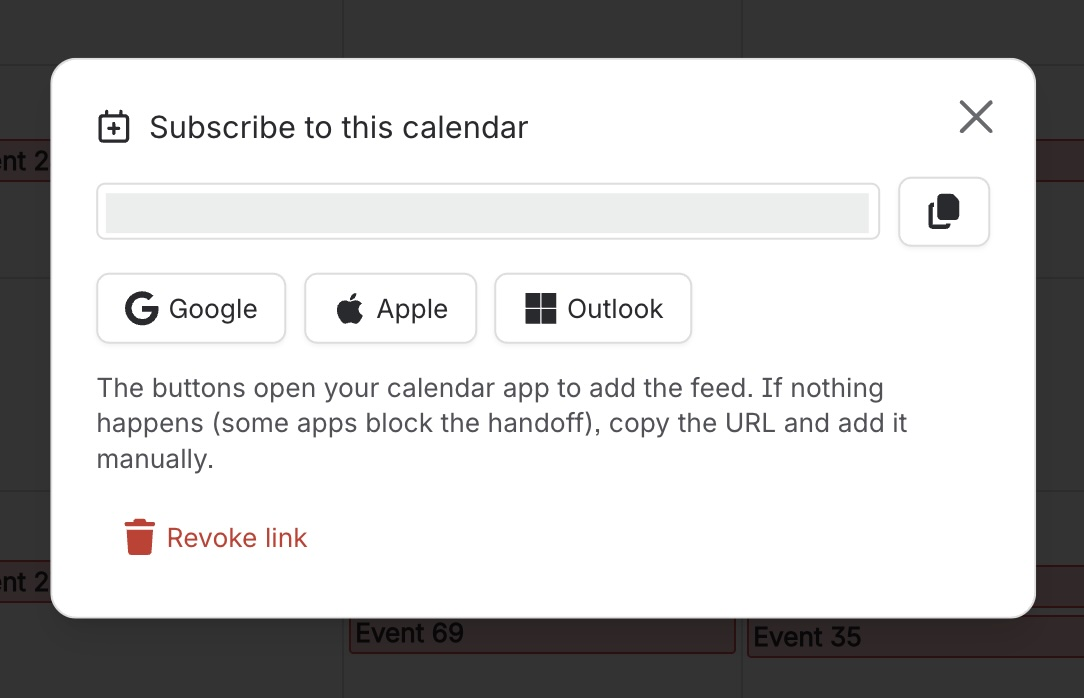
#3. Click on a button, or paste the URL into your client
#Subscription vs import
There are two common ways external clients work with calendar data, and it helps to understand the difference.
Method | What it means | Best for |
|---|---|---|
Subscribe | Your calendar client connects to a calendar feed and checks it periodically for updates. | Ongoing visibility into changing schedules |
Import | You upload an ICS file into your calendar client as a one-time action. | Static snapshots or one-off transfers |
If your goal is to keep up with project changes over time, subscription is usually the better option. If you only need a one-time copy of events, import may be enough.
#Why teams use this
#1. Keep schedules visible where people already work
Many teams plan in Confluence but spend most of their day in Outlook or Google Workspace. Subscribing to Capable Calendar means people do not need to remember to open a separate tool just to check upcoming milestones.
#2. Connect documentation to execution
Capable Calendar can pull dates from Confluence pages and macros, turning written plans into visible schedules. Subscribing from a mail client extends that value by making those dates actionable in daily workflow.
#3. Improve alignment across teams
Project plans, campaign launches, leave schedules, deadlines, and handover dates can all become easier to track when they appear in the same place as meetings and personal calendars.
#4. Support distributed teams
Capable Calendar includes timezone-aware scheduling and works well for distributed teams. When events are consumed by external calendar tools, it becomes easier for people in different regions to stay aligned.
#Typical use cases
Project delivery: show milestones and deadlines from Confluence in Outlook
Marketing planning: surface campaign dates in Google Calendar
HR and operations: make leave, onboarding, or training schedules visible in Apple Calendar or Microsoft 365
Leadership reporting: subscribe to a central calendar with major launches, reviews, and governance dates
Cross-functional teams: combine page-driven events with personal schedules in one view