Add events to a calendar
Learn how to add events to the calendar with the mouse.
This page contains a step-by-step guide on how to add events to a calendar using a mouse. It begins with the prerequisite of creating a shared team calendar. Users can create events by clicking or dragging over a date/time range, set event fields in a dialog, and view event information by hovering over it. Additionally, more information can be accessed by clicking on the event, and events can be edited by clicking the edit button located in the top right corner.
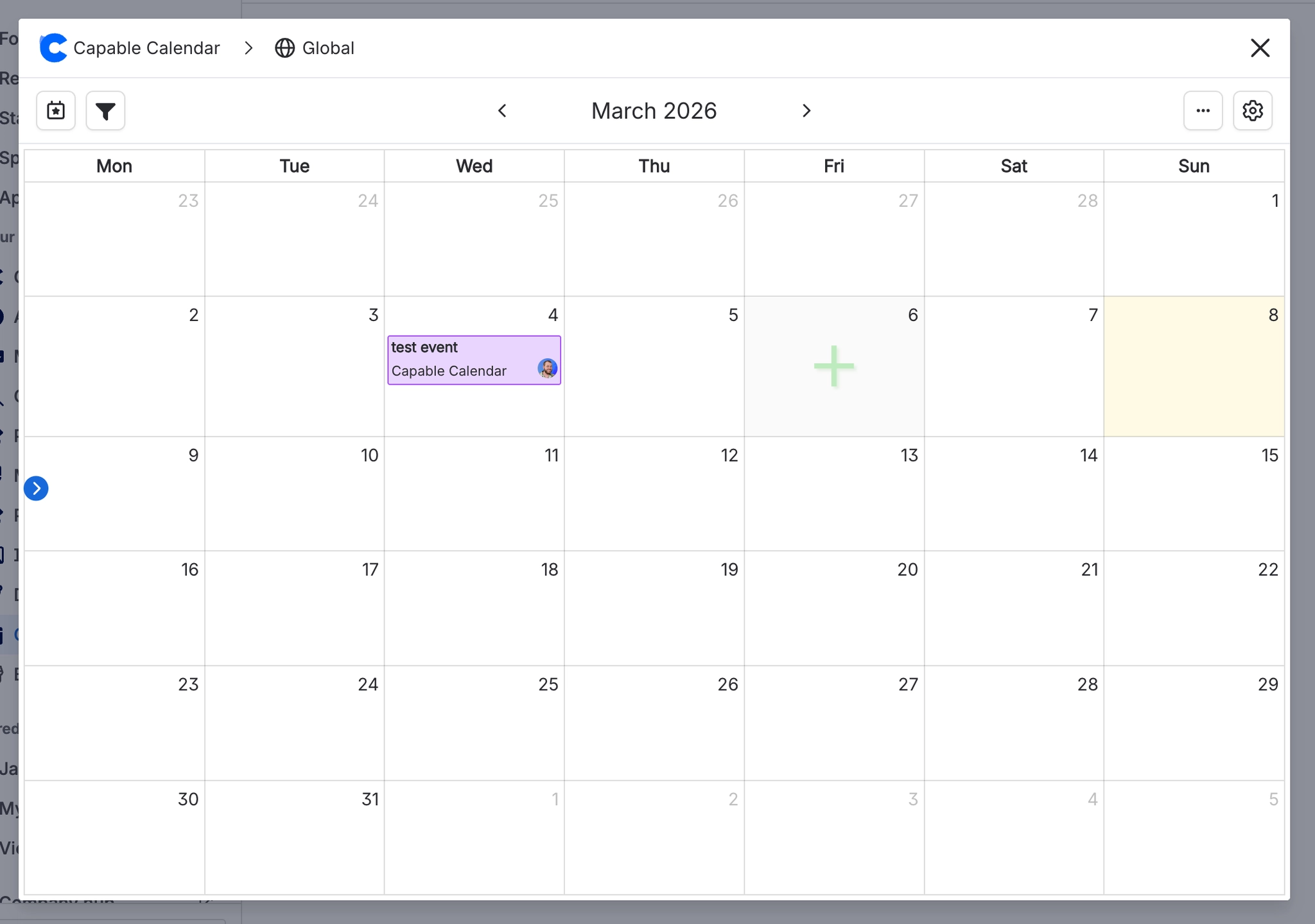
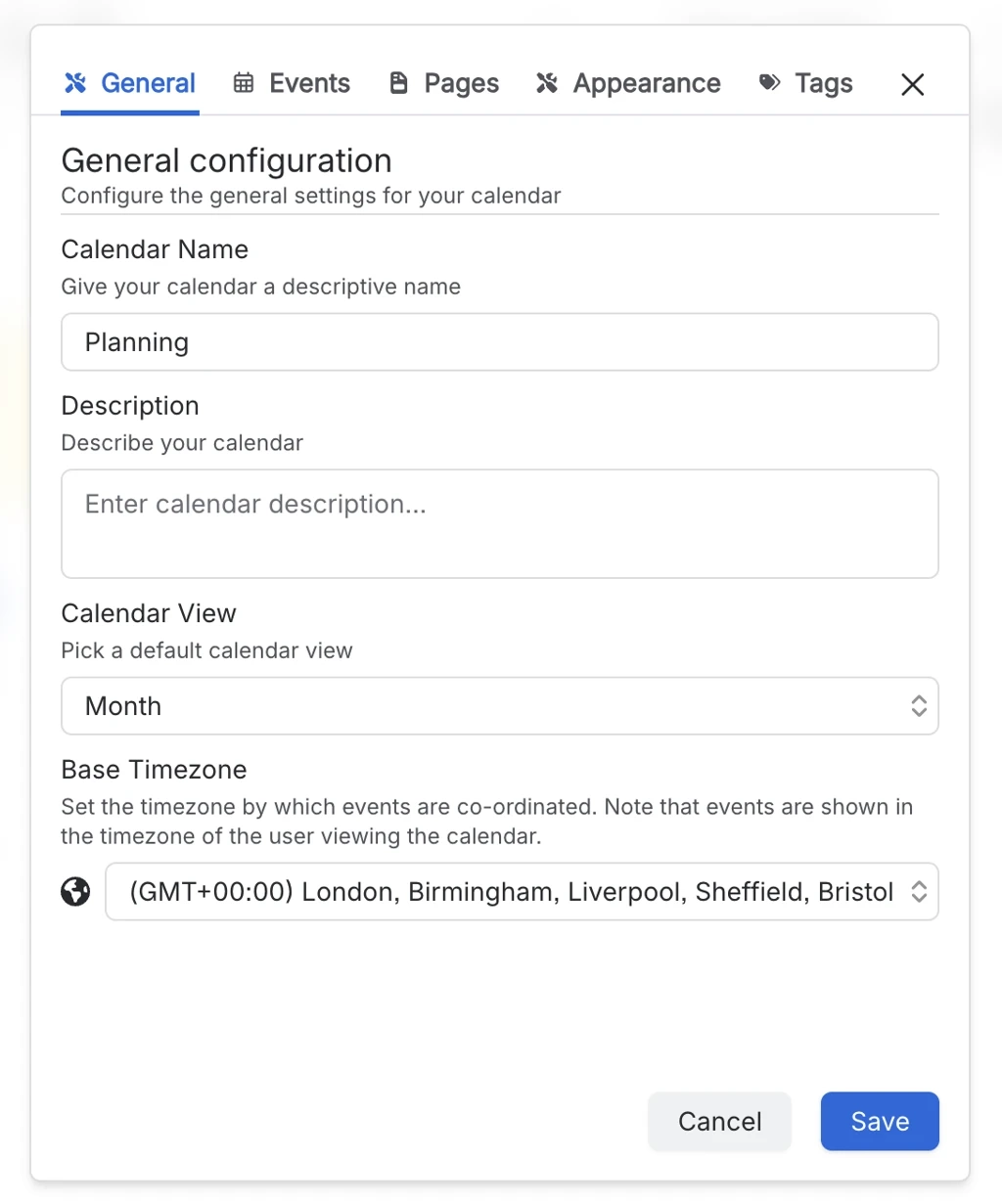
#1. Create a shared team calendar (prerequisite)
Learn more on how to create Calendars here →
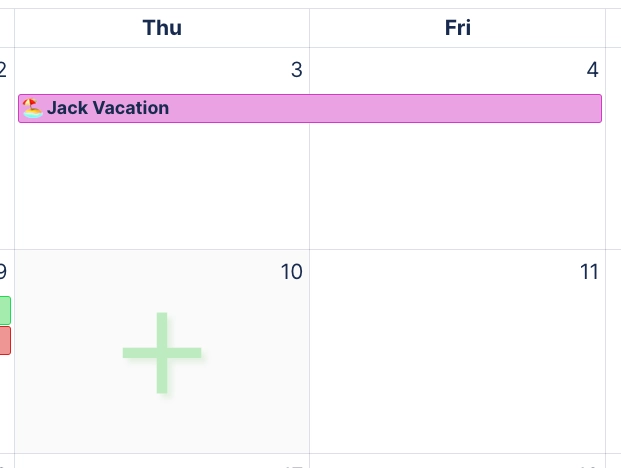
#2. Create an event by clicking or dragging over a date/time range
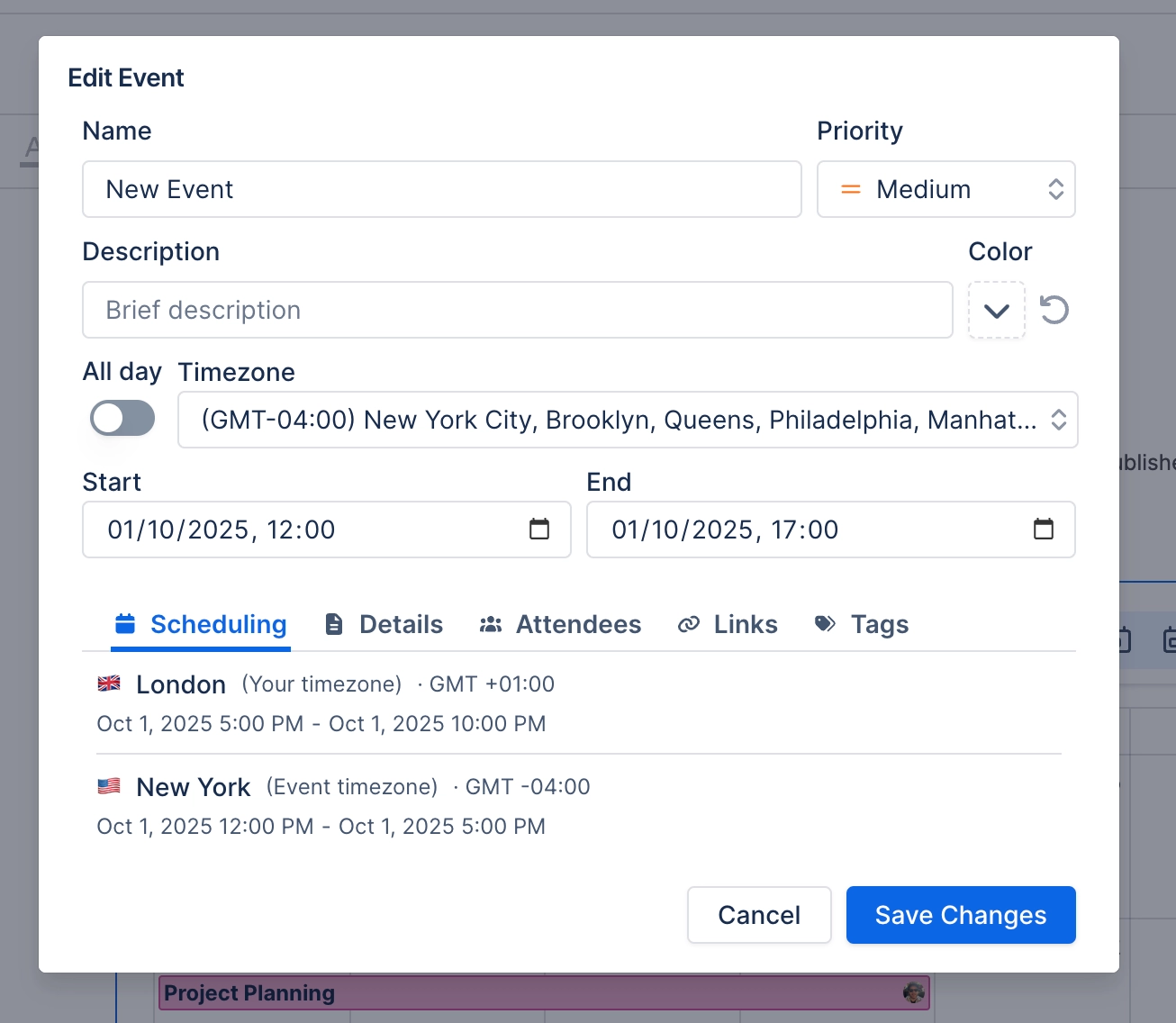
#3. Set event fields in the dialog
#3. View event information by hovering over it
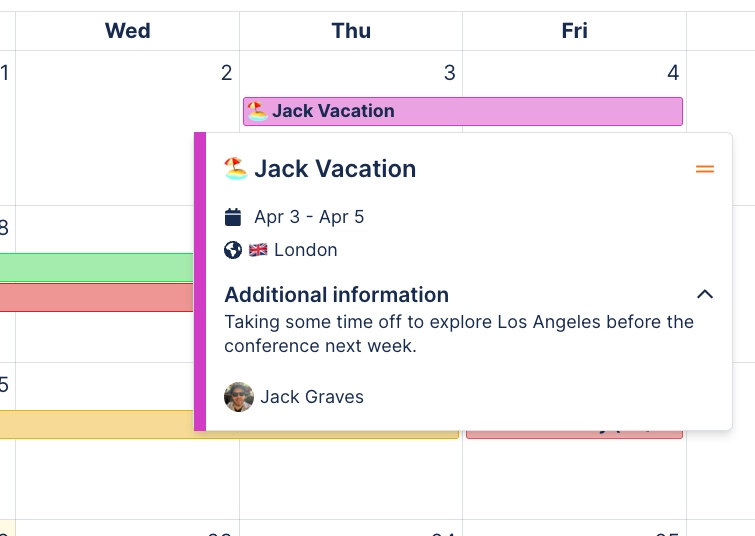
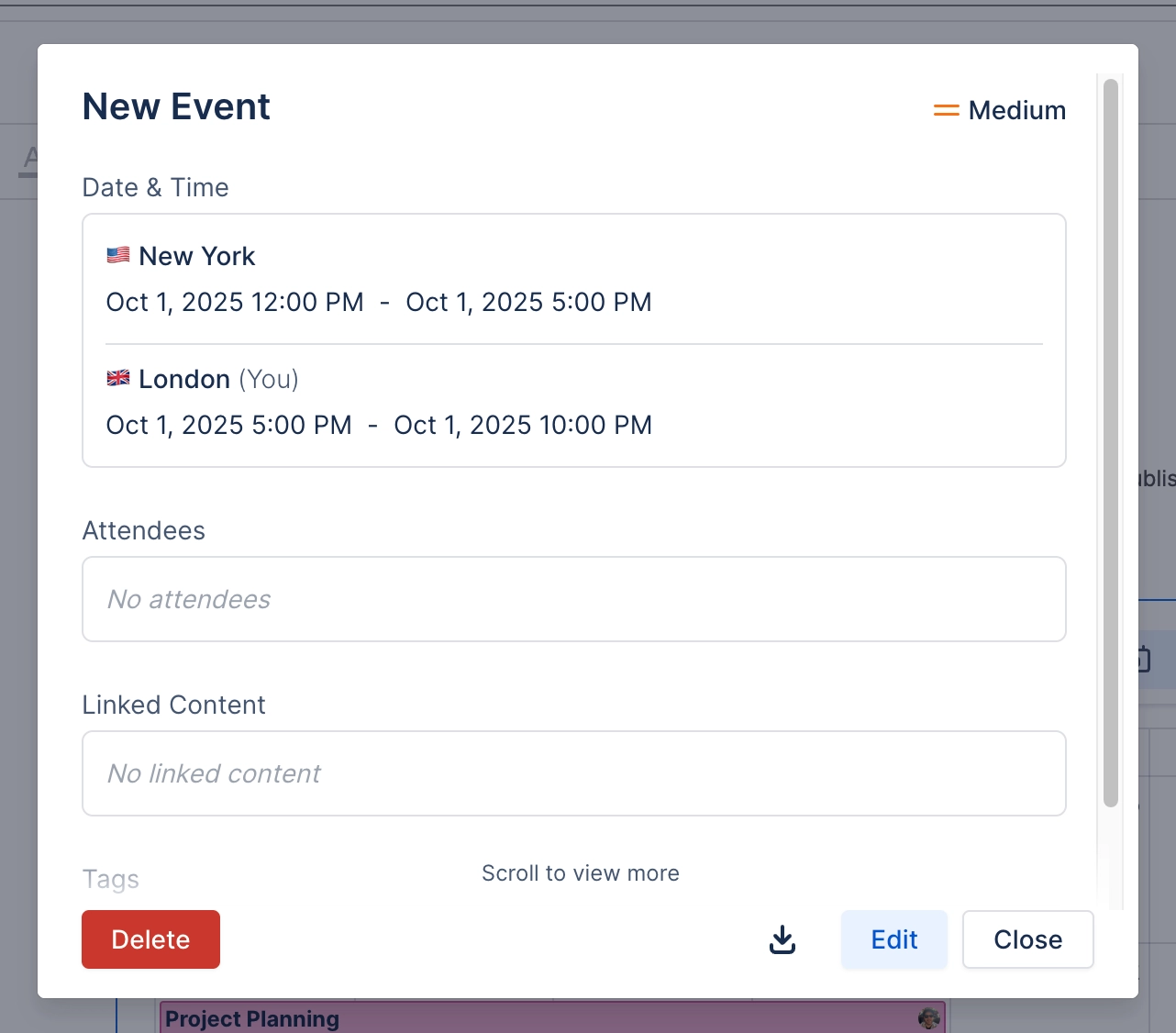
#4. View more information by clicking on the event
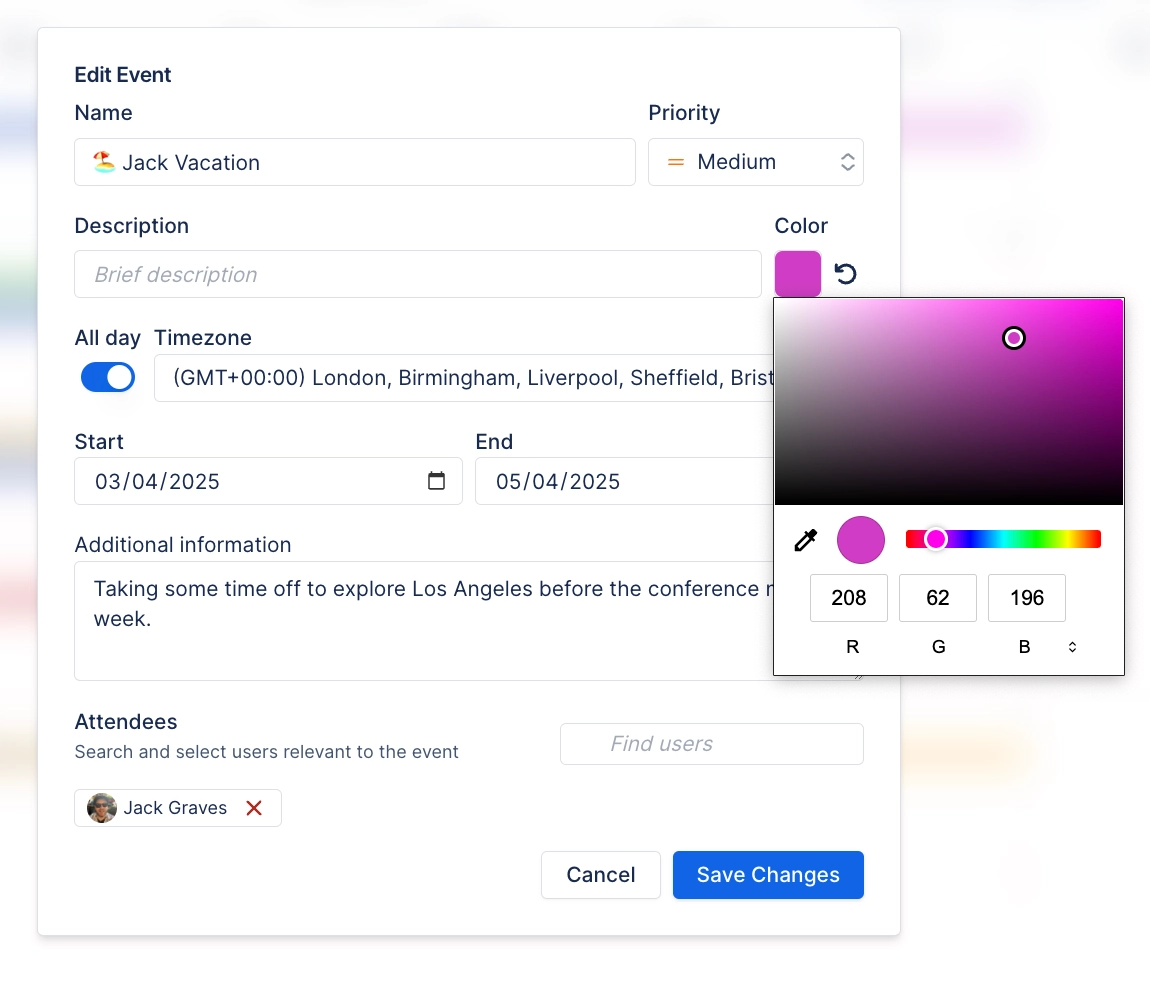
#5. Edit events by clicking on the edit button in the top right
#6. You’re all set!