Build a board workflow
With the Status column in place, the board view is where the process actually takes shape. You map how items move from one step to the next, and just as importantly, how they may not.
This is the difference between a status field and a workflow.
#Opening the builder
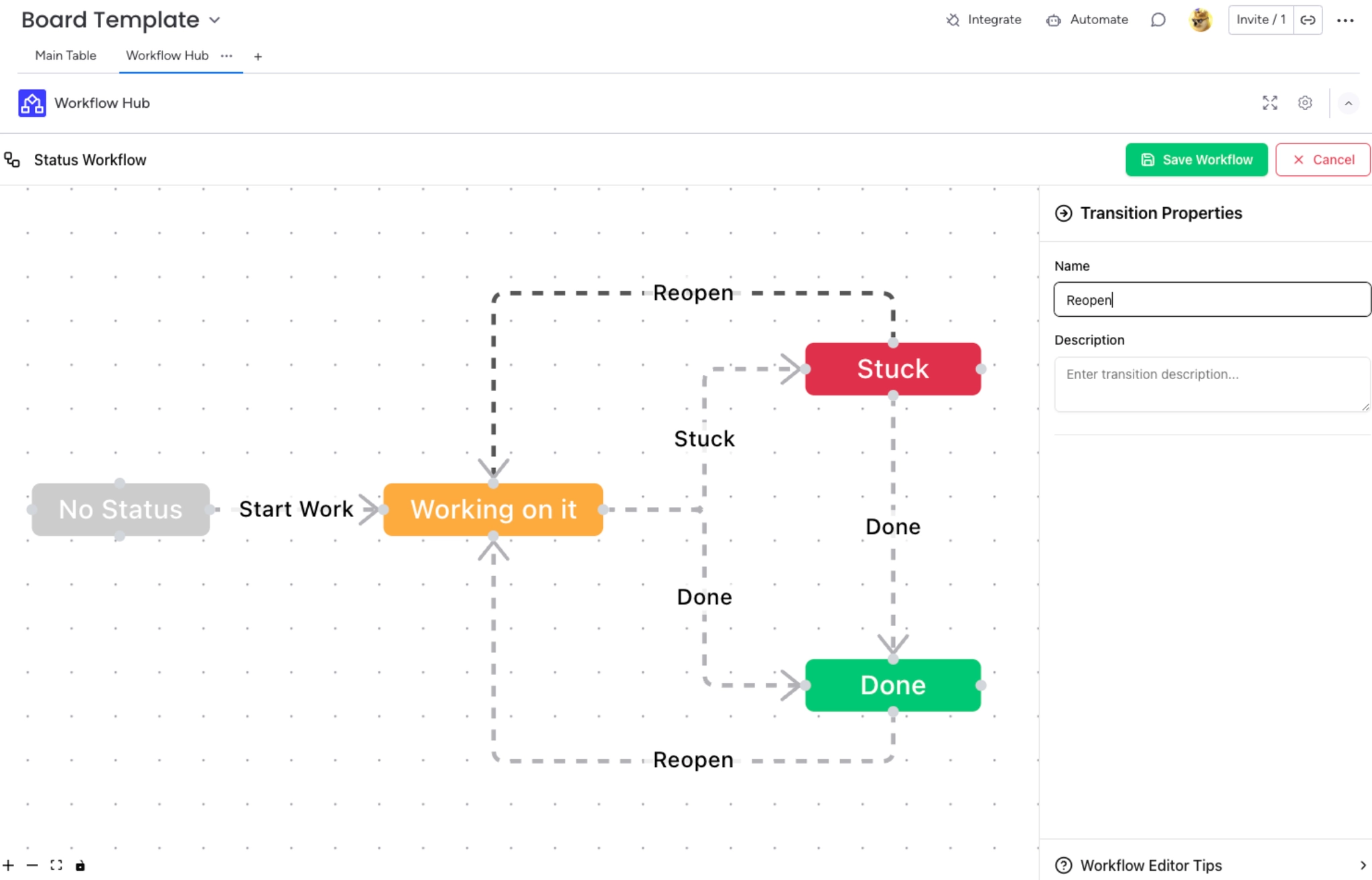
Step | What you do |
|---|---|
1 | Go to the board where Workflow Hub is installed. |
2 | Click + Add View and choose Workflow Hub from the available apps. |
3 | Click Edit Workflow to start designing. |
#Designing it
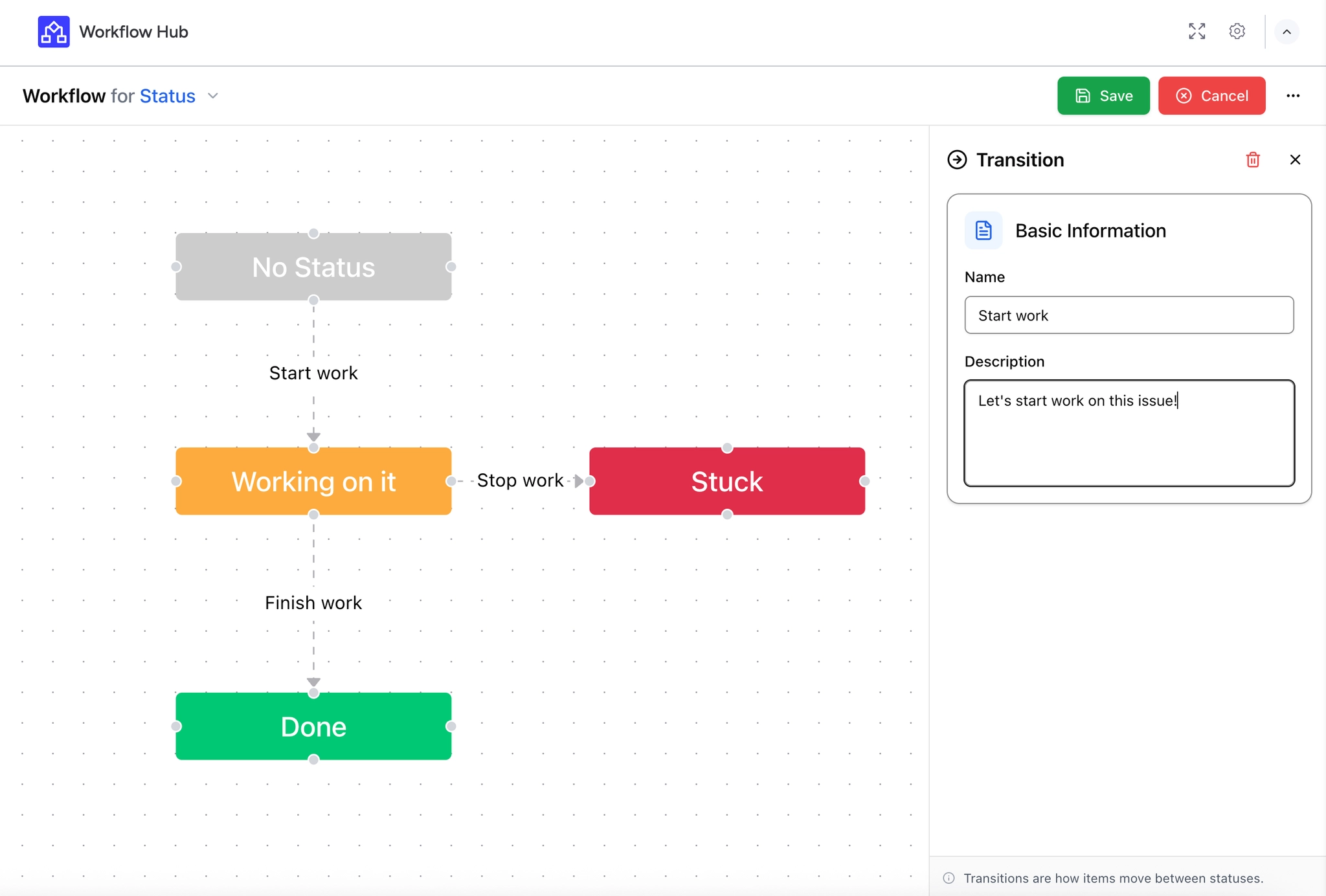
Each Status label appears as a step you can position.
Draw transitions between steps to say which moves are allowed.
Leave a transition out to prevent that move entirely.
Start with the path work actually takes. Draw the normal route first, then add the exceptions: rejections, returns and cancellations. Workflows built exception-first tend to become unreadable.
#A few things worth knowing
Only admins and members can edit a workflow. Guests can use one but not change it.
The workflow stays in sync with the Status column, so the two never disagree.
One workflow per board, shared by every item on it.
#Related
Draw the happy path. Then the exceptions.