Create an Attio API key
Everything on the card is read with a single Attio workspace API key. There is no Attio sign-in to complete, no username and password and no Attio app to install: one secret string, pasted into one Jira project by an administrator of that project.
The app only ever reads. It makes five kinds of read against Attio and holds no permission to write anything, so a key with read access is enough and a key with write access buys you nothing.
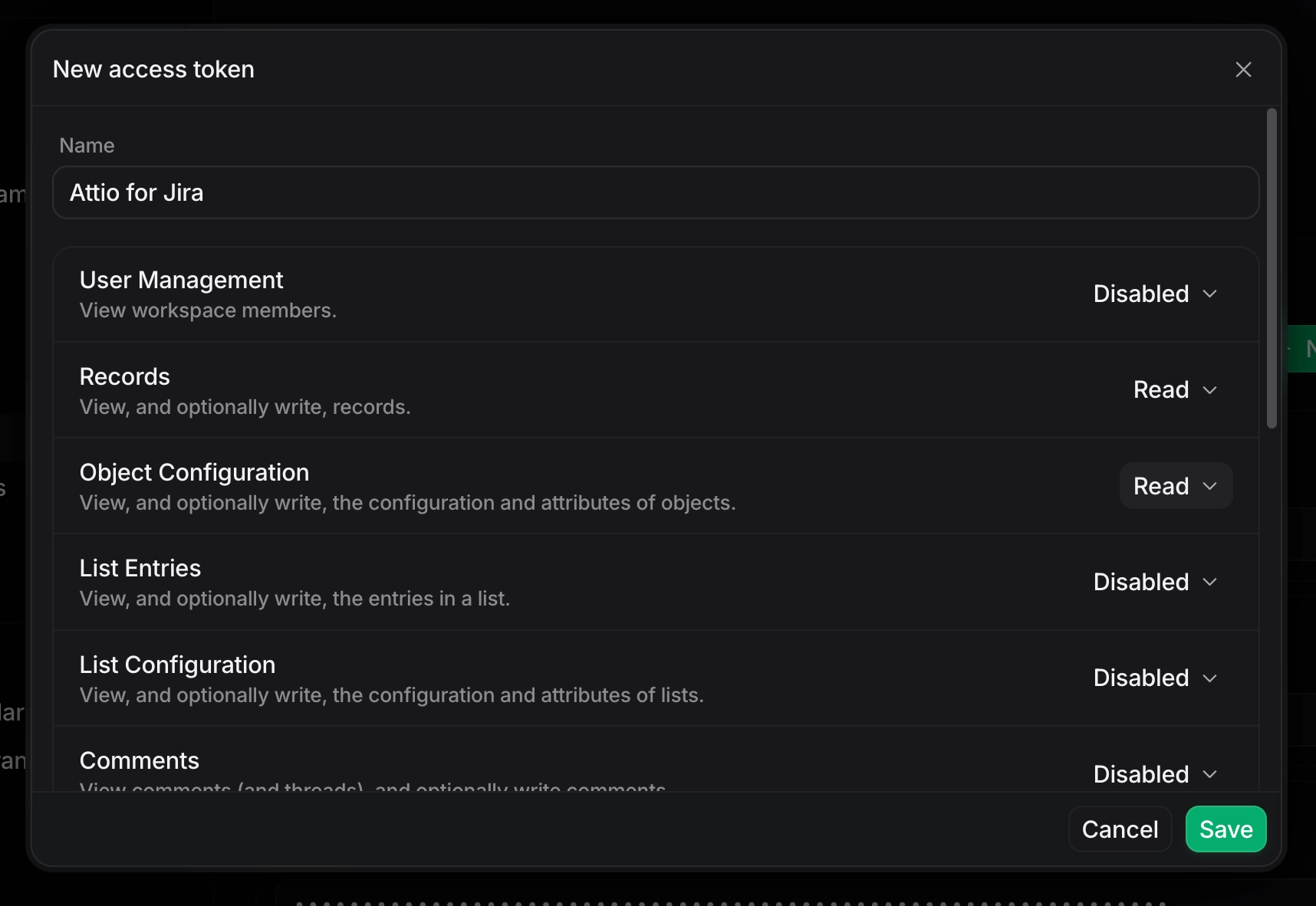
#Where the key is made
The key is made in Attio, not in Jira. There is a link under the key field reading "Create a key in Attio", but it opens the Attio web app rather than the key screen, so you still have to find your way once you are there.
The app's own advice sits in the message it shows when a key is refused: "The key is the right length but Attio will not accept it. It has usually been revoked, or it belongs to a different workspace. Create a new key in Attio under Workspace settings, Developers, and paste it here."
Attio → Workspace Settings → Developer → Access Tokens → Create
#The two permissions it needs
The key has to be able to read records and to read object configuration. In Attio's own names, those are:
record_permission:read
object_configuration:read
The read-write version of either one also satisfies the requirement, but read-only is enough and read-only is what the app asks for. The app checks what the key reports back rather than assuming, so a key that cannot do both is caught at the test rather than on a live request.
A key missing one of them does not have to be replaced. The screen names what is missing under the heading "The key works but is missing permissions", and then says what to do: "Attio accepted the key and then refused the reads the card needs. Missing: record_permission:read, object_configuration:read. Edit this key in Attio, grant those scopes, then try the same key again. You do not need a new key."
#What counts as a valid key
Rule | What the app does about it |
|---|---|
Exactly 64 characters | The helper text under the field says so: "An Attio workspace key is exactly 64 characters." A key of any other length is refused in the browser and nothing at all is sent to Attio. The message reports how many characters were pasted, so a truncated paste can be told from a stray extra character. |
Spaces around it are tolerated | The key is trimmed before it is measured and before it is stored, so a paste that picked up a leading or trailing space still works. |
One key, one Jira project | The Connect step states it: "This key belongs to this Jira project alone. Other projects on this site connect their own workspace, and a site admin can see that a connection exists but never the key itself." |
#What the app does with it
It stores the key encrypted, filed against the project that pasted it. It is never written to a Jira field, a project property or an issue.
It never sends the key back to the browser. The settings page is told only whether a key exists, so no screen in the app can display, copy or export it, including for the person who pasted it.
Every call to Attio is made by the app rather than by your browser, which is why the key never needs to reach the page at all.
It records the Attio workspace name and slug, the date and time, and the account that saved it. Those are what the project's settings header and the site-wide connections list show.
It files the connection under the project's own internal identity rather than its project key, so renaming the project does not orphan it.
#Testing the key
In the wizard there is no Test button and no Save button: pressing Next on the Connect step tests the key, stores it and moves on. On a project that is already set up, the Connection tab has a "Test and save this key" button instead, which becomes available once something has been typed into the field. Pressing Enter in the field does the same thing on either screen.
The app asks Attio to identify the key. Attio answers with whether it is active, which workspace it belongs to and which permissions it carries, and the app then checks that the two reads it needs are present. Nothing is stored unless all of that passes, so a bad paste cannot replace a connection that was working.
The test gives Attio eight seconds to answer, which is shorter than the twelve seconds the card itself allows, because somebody is watching a spinner while it runs.
#The five answers a test can give
What you see | What it means | What to do |
|---|---|---|
"Connected to" and the workspace name | Attio accepted the key and it carries both reads. The panel adds "The key is stored for this project." | Read the workspace name. It is the one thing on screen proving the key belongs to the workspace you meant. In the wizard the panel is held for a moment, with a thin bar counting the pause out, and then the next step arrives on its own. |
"That key is the wrong length" | What was pasted is not 64 characters. | Copy the key again, whole. Nothing was sent to Attio, so nothing has been proven about the key either way. |
"The key works but is missing permissions" | Attio accepted the key and then refused the reads the card needs. | Edit that same key in Attio, grant the permissions the message names, and try it again. A new key is not needed. |
"Attio rejected this key" | The key is the right length but Attio will not take it. Usually it has been revoked, or it belongs to a different workspace. | Make a new key in Attio and paste that one. |
"The connection could not be tested" | The request never reached the app at all. | The screen says it plainly: "This is not the same as a bad key: nothing was proven about the key either way, so try again before you replace it." |
A network failure during the test is reported under the rejected heading. If Attio cannot be reached, times out, or answers with a server error, the panel shows the specific reason, for example "Capable could not reach Attio.", but it shows it under the heading "Attio rejected this key" and follows it with the advice to create a new key. Read the sentence rather than the heading before you go and revoke a key that was never at fault.
#Replacing a key later
The key field always starts empty, because the stored key is never sent to the browser. A row of dots in the field is the signal that a key is stored; an instruction to paste one means none is. When a key is stored the helper text adds "Leave this empty to keep the key this project already has."
In the wizard, pressing Next with the field left empty on a project that already has a key re-tests the key that is stored, which answers "is this connection still working" without pasting anything. On the settings page there is no equivalent: "Test and save this key" stays unavailable until something is typed, so re-testing the key you already have means pasting it again. A Cancel button clears the field without changing anything.
#Removing a key
There is no key-only disconnect. The action at the bottom of the Connection tab is "Reset to defaults", and it takes two presses: the first reveals a confirmation offering "Yes, erase this project's Attio setup" or "Keep my settings", and nothing is removed until the second.
A key removed here is still live in Attio. The reset describes itself exactly: "Removes the API key, the record type, the matching attribute, every field on the card, the linked record settings, the audience and the placements, and clears everything this app has cached about your Attio records. The card comes off every issue in this project and setup starts again from the beginning. Nothing in Attio itself is changed or deleted." A key you no longer want has to be revoked in Attio separately.
#A few things worth knowing
The green panel says the key is stored the moment Attio accepts it, and the write happens immediately afterwards. If that write fails you will be looking at the green panel and a separate failure reading "That change could not be saved" at the same time. The second one is the one that counts.
Opening the settings page does not test the connection, so a page that looks healthy proves nothing about the key. A connection that has stopped working reports itself on the card instead, as soon as Attio refuses a request.
While there is any text in the key field, the save bar on the other tabs disappears and their edits are held: "Changes on the other tabs are held until this key is tested and saved, or until you clear the field." A half-typed key quietly stops you saving anything else.
#Related
One string, two read permissions, no write access anywhere.