Insert Markdown from Git
Add Markdown files from your Git repositories to Confluence or Jira.

#Before you start
Connect your GitHub account (and ensure org approval/SSO if required).
Confirm you have access to the repository and branch containing the file.
#Supported formats
.md,.markdown,.mdx
#Insert steps
In your page or work item, insert the Github File macro
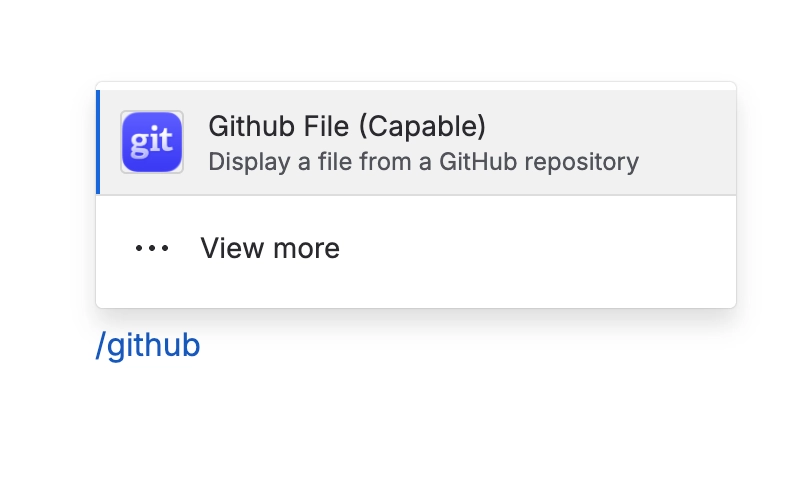
If prompted, connect your Git account and select the correct account.
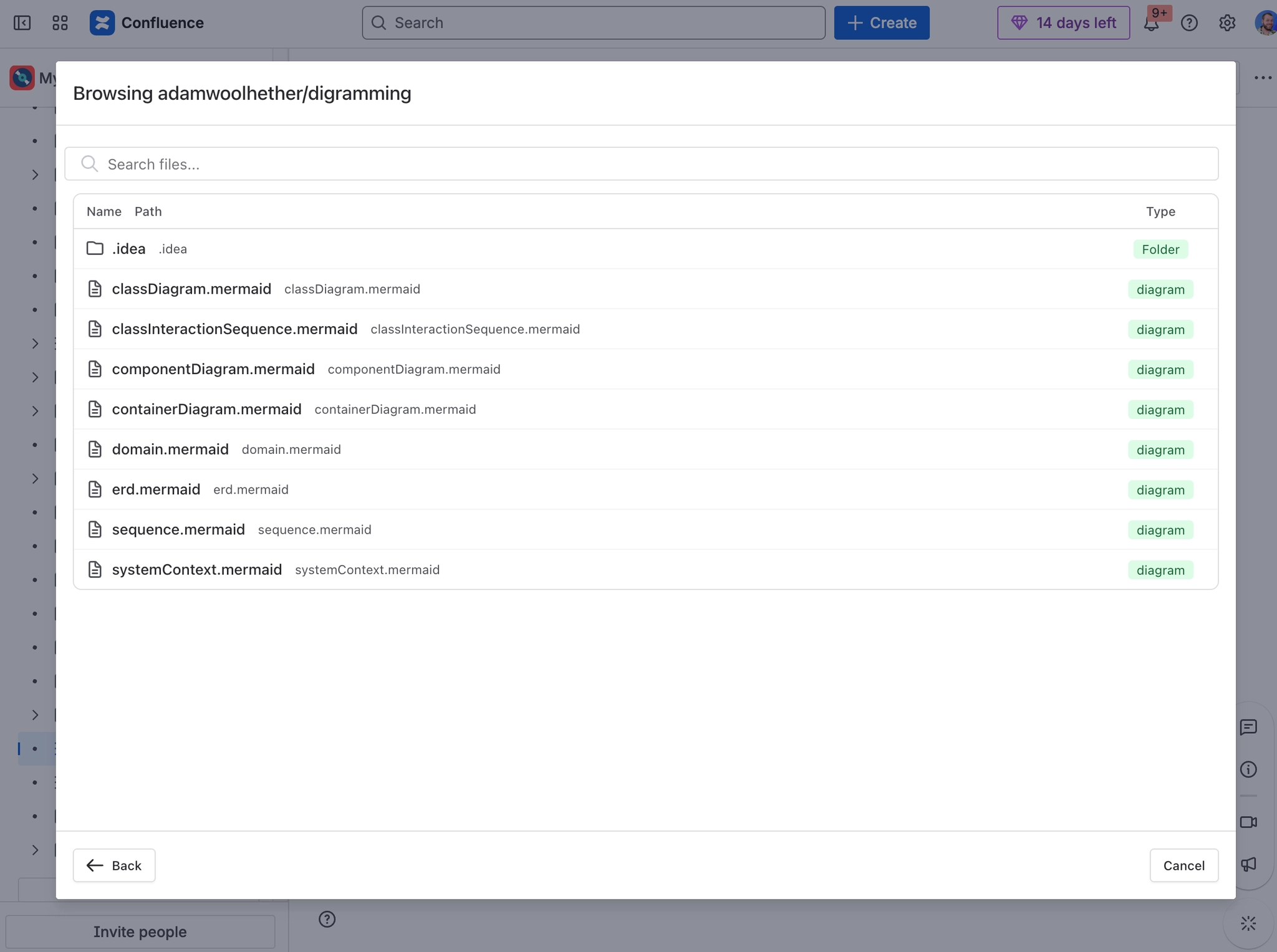
Search or browse to the repository, then pick the branch.
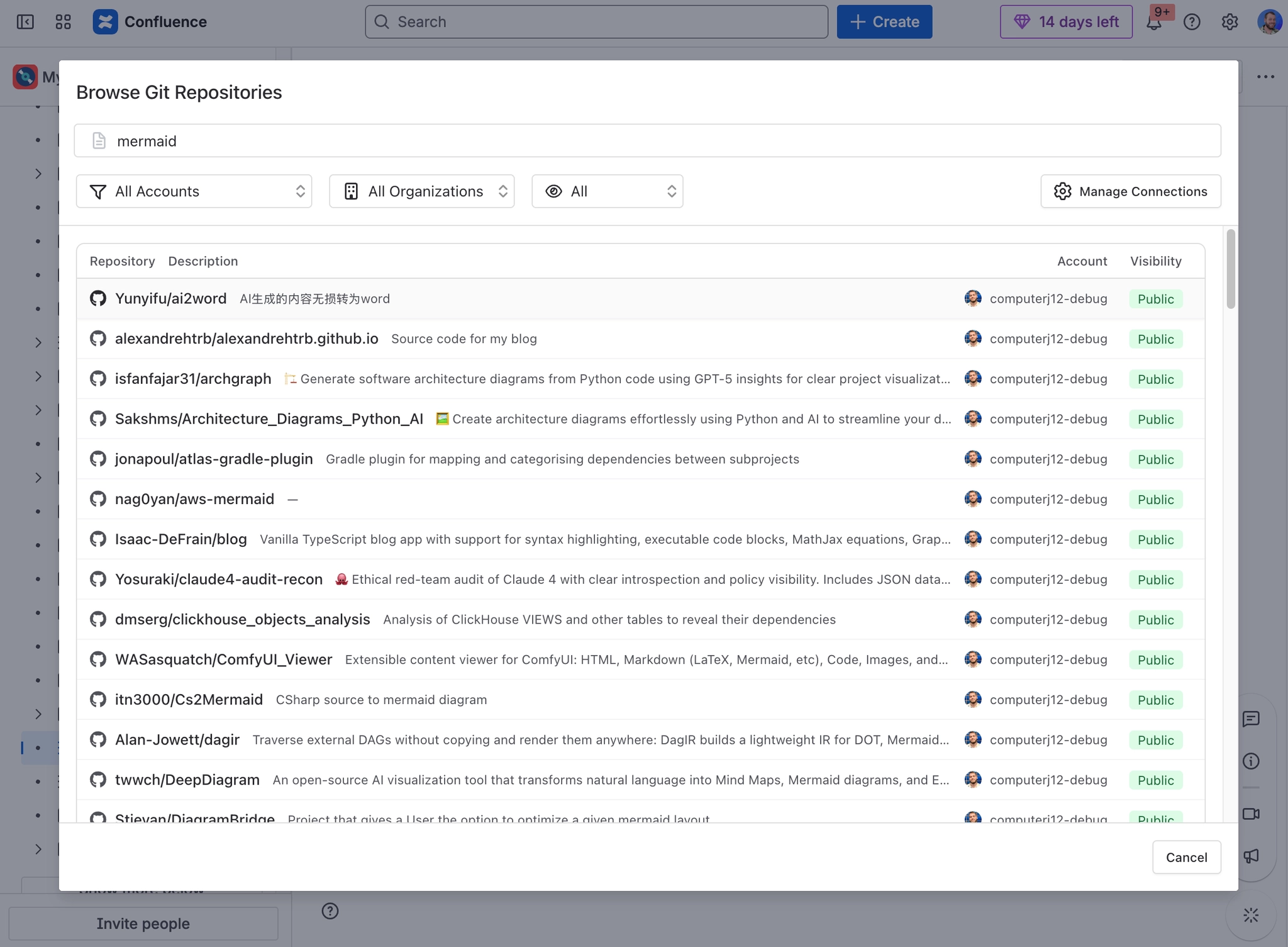
Navigate folders and select the Markdown file.
(Optional) Edit the title shown above the content.
Insert to add the Markdown to your page/work item.
#How it renders
Markdown is rendered as rich content including headings, lists, links, code blocks, and tables.
Images referenced with absolute URLs will display; private images require accessible URLs.
#Permissions
Viewers must have their own access to the repository. If they don’t, they’ll be prompted to connect or will see an access error.
#Troubleshooting
File not listed: Check the selected account, branch, and repository permissions.
Images don’t show: Ensure the image path is publicly accessible or embedded as an inline image in the page.