Insert Code from Git
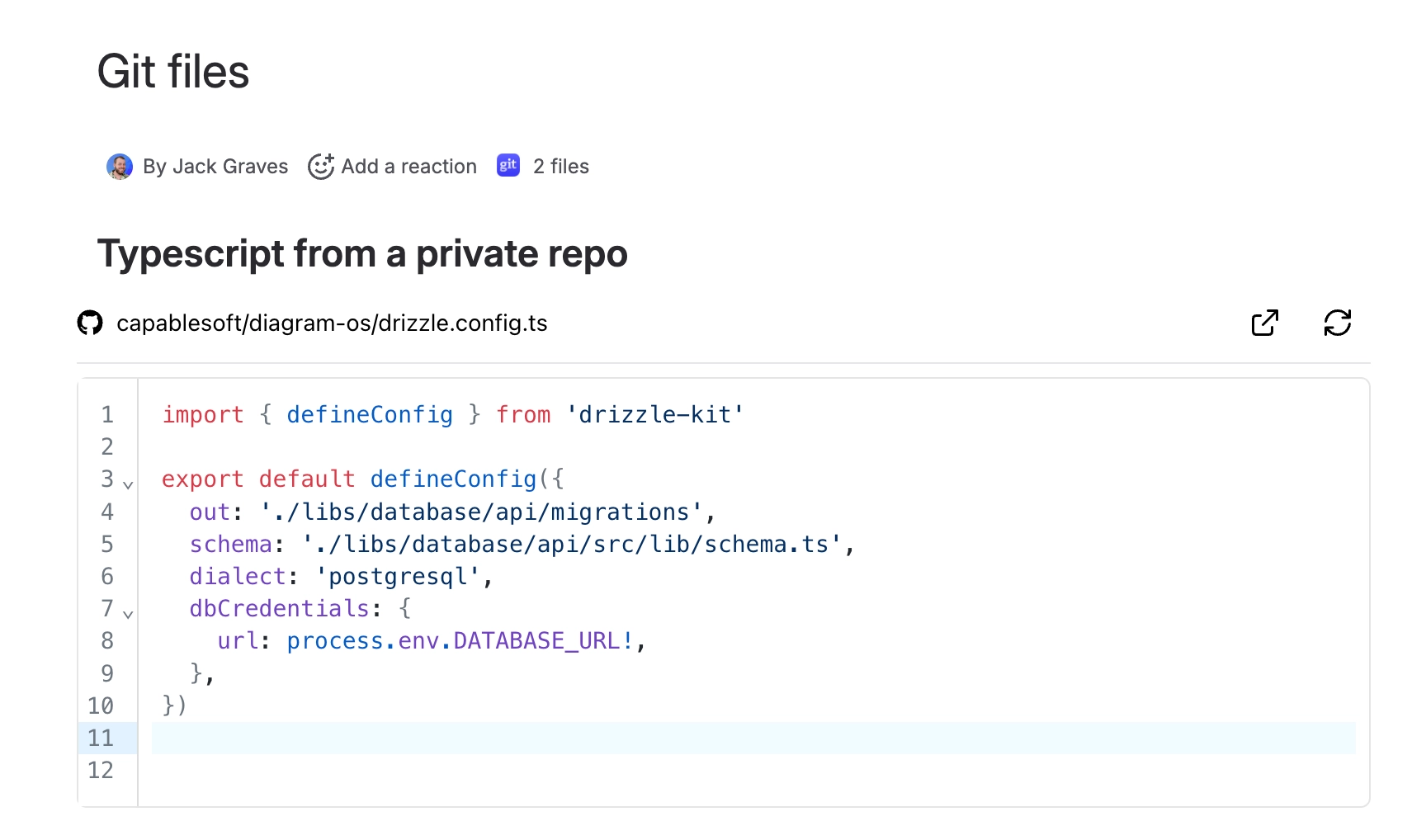
Embed non‑markdown files such as code, config, markup, or plain text from your repositories.
#Before you start
Connect your Git account and ensure access to the target repo/branch.
#Examples of supported file types
Code:
.js,.ts,.tsx,.py,.java,.c,.cpp,.cs,.go,.rs,.rb,.php,.swift,.kt,.scala,.sh,.bash,.zsh,.sql,.r,.m,.pl,.lua,.dart,.vueConfig/Data:
.json,.yaml,.yml,.toml,.ini,.cfg,.conf,.envMarkup/Styles:
.html,.htm,.xml,.svg,.css,.scss,.sass,.lessPlain text: files without a known extension are shown as text when possible
Not supported for inline preview (you can still reference them): .pdf, .doc(x), .xls(x), .ppt(x), archives like .zip, .tar, .gz, .bz2, .7z, .rar, executables/installers like .exe, .dll, .dmg, .pkg, .iso, and .wasm.
#Insert steps
Insert the Github File Macro
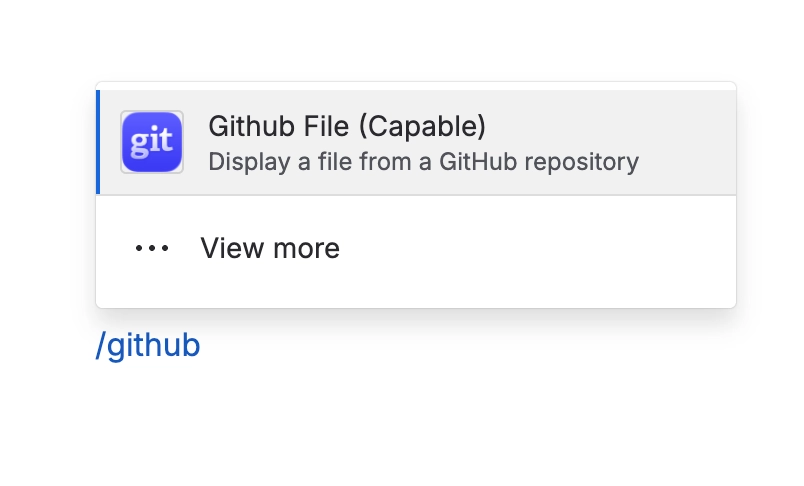
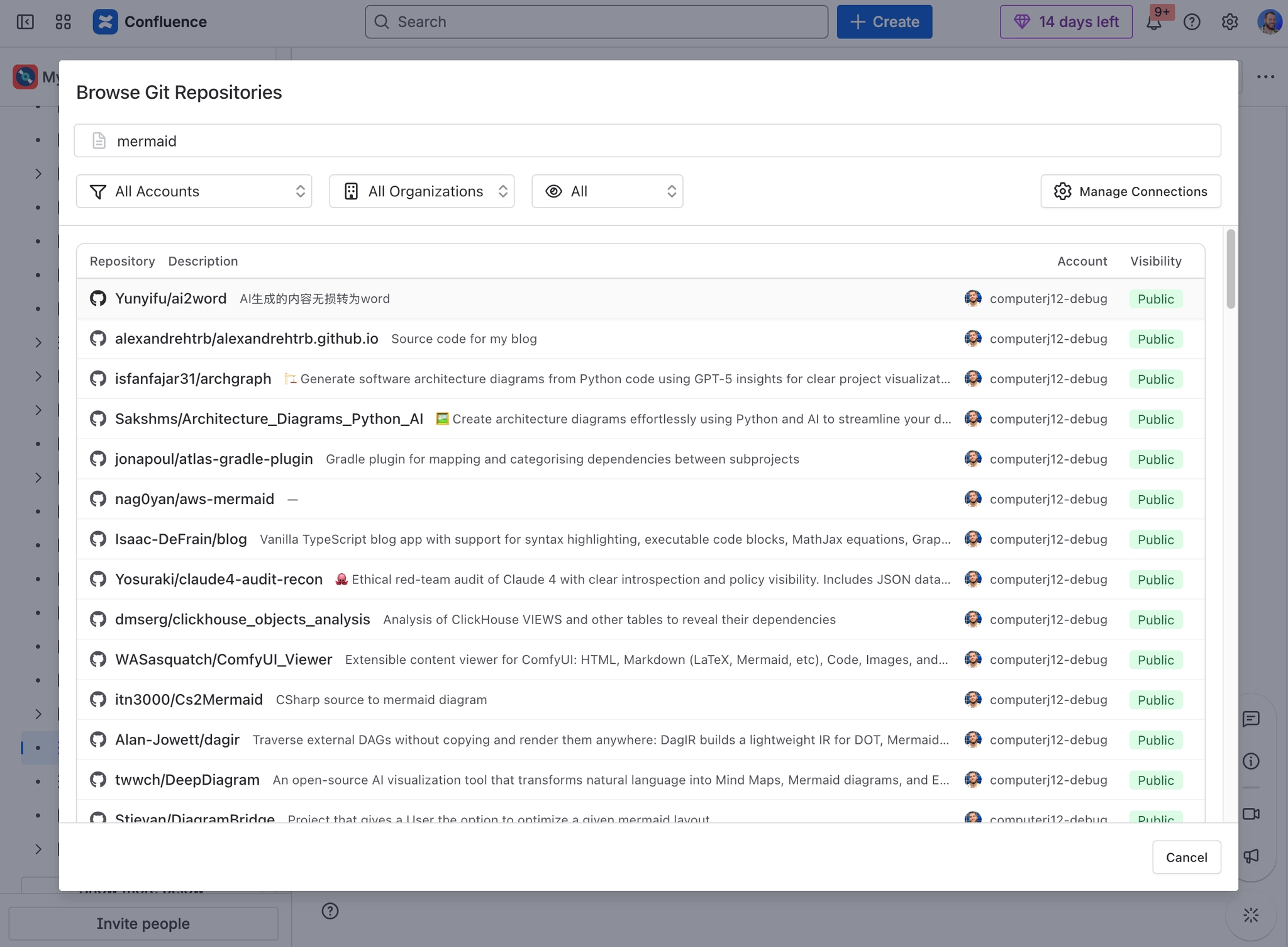
Connect/select your account and pick the repository and branch.
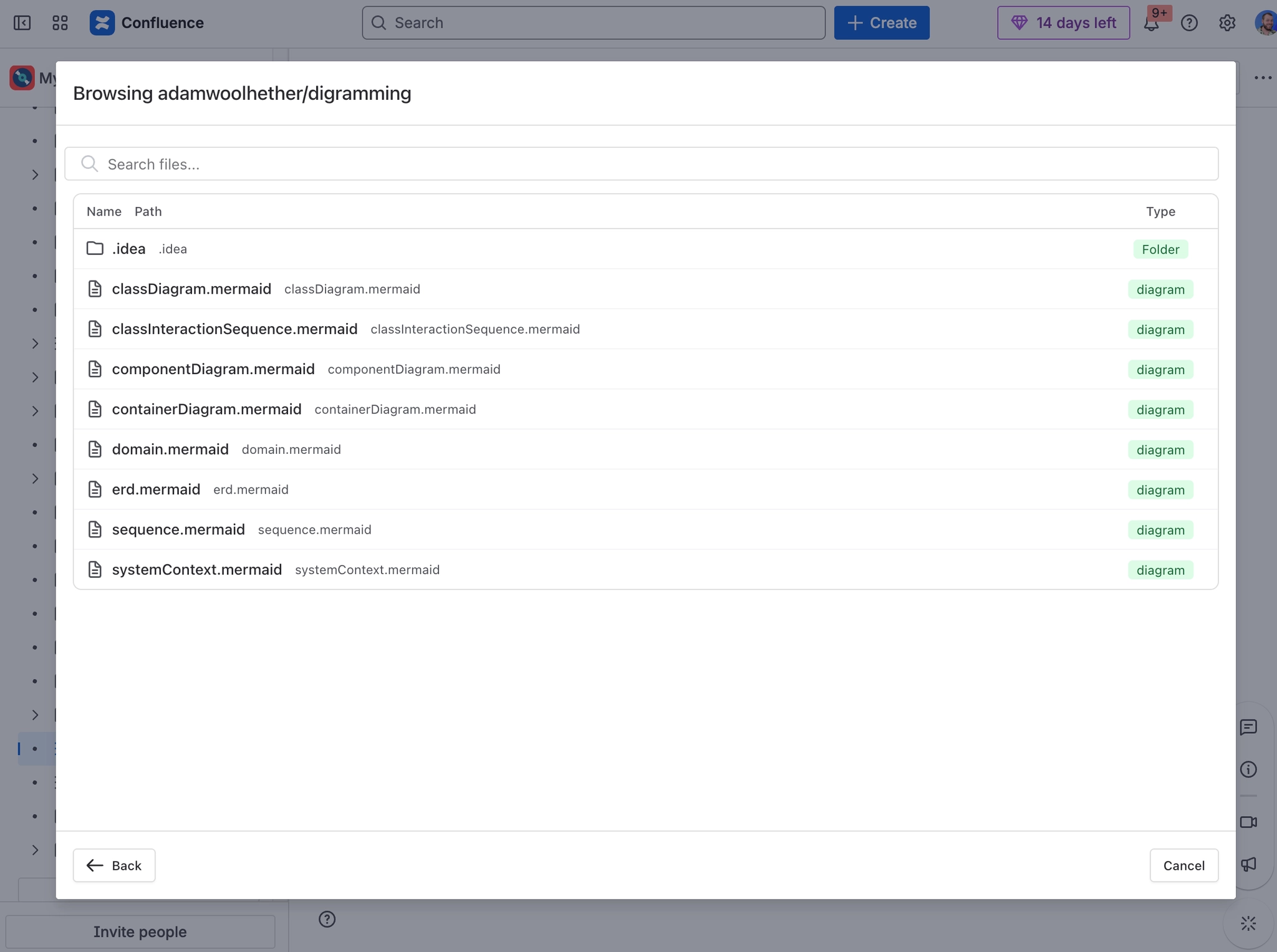
Browse to the file and select it, or paste it’s URL in the input
(Optional) Set the title and toggle any available display options (e.g., line numbers where applicable).
Insert to embed the file.
#How it renders
Recognized languages are syntax-highlighted for readability.
Large files or very long lines may be truncated for performance.
#Permissions
Viewers need their own access to the repository to see the embedded content.
#Troubleshooting
File doesn’t preview: Verify the extension is supported for inline view or download/reference it instead.
Missing file: Confirm branch selection and path accuracy.