Adding Github accounts
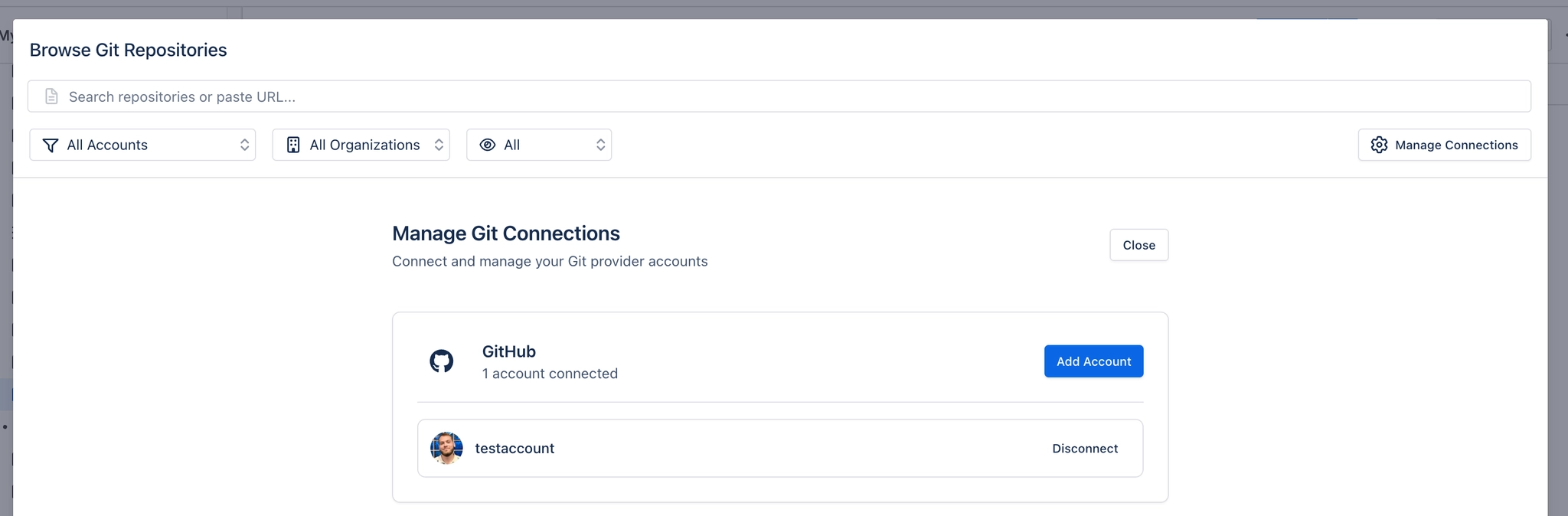
Connect GitHub to find repositories and add files to Confluence pages.
#Before you start
A GitHub account with access to the repositories you want to use.
If your organisation uses SSO or app approvals, ask a GitHub organisation owner to approve the app if prompted.
#Connect your first GitHub account
Open the Git browser from Capable, for example by typing
/giton a Confluence page.Select Connect.
Sign in to GitHub and approve the connection.
When your repositories appear, use search or filters to find the content you need.
#Use more than one GitHub account
If you use separate work and personal GitHub accounts, connect each one and choose the account you need when browsing.
Open the Git browser.
Open the account selector and choose Add account.
Sign in with the additional GitHub account.
Use the account selector to switch between connected accounts.
#What other users see
Access depends on each viewer’s GitHub permissions.
People who are not connected, or do not have access to the repository, may be asked to connect GitHub or will see an access message instead of the file.
#Disconnecting an account
You can revoke access at any time from your GitHub account settings under Authorized OAuth Apps. If your organisation manages app access, your GitHub administrator can also remove it.
To use GitHub in Confluence again later, simply reconnect your account.
#Troubleshooting
Connected the wrong account? Add the correct account in the Git browser, then select it from the account dropdown.
Missing organisation repositories? Ask a GitHub organisation owner to approve the app, then reconnect and complete any SSO prompts.
Can’t open a file? Make sure the selected GitHub account has access to the repository and branch.
#Privacy and security
Your GitHub connection is personal to you and is not shared with other Confluence users.
Capable only shows GitHub content that your selected account can access.