Getting started
Find out how you can view native PDFs directly in Confluence.
#What can I embed?
You can use any of these methods to view native PDF files on Confluence:
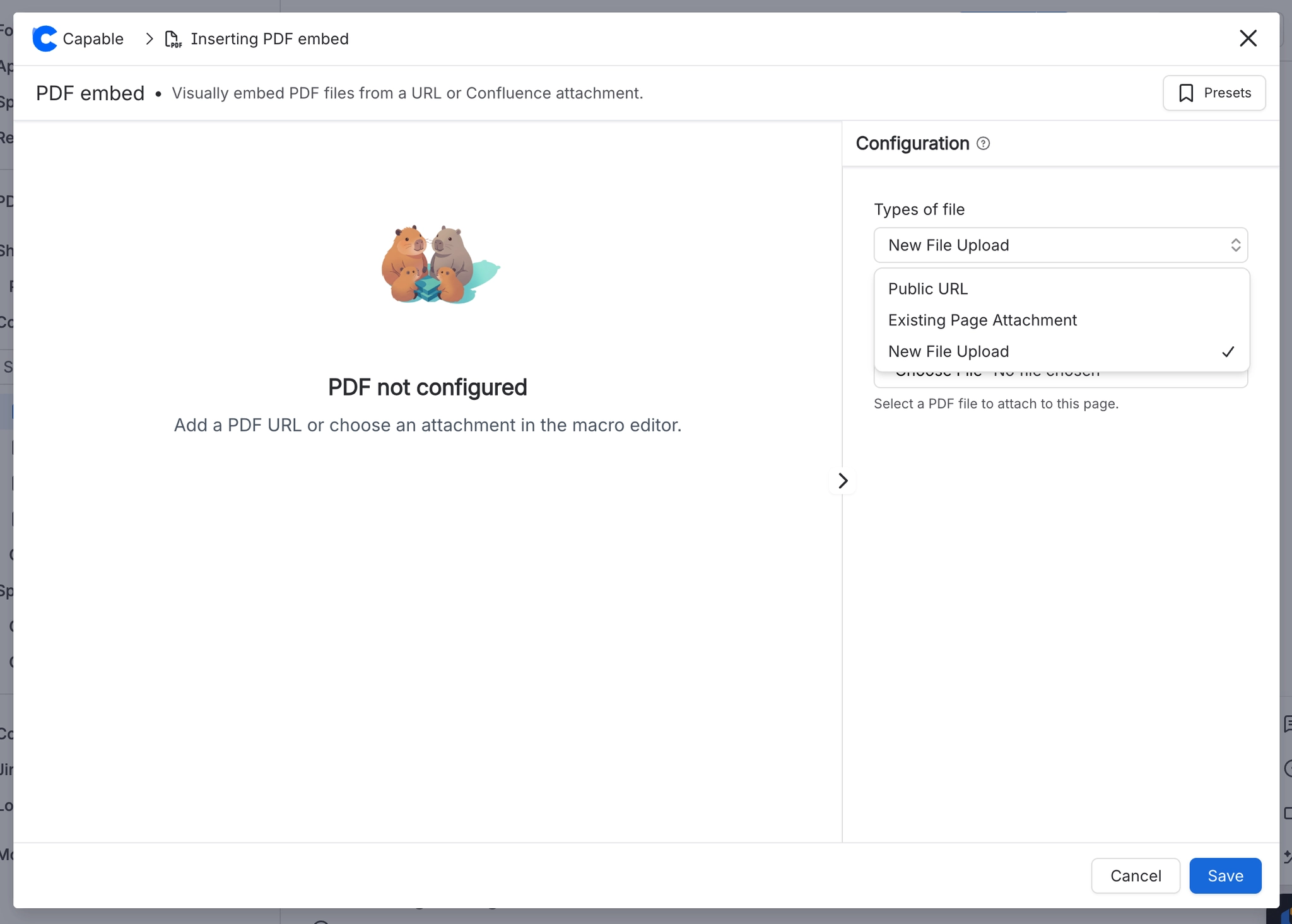
Paste the public URL of an online PDF - must be secure (start with https)
Render a PDF file that is already attached in the Confluence page
Or publish a file from a local drive directly.
#Step-by-Step
To embed the file, you first need to trigger the PDF for Confluence app. There are two ways to do this.
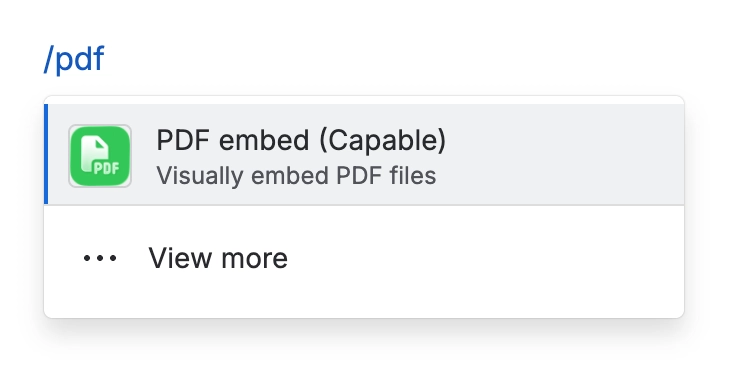
#1. Open the Confluence editor and type /PDF to insert the macro
#2. Paste URL or choose/upload attachment
#3. Customize the options
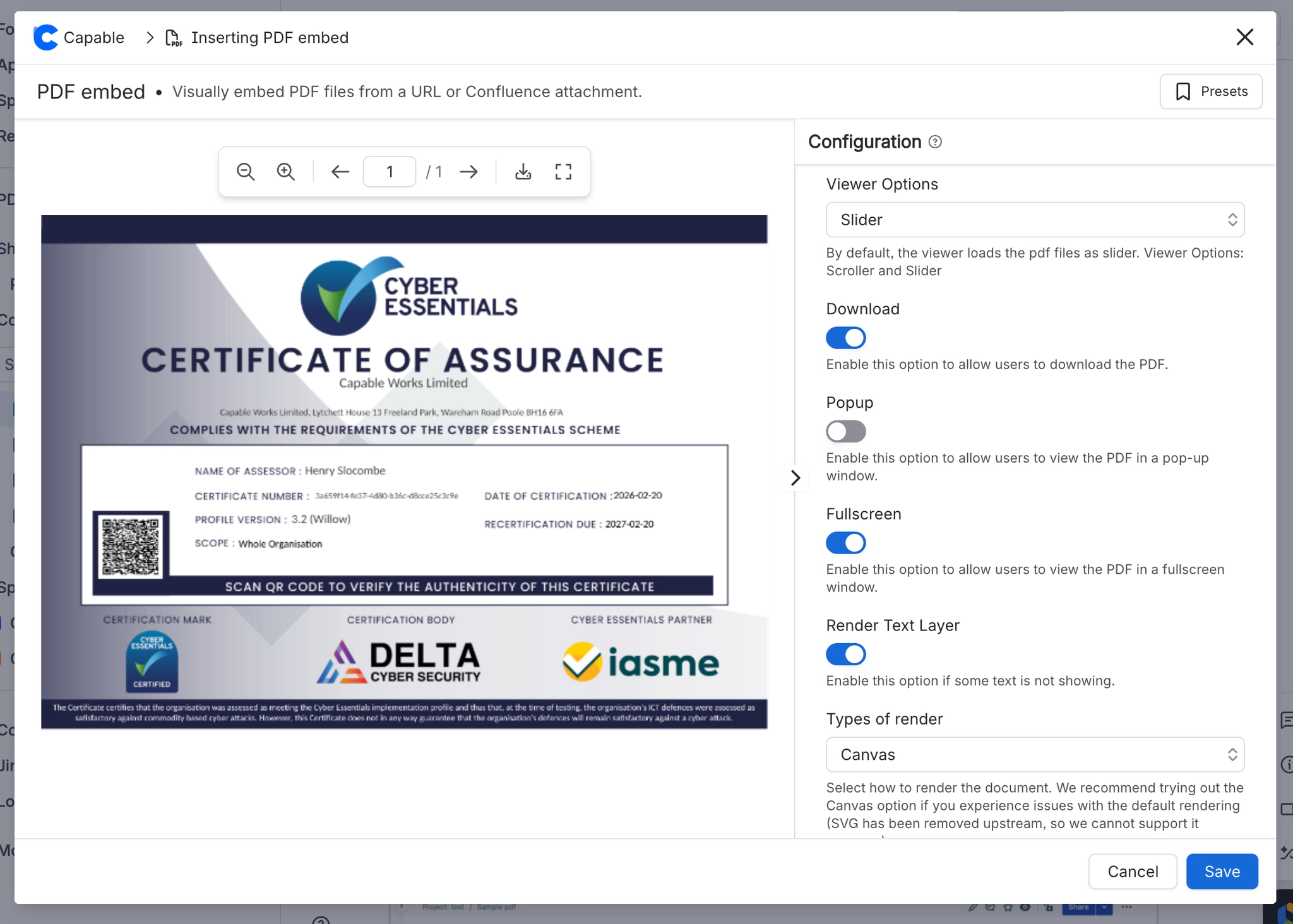
#4. All done!
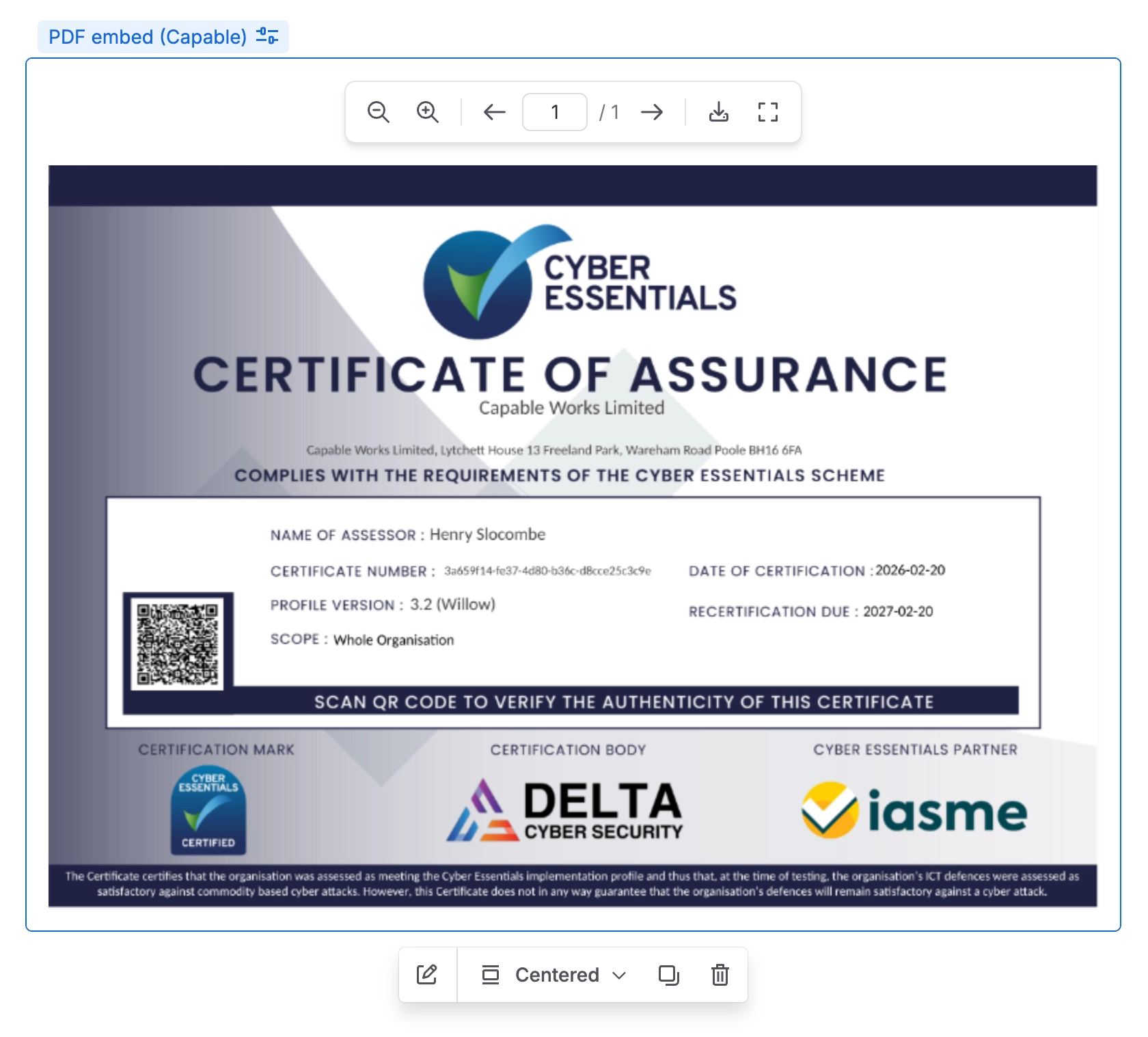
#Making your PDF look great
#Page Navigation
When embedding PDF files with multiple pages, there are two navigation options you can choose from.
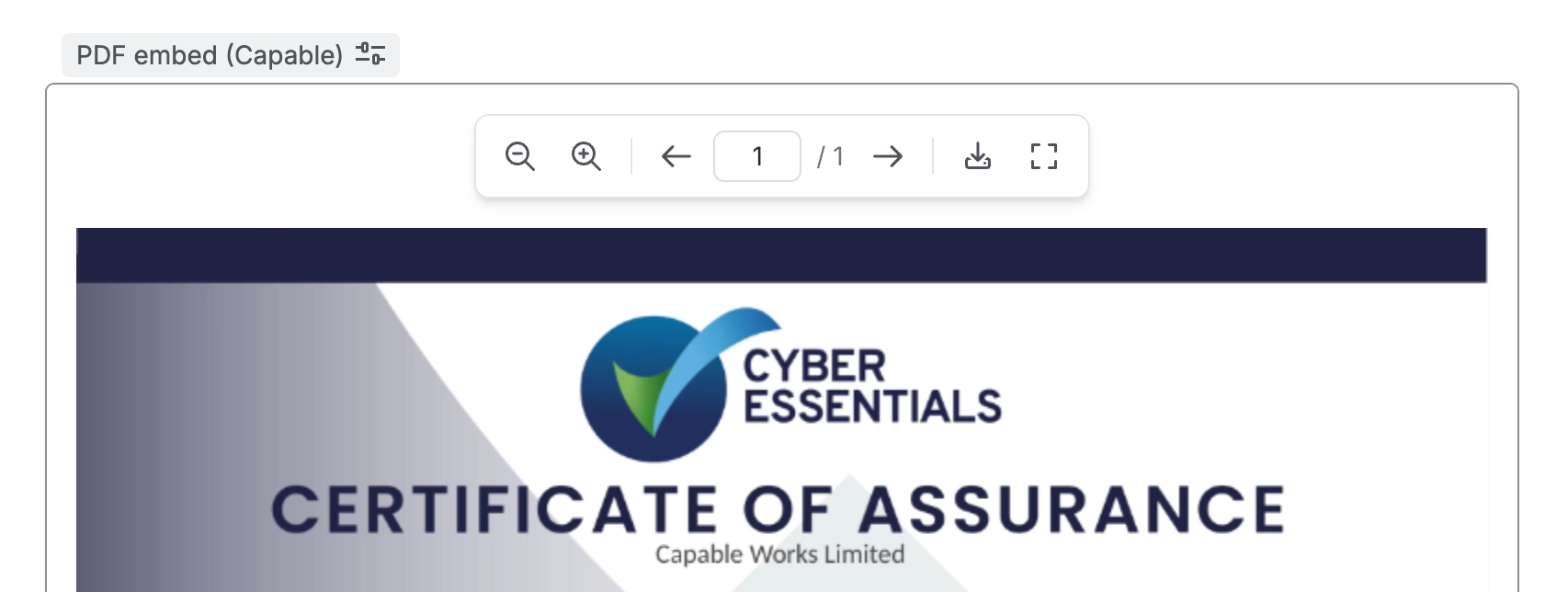
#Slider
The Slider display mode shows an entire page on screen and transition between them in a presentation mode using the arrow buttons.
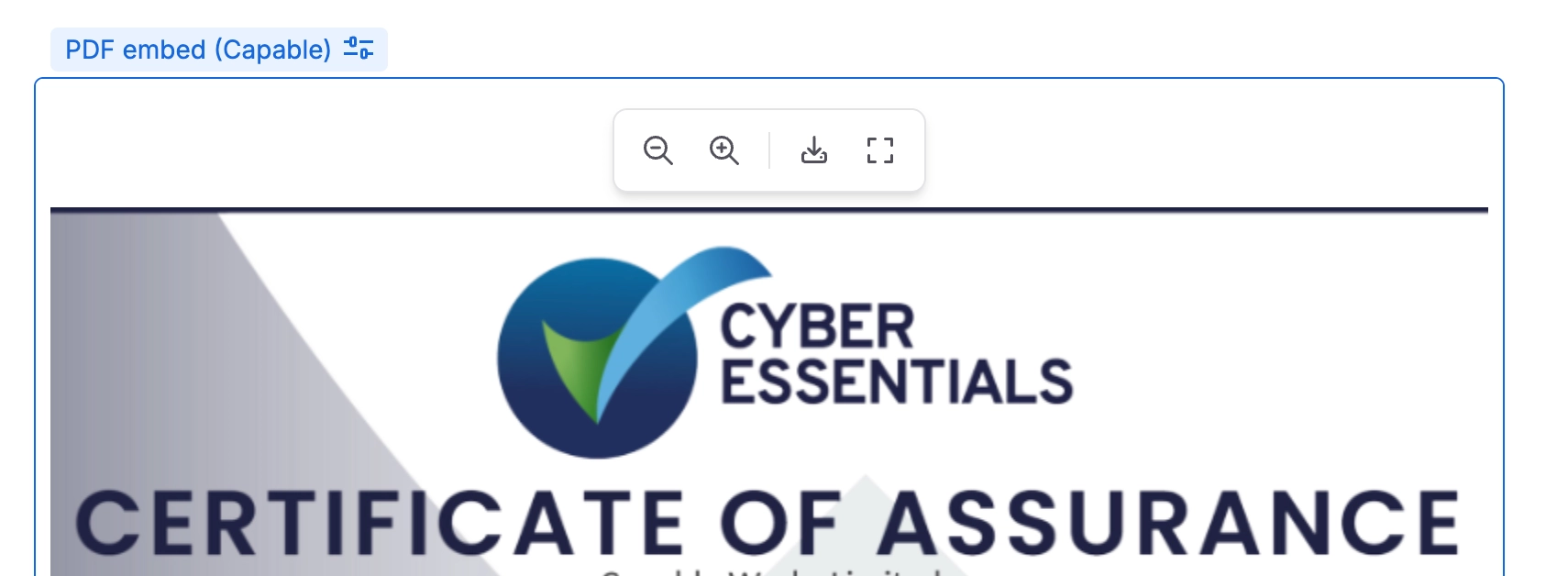
#Scroller
The Scroller display mode enables the more traditional vertical navigation, which can be more comfortable for text-heavy documents.
#Sizing
PDF Embed for Confluence takes care of sizing automatically to show an entire page of the document.
#Adjusting the width
To change the width natively, simply click on the embedded board in the Confluence page, then choose between centered, wide, and full width in the visual menu.

The content of the PDF file will fit the set width.