Getting started
Miro Embed for Confluence lets you add interactive Miro boards directly to a Confluence page, so readers can view and work with boards without leaving Confluence. Use this guide to choose an embedding method, connect a board, and adjust how it appears on the page.
#1. Start the Miro Embed macro
You can open Miro Embed for Confluence in three ways. Choose whichever method is quickest for your workflow.
#Method 1: Type /miro
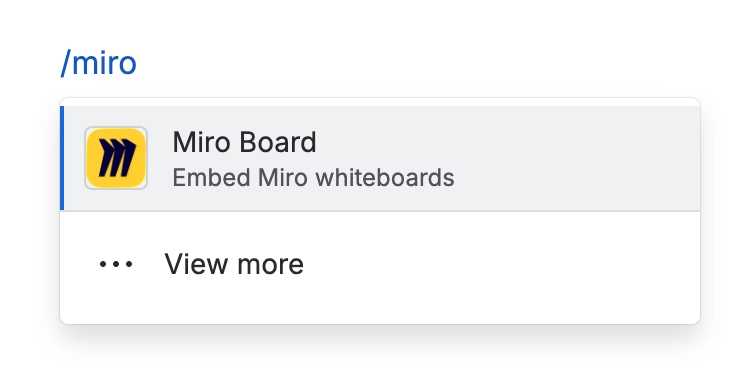
In the Confluence editor, type /miro, then select Miro Board from the menu.
#Method 2: Paste a Miro board link
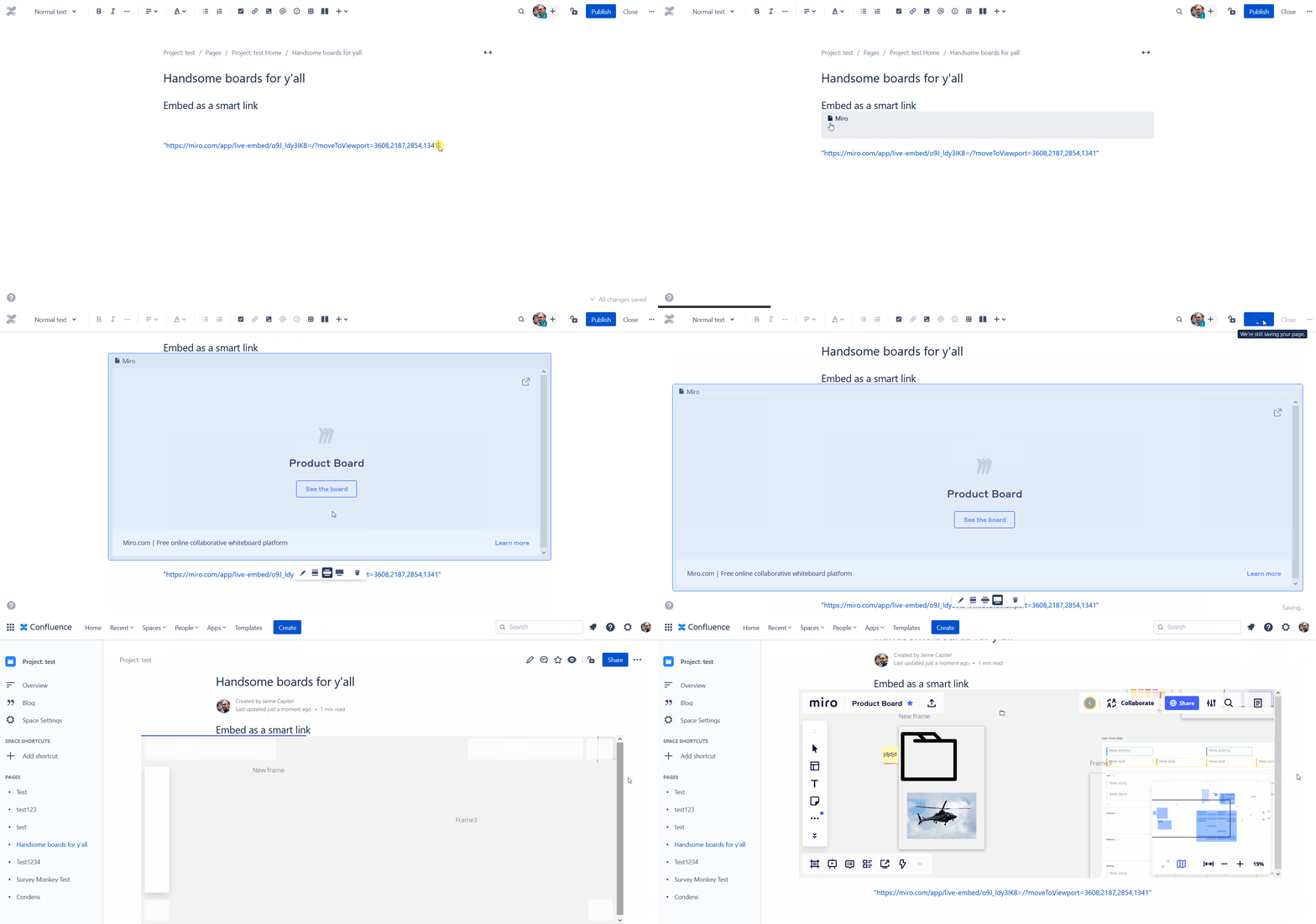
Paste a Miro board link directly into the page. Confluence will recognise the link and load it as a Smart Link.
#Method 3: Use the macro menu
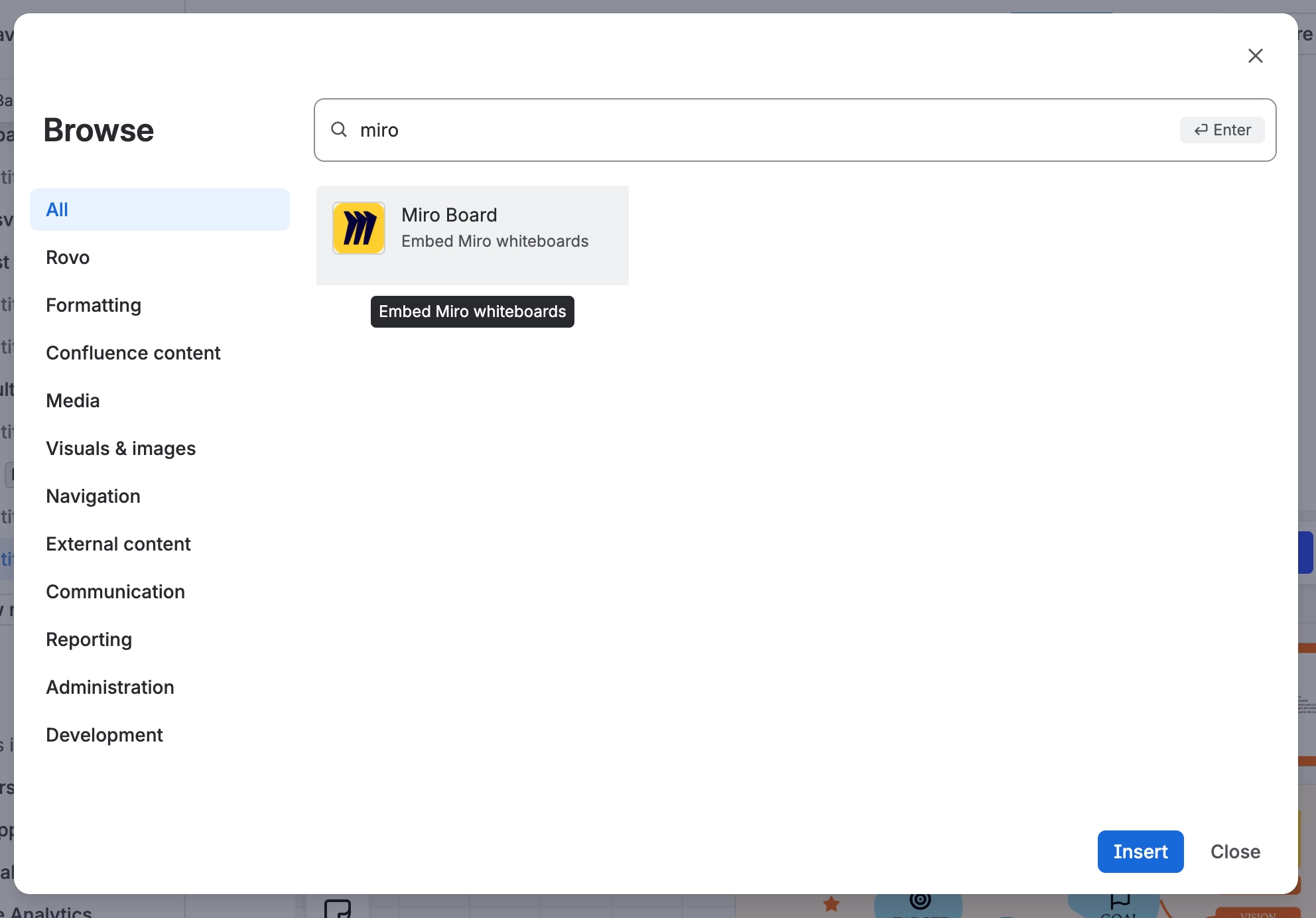
Open the macro dropdown, select View more, then search for Miro Embed for Confluence and select the macro.
#2. Choose how to add your board
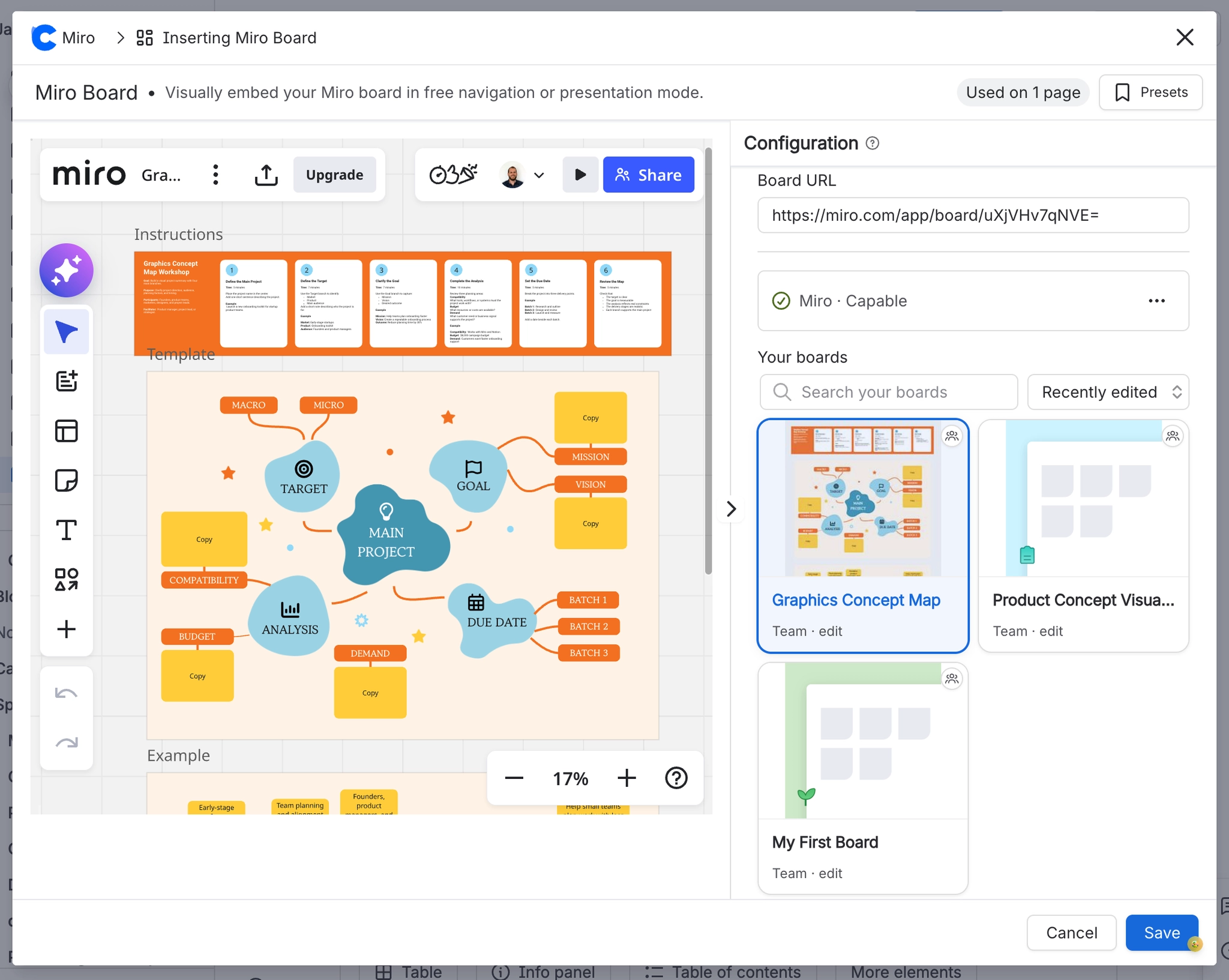
After opening the macro, you can add a Miro board in either of these ways:
Connect your Miro account and select a board from your teams.
Paste a board URL or embed code.
#3. Connect to a Miro account
If you want to browse and select boards directly from Miro, connect your account from the macro window.
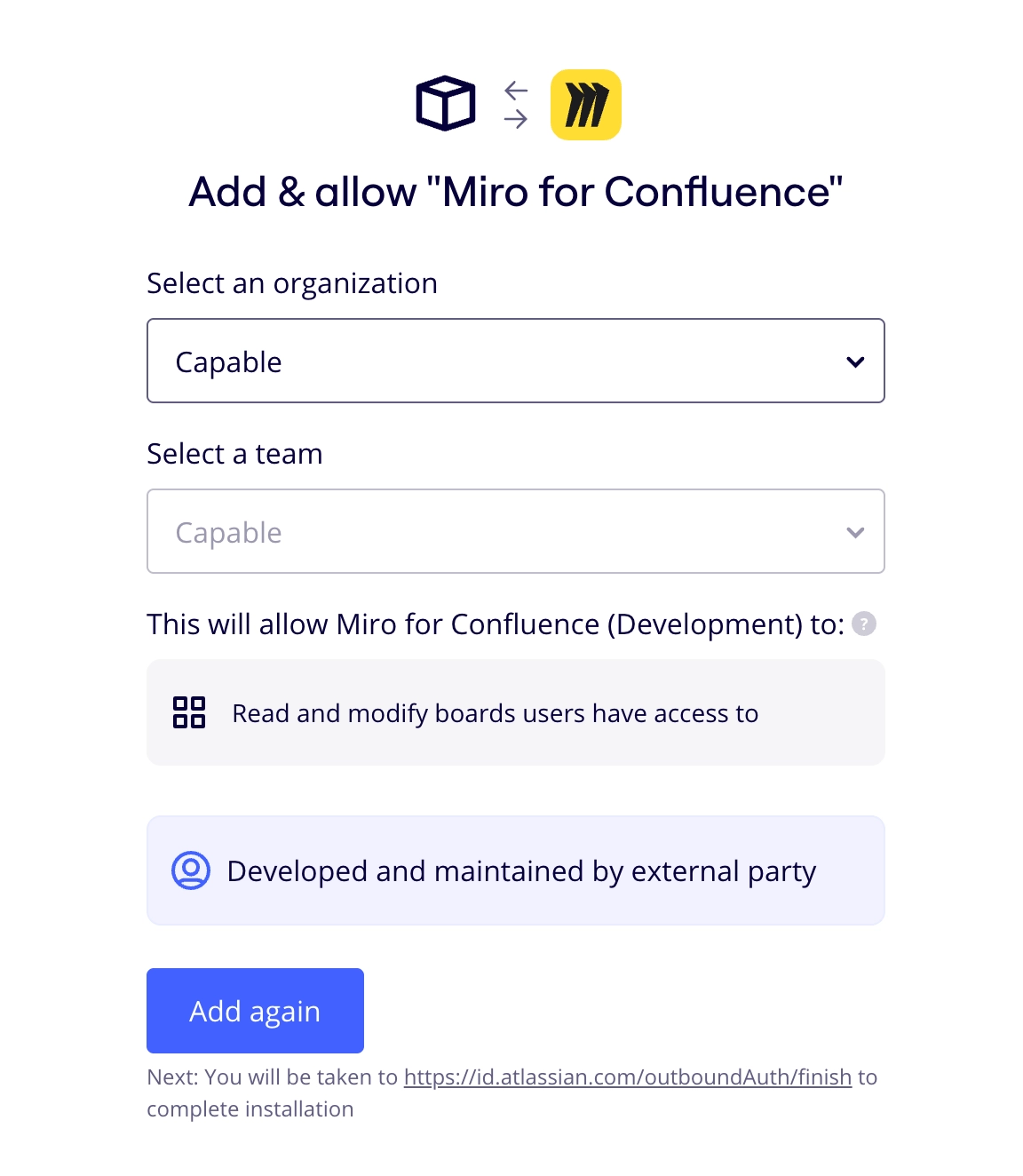
To connect your account:
Select Connect to Miro.
Sign in with your Miro email address and password.
Choose the Miro team that contains the board you want to embed.
Once the team is connected, you can select a board from inside the macro without opening Miro in a separate tab.
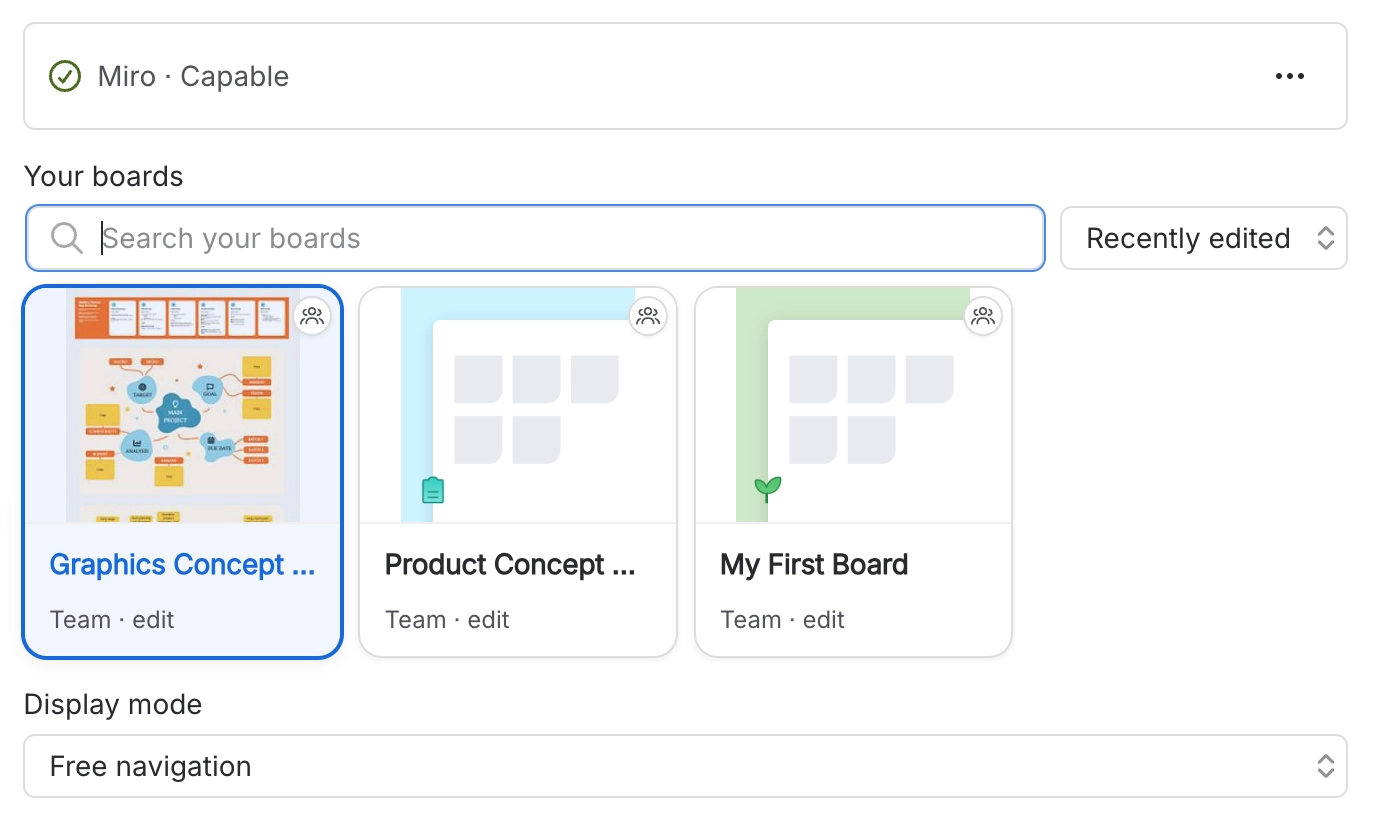
Tip: To use a board from another team, select the change team option. You will follow the same team selection steps again, but you will not need to complete the initial authentication step.
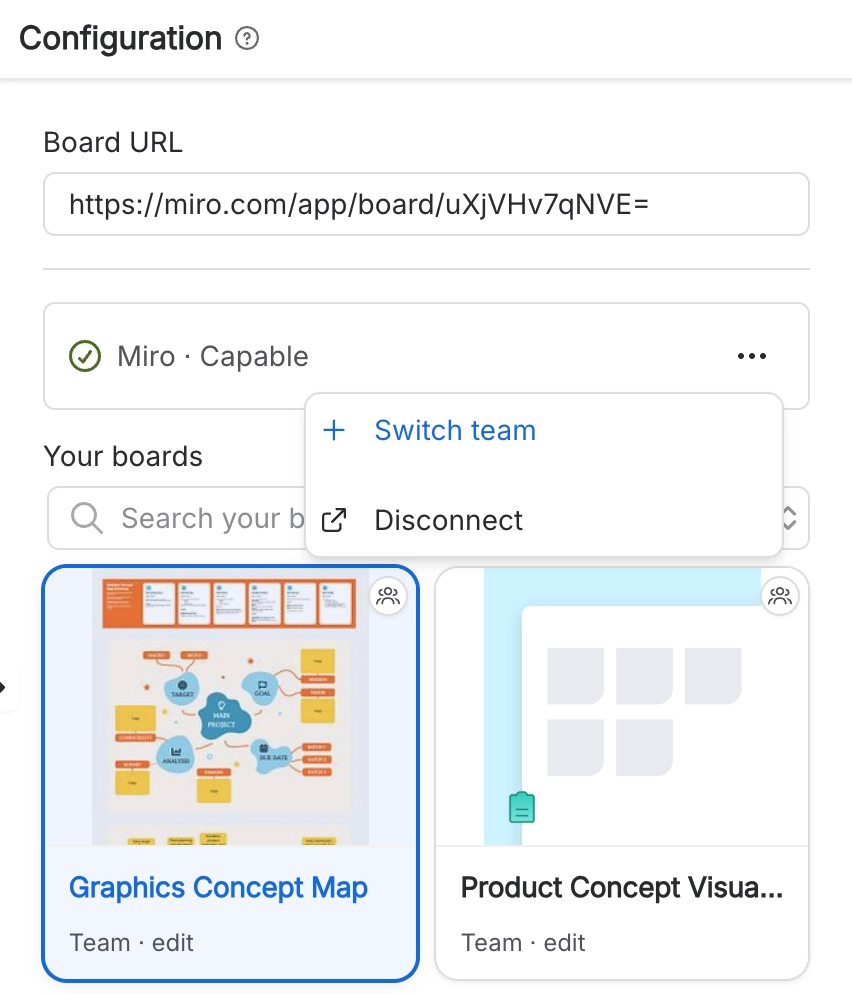
#4. Paste a board URL or embed code
If you already have a board link or iframe embed code, you can paste it into the macro instead of connecting your Miro account.
You do not need a premium Miro account to share boards with Miro Embed for Confluence.
Any Miro board URL or valid embed code will work.
You can test Miro Embed for Confluence with this sample board. Free navigation is disabled to protect the sample content.
Board URL:
https://miro.com/app/board/o9J_lV6xAmM=/
Embed link in presentation mode:<iframe width="768" height="432" src="https://miro.com/app/embed/o9J_lV6xAmM=/?pres=1&frameId=3074457354140961281" frameBorder="0" scrolling="no" allowFullScreen></iframe>
#Option 1: Use the board URL
Open the Miro board you want to embed and copy the full board URL from your browser.
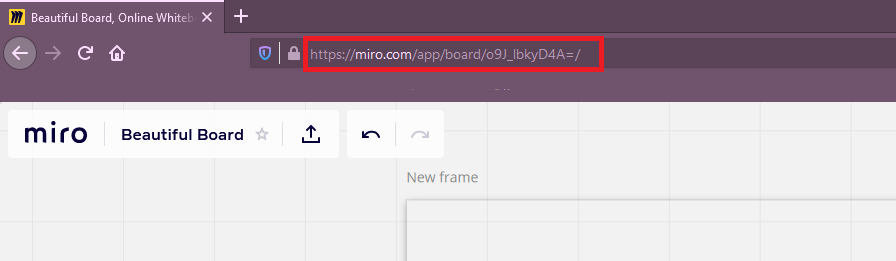
Using the board URL embeds the board in presentation mode with zoom controls.
#Option 2: Use the embed code
From the board, select the share icon next to the board name, then choose Embed.
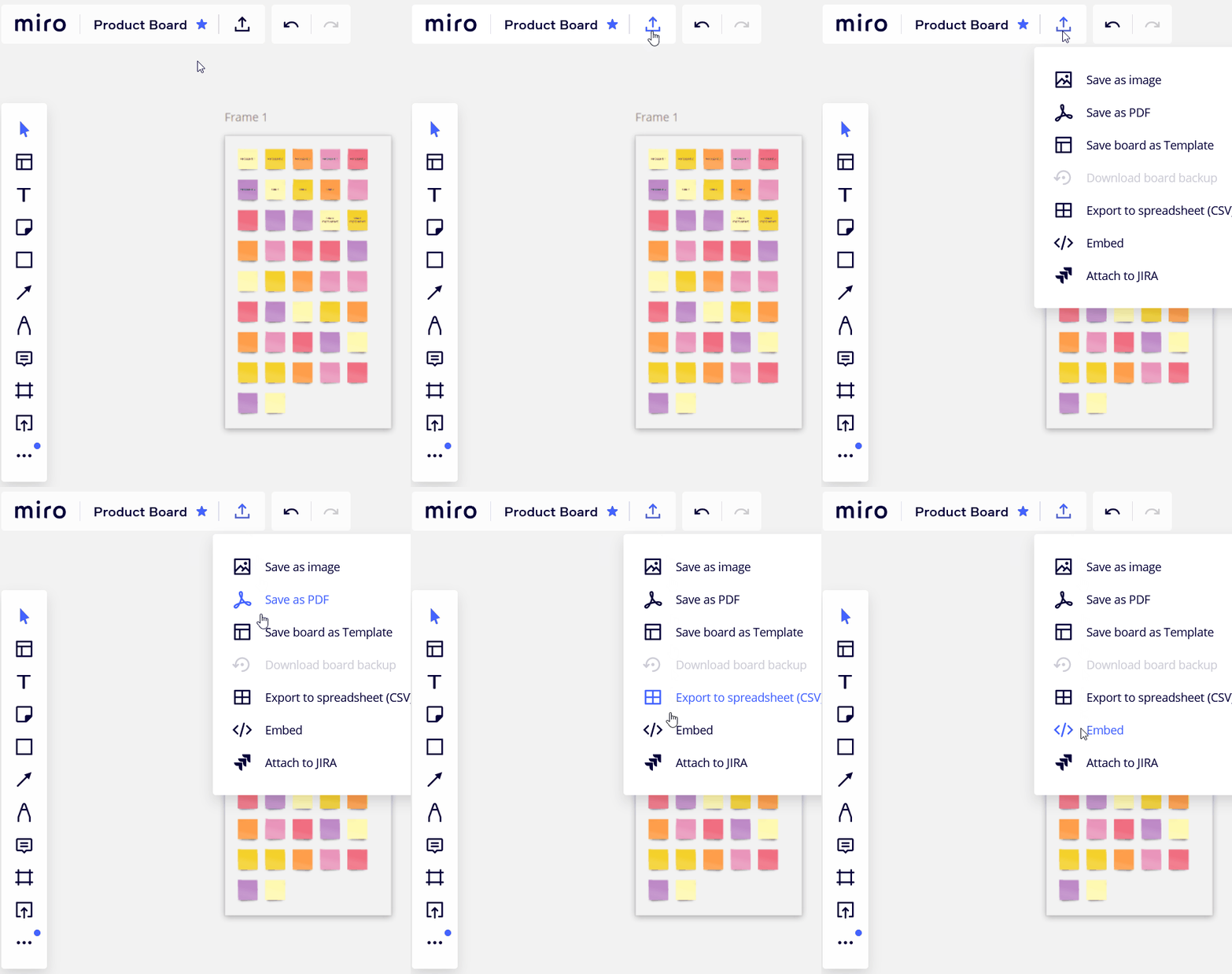
Copy the code from the Embed board window and paste it into the macro.
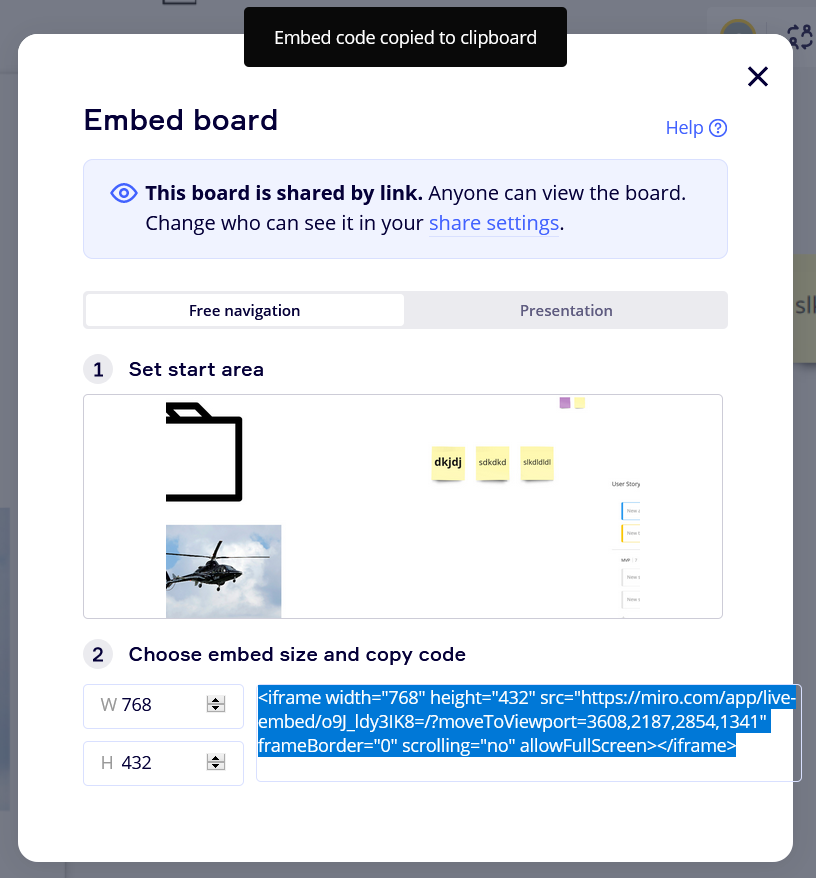
When you copy the embed code, you can choose whether the board is editable by others using Free navigation, or view-only using Presentation mode.
#5. Adjust how the embedded board looks
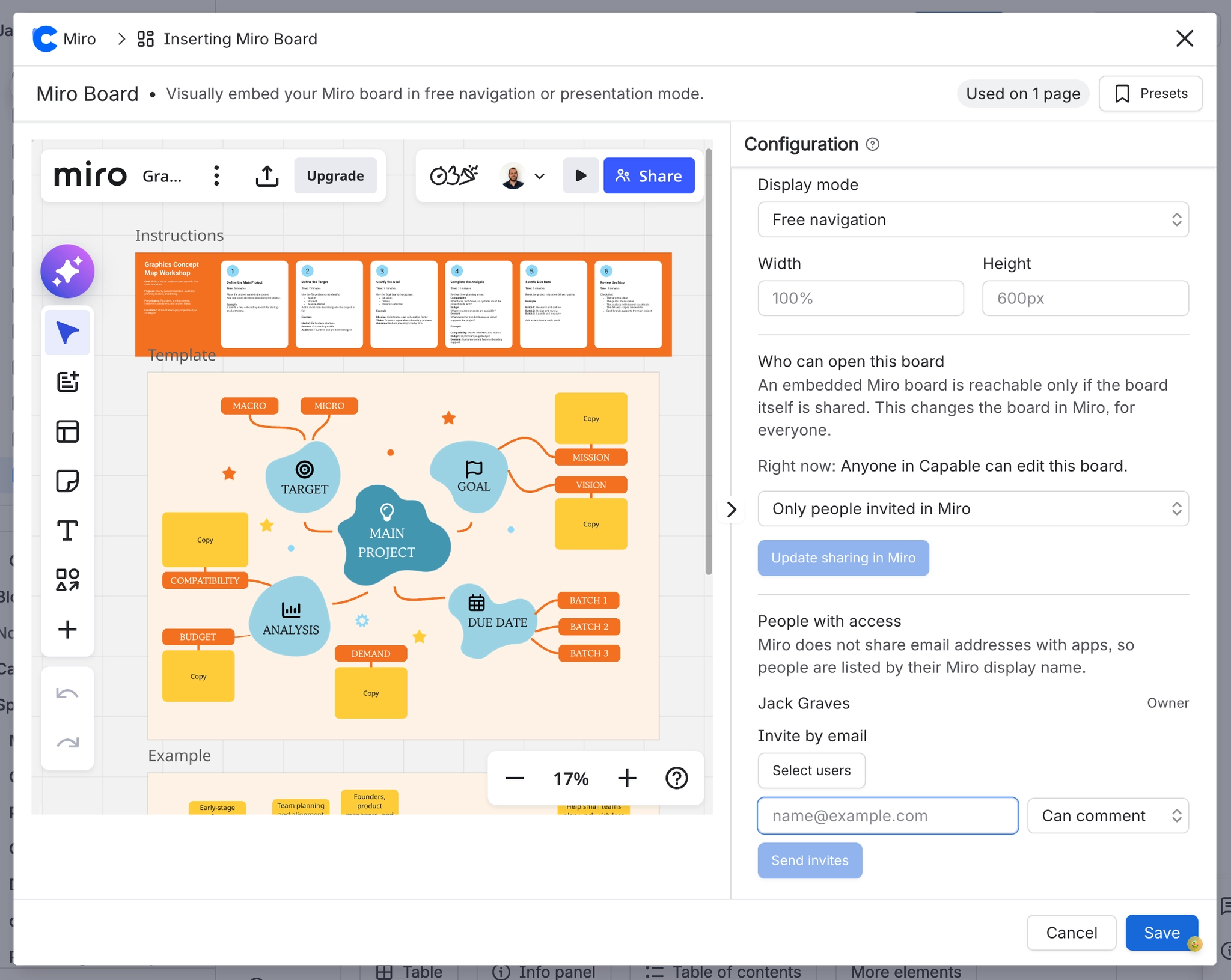
Miro Embed for Confluence automatically keeps board proportions consistent, so embedded boards display cleanly on the page.
#Adjust the width
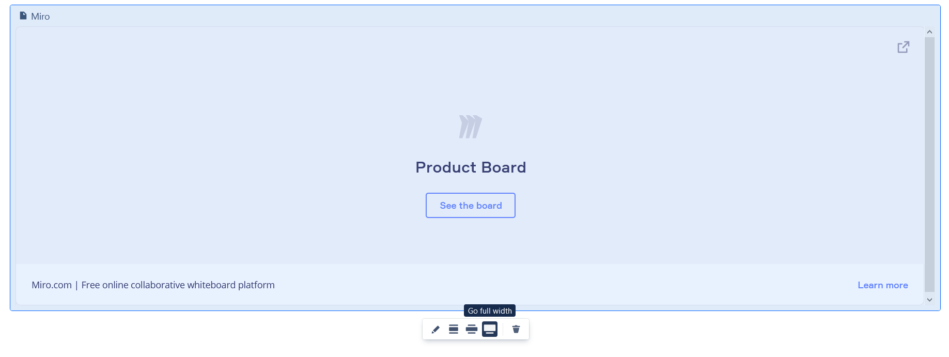
While editing the Confluence page, select the embedded board and choose centred, wide, or full width from the visual menu.
#Adjust the height
The default height is 600 pixels, which works well for most screens. To change it, edit the Confluence page, select the board, and use the edit button below the board to set a new height.
Width and height changes can only be made while editing the Confluence page.
You do not need to be the Miro board creator to adjust how the embedded board appears in Confluence.