How to publish pages in Confluence
Once your space has been configured for publishing, it’s easy to publish pages with Capable. Whether you’re working from a personal draft, a product doc, or a team-wide knowledge page, you can move content into your final space with just a click (or automatically, if approvals are in play).
Take your content from draft to live - with structure, clarity, and control
This guide covers how to publish a page manually and what each publishing state means.
#Start from the Capable Menu
To get started:
Open the page you want to publish.
Click the Capable icon in the top right of your Confluence space.
From the Capable menu, choose “Publishing”.
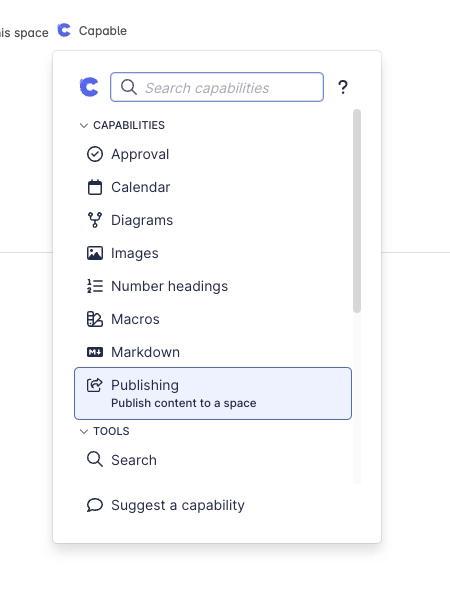
If publishing hasn’t been set up in the space yet, you’ll see the “Publishing not configured” screen.
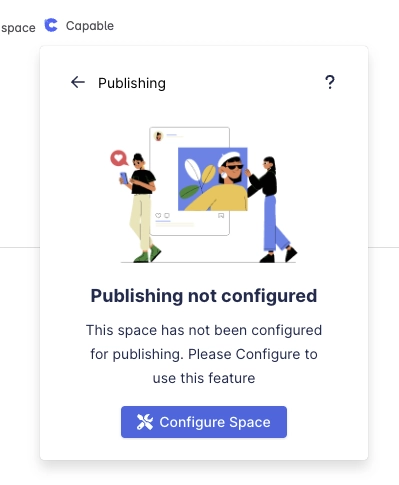
🛠 To fix this: an admin needs to go to Space Settings → Capable → Publishing Settings and configure the destination space and options. See how to set up publishing →
#What Publishing Status Looks Like
Once your space is configured, you’ll see one of the following statuses:
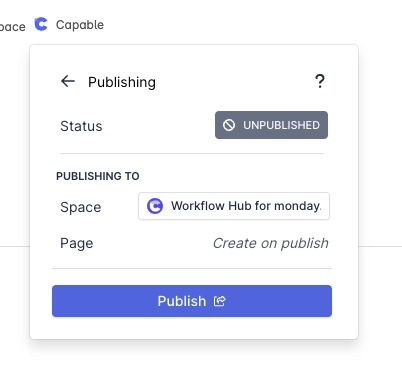
#1. Unpublished
This means the page hasn’t been published yet.
You’ll see:
Status:
UNPUBLISHEDThe target space and page name (will be created on first publish)
To publish:
Click the Publish button
The page will be published to the selected target space
#2. Published
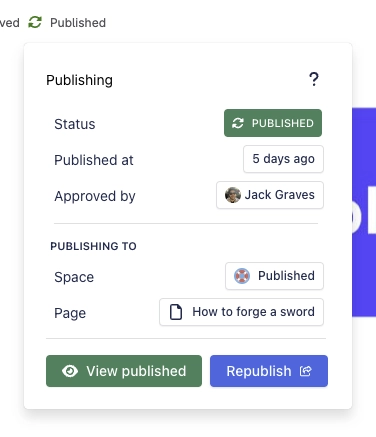
This means the page is already published.
You’ll see:
Status:
PUBLISHEDDate published
Who approved it
Target space and destination page
You can:
Click View Published to see the live page
Click Republish if the draft has changed and you want to update the live version
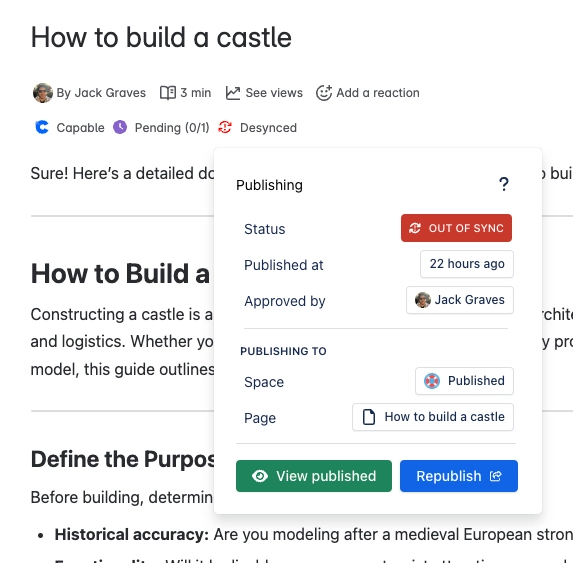
🔄 If the draft page is edited after publishing, Capable will flag the page as outdated, prompting you to review and republish.
#What Happens When Approvals Are Enabled?
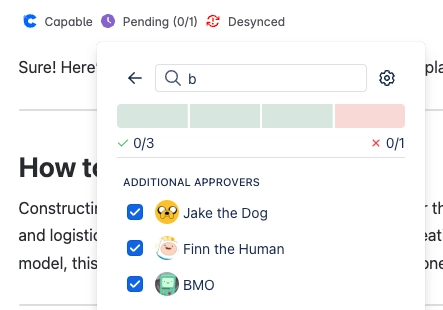
If Approvals are configured for your space, you may not be able to publish immediately. Instead:
You’ll see a message that your page is pending approval.
Once the required approvers have reviewed and approved the content, it will:
Be automatically published (if auto-publish is enabled), or
Become available for manual publishing
You’ll be notified once your page is ready to go live.
#Republishing Pages
After the initial publish, you can keep your content updated:
Edit your draft page as needed.
If the live version falls behind, Capable will show the status as “Outdated.”
Click Republish to sync the published version.
This ensures that your published spaces always reflect the latest version, while your draft remains a safe editing space.
#Tips & Best Practices
🧪 Test in a sandbox: Start with a test space to try out your publishing flow.
🔒 Restrict your published space: Use Confluence permissions to prevent editing in the published area.
🗂 Organize with parent pages: In the publishing settings, set a parent content location so pages are grouped correctly on publish.
👥 Use approvals for visibility: Even if you trust the content, approvals help document who reviewed what and when.
#Summary
Publishing with Capable is flexible, structured, and safe:
Start by configuring your space (or ask your admin to)
Use the Publishing panel to check status and push updates
Combine with Approvals for workflows that scale
Republish anytime your draft changes