Getting started
Use Microsoft Power BI Embed for Confluence to display native Power BI reports directly on a Confluence page. This guide explains how to get the right report link from Power BI, add it to Confluence, and adjust the embedded report so it fits your page.
#Before you start
You will need access to the Power BI report you want to share and the Microsoft Power BI Embed for Confluence app installed in your Confluence space.
#Step 1: Get a report link from Power BI
Power BI gives you three ways to share a report with Confluence. Choose the option that matches how you want people to access the report.
#Option 1: Use the public report URL
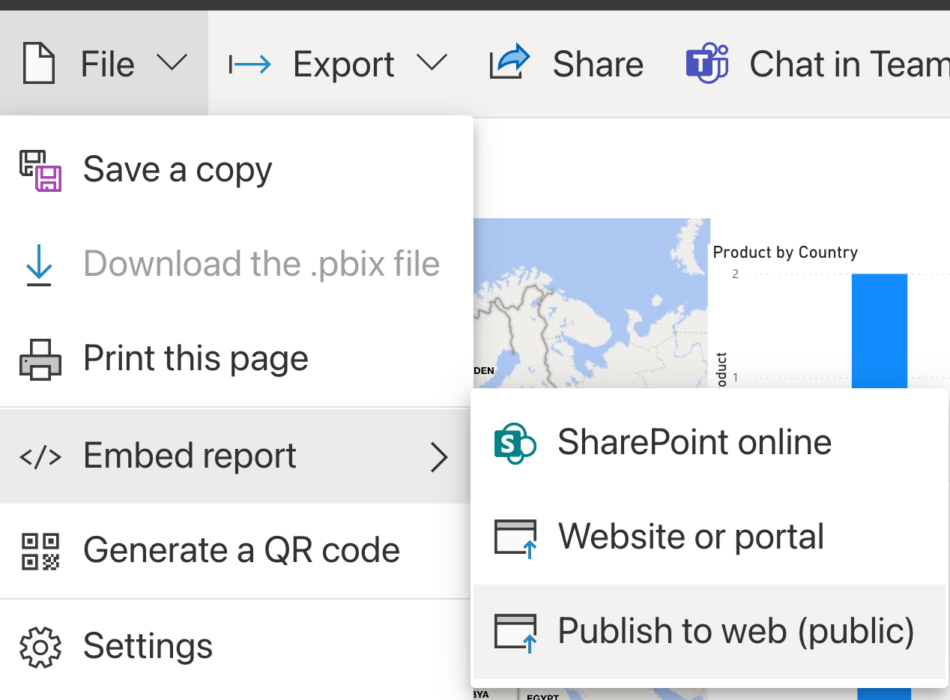
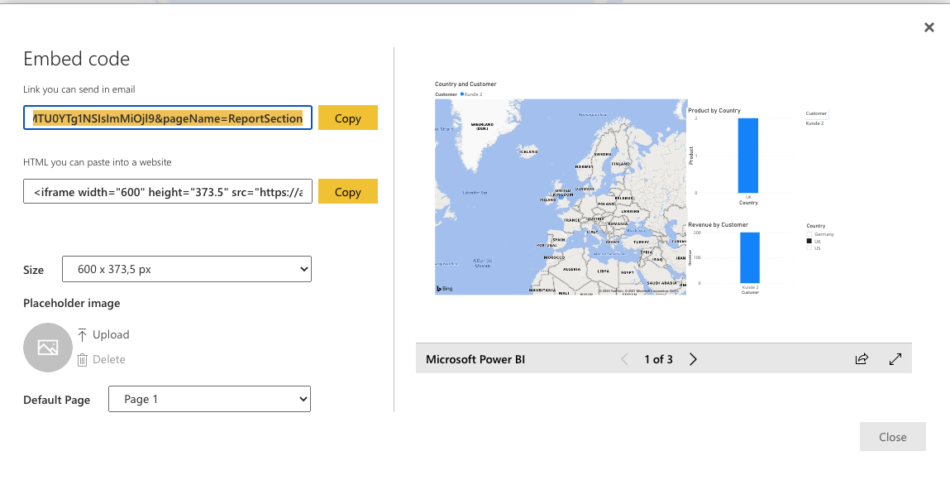
Open the report in Power BI, then go to File → Embed report → Publish to web (public).
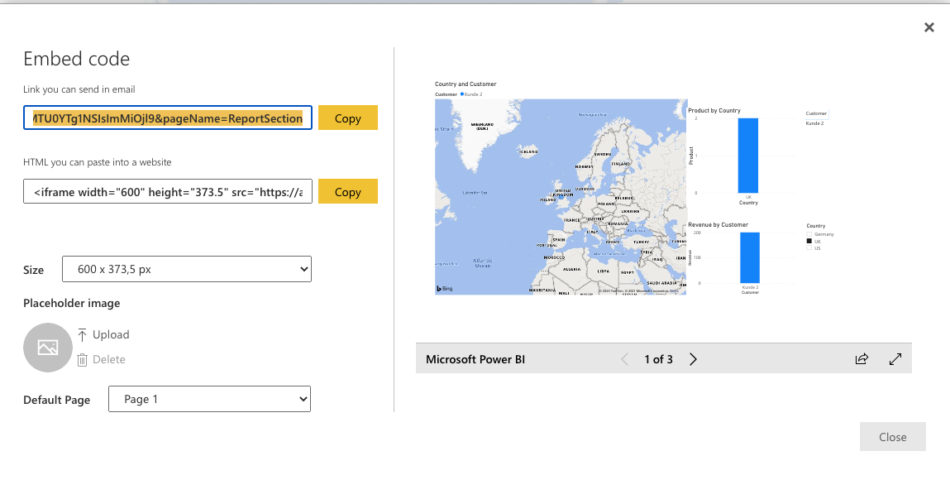
When the pop-up appears, copy the public URL using either of the available Copy buttons. The Confluence app supports both copied formats.
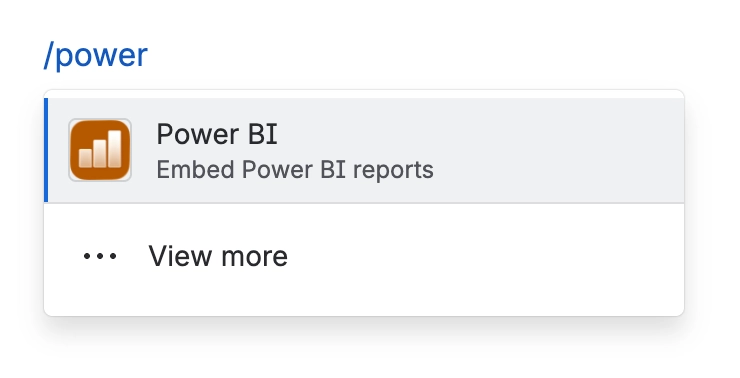
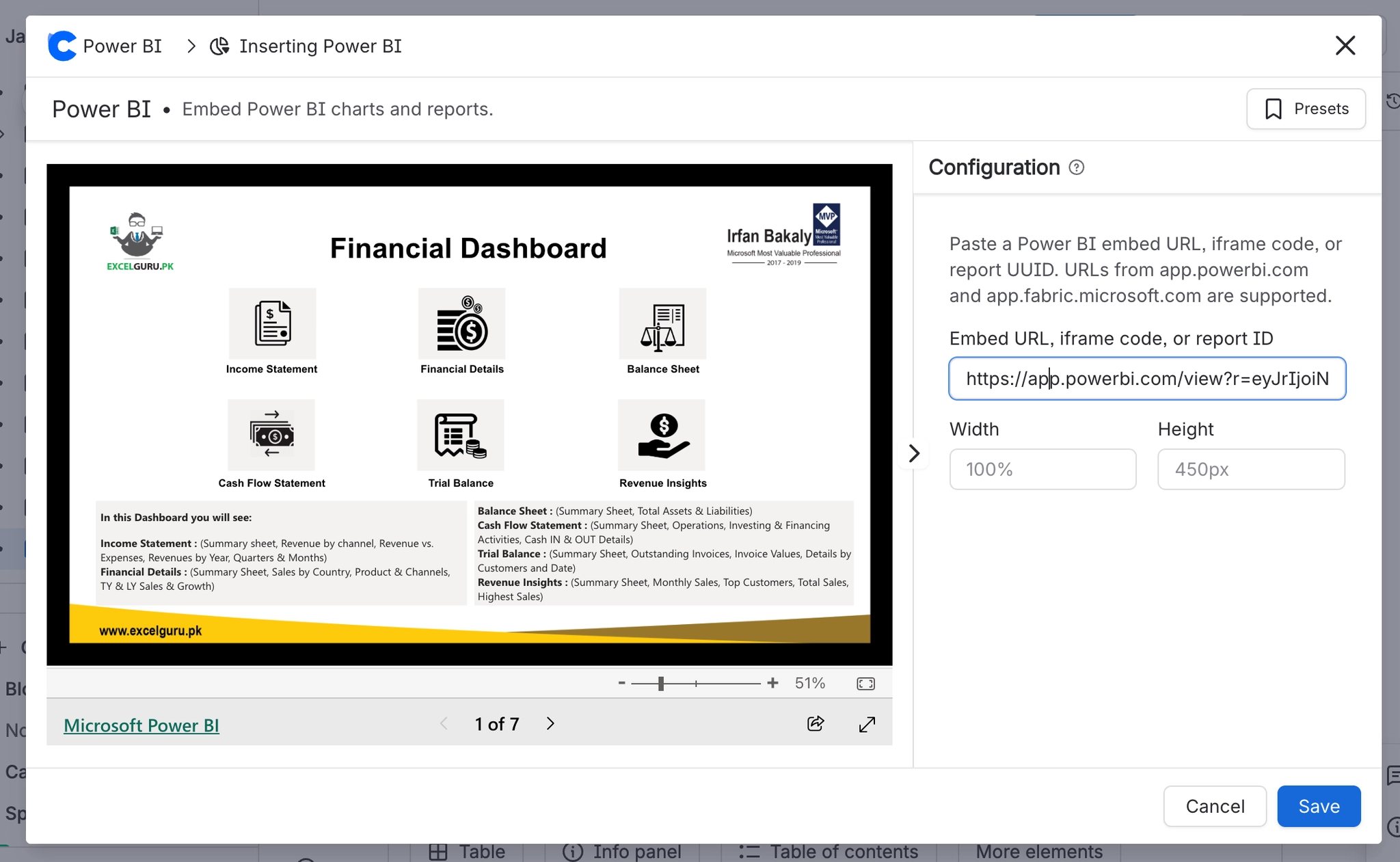
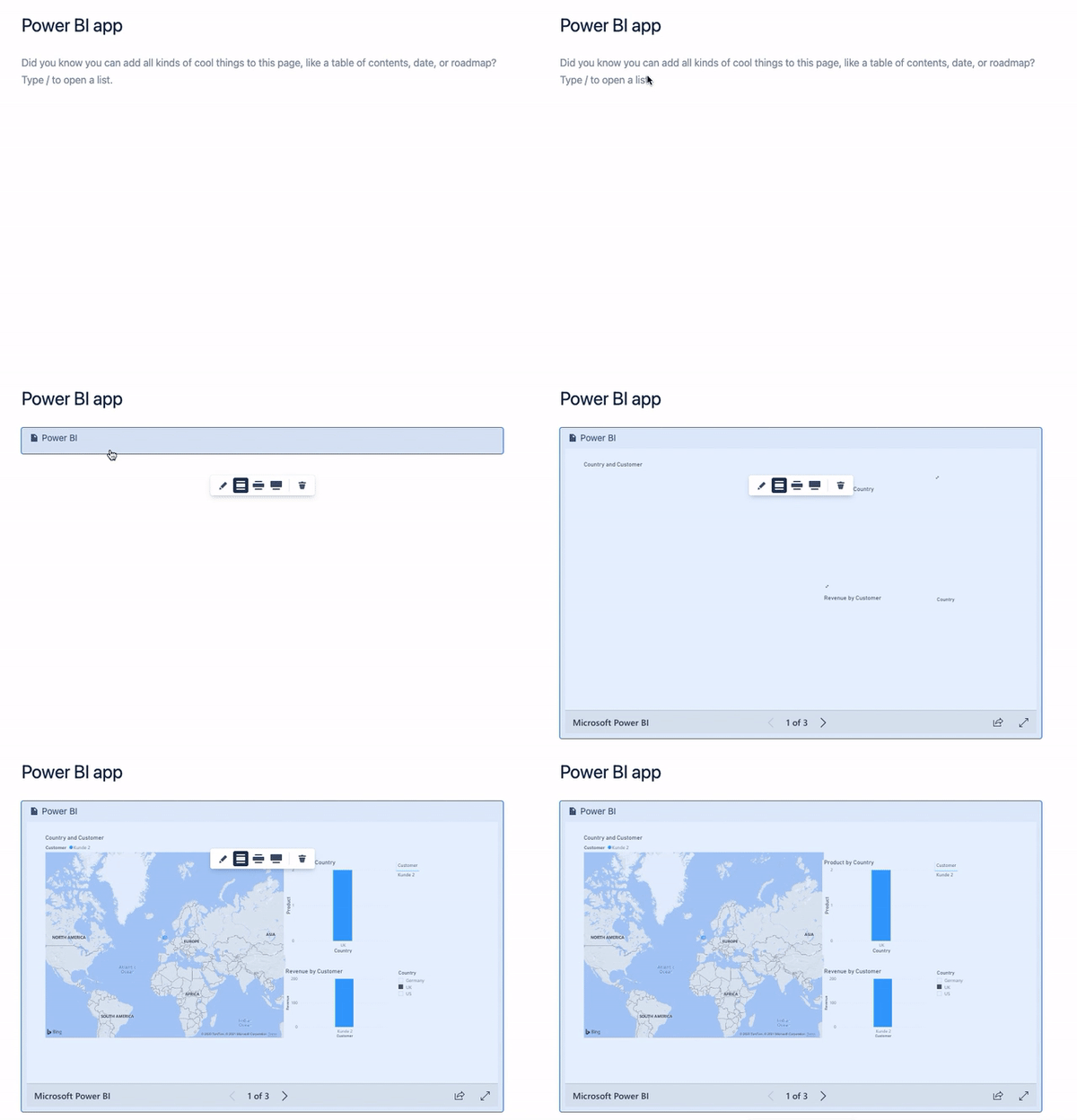
Return to your Confluence page, type /powerbi, and select the Microsoft Power BI Embed for Confluence macro.
Paste the copied URL or embed code into the Embed Report field, then select Save.
#Option 2: Use the secure embed code
Use this option when the report should only be visible to people who can sign in to Power BI and have permission to view it.
Open the report in Power BI, then go to File → Embed report → Website or portal.
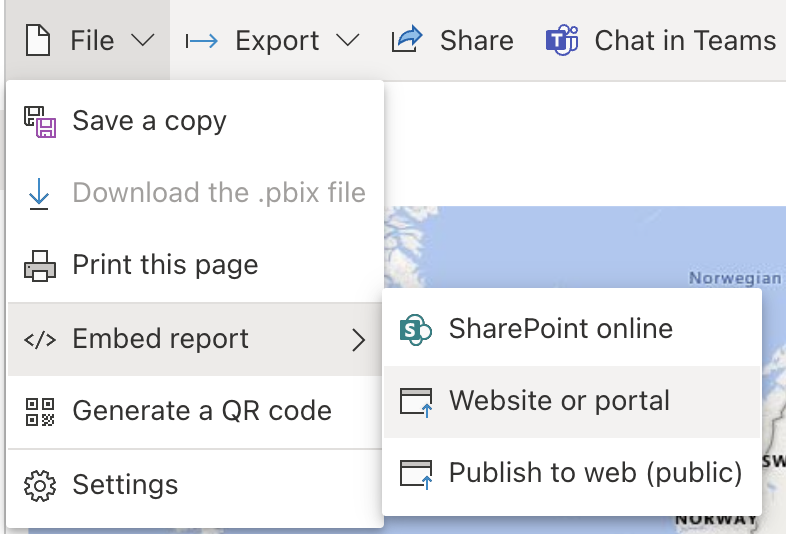
When the pop-up appears, copy either the secure link or the HTML embed code. Microsoft Power BI Embed for Confluence supports both options.
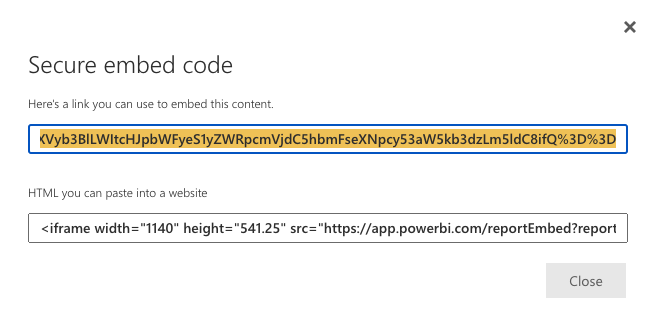
Back in Confluence, type /powerbi, open the macro, paste the copied secure link or embed code into the report field, and save it.
Your report is now embedded on the page.
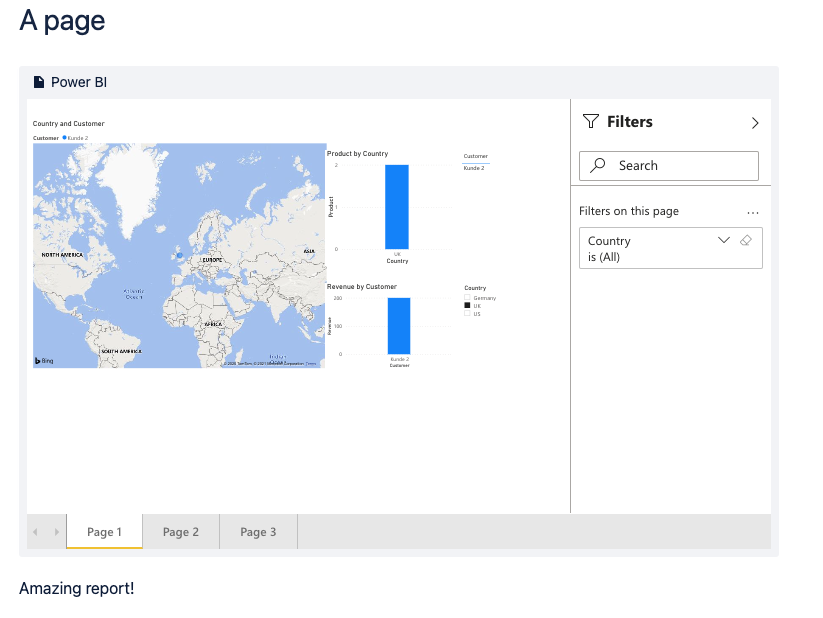
Viewers must be signed in to Microsoft Power BI and have the correct permissions to see reports shared with a secure URL or embed code.
#Option 3: Use the report ID
You can also embed a report by copying its report ID from the Power BI report URL.

Paste the report ID into the same field you would use for a report URL in the Power BI Embed for Confluence macro.
Your report is now embedded on the page.
Viewers must be signed in to Microsoft Power BI and have the correct permissions to see reports embedded using a report ID.
#Step 2: Embed the report in Confluence
After you have copied a public URL, secure link, embed code, or report ID, add it to Confluence using one of these methods.
#Method 1: Use the slash command
Type /powerbi on the page, then select Microsoft Power BI Embed for Confluence. Paste your URL, embed code, or report ID into the URL field and save it.
#Method 2: Paste the link as a Smart Link
Paste the Power BI link directly into the page. Confluence will load it automatically through the app.
#Method 3: Use the macro menu
Open the macro menu, select View more, search for Microsoft Power BI Embed for Confluence, and select the macro.
Paste your URL, embed code, or report ID into the URL field, then save it.
#Step 3: Adjust the embedded report
#Adjust the width
To change the width, select the embedded report while editing the Confluence page. Use the visual menu to choose a centred, wide, or full-width layout. You can also set a custom width in the macro pop-up for better report visibility.
#Adjust the height
The default height is 450 pixels, which works well for most screens. To change it, select the embedded report, open the edit controls, and update the height field in the macro pop-up.
Width and height settings can only be changed while editing the Confluence page.
You do not need to be the report creator to adjust the height or width of an embedded report.