.png)
Org Chart for monday.com Home
Org Chart for monday.com transforms monday.com into a highly effective organisational management system that is specifically designed to help you manage your employees efficiently.
This feature allows you to utilise the standard monday boards to comprehensively store detailed information about your employees. Furthermore, it enables you to visualise this information on an interactive canvas, which supports intuitive drag and drop functionality for easy organisation and management.
You can show information on a visual canvas, with top-to-bottom and left-to-right modes:
Employee name
Job title
Manager (Reporting to)
Start and end date
Avatar
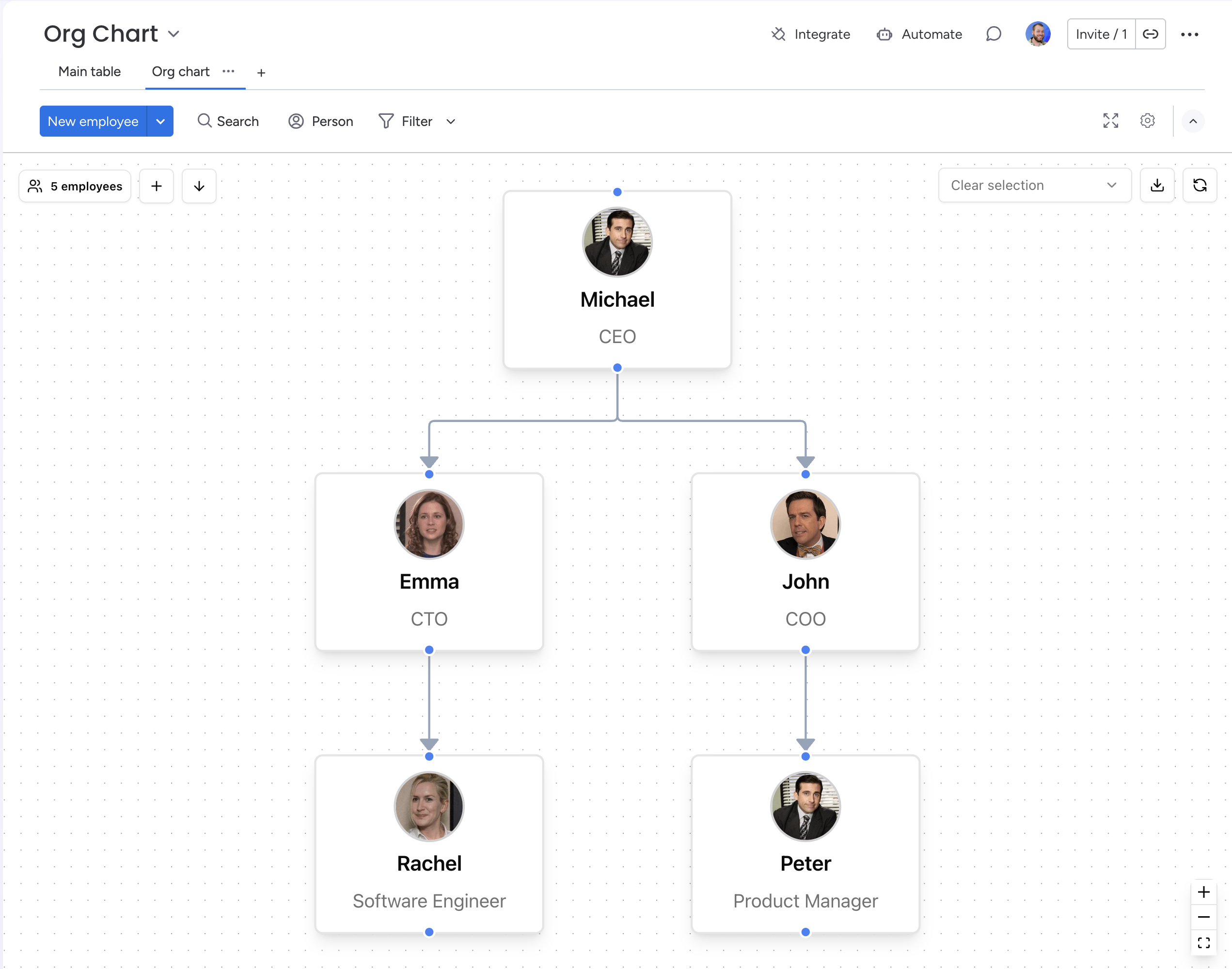
Visual representation of your organisation
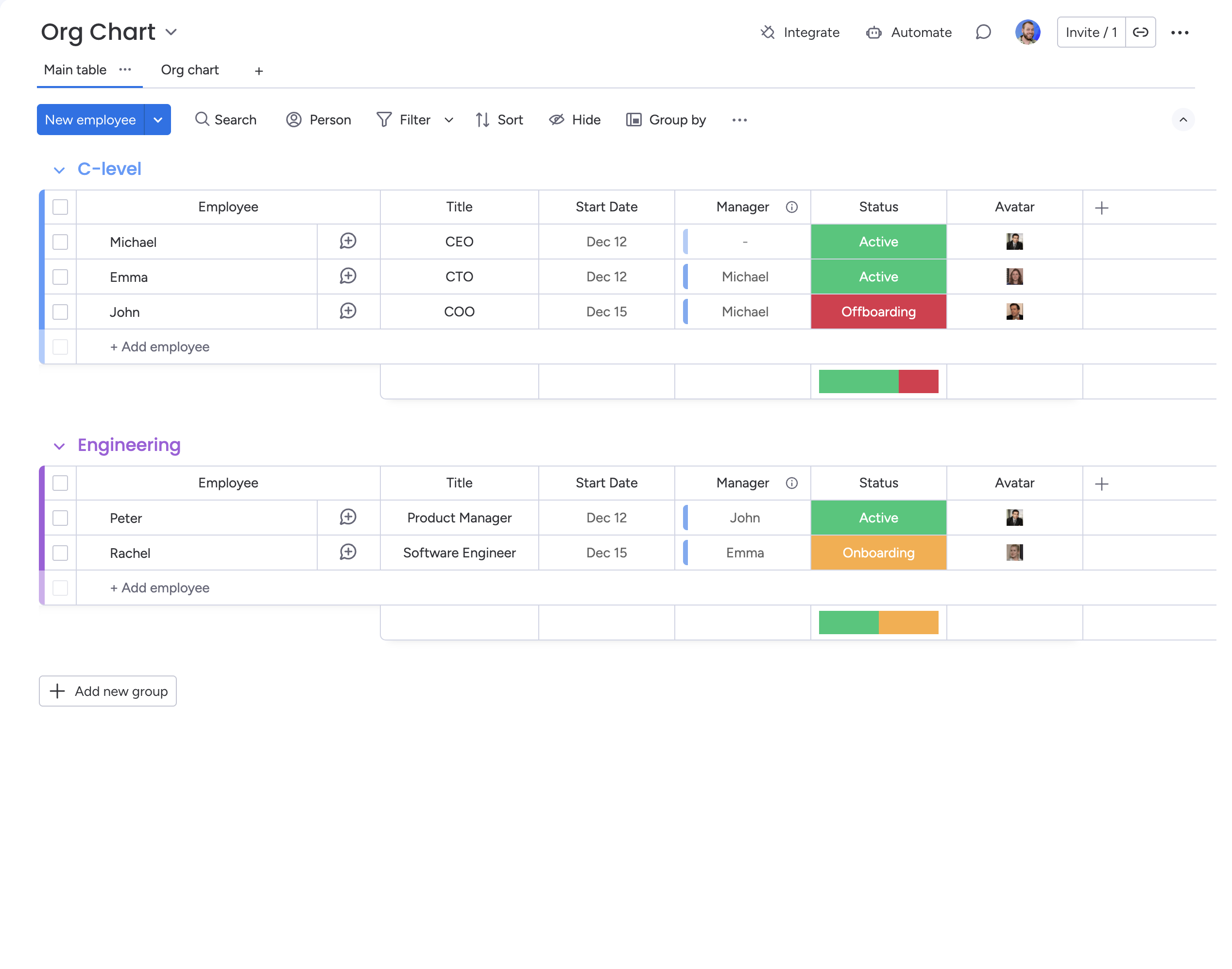
Standard monday.com board with required and optional columns
Set up guide
Org Chart for monday.com supports a variety of different columns that can be used to provide more information on employees. If you set up the app and use the built-in workspace template, you’ll automatically have these set up for you.
Columns
If you want to configure the board manually, the following names can be used:
Column | Type | Purpose |
|---|---|---|
Name | Text | The name of the employee goes in the the item name. |
Title | Text | The job role or title that the employee holds. |
Manager | Connect Board | The employee’s manager, linked to this item. |
Avatar | File | A photo of the employee, if available. |
Start Date | Date | Start date of the employee. |
End Date | Date | End date (if applicable) of the employee. |
Here is a screenshot showing these fields set up:
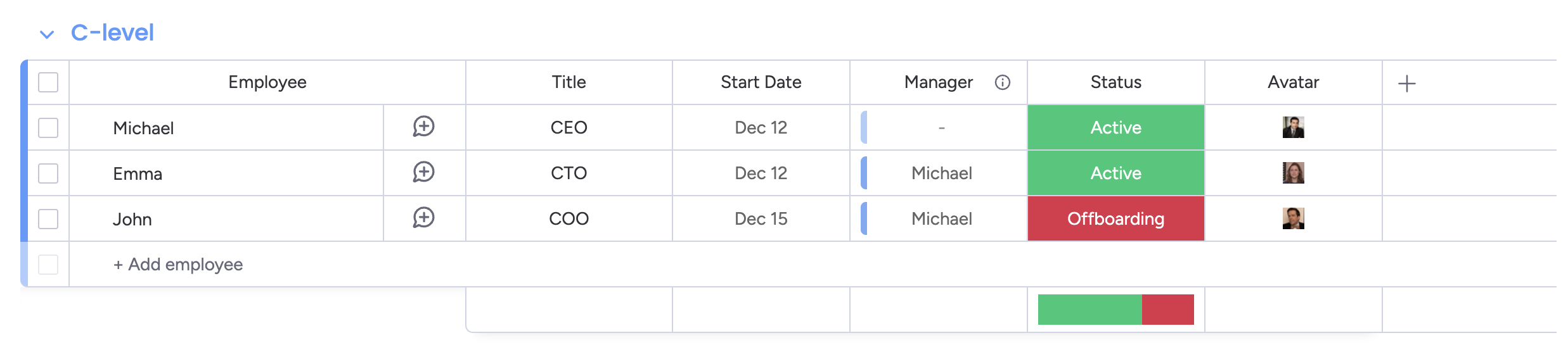
Setting up the Manager column
Most of the columns are straightforward to add - you just create the column with the relevant type and it will just work! The manager column requires a little more setup:
Create a ‘Connect Board’ column
Link it to the same board
Do not create a mirror column
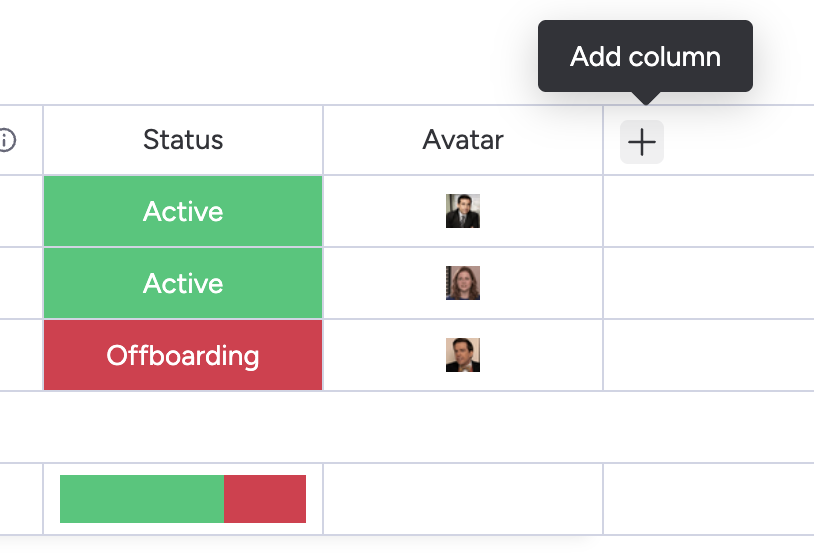
Click on ‘Add column’ button
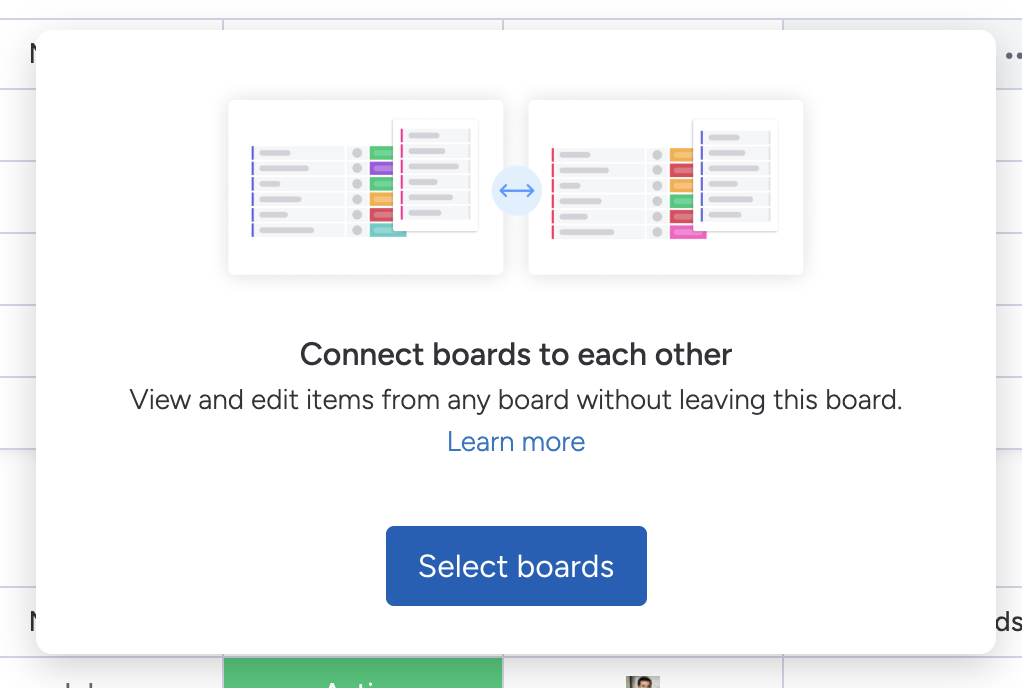
Connect the board to itself,
Adding the board view
The board view is the visualization of your organisation and can be added to any monday board.
Adding the board view can be done from the '+' icon in the tab bar at the top:
Click on '+' in the board tab list
Click on Apps → Org chart
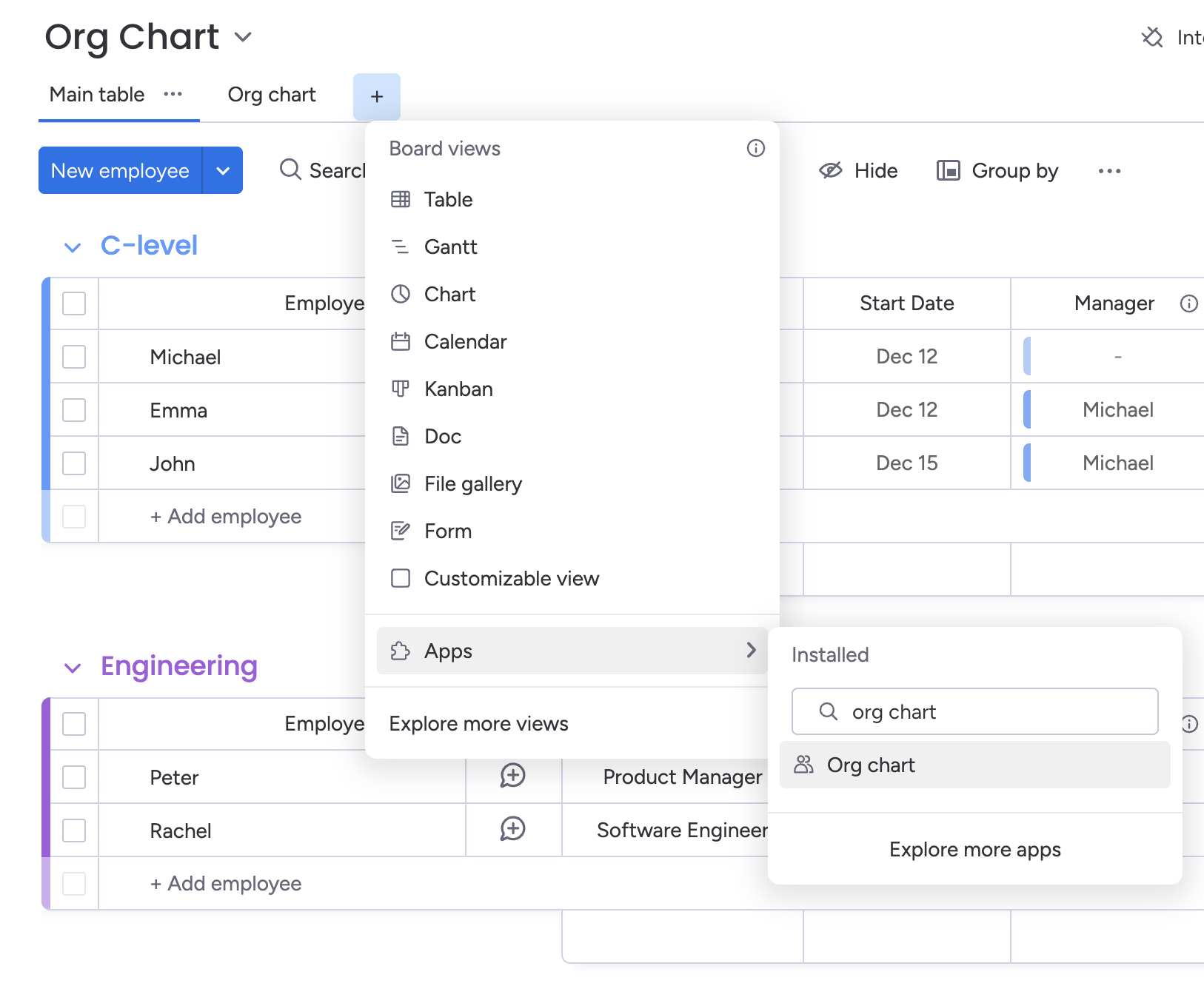
Adding the item view
You can add a panel showing information about the employee when they are clicked on in the table view.
You can do this from the '+' icon in the item panel:
Open an item panel by clicking on the maximize button on it
Click on the '+' in the tab bar of the item panel
Click Explore more views
Select ‘Org chart’

Click on ‘Explore more views’
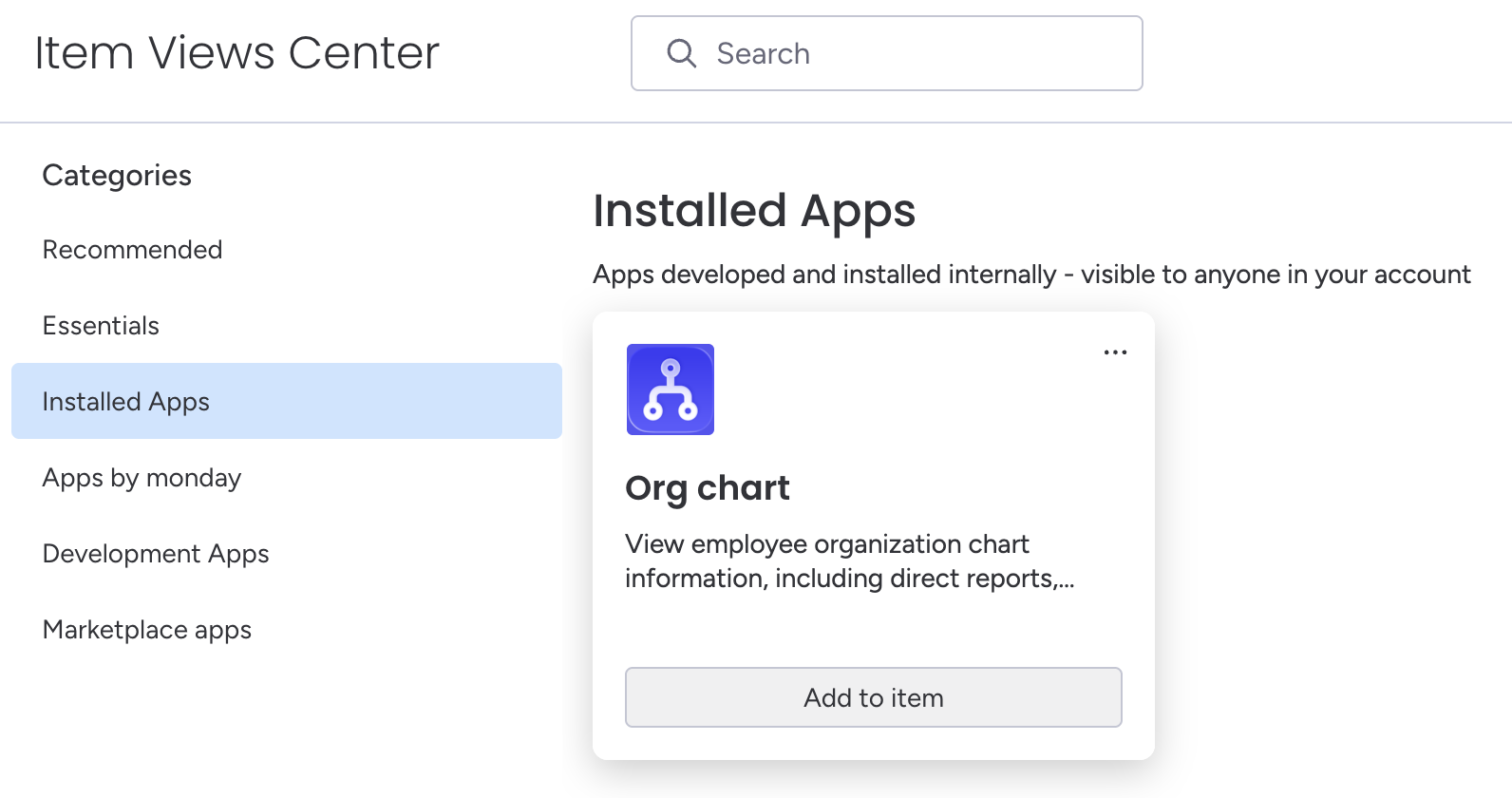
Add ‘Org chart’ to the item