.png)
Macro Automation Rules

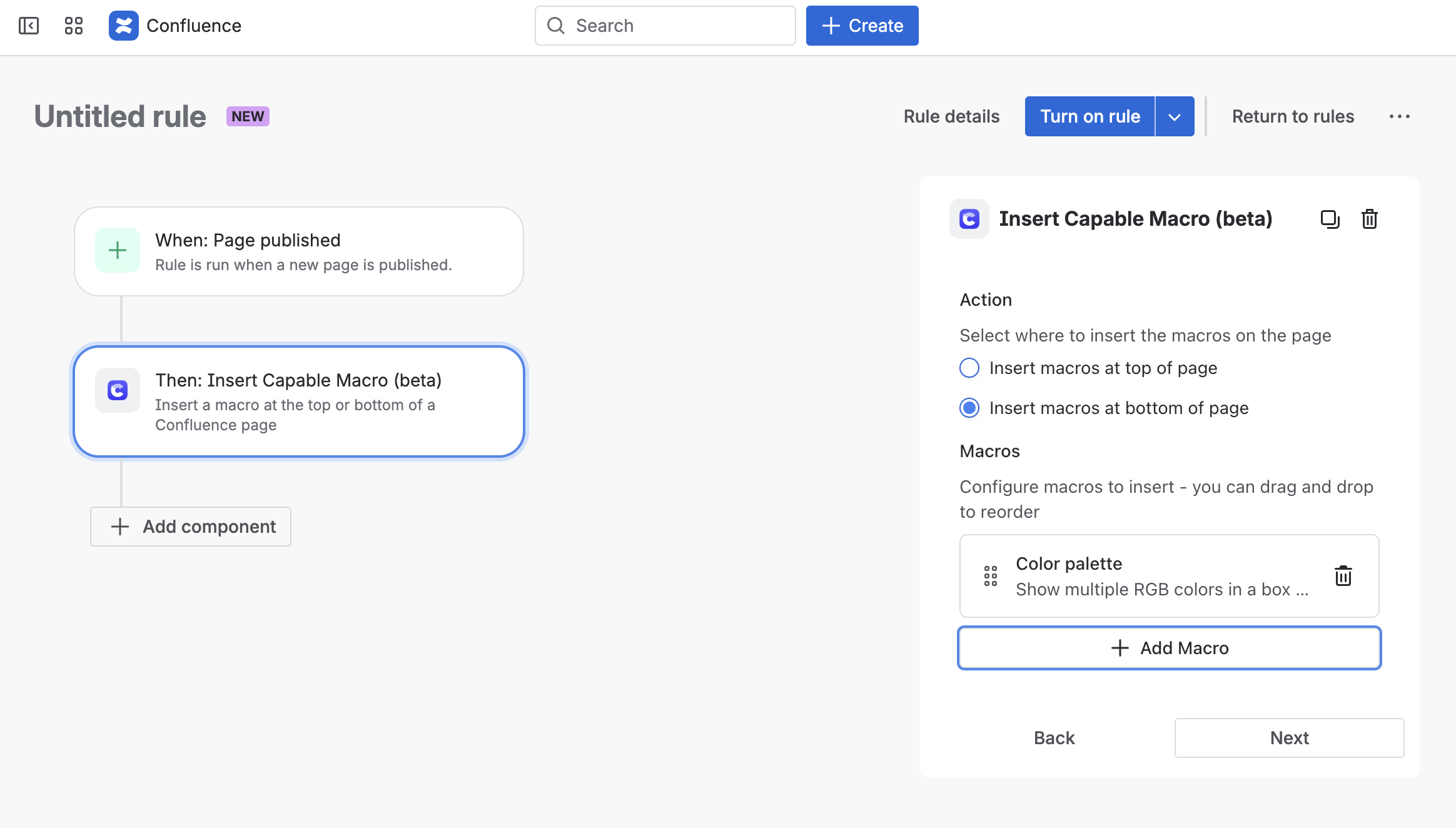
With Capable, you can integrate with Confluence’s ‘Automation’ feature to insert macros in an automated way, using advanced rules like pages being created, labels added etc.
This guide will walk you through how to utilize this feature for macro insertion. Capable Approval allows you to create automation rules that enhance your workflow in Confluence. By setting specific conditions, you can automate the insertion of macros based on page labels and status changes.
Key Features
Automatic Macro Insertion: When a new page is created with designated labels, specific macros can be automatically inserted.
Dynamic Macro Assignment: Adding a label to a page can trigger a macro insertion, and changes in page status can also lead to automatic macro assignments.
Examples
Add a Banner or Approval Status to the top of new pages
Add the Word count, Link summary or Link graph macro at the bottom of new pages
Add a macro when a specific label is added to a page
Guide
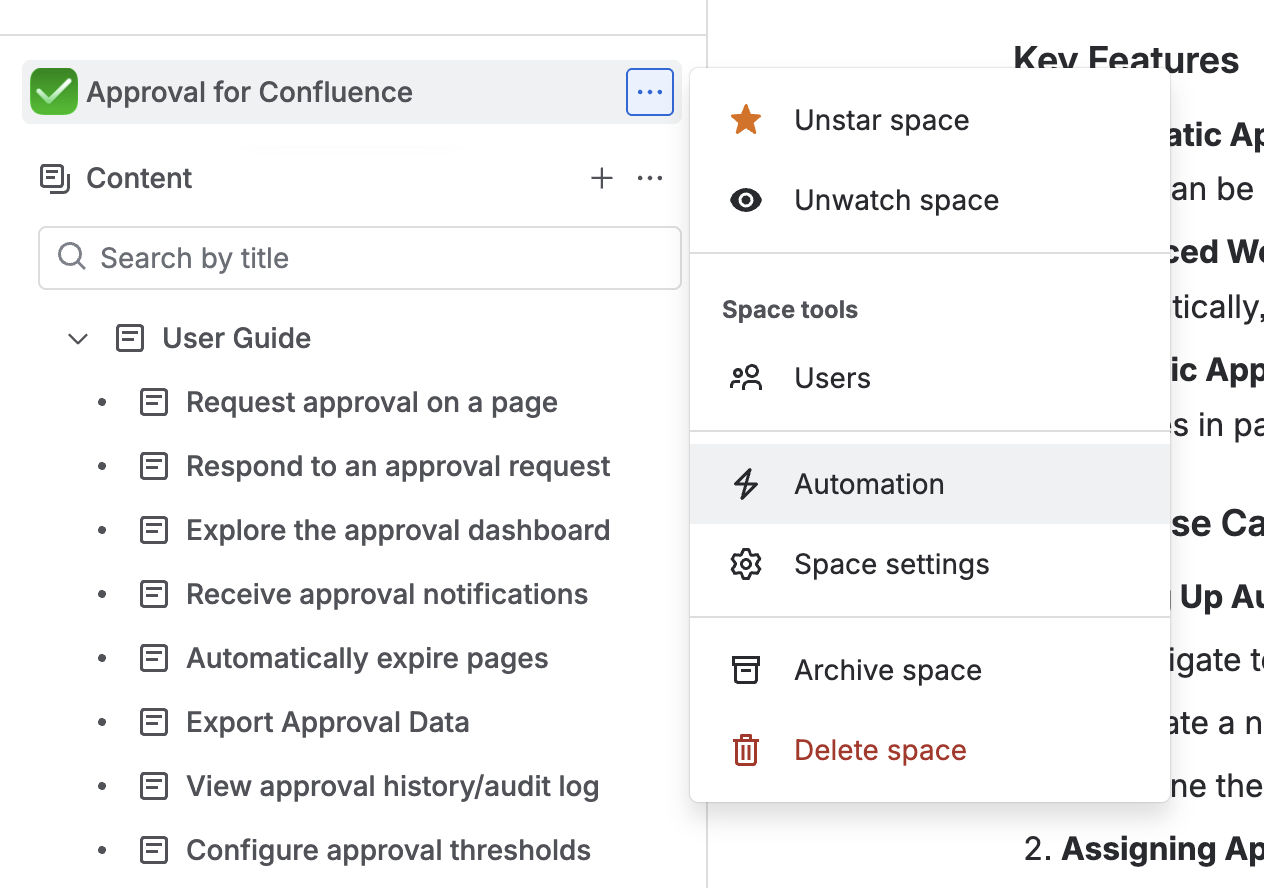
1. Navigate to the Automation feature in Confluence.
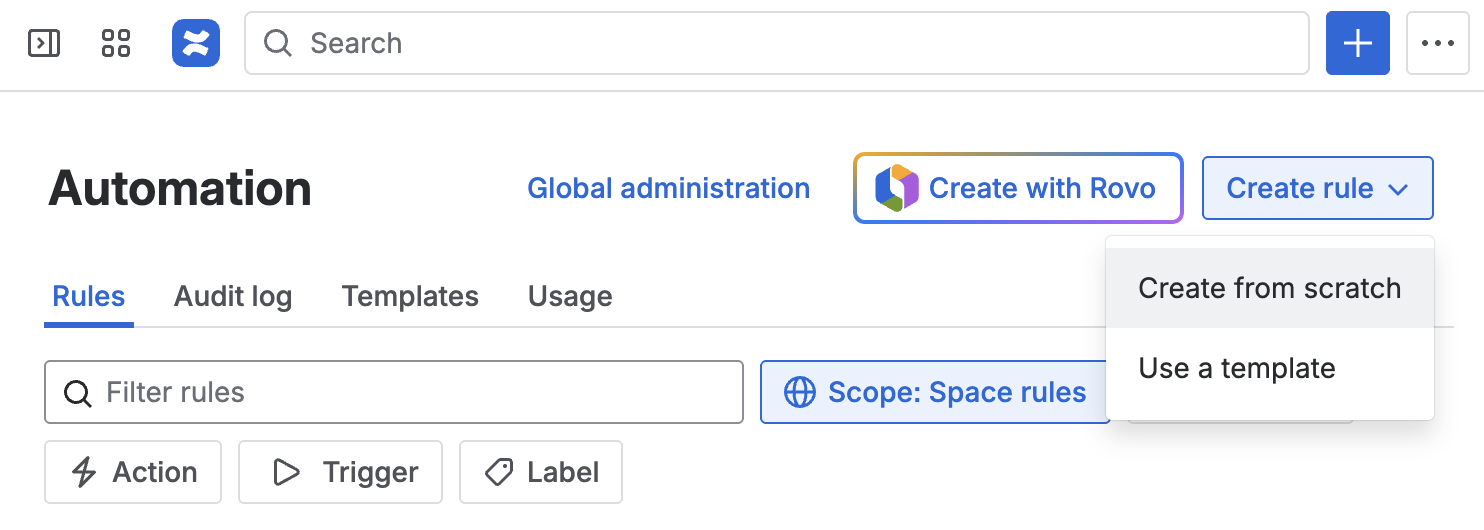
2. Create a new Confluence automation rule.
3. Choose the trigger that will cause the macro to be inserted.
The following are tested:
Page published (can also include conditions like labels)
Page labelled (this only applies after publishing)
Manual trigger from page
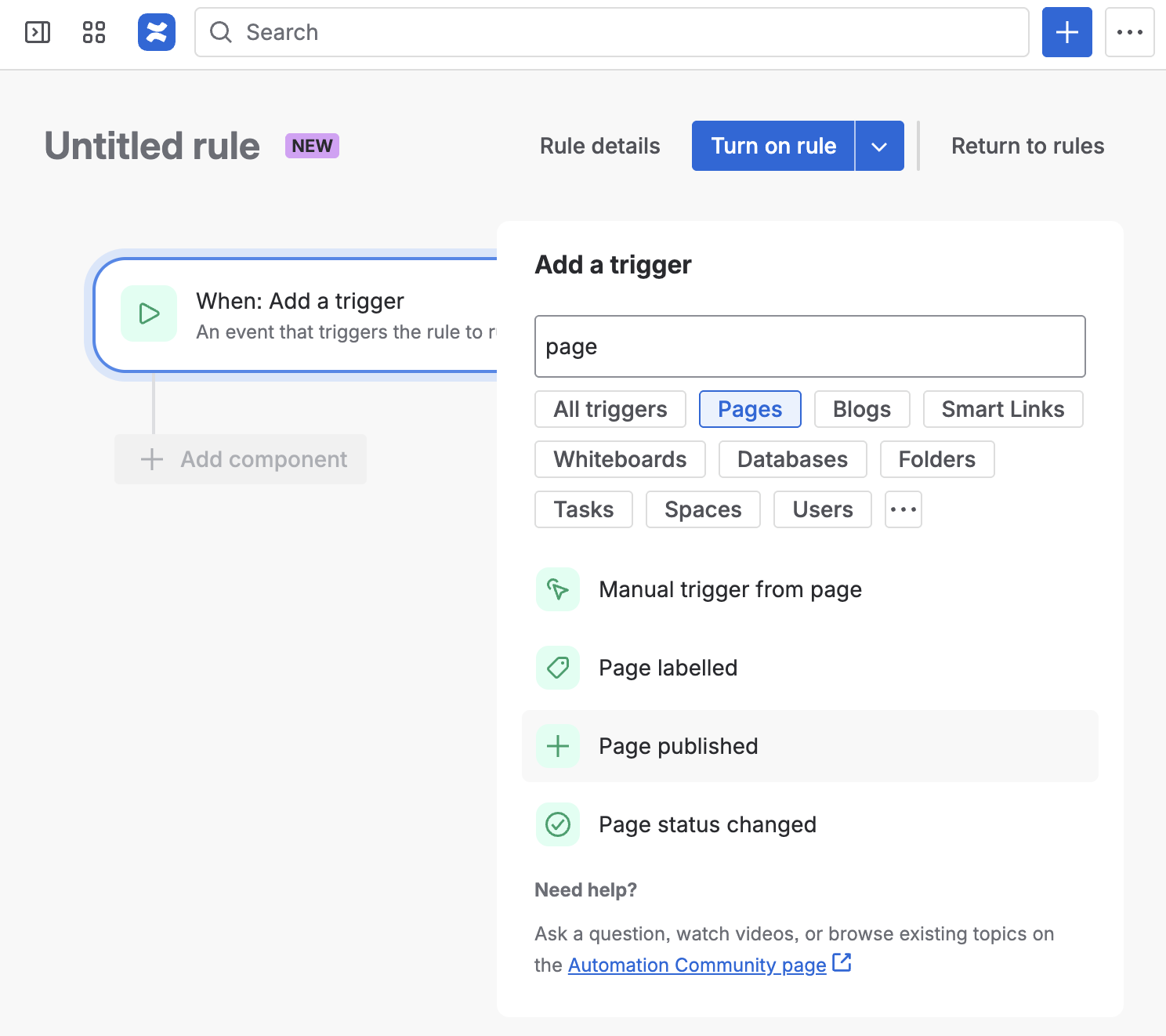
4. Add the ‘Insert Macro’ action.
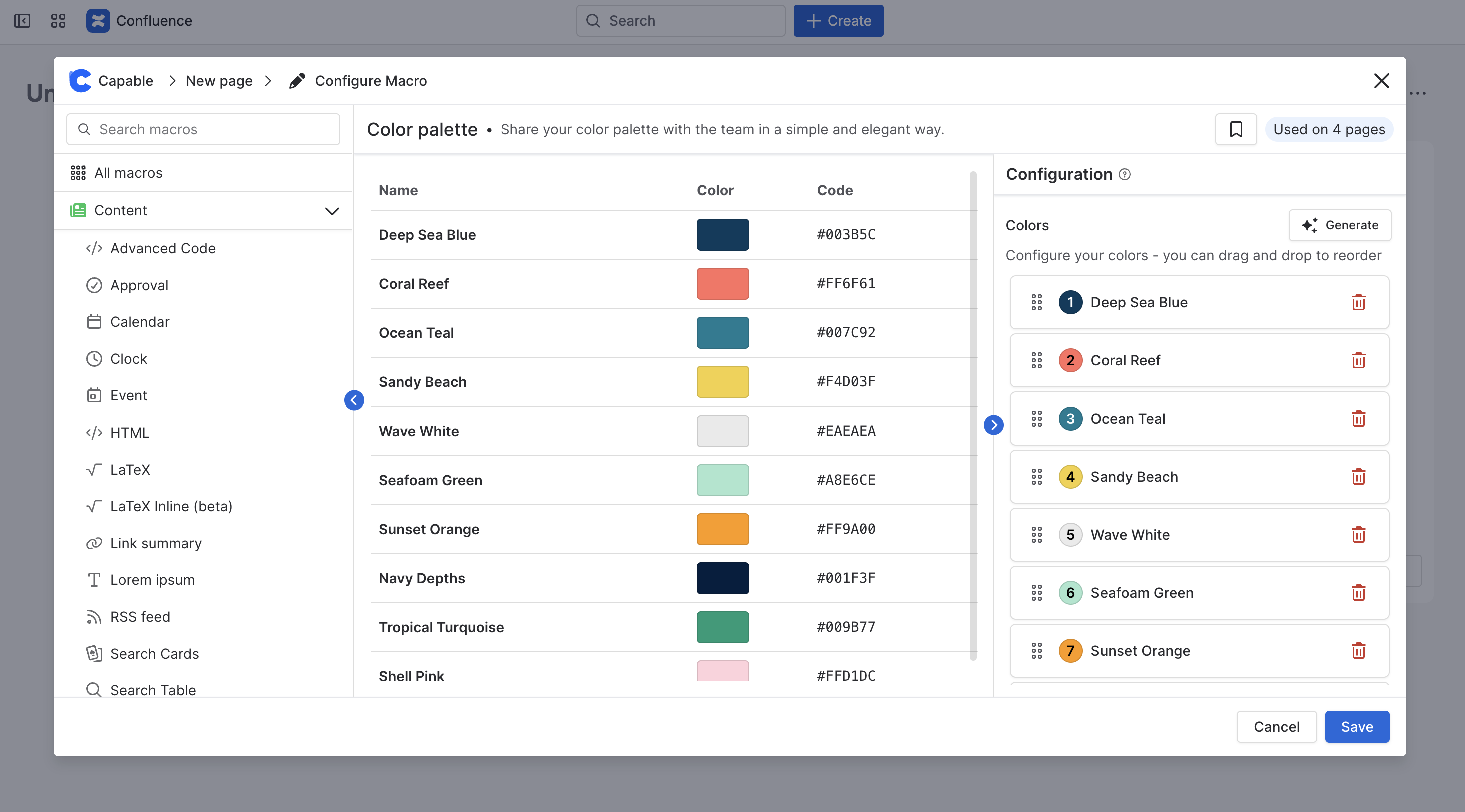
Select which macro should be added to the page and configure any additional options.